The Voyages workspace in IMOS X lets you quickly view and navigate through your voyages, track their current status, and see how the voyage's results are trending.
Voyage List
Voyages are sorted by Recently Updated by default, but you can choose to sort by Commence Date. Use the top filter bar to refine the Voyage List.

Voyages Map
From the Voyages List view, select the folded map icon in the upper right to view the Voyages Map.

Overview
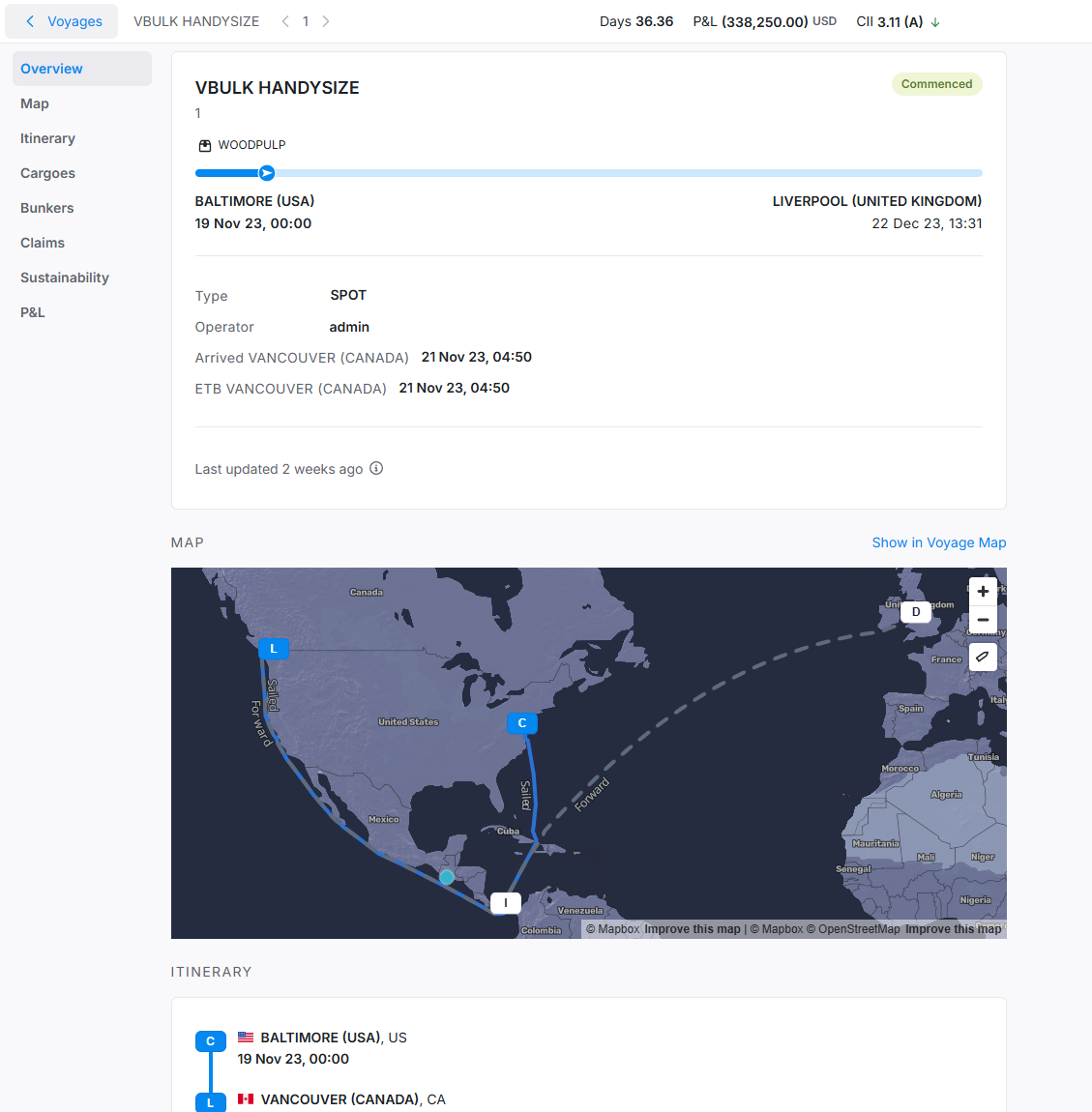
Select a voyage to see the full itinerary. The Overview section describes the voyage from the first to the last port. The itinerary shows the vessel’s current location and upcoming ports.
Itinerary
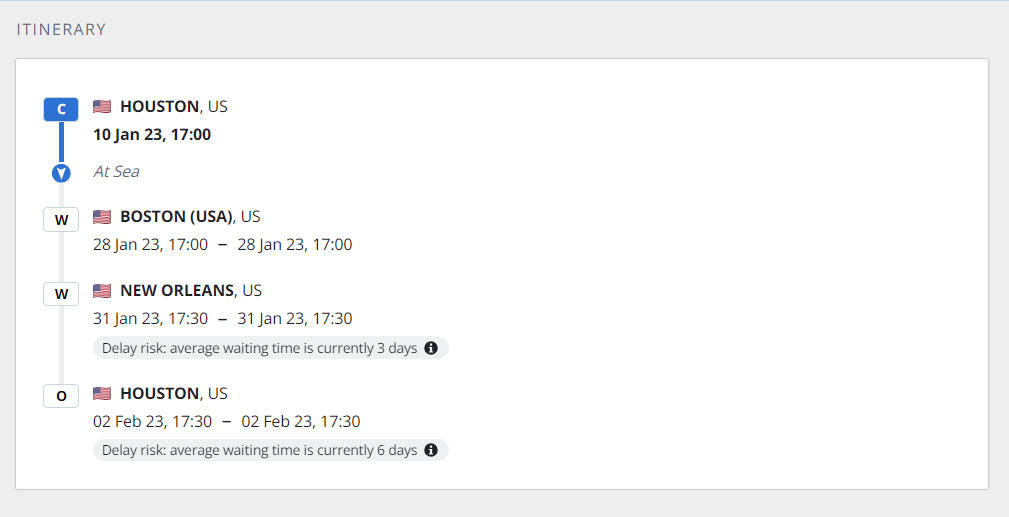
The progress bar reflects the progress made on the itinerary as determined by the Arrival Notices, Departure Notices, and/or Noon Reports, as well as the total voyage days.
Voyage KPIs
For TCOV, OVOV, TCTO, or OVTO voyages, you can view the following KPIs at the top of the page: Days, TCE, P&L, and CII KPIs.

For VCOV, SPOT, or RELT voyages, you can view the following KPIs at the top of the page: Days, P&L, and CII KPIs.
Days KPIs
Select the Days KPI to show additional metrics pulled from the voyage, including Ballast Days, Laden Days, Idle Days, Port Days, Gross Days, Off Hire Days, and Net Days.

TCE KPIs
Select the TCE KPI to show additional metrics pulled from the voyage, including Total Freight Revenue, Total Demurrage Revenue, Total Misc. Revenue, Total Port Expenses, Total Bunker Expenses, Total Misc. Expenses, Voyage Result (total P&L), and Net Days.

P&L KPIs
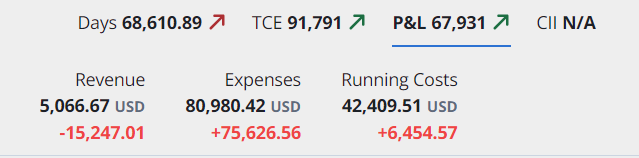
Select the P&L KPI to show additional metrics pulled from the voyage.
-
You can view the following metrics for TCOV, OVOV, TCTO, and OVTO-type voyages: Total Revenue, Total Expenses, and Running Costs.
-
For VCOV or RELT-type voyages, you can view the following metrics: Total Freight Revenue, Total VC In Freight Expense, Total Demurrage Revenue, Total VC In Demurrage Expense, Total Misc. Revenue and Total Misc. Expense.
-
For SPOT-type voyages, you can view the following metrics: Total VC In Freight Expense, Total VC In Demurrage Expense, Total Misc. Revenue and Total Misc. Expense.
CII KPIs
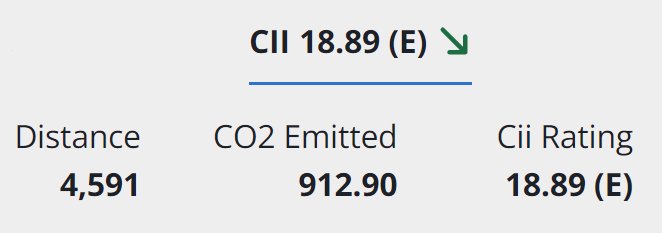
Select CII to view the voyage's Distance, CO2 Emitted, and CII rating.
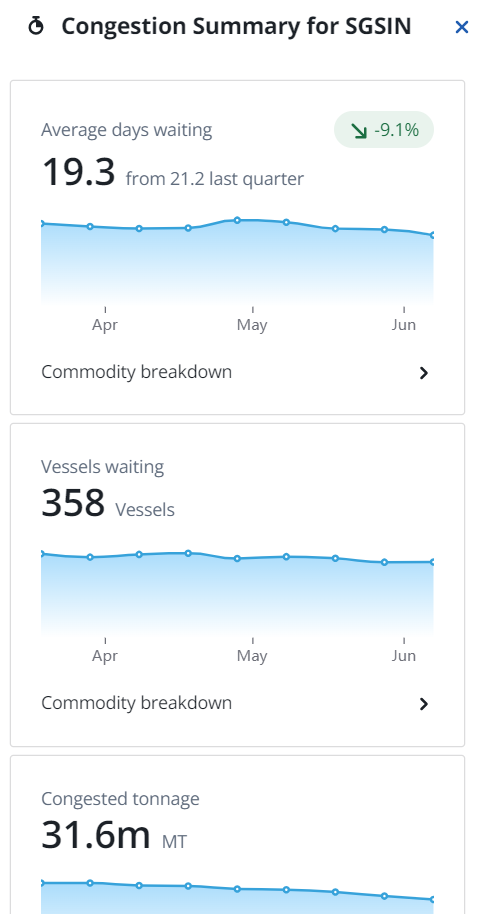
Port Congestion
Select the info button
Cargoes
If the voyage has cargoes, the Cargoes section shows the cargo on the voyage.
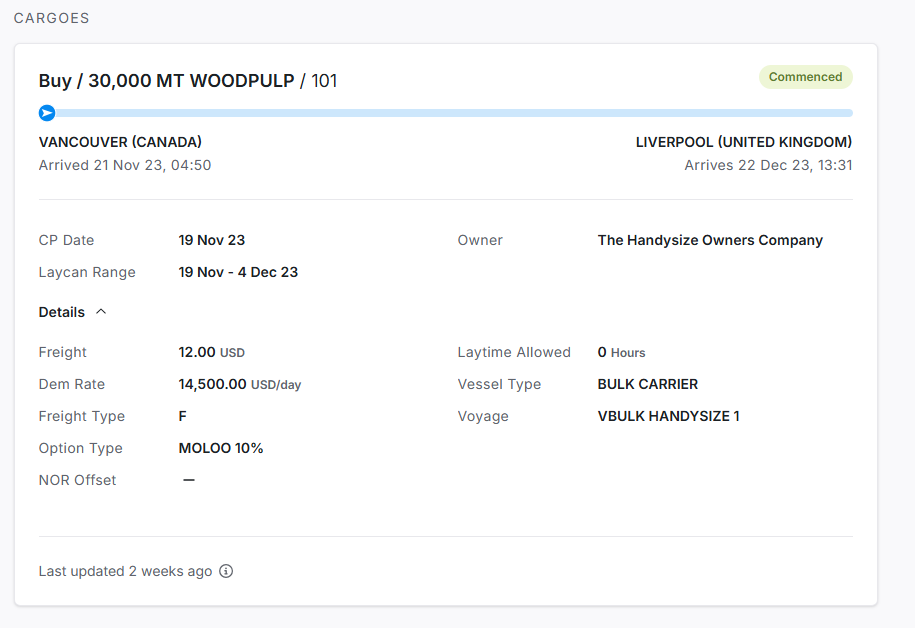
Each Cargo card contains the following information:
-
Cargo Name
-
CP Qty
-
Status
-
Cargo ID
-
Counterparty
-
Laycan Range
-
Load Port
-
Actual or Estimated arrival time at the port
-
Warnings if the vessel’s scheduled arrival is outside of the laycan window
-
-
Discharge Port
-
Actual or Estimated arrival time at the port
-
-
Progress Bar: specific to when the cargo is loaded on board the vessel; shows the progress of that specific cargo from when it is first loaded to when it will be discharged
Bunkers
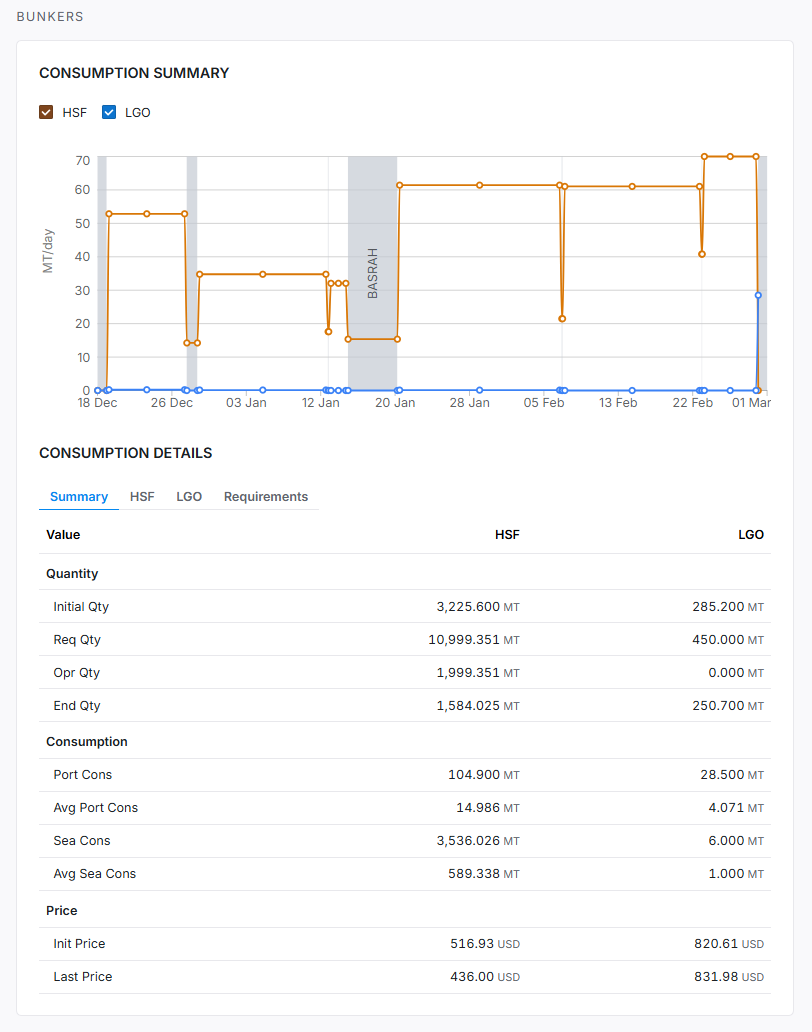
You can view the following bunker information for TCOV, OVOV, TCTO, and OVTO voyages:
-
A consumption summary graph showing the actualized and/or estimated consumption of the vessel over the length of the voyage for each fuel type
-
Average Price of each fuel type
-
Total consumption quantity per fuel type
-
Stem quantity per fuel type
Sustainability
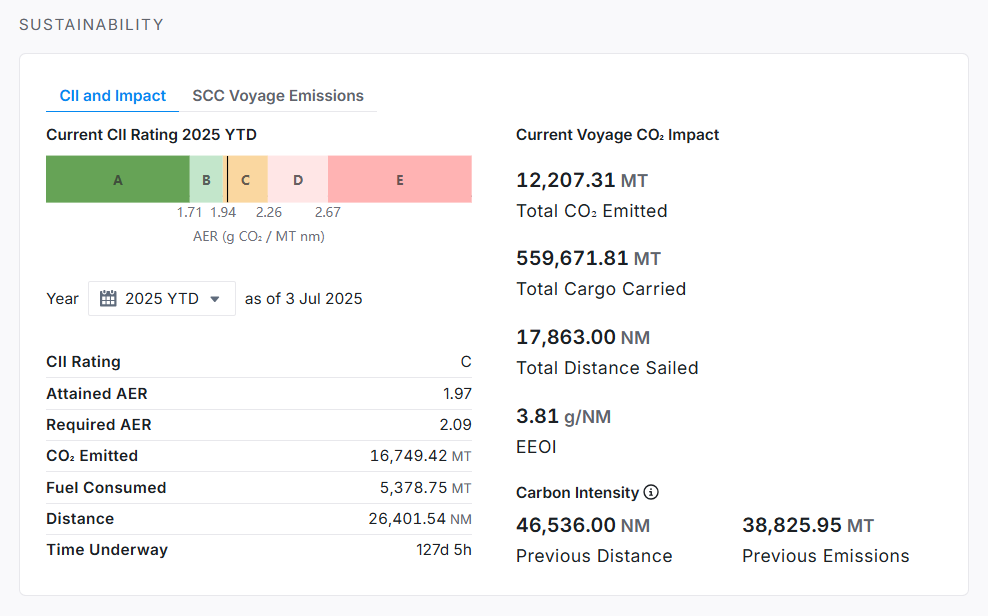
In the Sustainability section, you can assess voyage emissions, including fuel consumption for each leg of the voyage.
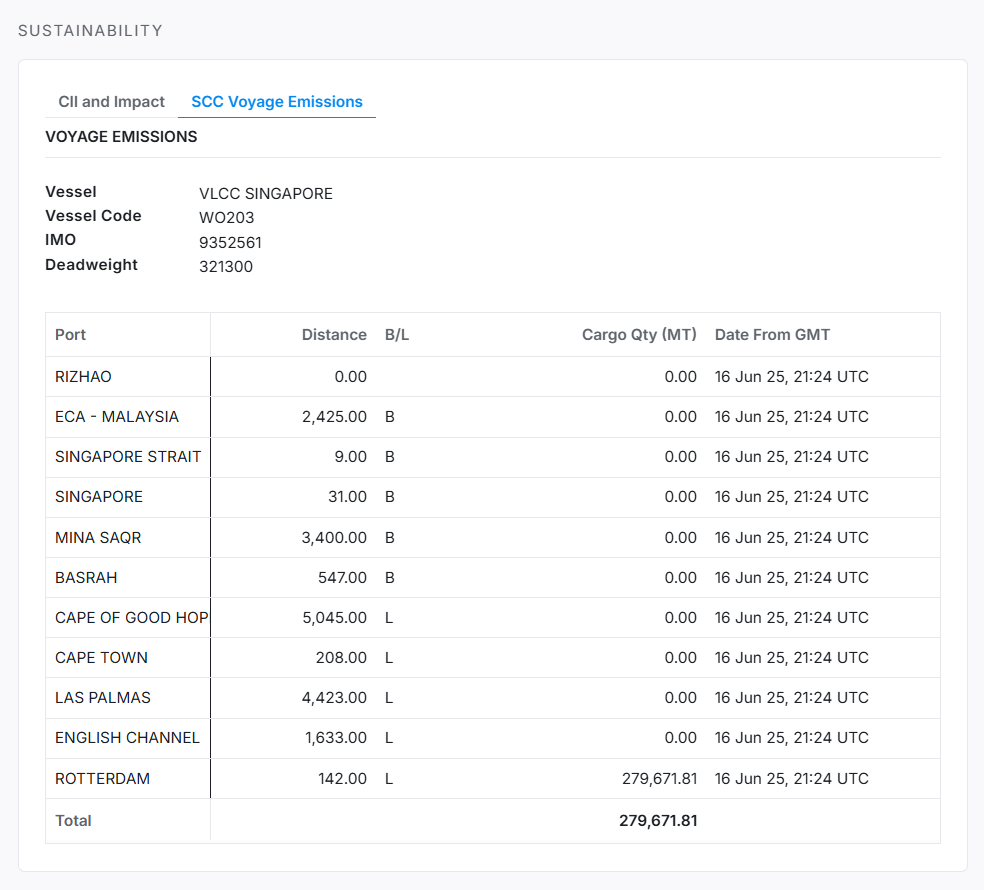
If you are using the IMOS X SCC Emissions workflow, you will see the SCC Voyage Emissions subsection within the Sustainability card, which shows the emissions report table and data.
P&L
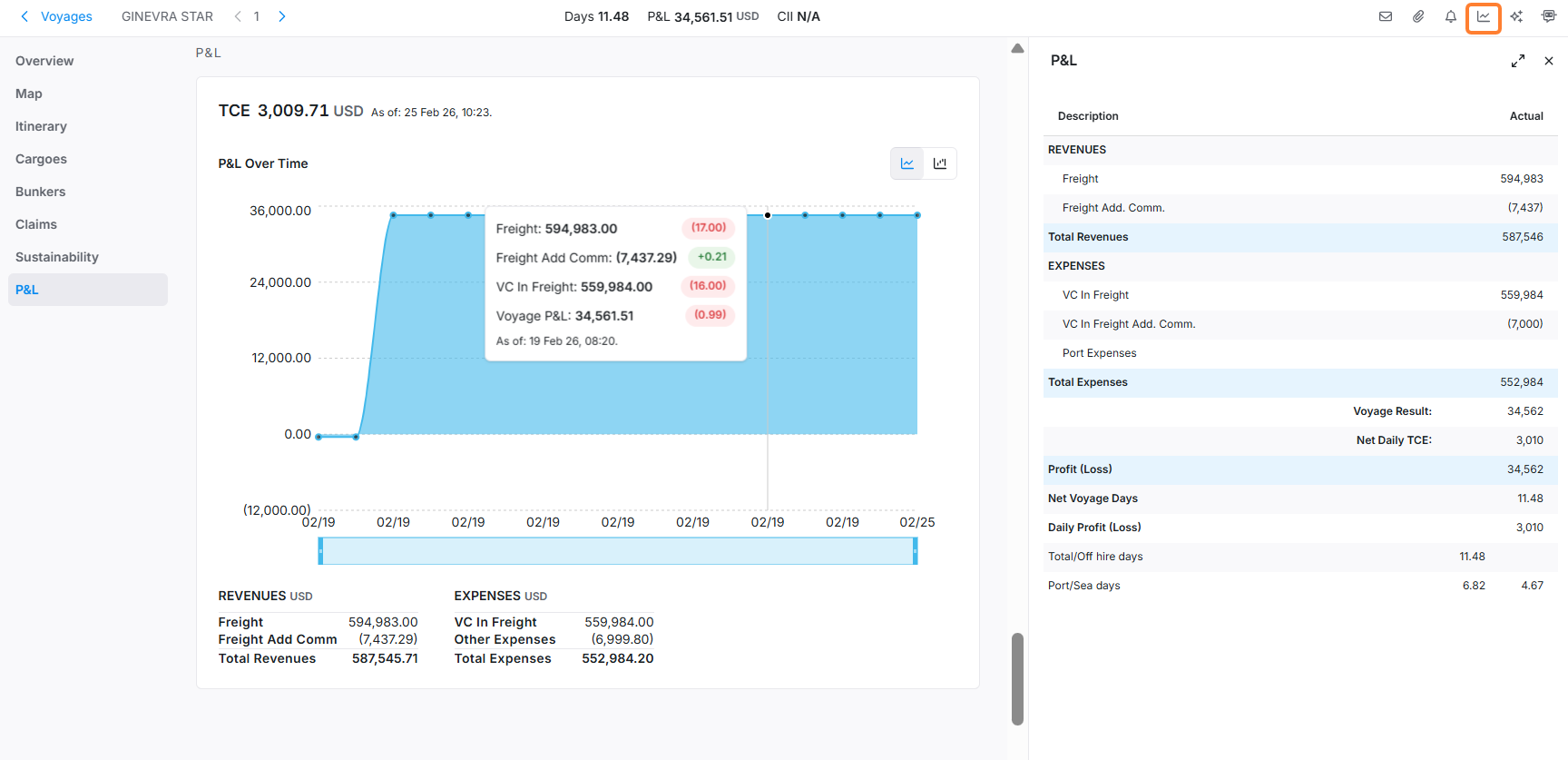
In the P&L, you can access streamlined Profit and Loss information for financial monitoring. The P&L icon in the upper-right opens a panel giving you a more detailed look at revenues and expenses, while the P&L section shows you a graph of TCE over time.
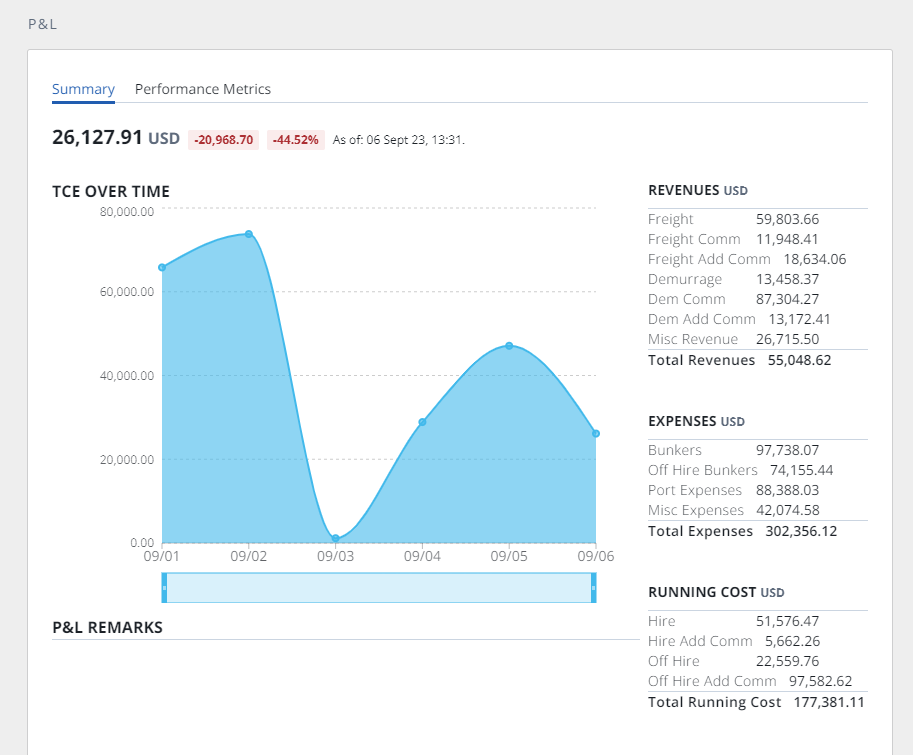
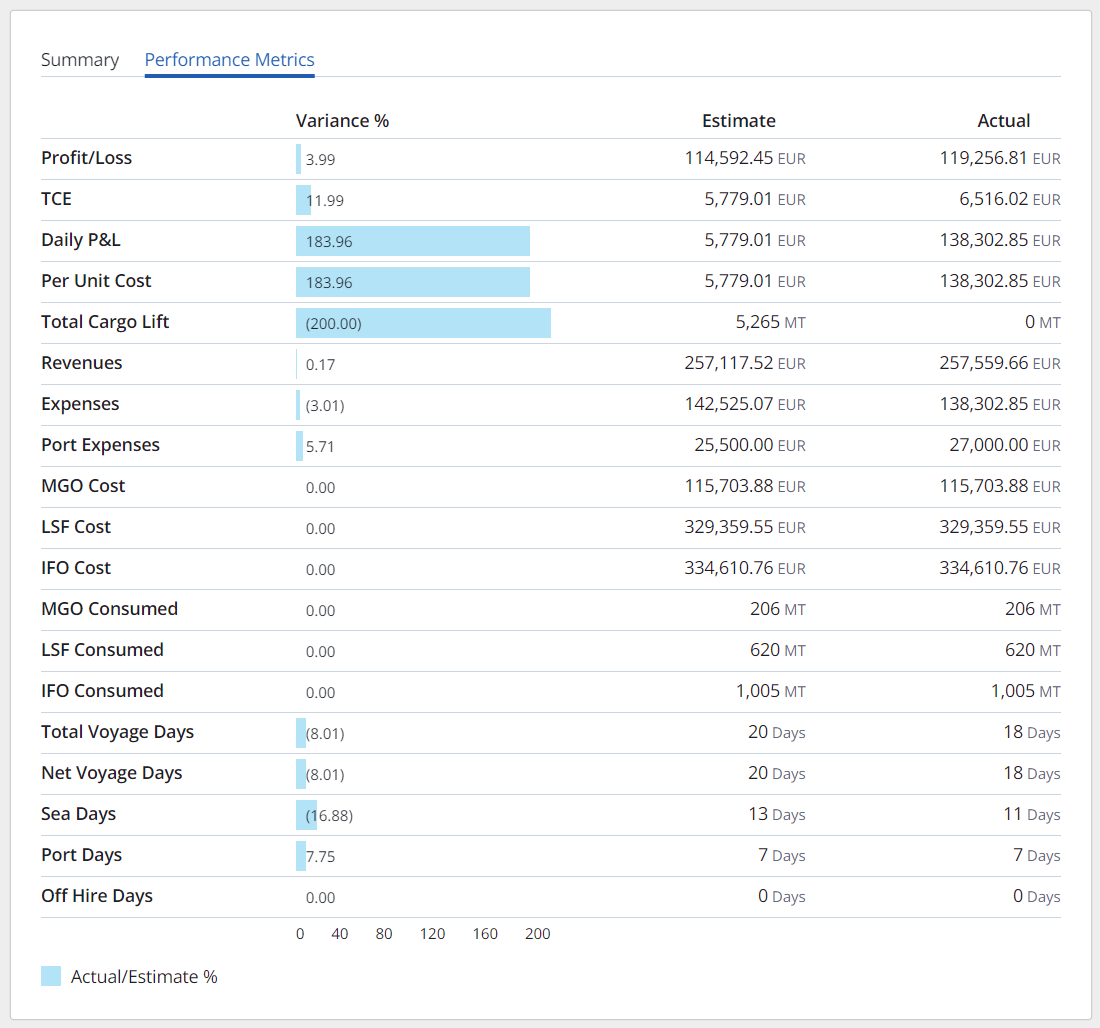
Select the Performance Metrics tab for more specific P&L categories.
-
Choose a specific timeframe using the date slider.

Other fields include:
-
P&L Remarks
-
Revenues: Freight, Demurrage, and Total Revenues
-
Expenses: Bunkers, Port Expenses, and Total Expenses
-
Running Costs: Hire, Total Running Costs
-
Performance Metrics: includes more granular P&L Categories
-
Profit/Loss, Daily P&L, Per Unit Cost, Total Cargo Lift, Revenues, Expenses, VC In Freight, VC In Demurrage, Fuel Cost (for each fuel type), Fuel Consumption Qty (for each fuel type), Total Voyage Days, Net Voyage Days, Sea Days, Port Days, Off Hire Days
-
The percentage variance between the estimate and actual amounts for each category, with a scale bar showing the percentage variance scale relative to the other categories
-
Estimated value for each category
-
Actual value for each category
-
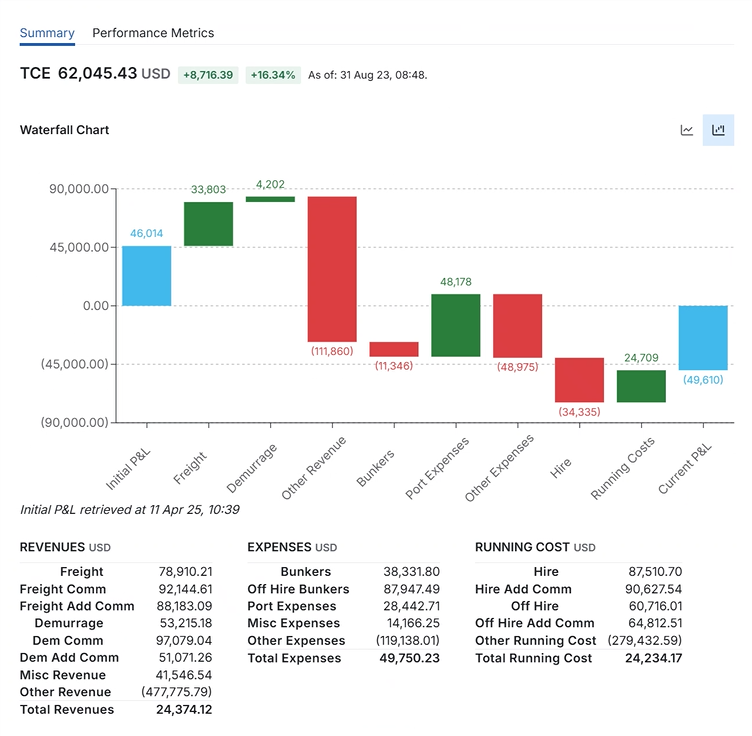
Select the waterfall chart button in the upper right to see the factors driving changes between the initial and current P&L.
Note: The initial P&L is the first voyage history there is a snapshot of, if the voyage is still scheduled. If the voyage is non-scheduled (e.g., it has commenced now), the system uses the first non-scheduled voyage snapshot we have a history of.
Related forms
Quickly access forms related to this voyage by selecting the envelope icon to view forms related to this voyage.

Attachments
You can open and add/remove attachments for the voyage by selecting the paperclip icon in the upper right of the Voyage Details view.

Tasks & Alerts
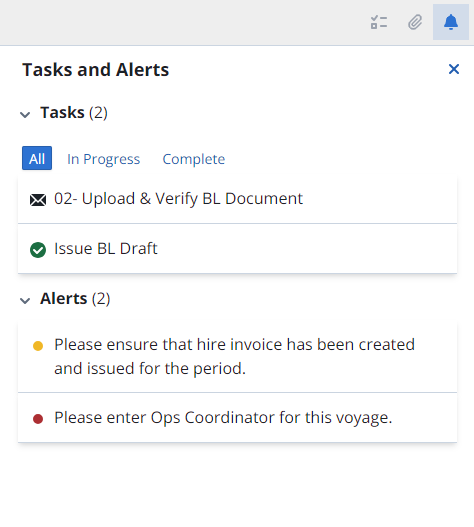
To view Tasks & Alerts for a voyage, select the bell icon.