
You can now integrate your organisation’s SharePoint directory with Shipfix making it easier to attach and save email files directly from your cloud storage.
Note: Enable this feature organization-wide or for select users by contacting your Customer Success representative or Account Manager
How to Use SharePoint Integration
Attaching Files from SharePoint
When composing an email in Shipfix:
-
Click the Attach button in your draft email
-
Select the Attach from SharePoint from the dropdown menu
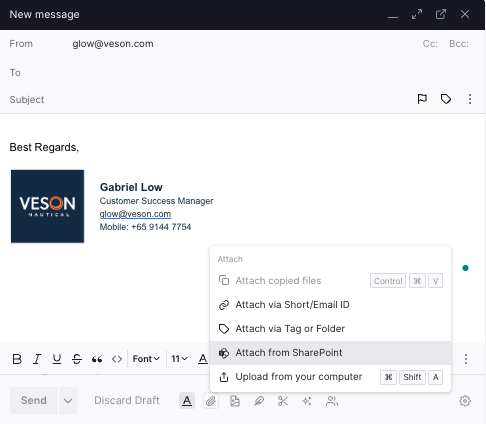
-
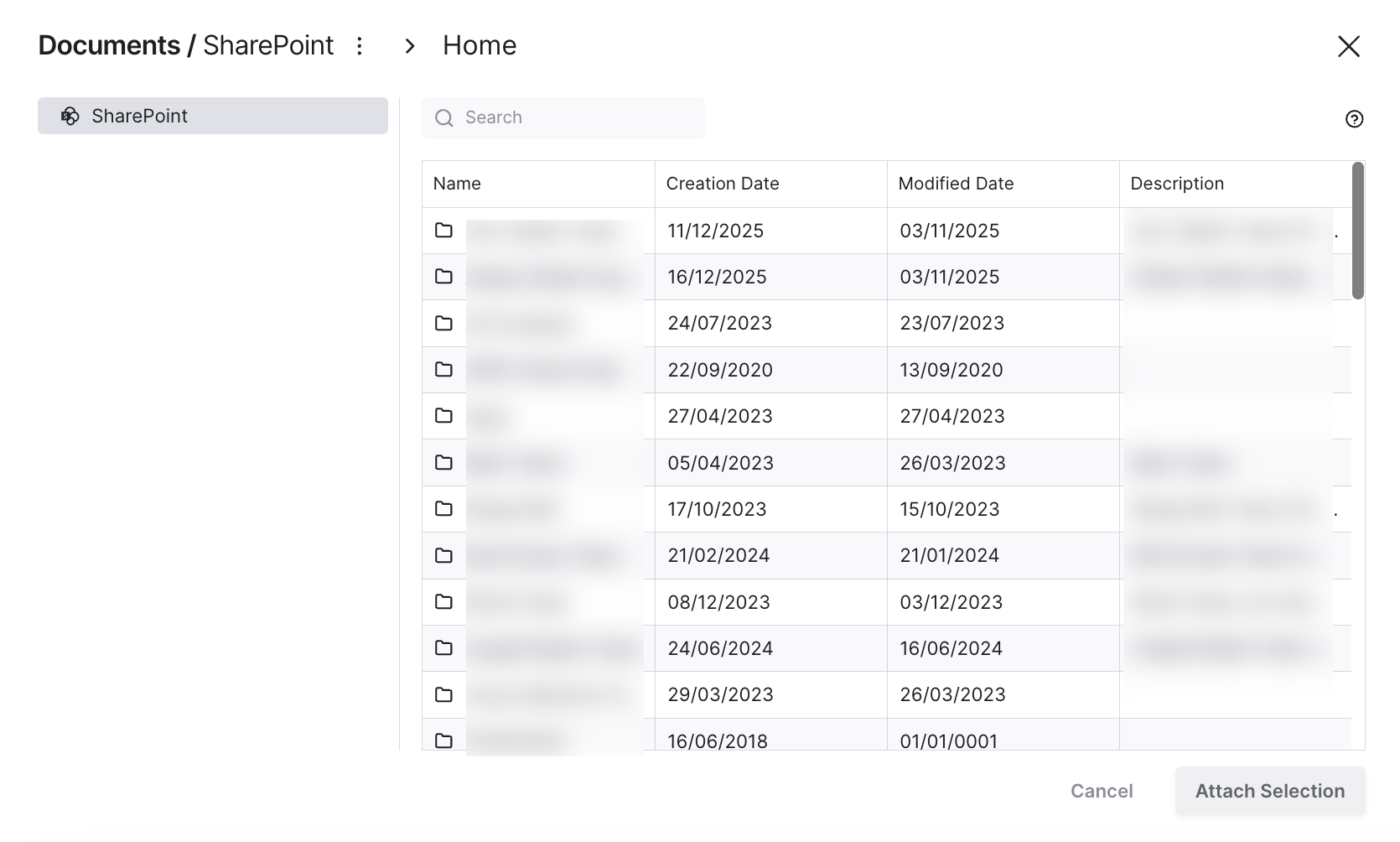
The Document Manager will open where you can browse your SharePoint folders and select the file you want to attach.
Saving Email Attachments to SharePoint
When you receive an email with attachments:
-
Click the attachment options menu
-
Select Save to SharePoint
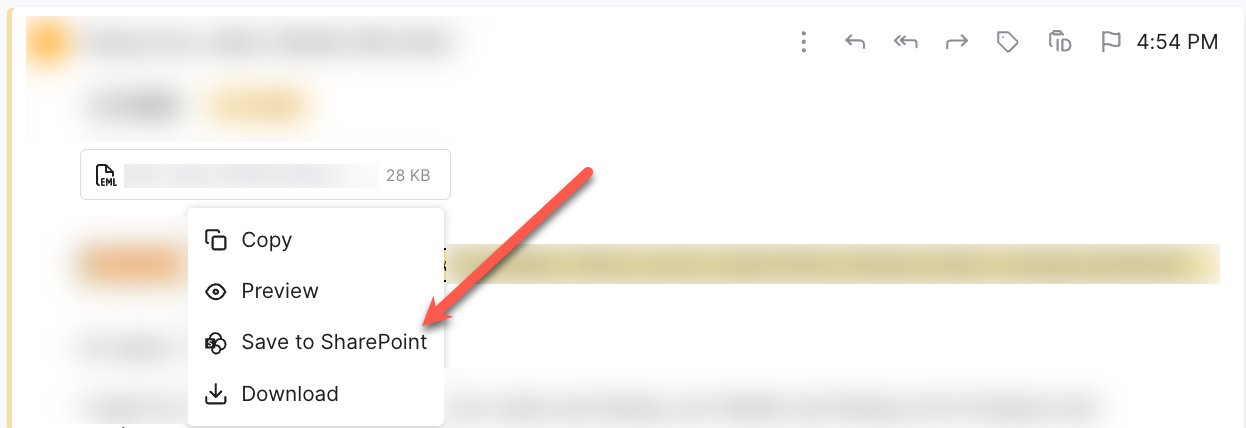
-
Choose the destination folder in your SharePoint directory
-
Click Save
First-Time Setup
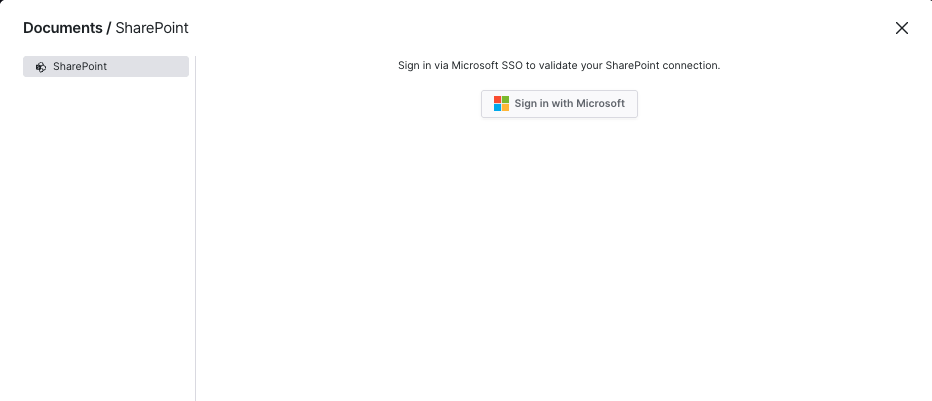
The first time you use either feature, you'll need to authenticate your SharePoint connection:
-
Click Sign in with Microsoft when the Document Manager appears
-
Enter your Microsoft credentials
-
Once authenticated, you'll have full access to your SharePoint folders and files
Once you have signed in to your account, the Document Manager displays your SharePoint files with the following information:
-
File/folder names
-
Creation dates
-
Last modified dates
-
Descriptions