Add orders from external sources to your Order List
Orders received from external sources, other than those received in your emails, for example, an order received over a call or text message can be easily added to your order list.
There are 2 ways in which to do this:
1. Add icon
-
Click on the Add icon

-
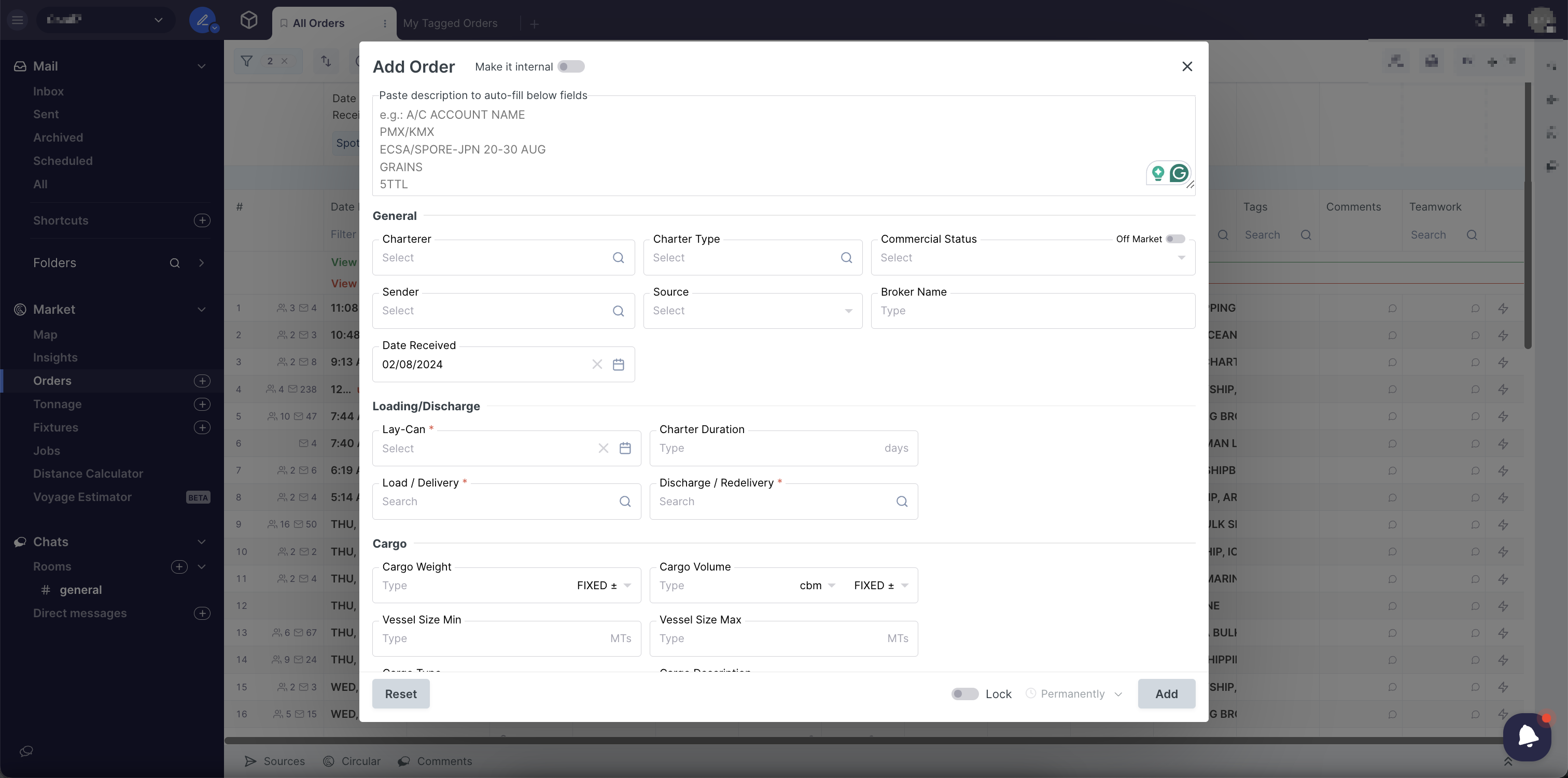
Type in or perform a copy-paste of your received order into the text box.
-
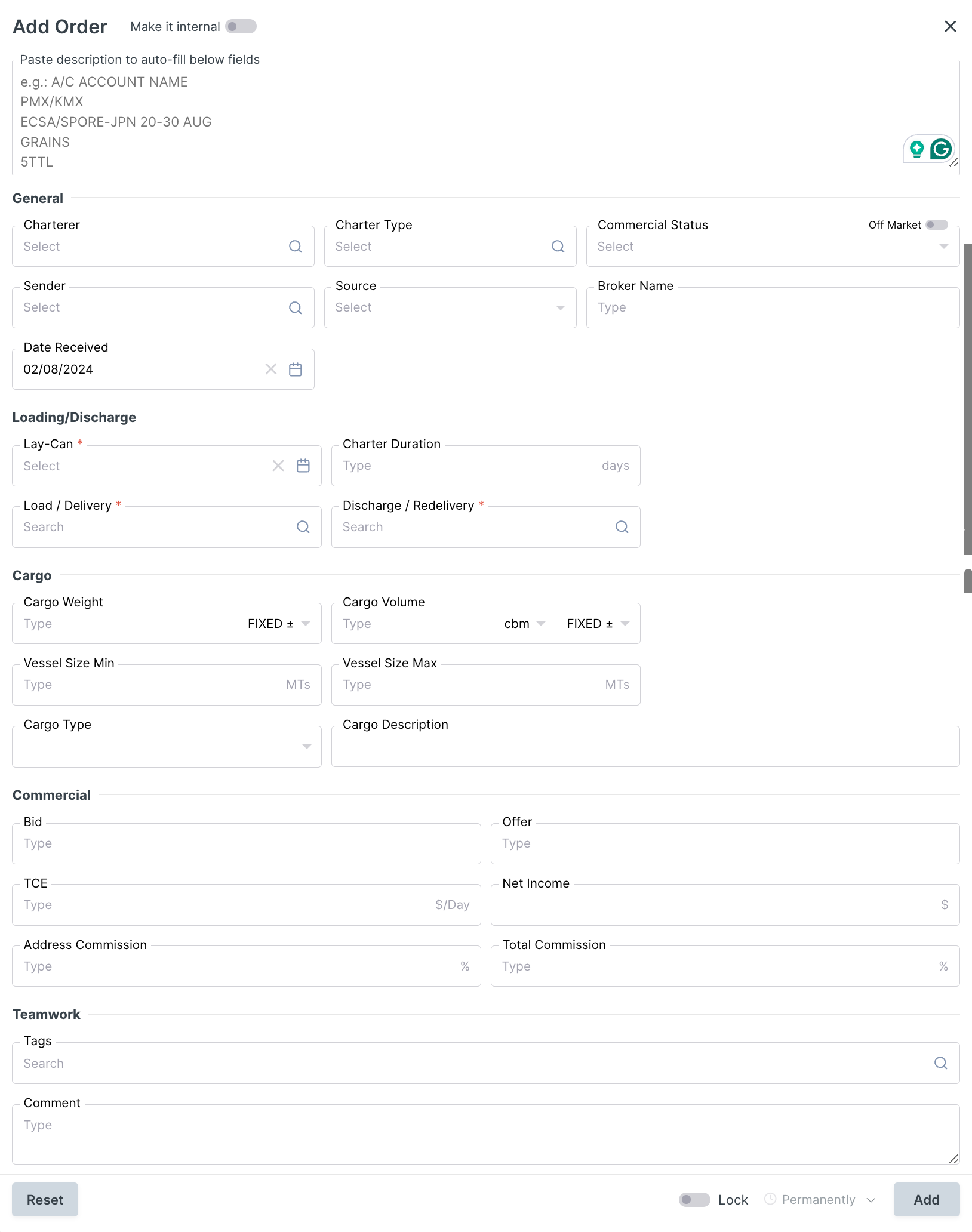
The details of the Order will automatically be filled into the fields at the bottom section.
-
Correct any of the filled information straight from within the fields if necessary.
-
Click on the Add button bottom right corner to add the order to your list.
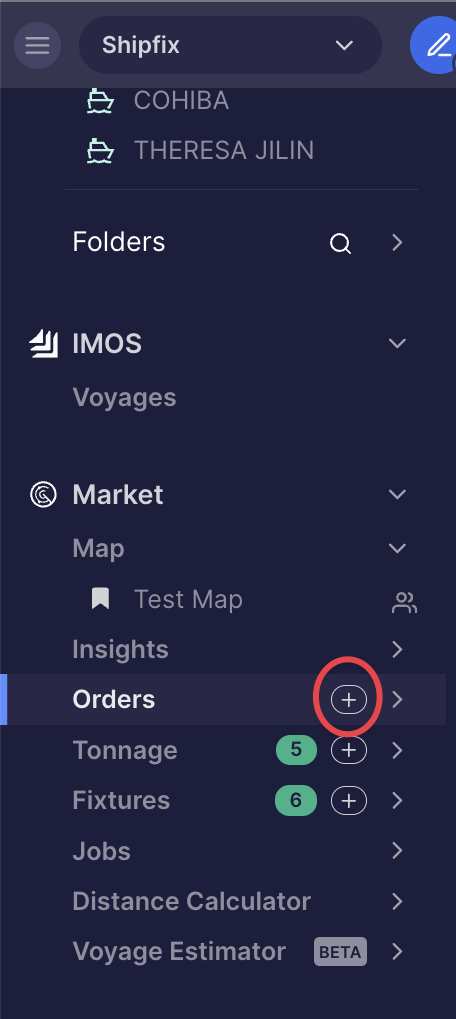
2. Plus '+' symbol
-
From main menu (blue ribbon on far left of your screen) find the 'Orders' sub-heading and click on the '+' symbol next to the subheading
-
The white box, 'Add Order', appears
-
Follow the last four points as described above