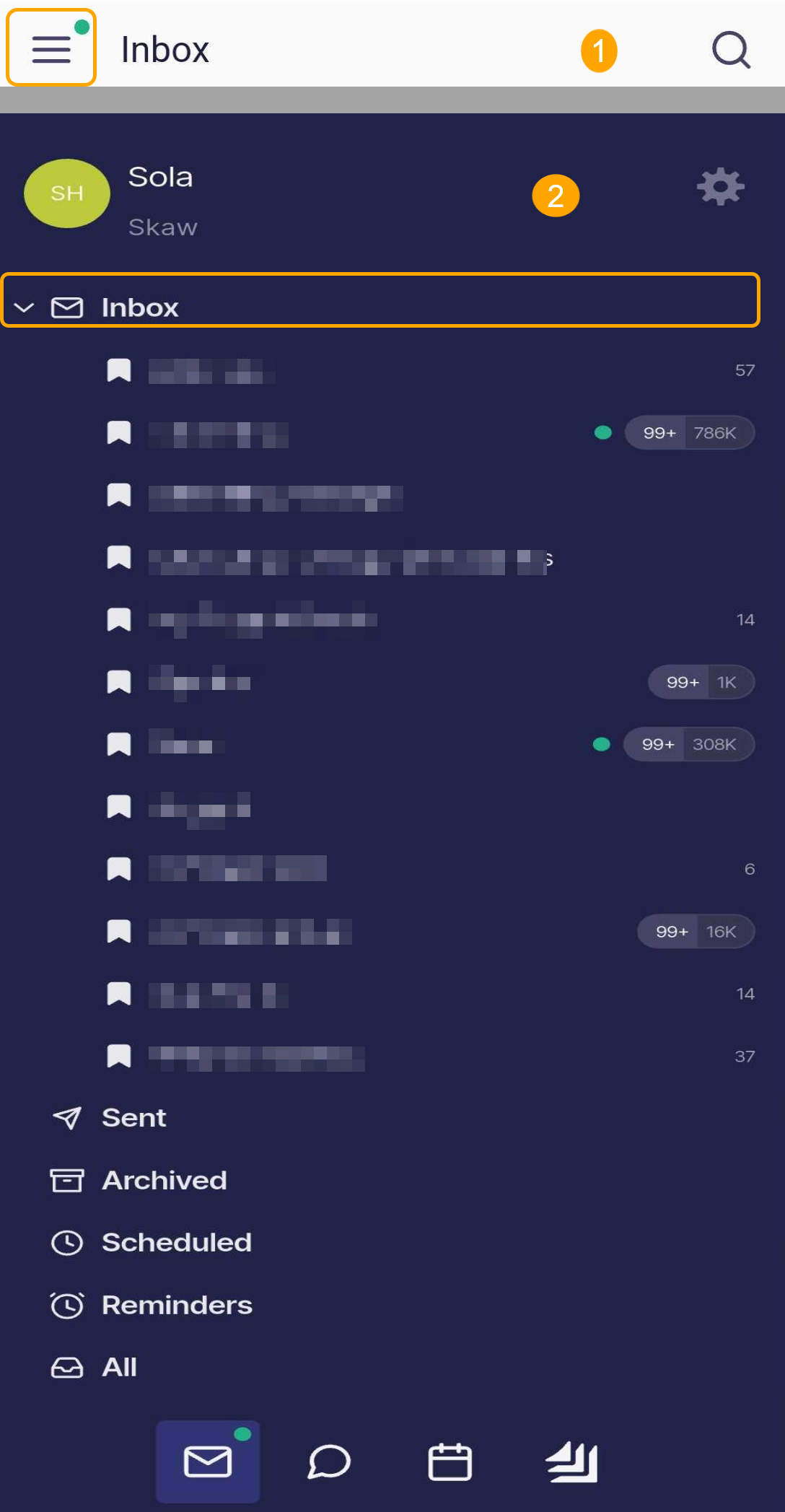
In today’s fast-paced shipping industry, staying on top of every important email can be a challenge. The Shipfix Mobile app helps you cut through the clutter with dynamic inbox tabs that update in real time, letting you focus on the messages that matter most. With customizable filters, you can tailor your inbox to fit your workflow and never miss a critical update.
Opening Inbox Tabs
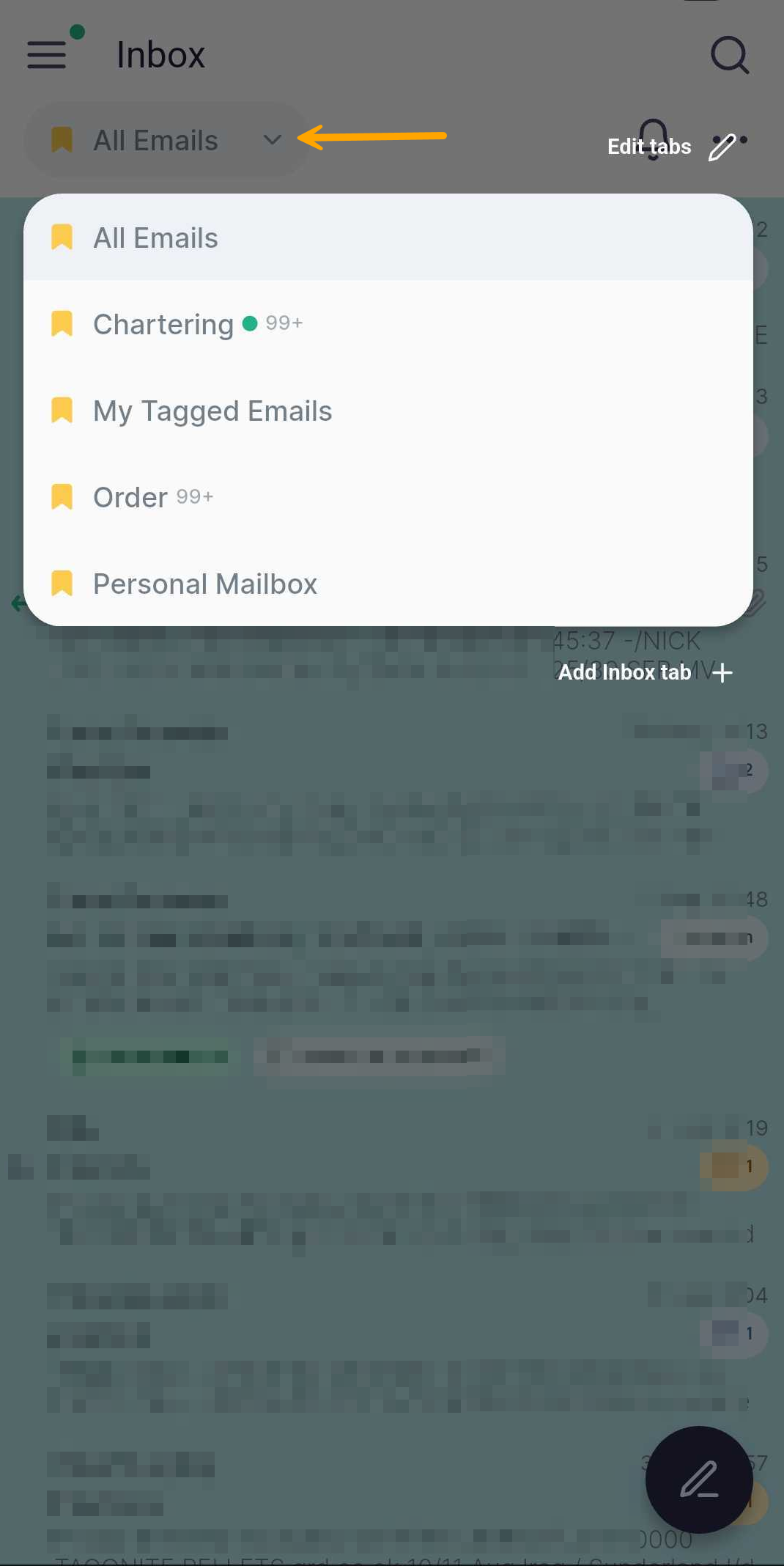
You can open a new inbox tab or view your existing ones from the tab drop-down menu in the inbox. This menu lists all currently open inbox tabs.
Adding a New Inbox Tab
To add a new tab:
-
Open the inbox tab drop-down menu.
-
Select Add Inbox Tab.
A new tab will open with no filters applied. You can apply the filters you need by following the steps in Shipfix Mobile - Inbox Filters.
Renaming an Inbox Tab
To rename a tab:
-
Open the inbox tab drop-down menu.
-
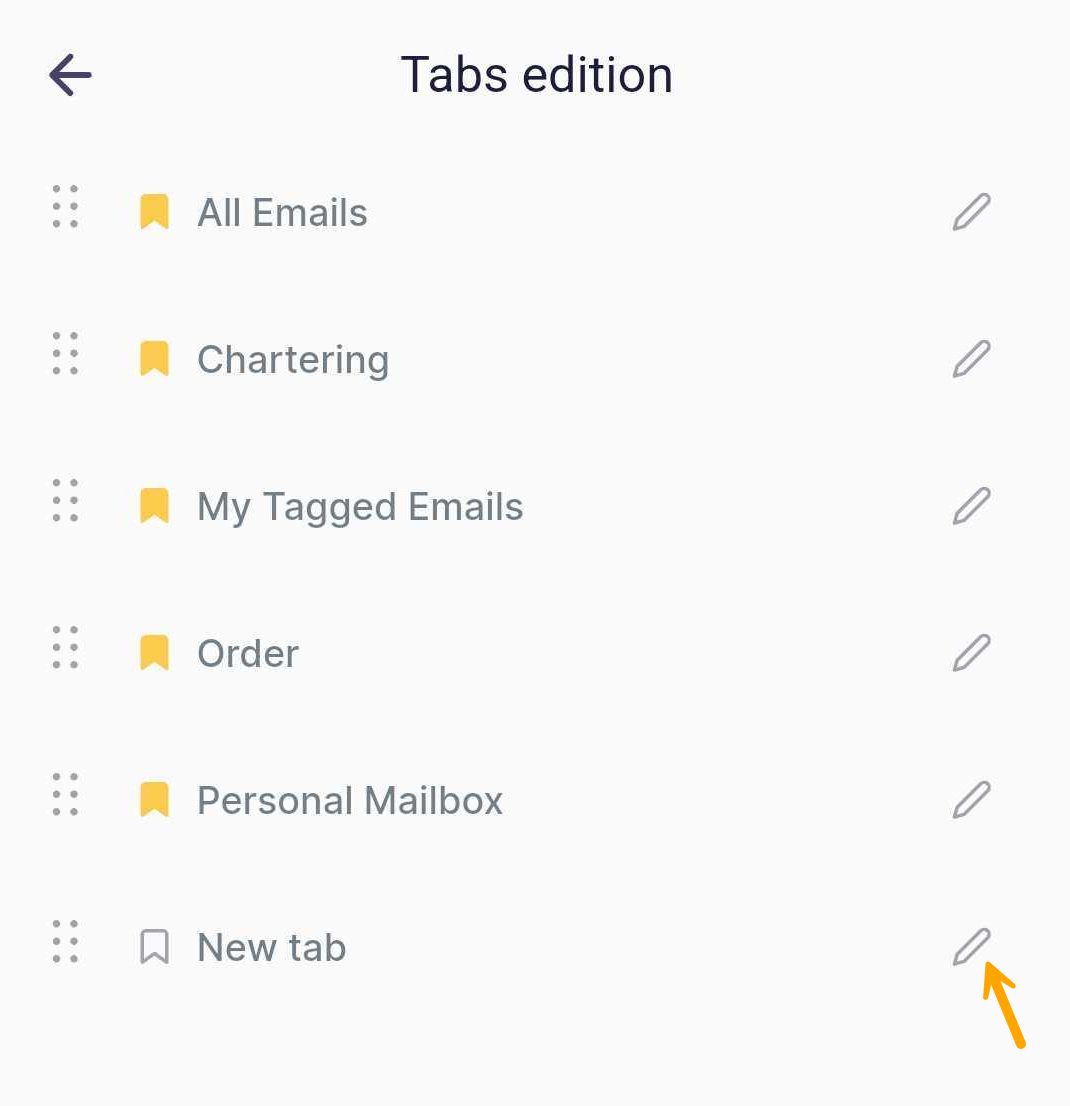
Select Edit Tabs.
-
On the Tab Editing page, you will see a list of all open tabs.
-
Select the pencil icon next to the tab you want to rename.
-
Enter the new name and exit.
Inbox tabs are synced between mobile and desktop. Any changes made in the Shipfix mobile app will automatically be reflected in the desktop app, and vice versa.
Inbox Tab Menu
To open the tab menu, press and hold the tab name for a few seconds, as shown in the image below.
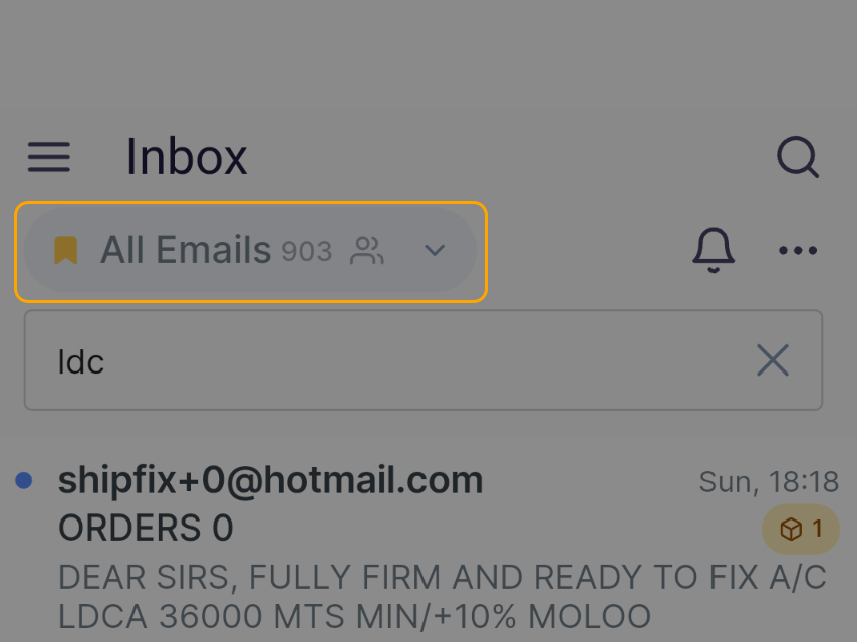
This will display the tab menu, which lists the available actions that can be performed on the inbox tab:
-
Bookmark
-
Duplicate
-
Share
-
Remove
Viewing Bookmarked Tabs
Bookmarked tabs that are currently closed (and not visible in the inbox tab menu) can be accessed from the Shipfix menu under the inbox drop-down menu. You can select a bookmarked tab to make it visible again in your inbox tab menu.