
In the Forms and Vessels workspace, you can assign vessels to forms groups.
Vessels
To open the Vessel list, click Vessels on the left side.
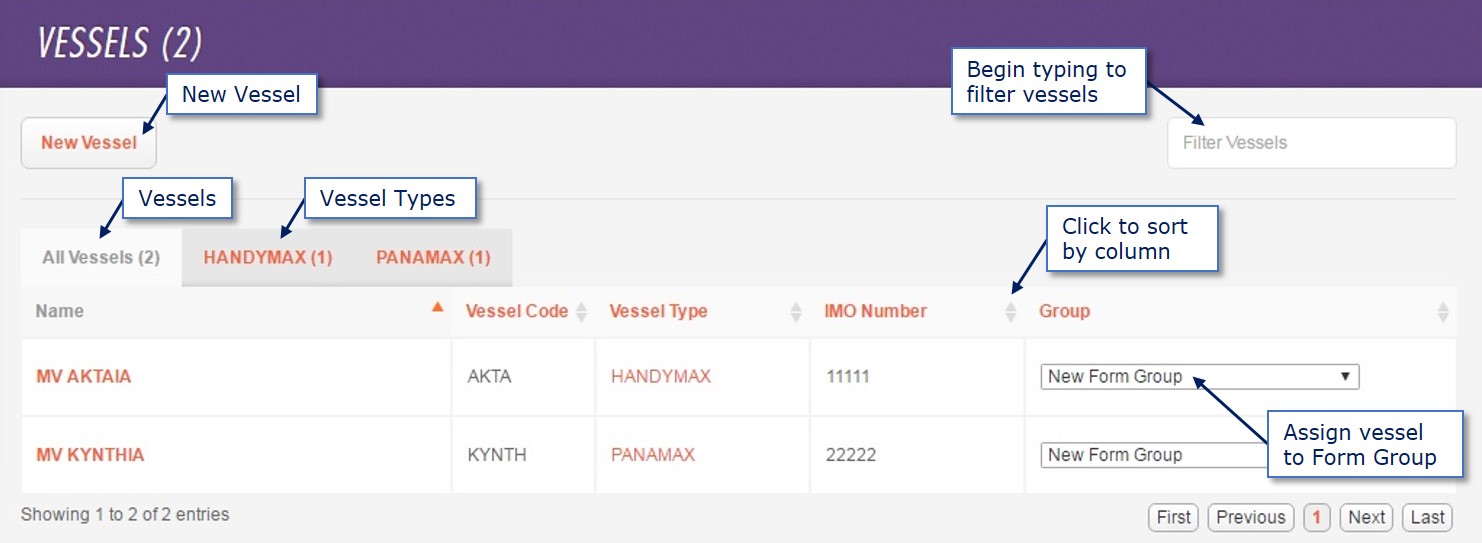
Vessels appear in a sortable table. You can search through vessels and see their details.
-
To filter vessels in the table, start typing in the Filter Vessels box. The table updates automatically as you type.
-
To view vessels by type, click a Vessel Type tab.
-
To sort the table, click a column heading.
Vessel Details
To view Vessel Details, click a VESSEL NAME.
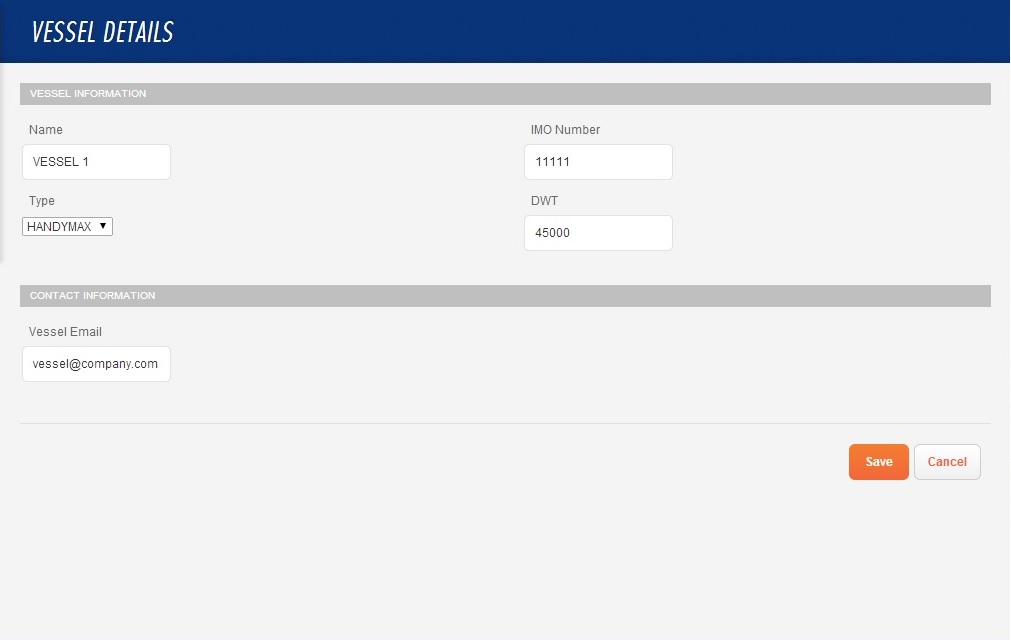
Assigning Vessels to a Form Group
To assign a vessel to a Form Group, select the Form Group from the drop-down menu in the Group column.
Creating a Vessel
To create a new vessel, click New Vessel.
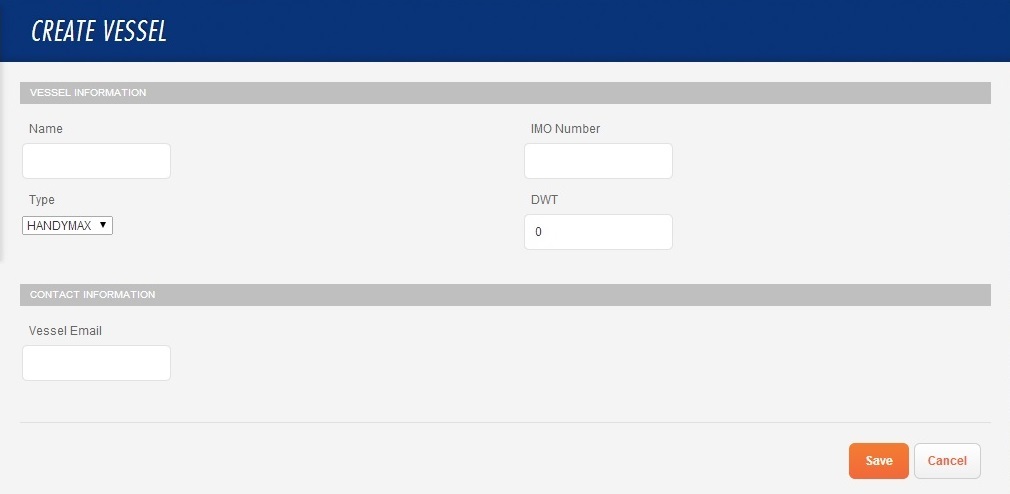
Complete the vessel and contact information and click Save. The vessel appears in the Vessels list.
Vessel Types
To open the Vessel Types list, click Vessel Types on the left side.
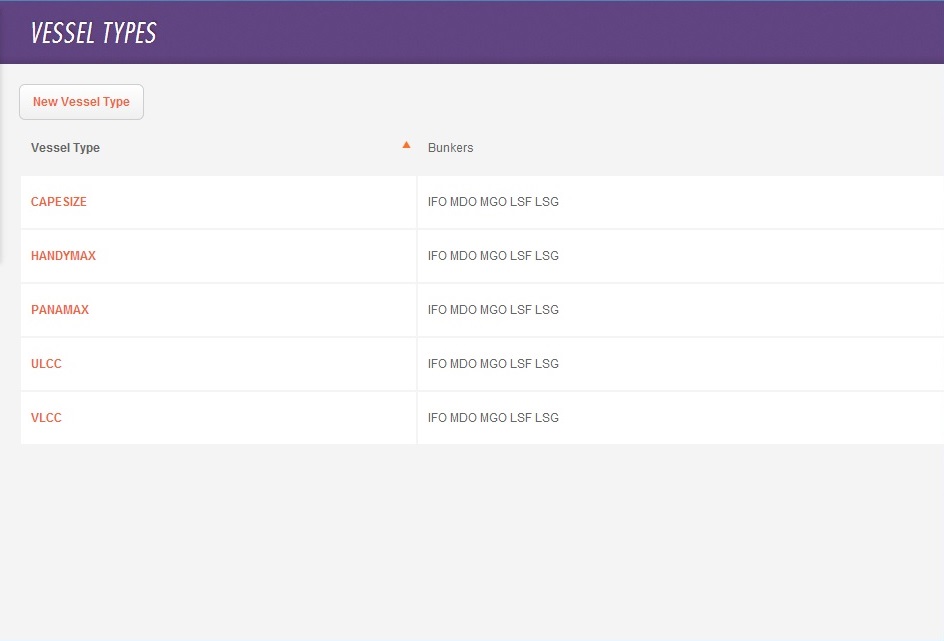
On this page, you can view and edit all the Vessel Types and create new ones.
Creating a Vessel Type
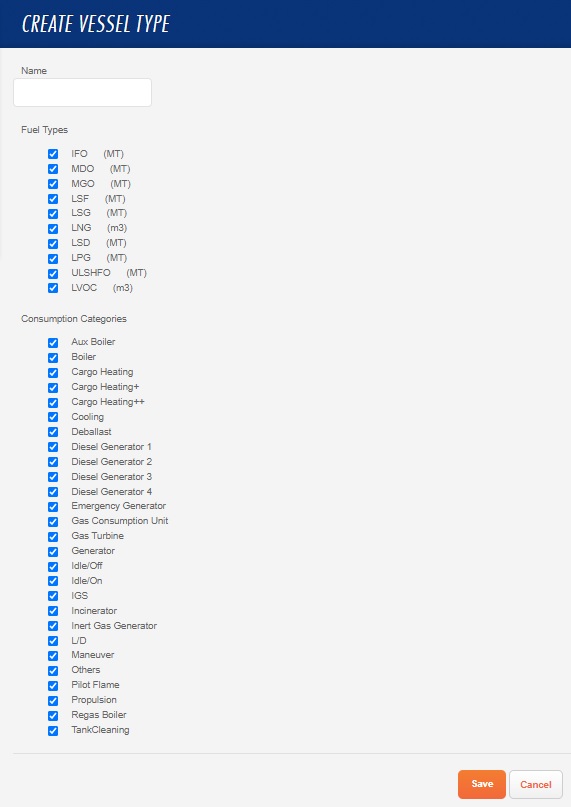
To create a new Vessel Type, click New Vessel Type.
-
Type a Name for the Vessel Type.
-
Select the check boxes for the Fuel Types and Consumption Categories associated with the Vessel Type.
-
When you click Save, the Vessel Type appears in the list.
Related Article: Veslink Voyage Reporting