
Portfolios: A smarter way to monitor the vessels that matter most to you.
Portfolios is a feature within Position List that gives you a dedicated, persistent space to track and manage open positions for a defined list of vessels. Unlike the standard search-based Position List, which returns results dynamically based on location and AIS parameters, Portfolios is built around your fleet. Your vessel list stays constant, regardless of where vessels are trading or whether they fall within a search radius.

Who is this for?
Portfolios is designed for Position List users who:
-
Focus on a specific fleet, segment, or set of counterparties rather than broad market searches.
-
Need a consistent, repeatable view of the same vessels across sessions — without rerunning searches.
-
Want to collaborate with their team around a shared, always-current vessel watchlist.
-
Need to update vessel positions quickly from a single, focused view.
What can you do with Portfolios?
Build and Manage Your Vessel List
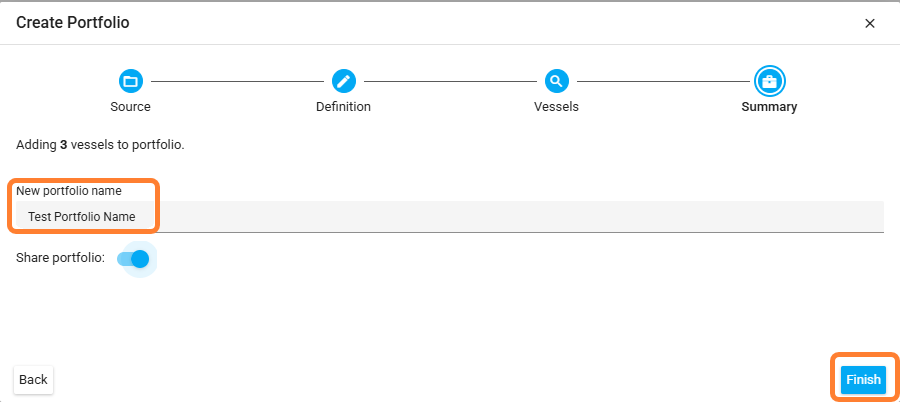
Use the Portfolio Wizard to create a vessel list from multiple sources: direct vessel selection, existing saved searches, fleet groupings, or current AIS location — including zone-based filtering. Once created, your portfolio is saved and accessible from the main navigation menu at any time.
You can create multiple portfolios, name them to reflect their purpose (for example, by fleet type, region, or counterparty), search across them from a dropdown, and delete portfolios you no longer need. Portfolios are listed alphabetically for easy navigation.
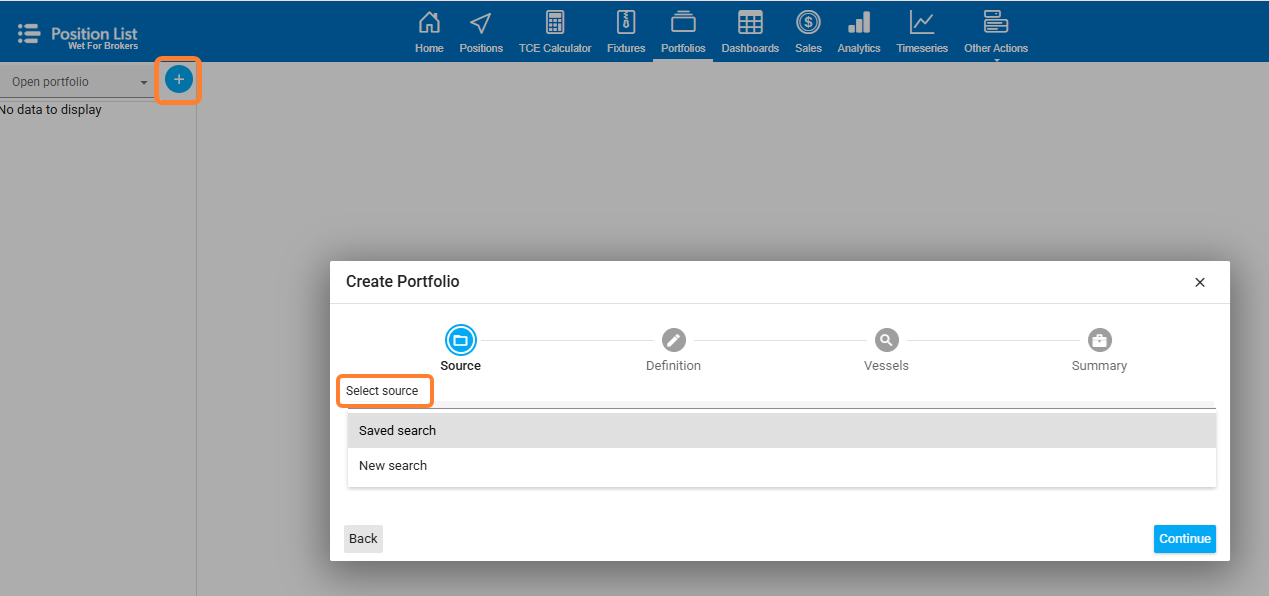
There are two ways to create a new Portfolio.
-
Using New Search, define your search criteria to find vessels. Start by searching for and adding at least one vessel to your portfolio — additional vessels can be added manually from there.
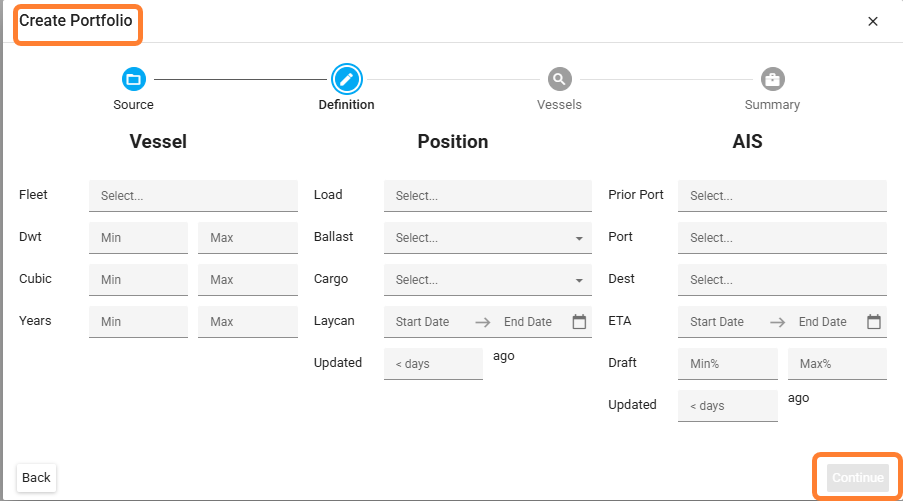
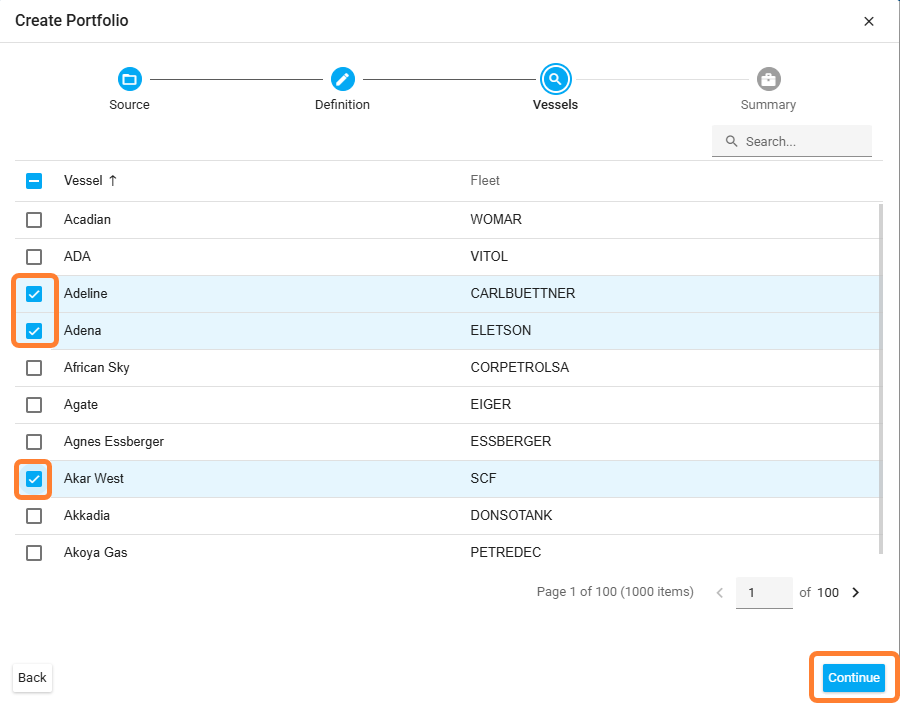
From the search results, select the vessels you want to include and add them to your portfolio.
-
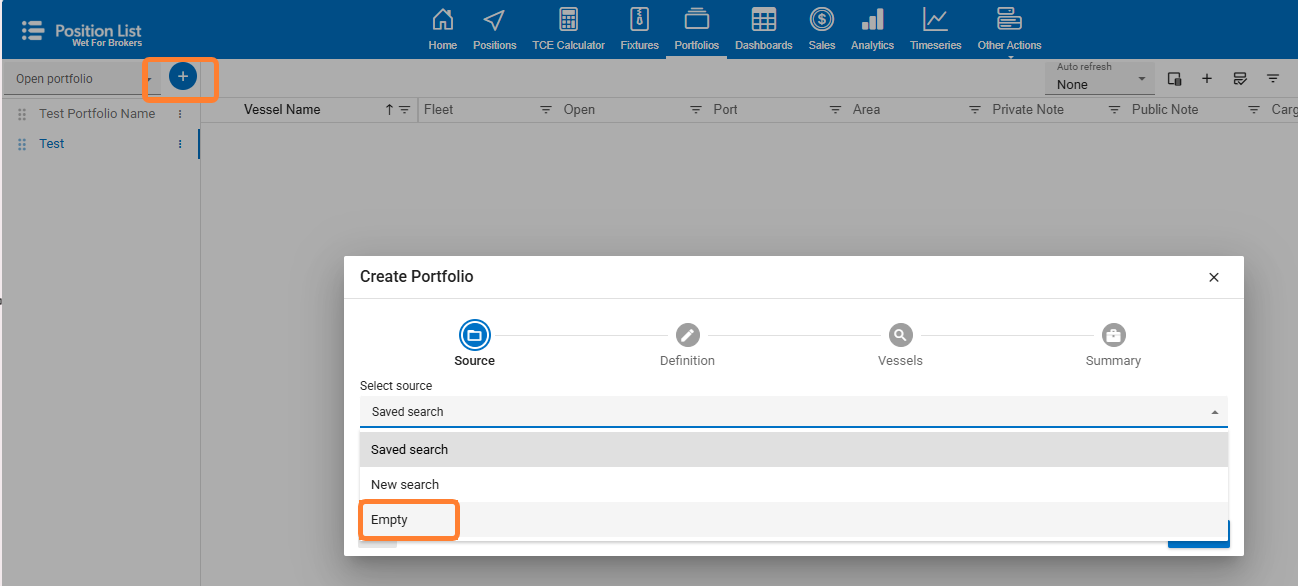
Using New Search, then select EMPTY. Build one from scratch without needing to use filters. This allows you to start with a blank list and manually add the specific vessels you'd like to track and update.
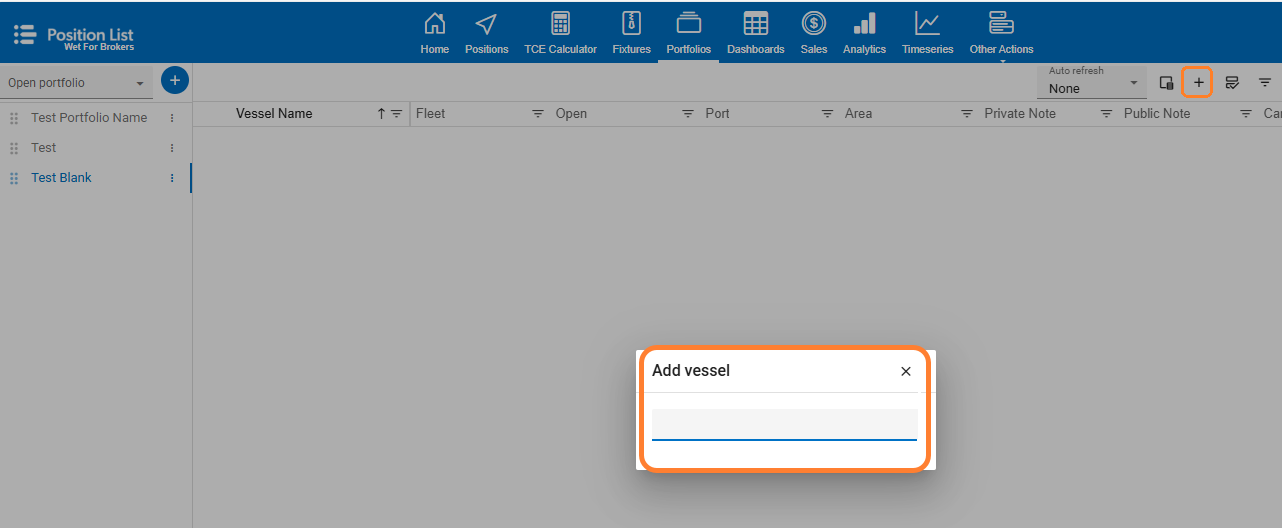
Monitor Open Positions Across Your Fleet
The Portfolio grid shows open position data for every vessel in your list — Open Port, Open Date, ETA, distribution type, and last-update information — in the same familiar format as the standard Position List. A vessel count indicator shows how many records are in view at all times.
Hovering over any position entry shows a tooltip with the name of the person who last updated it and when, giving you full visibility into data freshness.
Update Positions Without Leaving the Page
You can edit Open Port, Open Date, notes (public and private), and distribution type directly from the Portfolio grid — no need to navigate to a separate page. Double-click any row to activate in line edit mode. The editing experience matches the standard Position List grid, with keyboard navigation, auto-focused port fields, and date masking.

Filter Within Your Portfolio
Apply filters on top of your portfolio using the built-in Search Simulator — without removing any vessels from your list. You can filter by position keywords, AIS keywords, and laycan date range. Matching vessels are highlighted and moved to the top of the grid; non-matching vessels are hidden by default and can be shown again with a single toggle.
Your portfolio definition is never affected by filtering. Filters are a view of your fleet, not a change to it.
Keep Data Current with Auto-Refresh
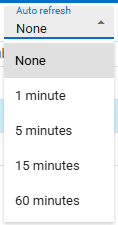
The Portfolio grid can be set to refresh automatically at a configurable interval, keeping open positions and AIS data up to date as changes come in. A manual refresh button is always available for on-demand updates. Auto-refresh pauses automatically when you are editing a row and resumes once you are done — so your in-progress changes are never overwritten.
Share with Your Team
Share a portfolio directly with colleagues in your organisation. When you share a portfolio, you are sharing the defined vessel list itself — not a set of search parameters. Everyone working from a shared portfolio sees the same fleet, making it easy to maintain consistent position data across your team.
Personalise Your View
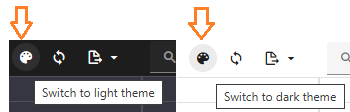
The Portfolio module supports Position List's dark theme and allows you to customise which columns are visible using the column chooser. Your grid layout and column preferences are saved across sessions and refreshes, so your view is always where you left it.
Feature Summary
|
Capability |
Description |
|
Portfolio Wizard |
Build a vessel list from saved searches, fleet groupings, direct vessel selection, or AIS zone — with location-based filtering. |
|
Named Portfolios |
Create, name, and manage multiple portfolios. Lists are alphabetically ordered and persist across sessions. |
|
Persistent Fleet View |
Vessels remain in your portfolio regardless of their AIS status or open position — no vessels dropping out unexpectedly. |
|
Inline Editing |
Update Open Port, Open Date, notes, and distribution type directly in the grid, with full keyboard navigation. |
|
Search Simulator |
Apply position and AIS keyword filters, plus a laycan date range, to focus your view without altering the vessel list. |
|
Auto-Refresh |
Configurable automatic refresh with a manual override; pauses during inline editing to protect in-progress changes. |
|
Update Tooltip |
Hover over any position entry to see who last updated it and when. |
|
Portfolio Sharing |
Share your vessel list — not just search parameters — with colleagues for a consistent, team-wide view. |
|
Dark Theme & Column Control |
Full dark mode support with a customisable column chooser; grid state is preserved across sessions. |
|
Role-Based Access |
Access to Portfolios is controlled by a user role — your account admin manages who can see and use the module. |
A Typical Workflow
Once Portfolios is enabled for your account, here is how a typical session might look:
-
Create your portfolio — Use the Portfolio Wizard to add the vessels you want to track — by name, fleet group, or region.
-
Open your portfolio — Select it from the main navigation menu. Your fleet is fully populated and ready, regardless of where vessels are currently trading.
-
Apply filters — Use the Search Simulator to focus on vessels open in a target region or laycan window.
-
Update positions — Edit open ports, dates, and notes directly in the grid — without navigating away.
-
Share with your team — Share the portfolio so colleagues are working from the same vessel list with up-to-date positions.
Getting Access
Portfolios is available to all existing Position List clients at no additional charge.