
We're excited to introduce a refreshed, modernized look for Q88. For years, you've relied on Q88 to manage your questionnaires, certificates, officer matrix, inspections, and more. Now, we’re improving your experience of these tools with a cleaner, more intuitive interface designed to make everyday work faster and clearer to navigate.
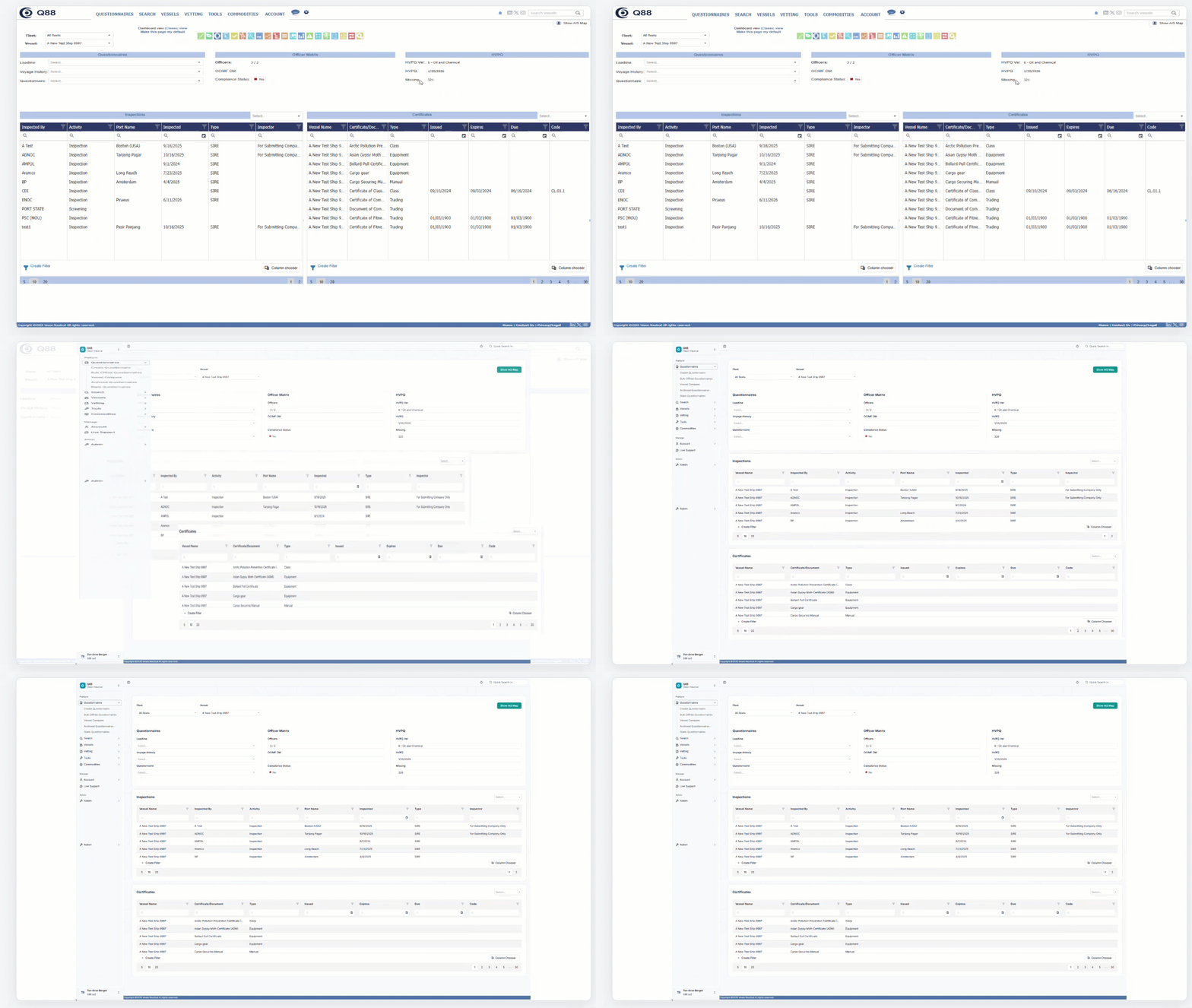
Everything you know and depend on is still here. Throughout the transition, you'll have detailed help articles available for every area throughout the transition, guiding you through the new navigation and pointing you to the tools you already know.
Here's a look at what's new
1. A clearer, always-available menu
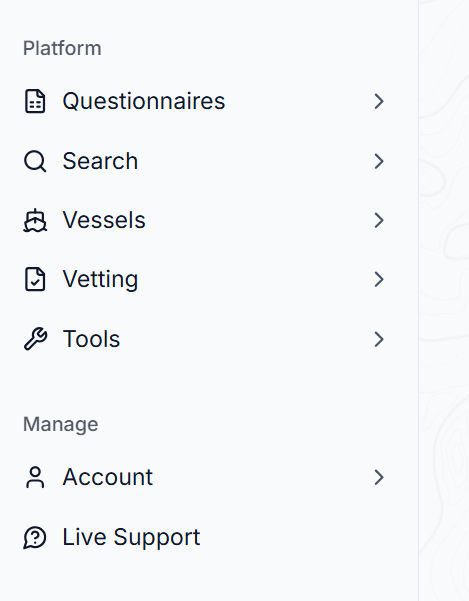
Your menu now lives in an organized side panel, so wherever you are in Q88 it stays visible and one click away.
-
The new side panel uses a simple, tree-style structure. Click a menu header to reveal its options, then click any option to open that page.
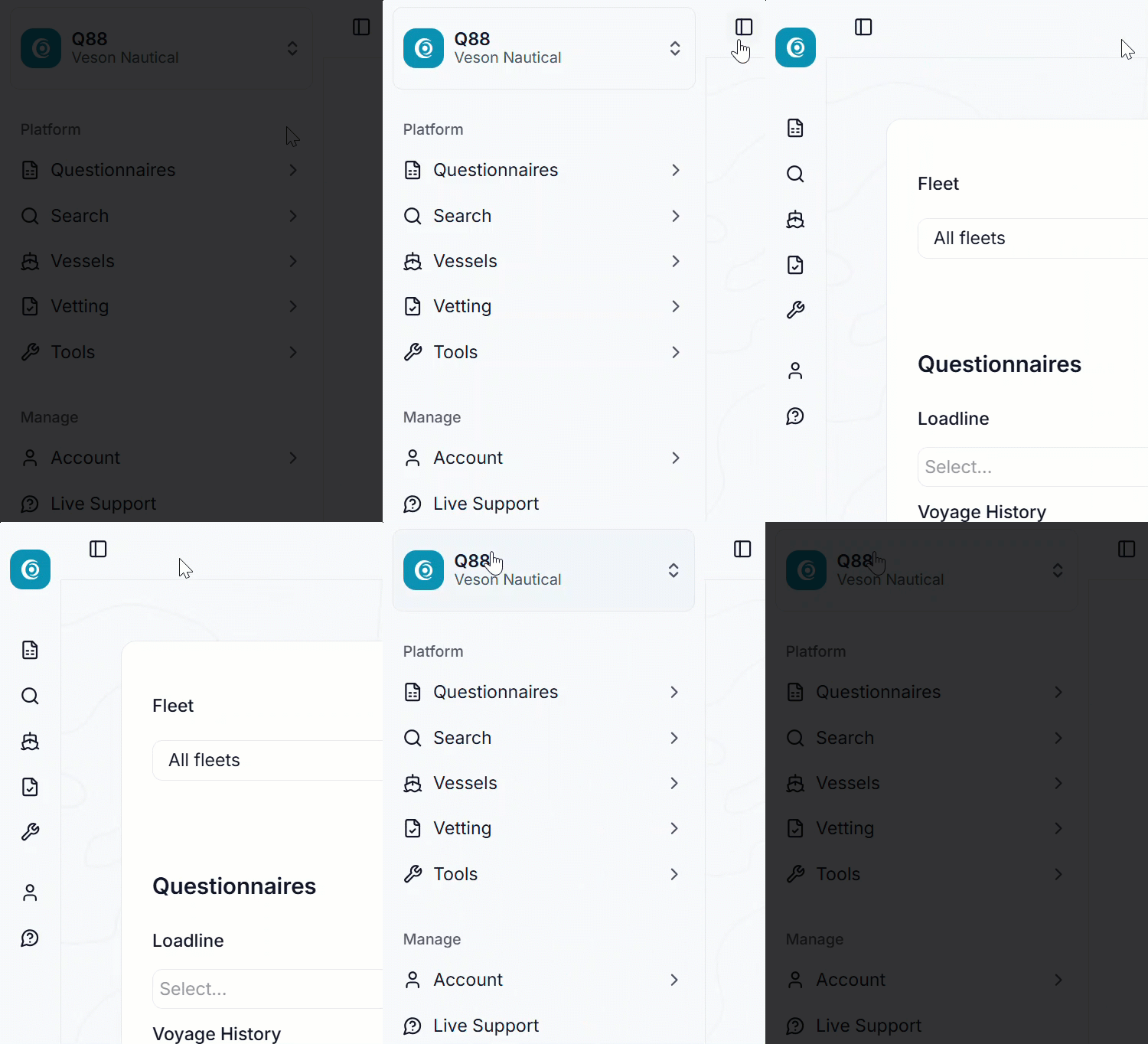
Prefer a little more screen space? Collapse or expand the panel by selecting the sidebar icon.
2. A refreshed home dashboard
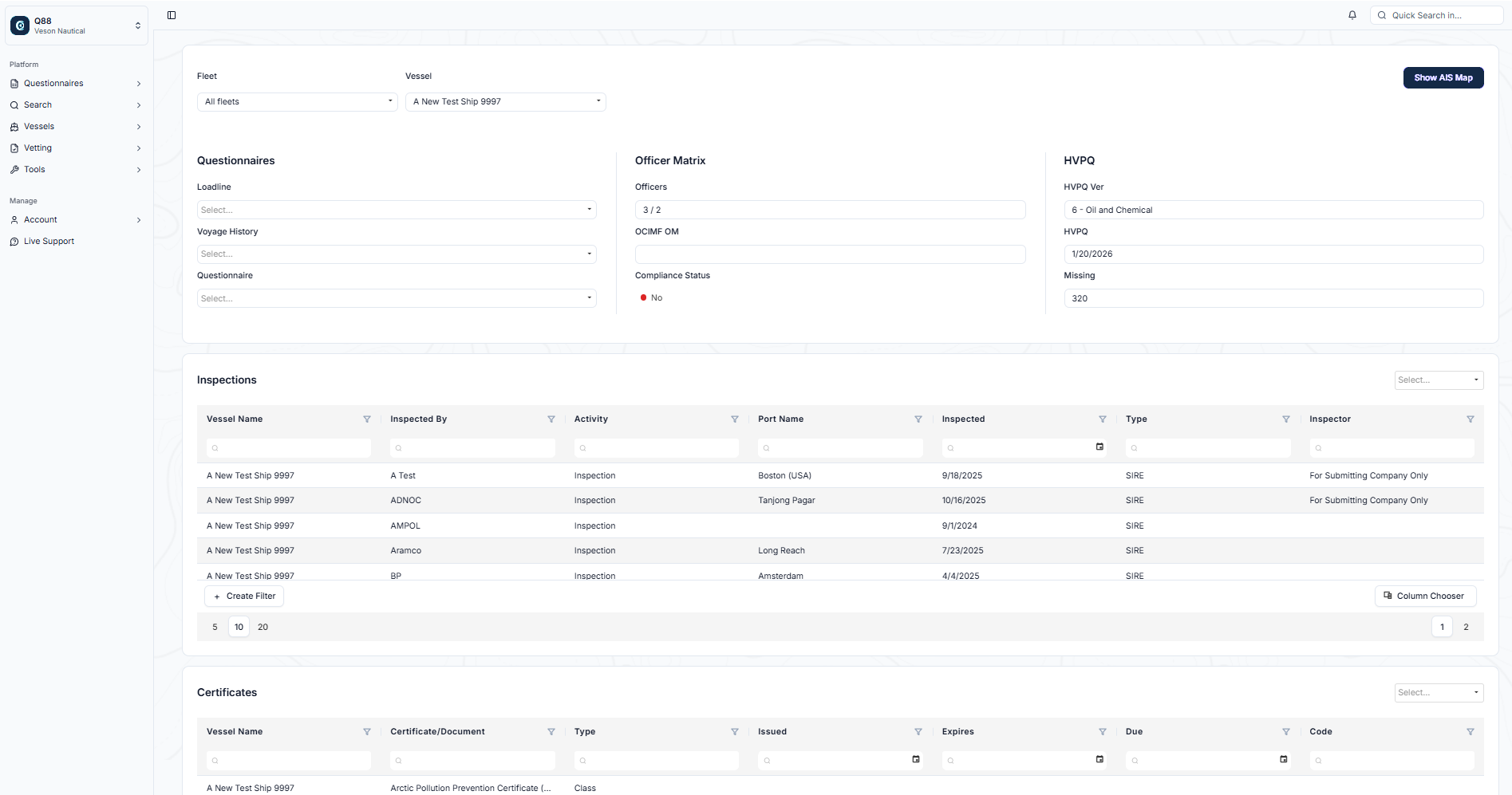
Your home page is now a modernized version of the dashboard introduced a few years ago, giving you a clearer, at-a-glance view of what matters most the moment you sign in.
-
Your inspections and certificates now appear in a stacked, over-under layout that's easier to scan than the previous side-by-side view.
-
Jump straight into any area by clicking its header on the dashboard: Questionnaires, Officer Matrix, Inspections, and more.
-
Select a vessel from the dropdown list at the top to focus on a specific ship, and double-click any certificate or inspection to open its full details on the relevant page.
Note: The earlier Classic home page has been retired in favor of this richer dashboard experience.
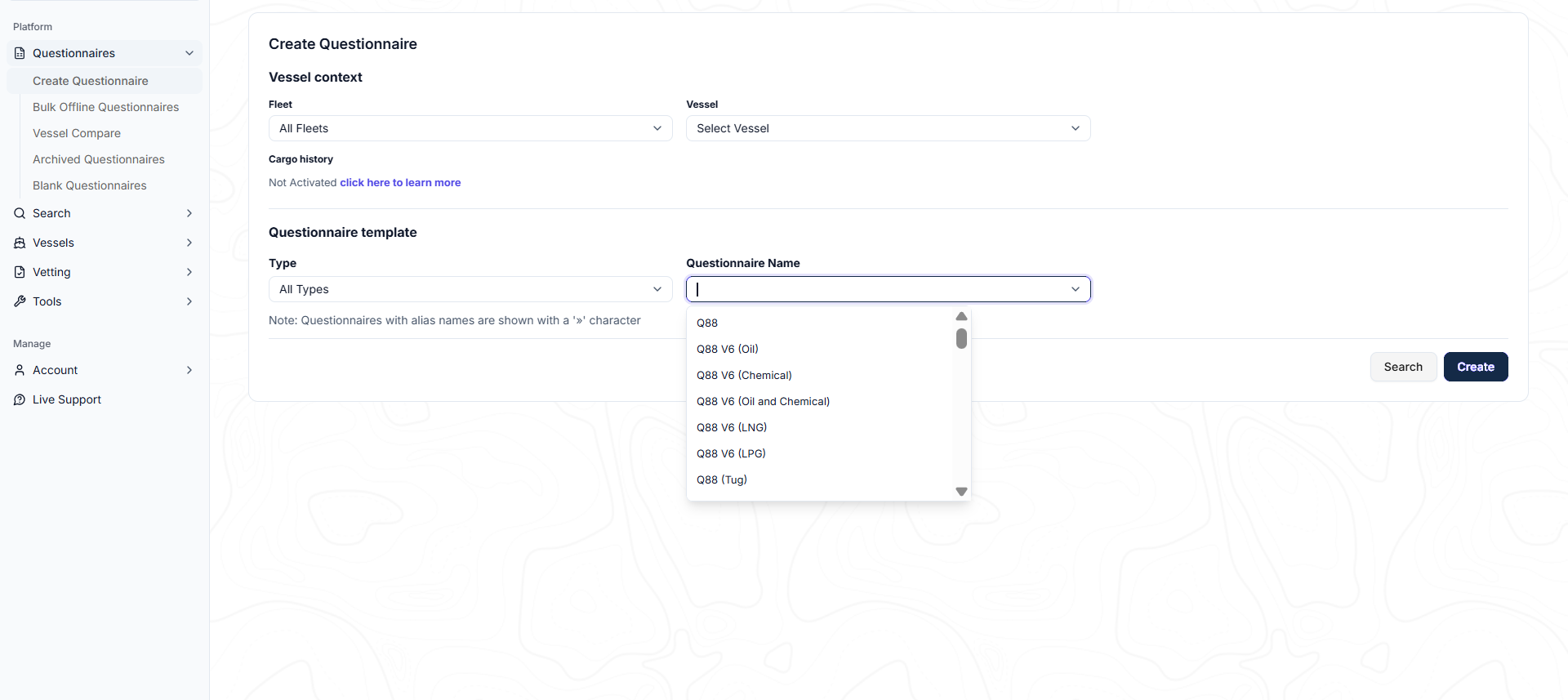
3. A new Questionnaire page
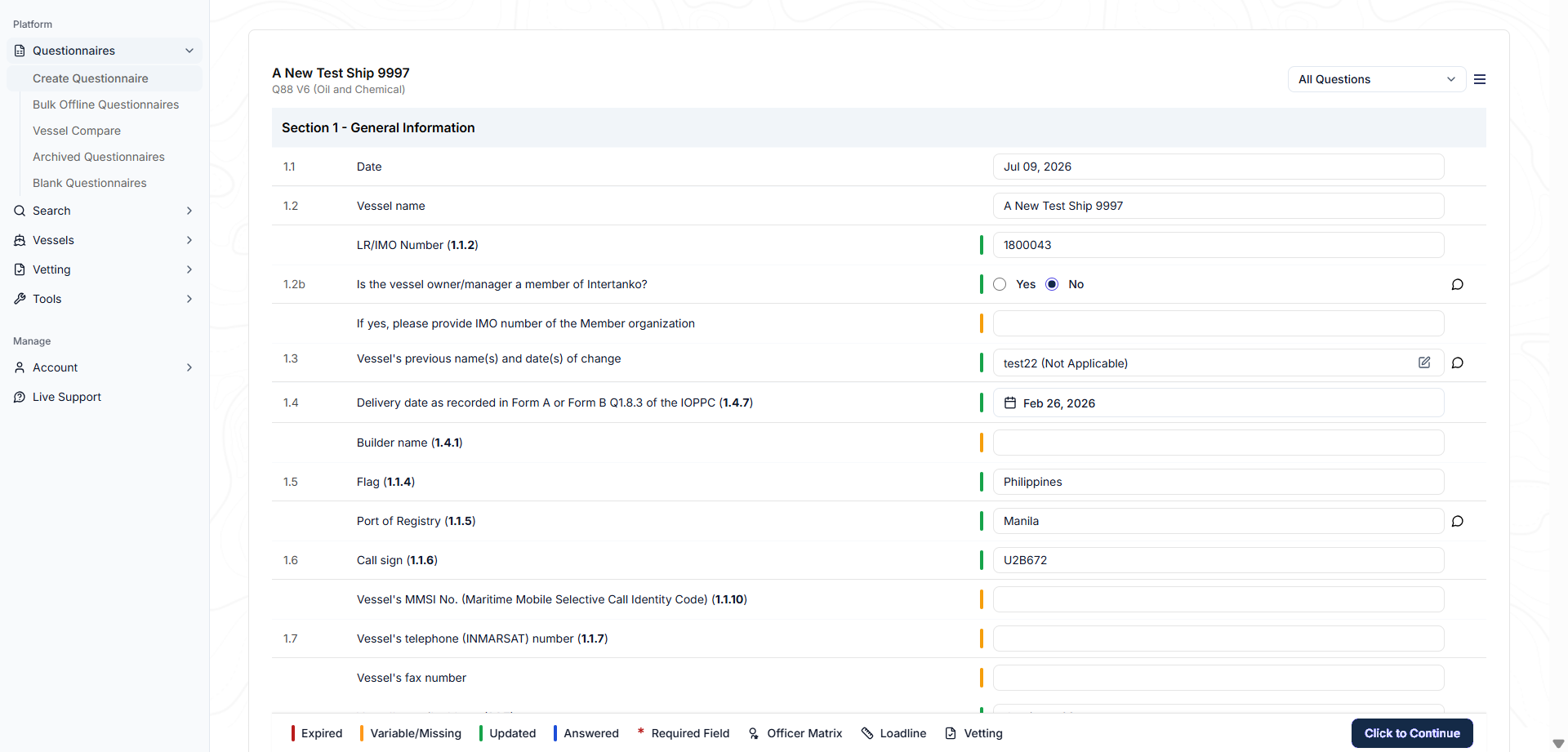
The Questionnaire page has a fresh, cleaner look, but everything works exactly the way you're used to. Select your vessel and questionnaire, and the questionnaire displays just as before.
Another helpful touch: the legend and the Click to Continue button now stay fixed at the bottom of the page as you scroll through the questionnaire, so the key actions are always within reach.
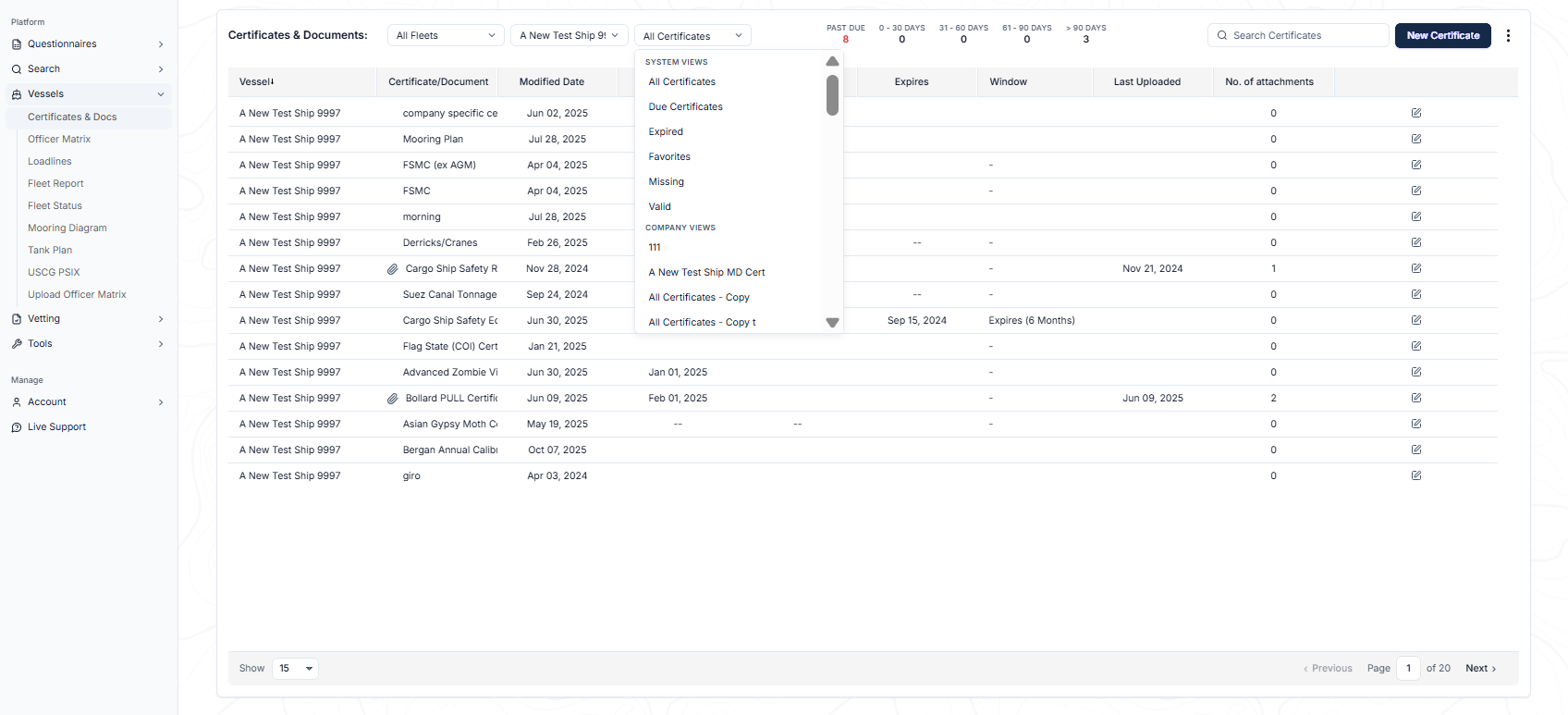
4. A more flexible Certificates page
The Certificates page keeps all of its familiar functionality, now with a refreshed, easier-to-read design.
-
Use the Views dropdown to control which columns and rows are displayed. You can build your own custom views, either shared across your account or saved just for your personal use.
-
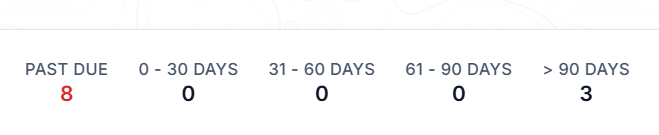
Here’s another handy feature that’s easy to overlook: The aging summary now doubles as a clickable filter, so you can drill straight into what's due or overdue with a single click.
5. A streamlined Officer Matrix
The Officer Matrix page has been refreshed while keeping the functionality you rely on, including the OCIMF integration, which now happens right here on this page. To get started, click the Submit to OCIMF button in the lower right of the page.
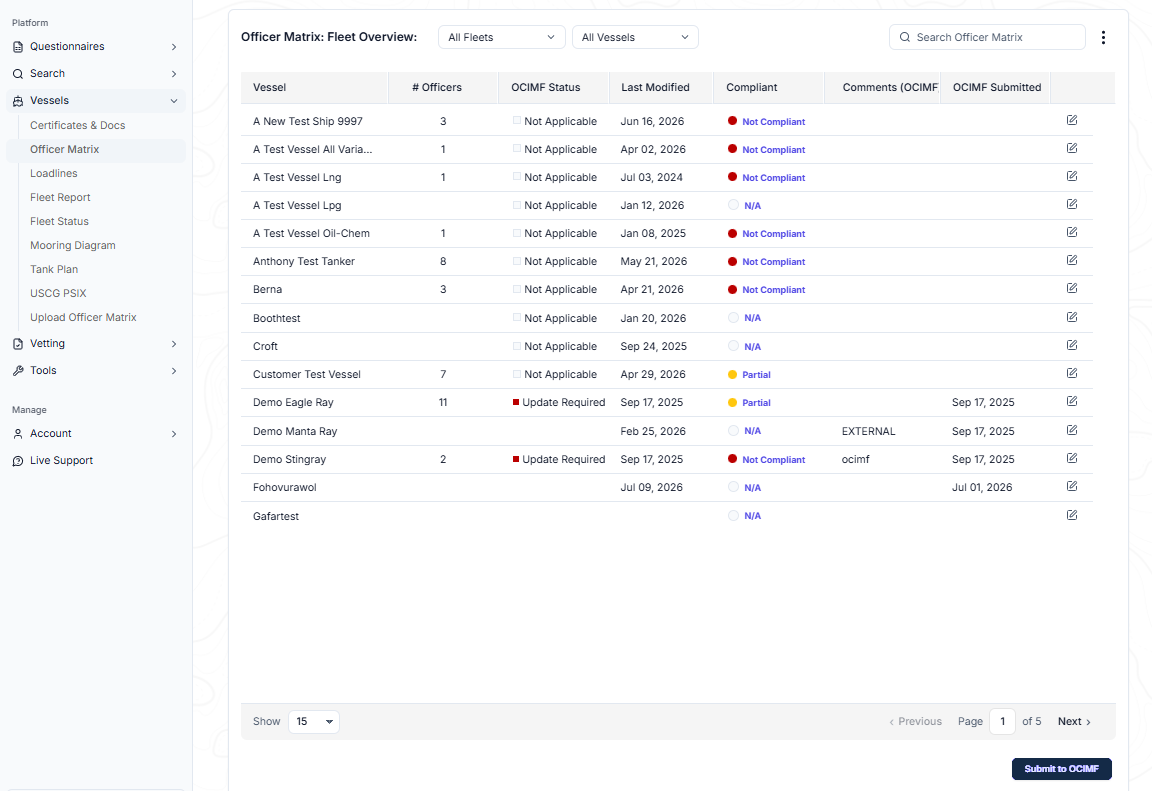
Important Note about OCIMF credentials: When you submit to OCIMF, you'll need your login details: your account number, user ID, and password. Your browser may autofill the password field, but that saved password is never your OCIMF password. Always type your OCIMF password in manually.
6. A clearer Inspections view
The Inspections page carries the same trusted functionality forward in the new design, giving you a clear, organized view of your inspection records and their details.
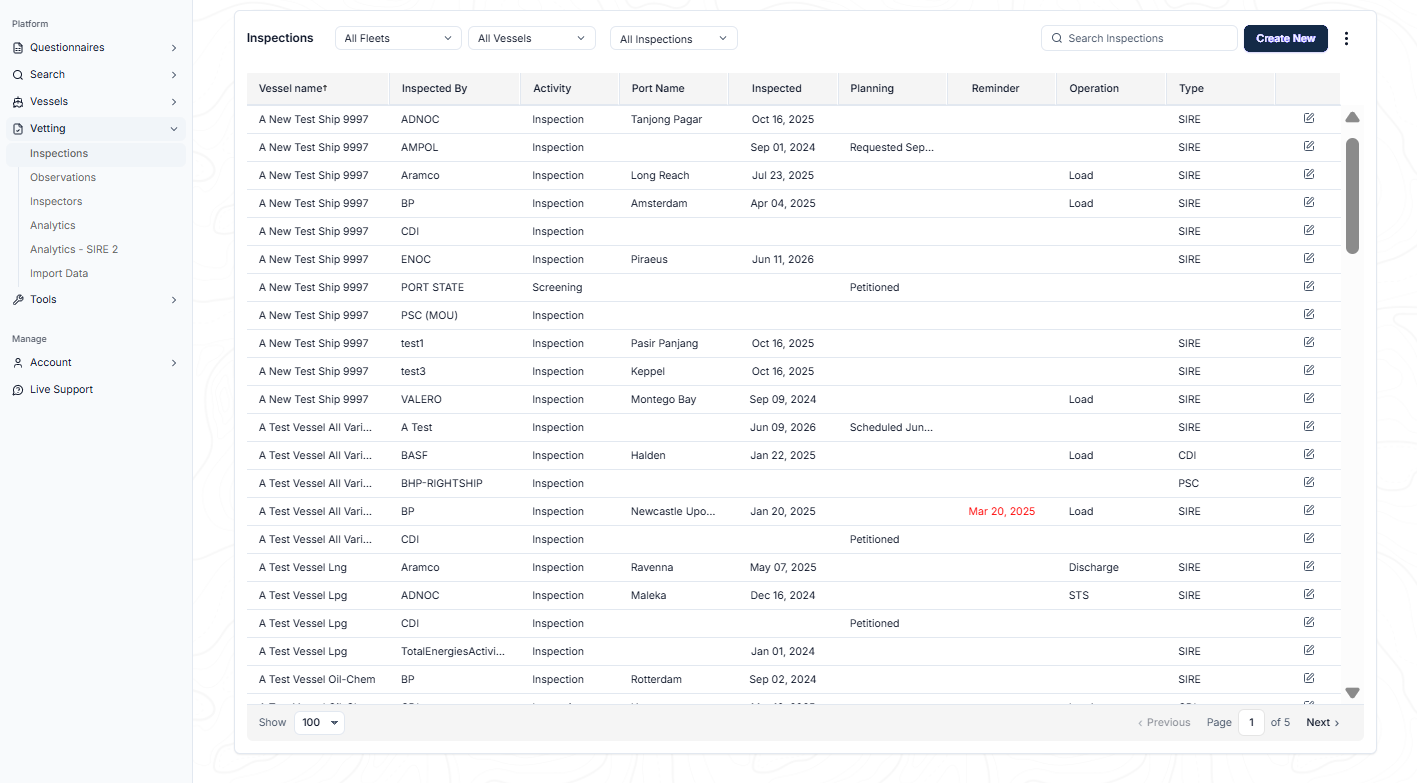
As with the rest of the product, the workflow you know is unchanged; the look and feel have been modernized to match the refreshed experience.
Have questions? We're here to help.
We're confident these updates will make your day-to-day work in Q88 smoother and more enjoyable. As you get comfortable with the new experience, the fastest ways to find what you’re looking for are right at your fingertips:
-
Start with our FAQs. Get answers to common questions on the Modernized Q88 FAQs page.
-
Chat with Live Support. Ask Fin a question in plain language, for example, "Where did the certificates view go?" or "How do I submit to OCIMF?" and get an instant, guided answer, any time of day.
-
Explore the Help Center. Our library of step-by-step articles covers every area shown here, from navigating the new layout to locating the tools and menus you use most. It's the best place to go deeper at your own pace.
-
Follow the in-product guidance. Look for tooltips and informational messages built right into the new interface to help you get oriented as you go.
-
Raise a Veson Support ticket. If you come across a bug, something isn't working as it should, or you've checked the resources above and still need a hand, raise a Veson Support ticket.