Please reach out to your dedicated Client Success Manager or Account Manager to request access to the Calendar feature.
Connecting Your Calendar
You can now connect Outlook email addresses to display all events related to your calendars of that mailbox (synchronized with Outlook).
To do so, go to the new Calendar section in your Profile (Profile > Calendar)
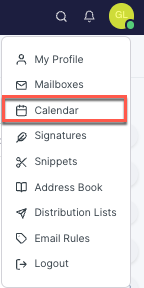
From there, click on + Add Calendar and connect your calendar using Outlook SSO.

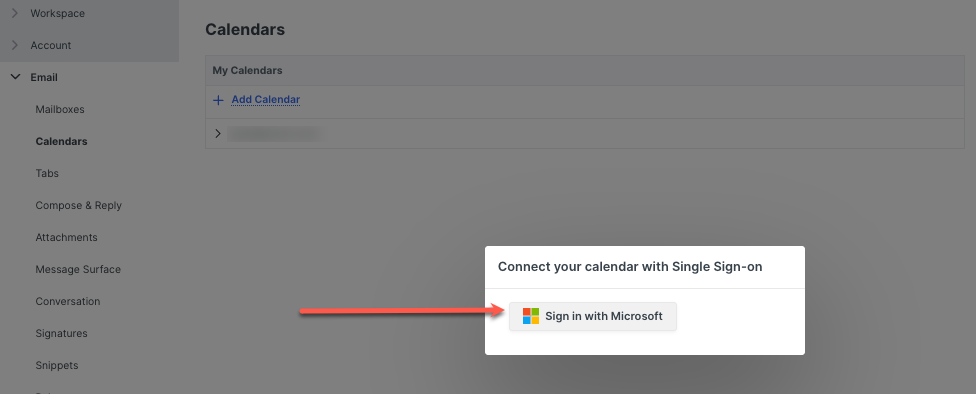
Once connected, you will be able to :
-
Choose to display or hide the calendar in the calendar main view
-
Change the color of the calendar
-
Set a calendar as the primary to be used as the default email address when creating a new event. (only for calendars for which you have editor rights).
-
Share the calendar with your colleagues (see further)
Note:
-
For new users, connecting a new mailbox will now automatically add the calendar(s) of that mailbox.
-
It is possible to just add a calendar without its corresponding mailbox and emails. To do so, you will need to connect the calendar through the Calendars section to only synchronize the calendar and not import the emails of that mailbox.
Sharing Calendars
You can share your calendars with your colleagues in Shipfix.
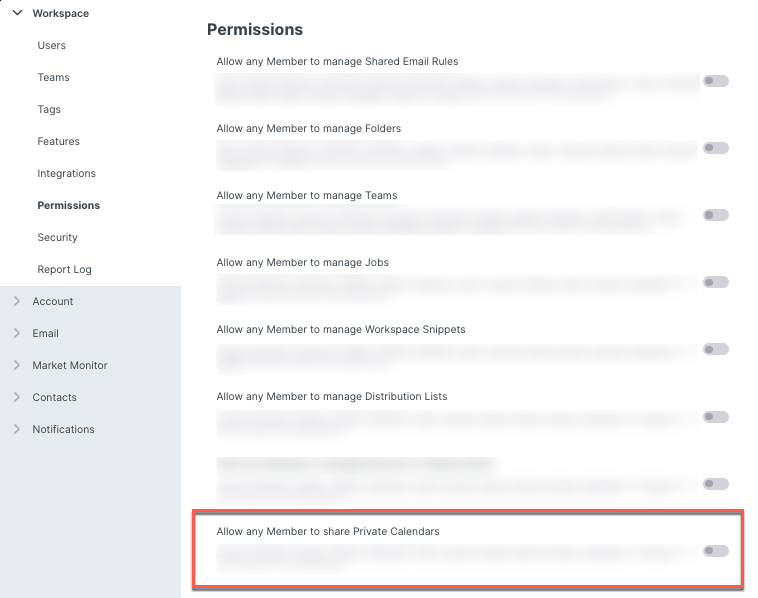
Note: The Sharing functionality sits behind a permission that should be activated by a manager/owner role in the Workspace settings to allow members to share calendars (otherwise, only managers & owners can do so).
To share a calendar, click on the share button next to the calendar you want to share.
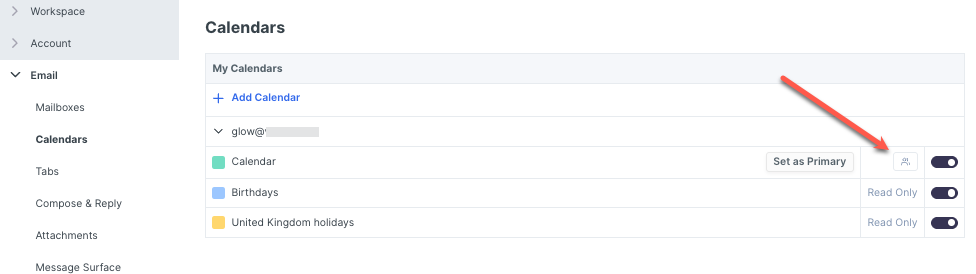
A pop-up display will appear for you to specify with whom you would like to share your calendar. There are 3 ways you can share your calendar and 3 ways to control the sharing permissions.
Ways to share your calendar
-
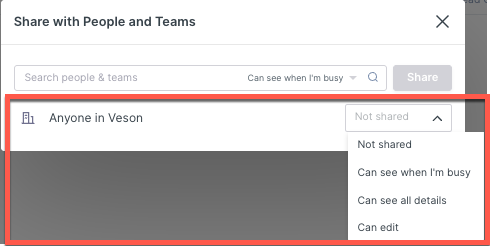
Whole Workspace - Everyone in the Organisation
-
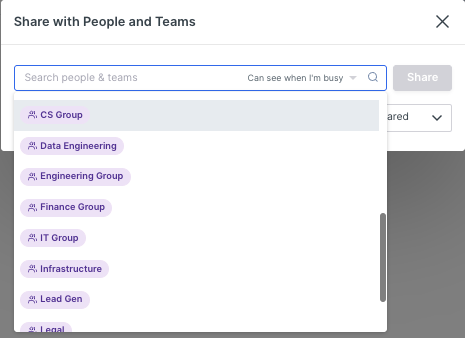
Specific Teams - Driven by team tags
-
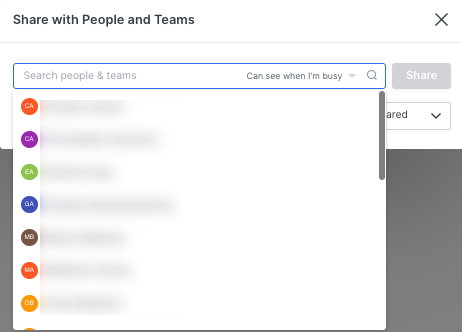
Specific Users - A user who is on Shipfix Platform
Sharing Permissions
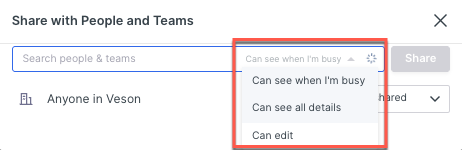
-
Can see when I’m busy: the events will be displayed in the main view of the calendar, but without details.
-
Can see all details: the events will be displayed in the main view of the calendar with all details (title of the event, attendees, location and description of the event).
-
Can edit: another user can co-create events using that calendar as well as delete or edit existing events.
Note: The permission defined at a granular level will always prevail over the broader permission (User over Teams and Workspace & Teams over workspace).
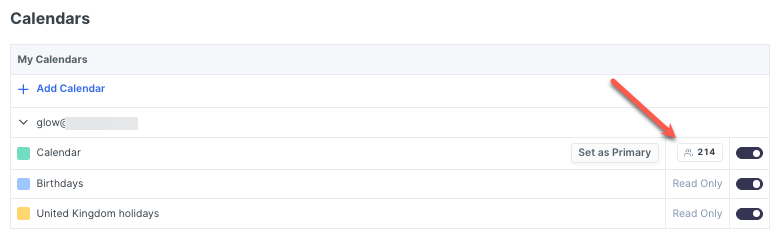
Once a calendar is shared, a counter is displayed next to the share button, displaying the number of users who have access to that calendar.
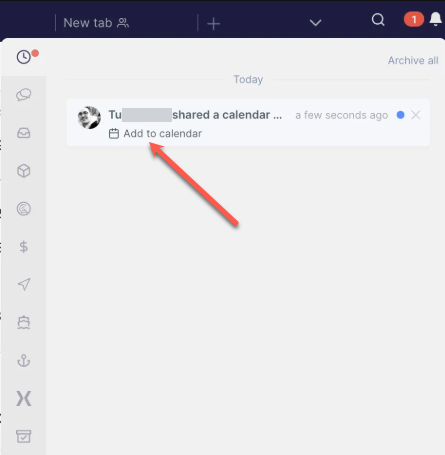
A notification will also be sent to all users with whom you have shared your calendar. Clicking on Add to calendar adds the calendar to the Shared with me section in your calendar.