
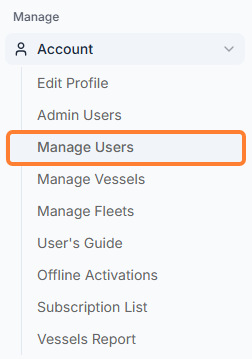
The User Management module manages the users for your Milbros.com account. You can access the module from Account --> select Manage Users.
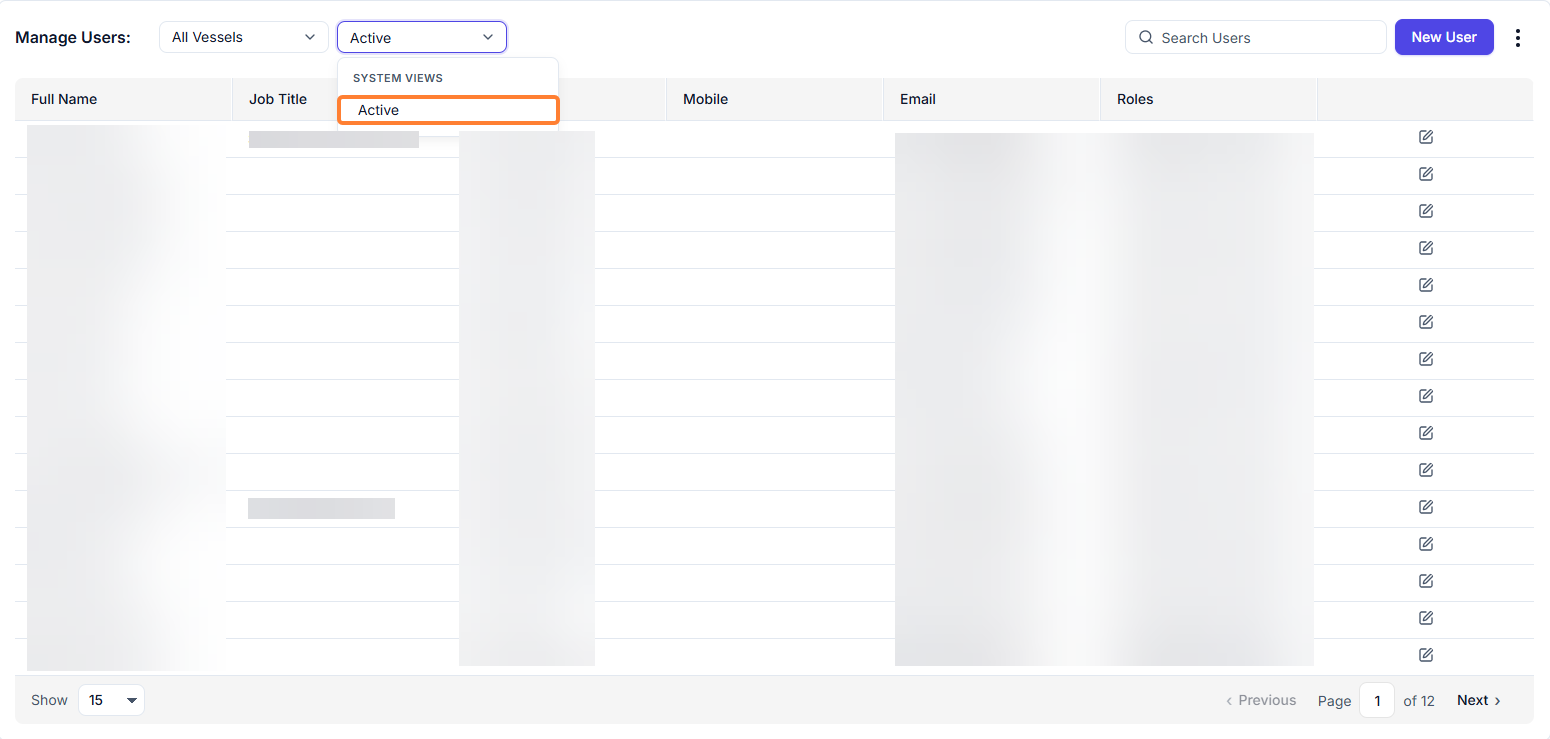
System views
You can select to view the list of all active users or the deleted ones.
Exporting the User List
Account Admins can export the list of users on your account to Excel, for example to review who has access. Only Account Admins can see Manage Users on the Account menu. If you don't see it, ask your Account Admin to export the list. If you're not sure who your Account Admin is, contact Veson Support.
-
In the sidebar menu, select Account → Manage Users.
-
Set the status filter to Active to show current users.
-
Select the menu icon in the upper-right corner of the page, and then select Export to Excel.
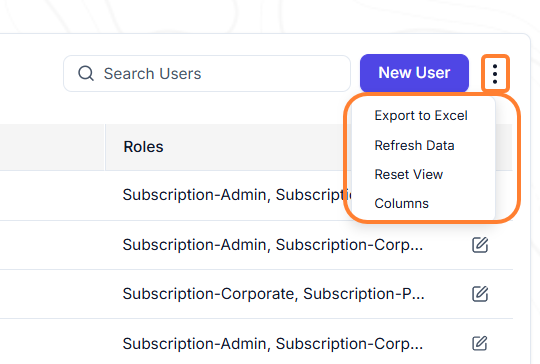
The list downloads as an Excel file. It includes user details such as last login activity.
Adding a User
To add a user to your account, select the New User button at the top-right corner of the page.

Deleting a User
To delete a user from your account, select the edit image on the row of the user you wish to delete. The details of the selected user are displayed.

Then select the Delete button at the bottom-left corner of the page to delete the user.
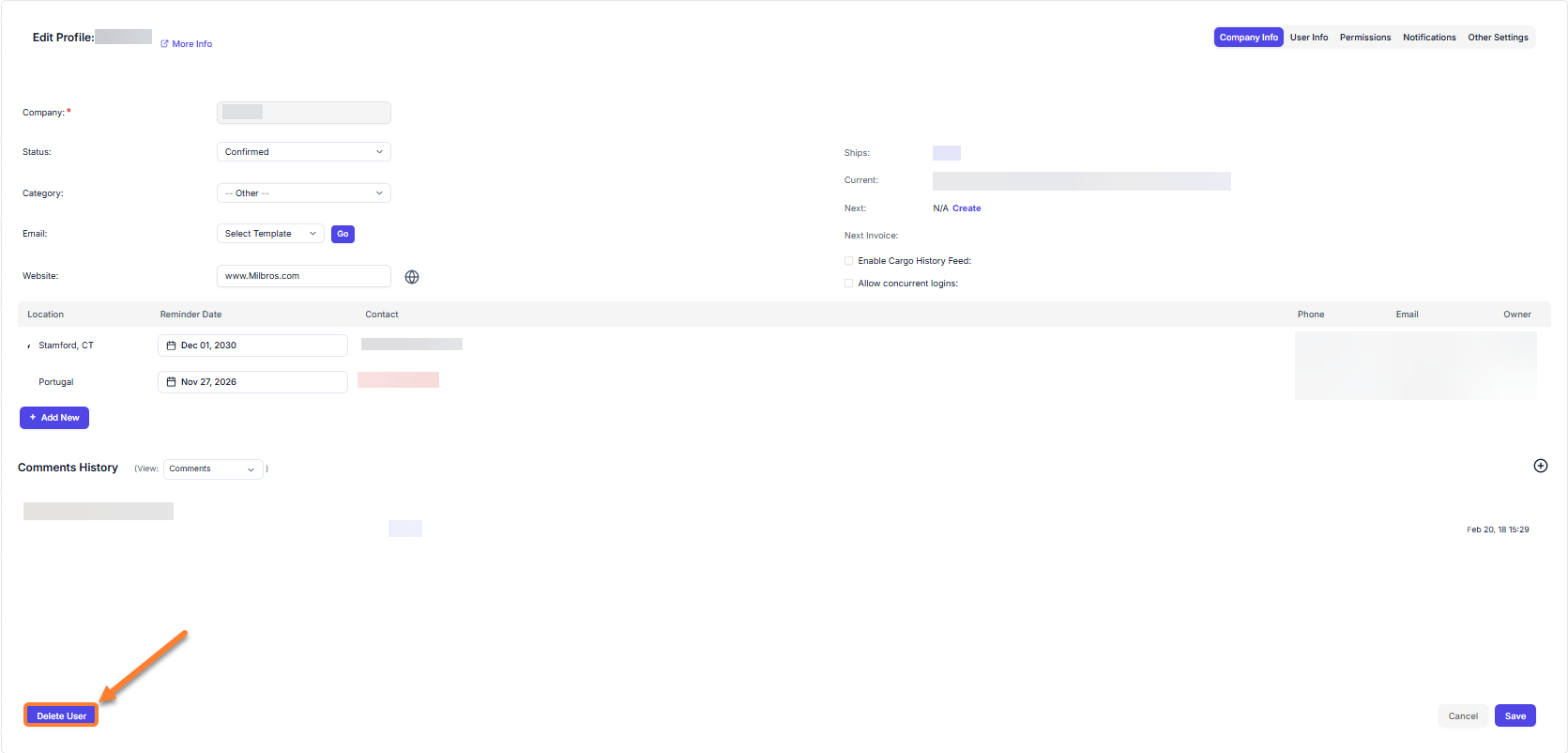
Note: It is not possible to retrieve the users account once it has been deleted.
Setting User Permissions
The permissions can be set for each user to access the different modules which are available under your account. They can be found when you click the image for the user.
On the User Detail page, select the Permissions tab:
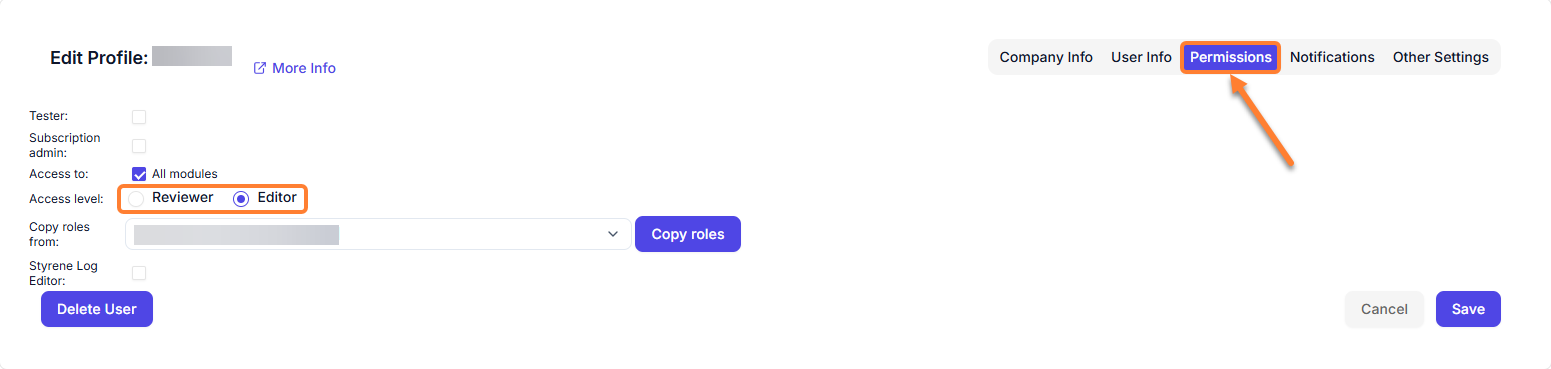
Each user can set setup to have no access, reviewer (read-only access) or editor (read/write access) to each module.
Disable All Modules to expand the following options:
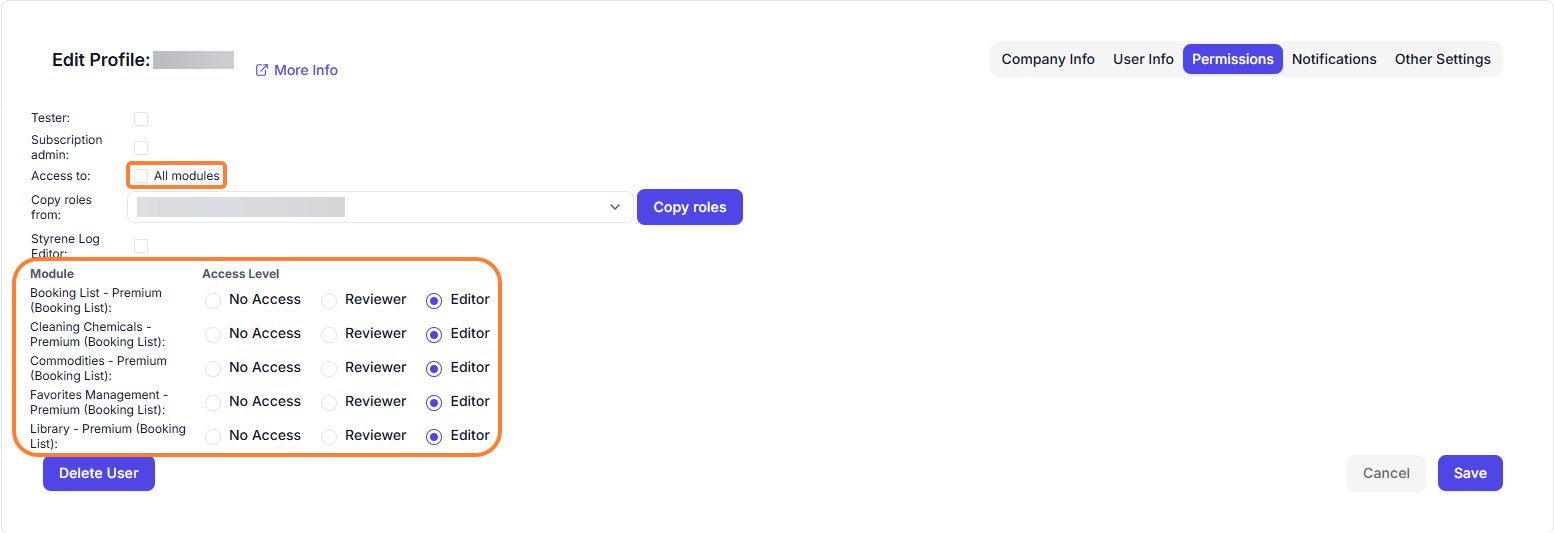
Then select Save.