
Home > Time Charters > Item Select
You can add additional details to a Time Charter Payment or a Time Charter Bill.
-
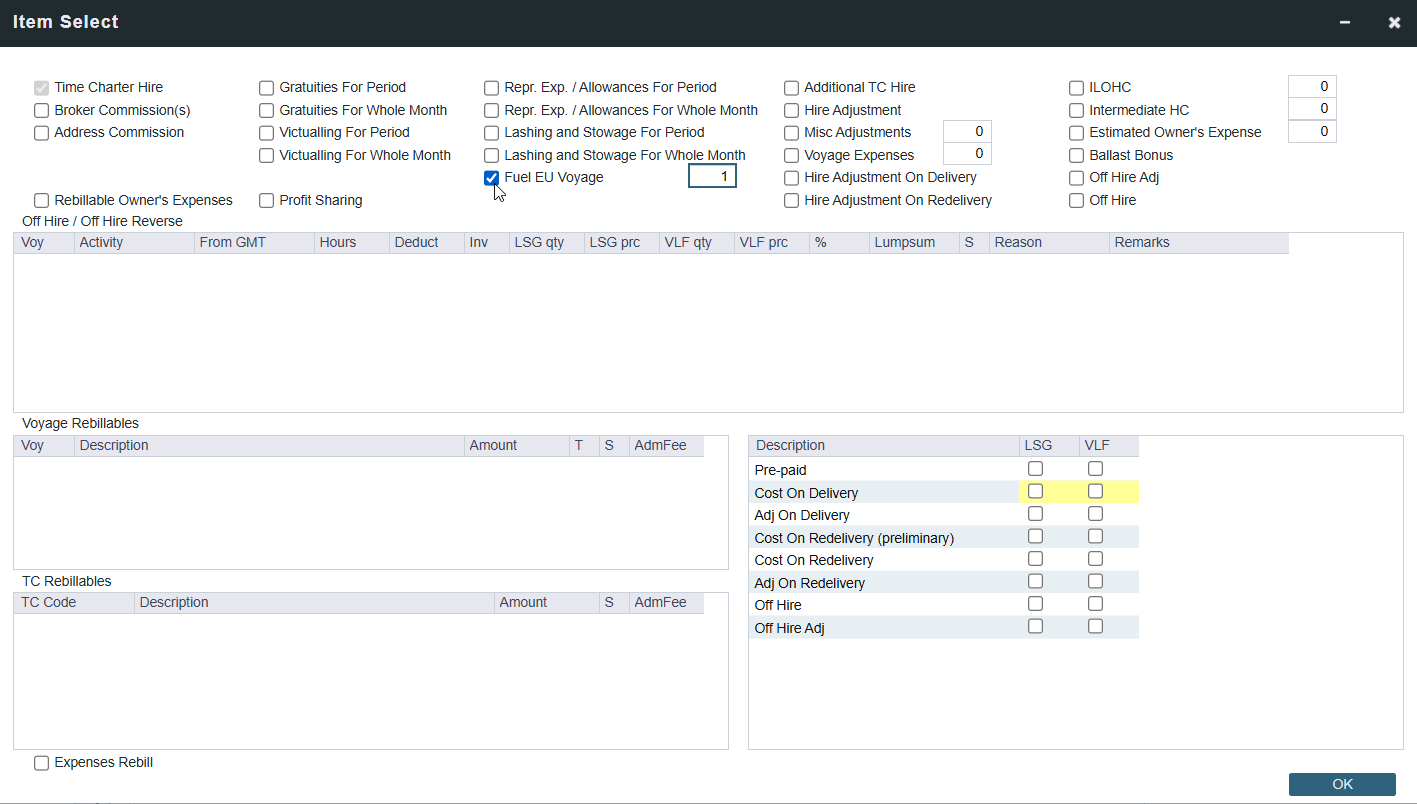
Click Create/Add Details to select line items to add to the payment or bill in the Item Select form. Hover over each option for an expanded description of the functionality. Some of the most frequently used functionality is summarized below.
-
The first payment/bill includes the Time Charter Hire for the first period. To adjust the amount of the Hire, you can adjust the date range for the hire calculation in the previous invoice form, add Additional TC Hire which affects the P&L, or add Hire Adjustment which does not affect the P&L.
-
To add miscellaneous line items to the invoice object, add Voyage Expenses which affect the P&L, or Misc Adjustments which does not affect the P&L. For more details, see Time Charter Miscellaneous Adjustments.
-
To set a Voyage/Misc Expense as estimated and have it appear on the SoA Recap Report, create Operations Ledger code ESTEXP, select Misc Adjustments, and then select ESTEXP in the Subcode field on the ADJST line of the payment or bill.
-
After the actual expense is incurred, create a credit for the estimate (using ADJST/ESTEXP) and then create a new line for the actual expense.
-
-
-
If a Ballast Bonus payment is needed, the Ballast Bonus check box is highlighted in yellow.
-
If cleaning costs need to be added select ILOHC or Intermediate HC (INTHC), costs will be auto populated from the Time Charter Contract.
-
Note: It is possible to default the inclusion of hold cleaning costs through CFGAutoSetCleanItems described further below.
-
-
-
When you finish selecting, click OK; the line items appear on the payment or bill.
Bunkers Grid (Bottom Right)
The software highlights bunker items in yellow when the underlying information exists to enable the addition of these line items to the invoice object.
Which values are added to which invoice depends on the clauses specific to the contract (for example, whether a company pays for estimated consumption or pays for all of the bunkers at delivery).
For example, if bunkers are bought or sold in full at the time of delivery the Cost on Delivery check boxes should be selected to include those items on the invoice object. When bunkers are bought or sold in full at the time of redelivery the Cost on Redelivery check boxes should be selected to include those items on the invoice object.
Voyage Rebillables and TC Grid
Only Rebill Exp and TCI Reb Exp Rev/Exp types in the Voyage Other Revenues and Expenses appear in the Voyage Rebillables grid. Conversely, only TC Rebills created by using the TC Rebill column on Time Charter Payments or Time Charter Bills appear in the TC Rebillables Grid.
The following are column definitions in the Voyage Rebillables grid:
-
T: Type of rebillable port expense. The type defaults to O.
-
S: Click to select or clear this column to include or exclude the voyage rebill in the TC invoice when Expenses Rebill is selected.
-
AdmFee: Select to include the Admin Fee for this rebillable item. If an item's Admin Fee is excluded from a normal invoice, it will still appear in an incremental invoice.
-
The rebill amount and Admin Fee (if any), are included in TC invoice.
-
The Admin Fee can be entered in the Time Charter contract in the Rebillable Admin Fee % field.
-
User must select Expenses Rebill at the bottom-left corner to add line items selected in the S column to the invoice object.
Item Select for Incremental Payments or Bills
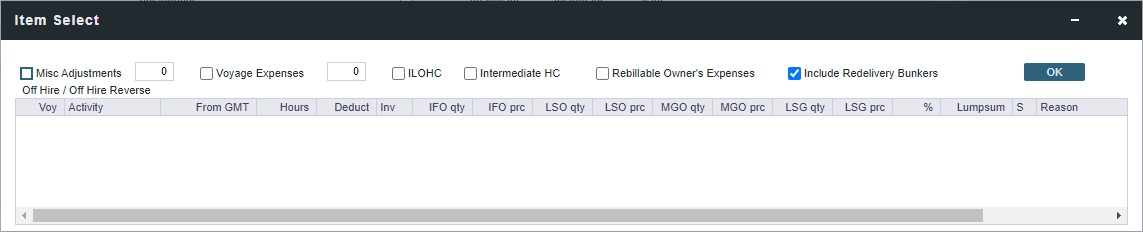
To create an invoice with Payment Type Incremental, the Issue Date must be entered. A credit is applied to any invoices with Issue Dates before this one.
-
When the Time Charter status is Redelivered, the Include Redelivery Bunkers check box is selected by default. If no actual redelivery bunkers data is available, and you select this check box, the estimated redelivery bunkers data is used in the incremental invoice.
In practice, IMOS accommodates up to three incremental invoices per Time Charter contract. Exceeding this limit may result in errors when opening or posting subsequent invoices. If you process requires more than three incremental invoices, contact Veson Support.
Outstanding Hire-Payment Adjustments Report
The Outstanding Hire-Payment Adjustments report is available from the Operations module.