
Collecting MRV Data with the Statement of Facts Form
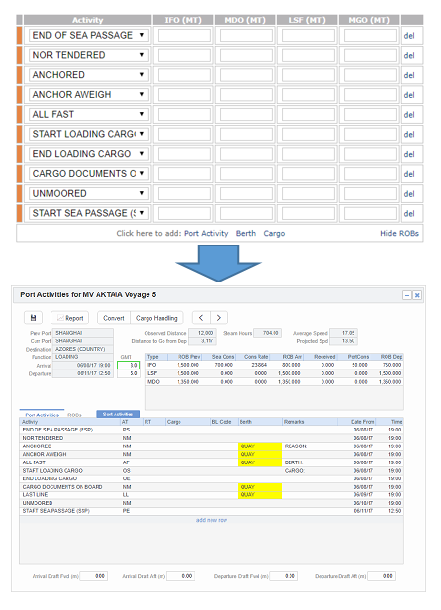
The Berth Events method can use the standard Statement of Facts form to measure berth event consumption. This will create minimal disruption to your existing Veslink Voyage Reporting workflows as it modifies the forms outside of capturing ROBs per port activity/berth event. This method utilizes the workflow of existing port activities and adds on berth events to keep the process seamless.
Configuration
To customize the Statement of Facts form to meet the port activities/berth events requirements of your verifier:
-
In Form Group Options, select the Track Event ROBs check box.
-
Add the following to the Port Activities form:
-
Shifting to Berth
-
Shifting to Anchorage
-
From Last Berth to Sea/Anchor to Port
-
Data Collection
Mapping:
Tracking Port Activity Distances
Companies can customize port activities in the Statement of Facts to include a column to track distances information for MRV reporting. For example, companies may track distances when shifting between berths in port in this form.
This feature requires a minimum schema version of 512 and this setup adds the distances column to the Port Activities screen in the Voyage Manager as well.
-
Activate the configuration flag CFGEnableDistancePerPortActivity in the Data Center.
-
Navigate to Data Center > Port Activities and select which port activities to track distances for. Save the screen after modifying.
Note: Companies may need to select Reset Master Data in Veslink System Configuration (Interface tab) for this new column to display after this update. The updated forms package should also be sent out to the vessel again. Please contact Veson Support if your company is not familiar with this setting.
Preparing Your MRV Reports
At the end of the annual reporting period, to prepare your MRV data, do the following:
-
Click the following links to download MRV Report.form and MRV Bunker Lifting Report (Pnl Method).form, which are report definitions you will use to create MRV reports in the Report Designer.
-
Import the report definitions into the Report Designer.
-
Export the reports to Excel or CSV.
-
Save and share the reports to generate aggregated values for a verifier or EU THETIS-MRV.