
Home > Analytics > Report List
🔑 This is a Key Topic, with high value for all users.
IMOS enables you to work with several report types, all of which are available in the Report List.
Depending on the report type and your user rights, you can create, edit, run, and perform bulk actions on reports as well as import and export custom report definitions.
In addition, you can use the Report Designer to create and run custom reports with data from across the database—everything from Open Positions for Vessels to financial information. The Report Designer provides a live preview, so you can see your edits in real time, and the flexibility to extract your data in a way that is most meaningful to you. You can apply filters, sort and group results, aggregate data, and create a custom layout for your report. More advanced capabilities include conditional formatting and creating custom columns with expressions.
The wide variety of output options (Excel, CSV, XML, PDF, and the Reporting Database) gives you many ways to determine the best way to extract your data from the platform, to support decisions support based on historical information.
Report List
To access the Report List, do one of the following:
-
Click Analytics at the top right.
-
In the Analytics quick links, click

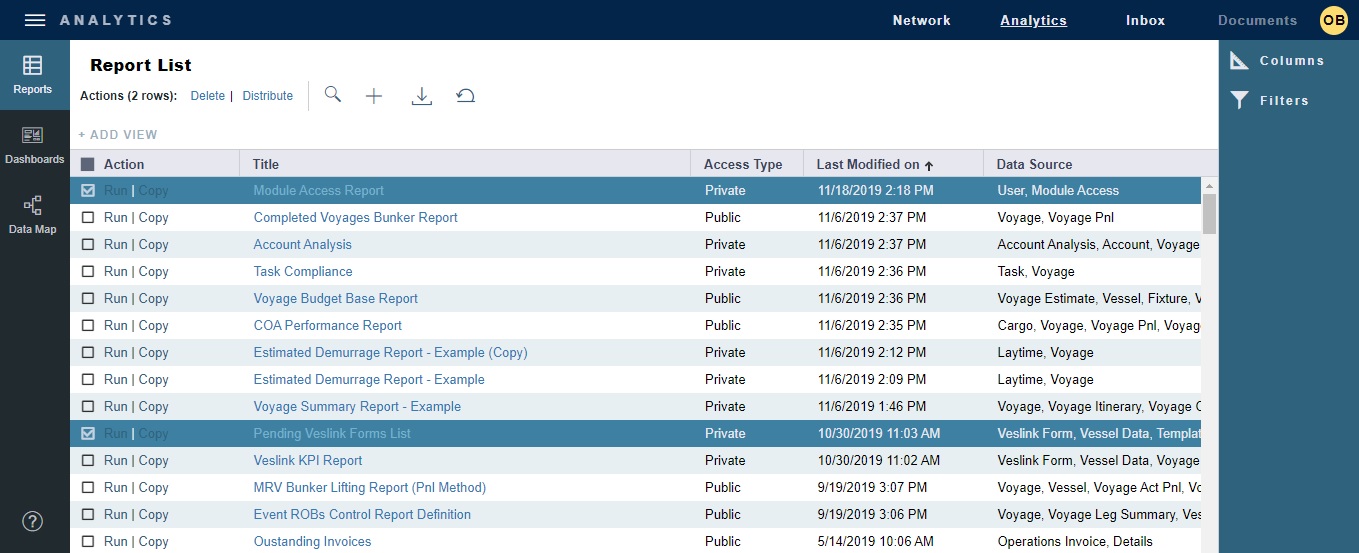
As with any other list, you can search, select, adjust, pin, filter, group, and sort columns, reset to the default view, save user views, and export.
Report Types
Built-in Reports
These reports come from Veson Nautical and are in the Report List by default. You cannot edit a built-in report:
Public Reports
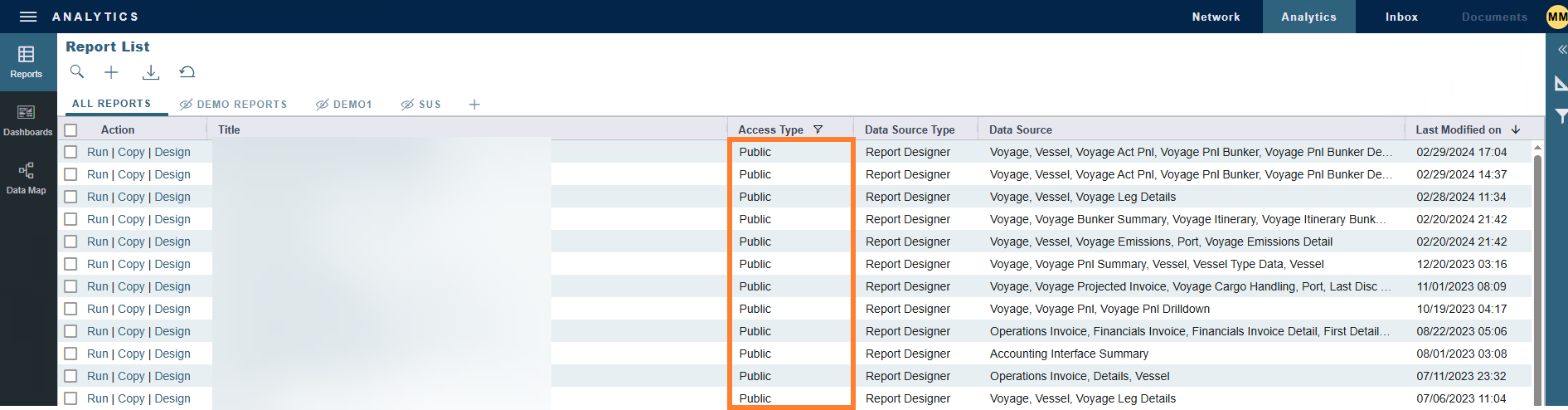
Public reports appear on the list for all users. The authors of these reports (you and/or other users) can set the Access Type of a report to Public to enable other users to run reports:
-
Click on + under Report List, and then select New Report.
-
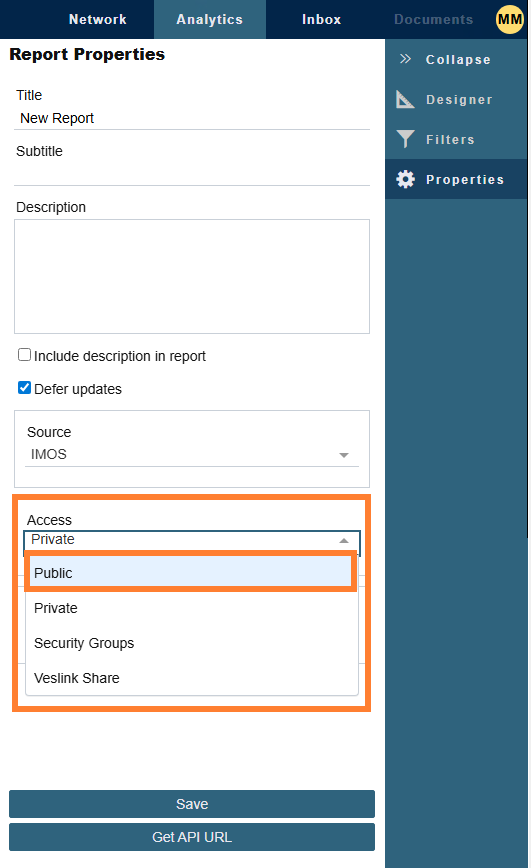
Select Public under Access.
-
-
Click on Save.
-
You enter Design Mode.
-
After you click on Exit Design Mode, your report appears as Public in the Report List.
Private Reports
If you set your reports to Private, you are the only one who has access to them, and they do not appear in the Report List for other users.
Creating a Report
To create a report in the Report Designer, on the Report List, do one of the following:
-
To create a new report, click + and then click New Report.
-
To copy a report, click Copy under the Action column.
Editing a Report
To edit a report, you do one of the following:
-
Click the Design link, under the Action column.
-
Click the report title link, and then click Enter Design Mode.
Running a Report
To run a report:
-
On the Report List, click the Run link under the Action column.
-
If the Output type is List, the report appears in Report View Mode in the Report Designer.
-
If the Output type is Reporting DB, a message indicates the success or failure of running the report and sending the output to the configured Reporting Database.
Use of the Reporting DB requires a separate license. To set it up, please contact Veson Nautical Support.
-
For all other Output types, the report can be downloaded in CSV, Excel, PDF, Word, or XML format.
-
For built-in reports only:
-
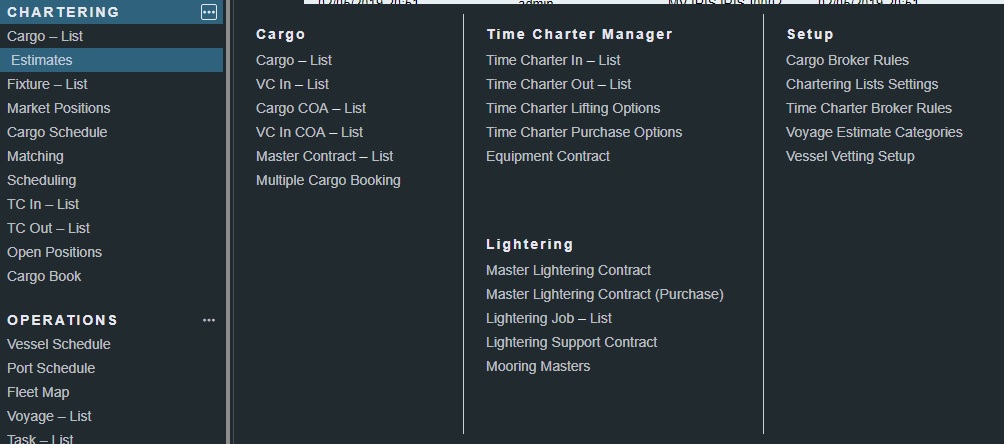
If you are selecting a built-in report from the secondary menu, click the link.
-
If you are selecting a built-in report from the toolbar, click a Reports button.
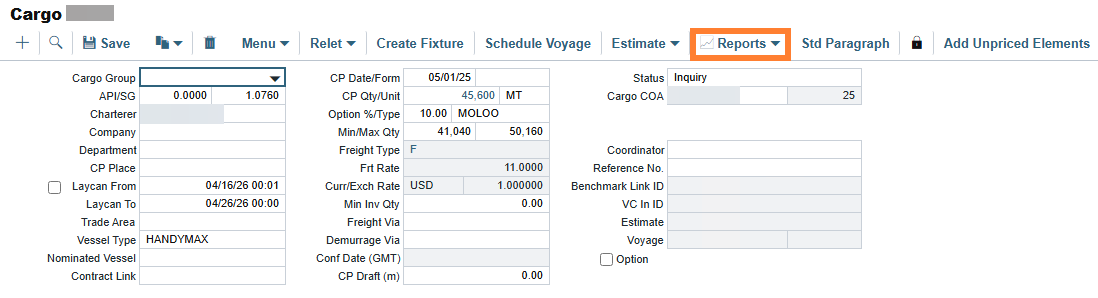
-
Bulk Actions
To delete or distribute reports, select the check boxes on the left side of the Report List and do any of the following:
-
To delete reports, click on the Delete link.
-
Distribute Report Designer reports to Distribution Lists and contacts. For more information see IMOS - Setting Up a Report Designer Report for Distribution.
To select multiple consecutive rows, select the first row and then press and hold down the Shift button → select the last row → release the Shift button.