
Overview
The IMOS X Address Book contains all addresses that you have the right to view. IMOS X replicates the contacts in IMOS and contains only high-level organizational data, not individual contacts.
IMOS is the system of record for maintaining your contact list.

Access the Address Book
In the sidebar menu, go to the Address Book in IMOS X.
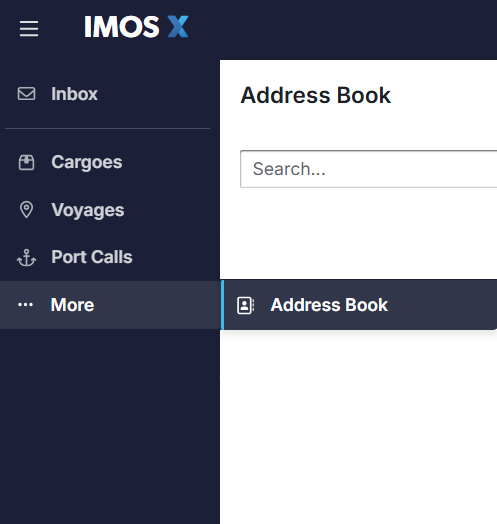
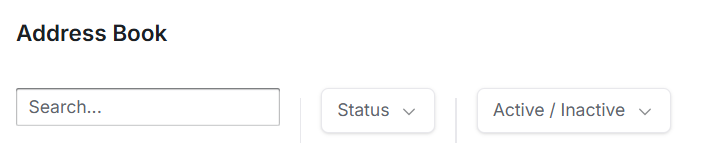
Use the search bar to type the name of the counterparty you want to share with. Apply the filter options to refine your search results.
View an Address Book entry
Select an entry from the list to view additional contact details.
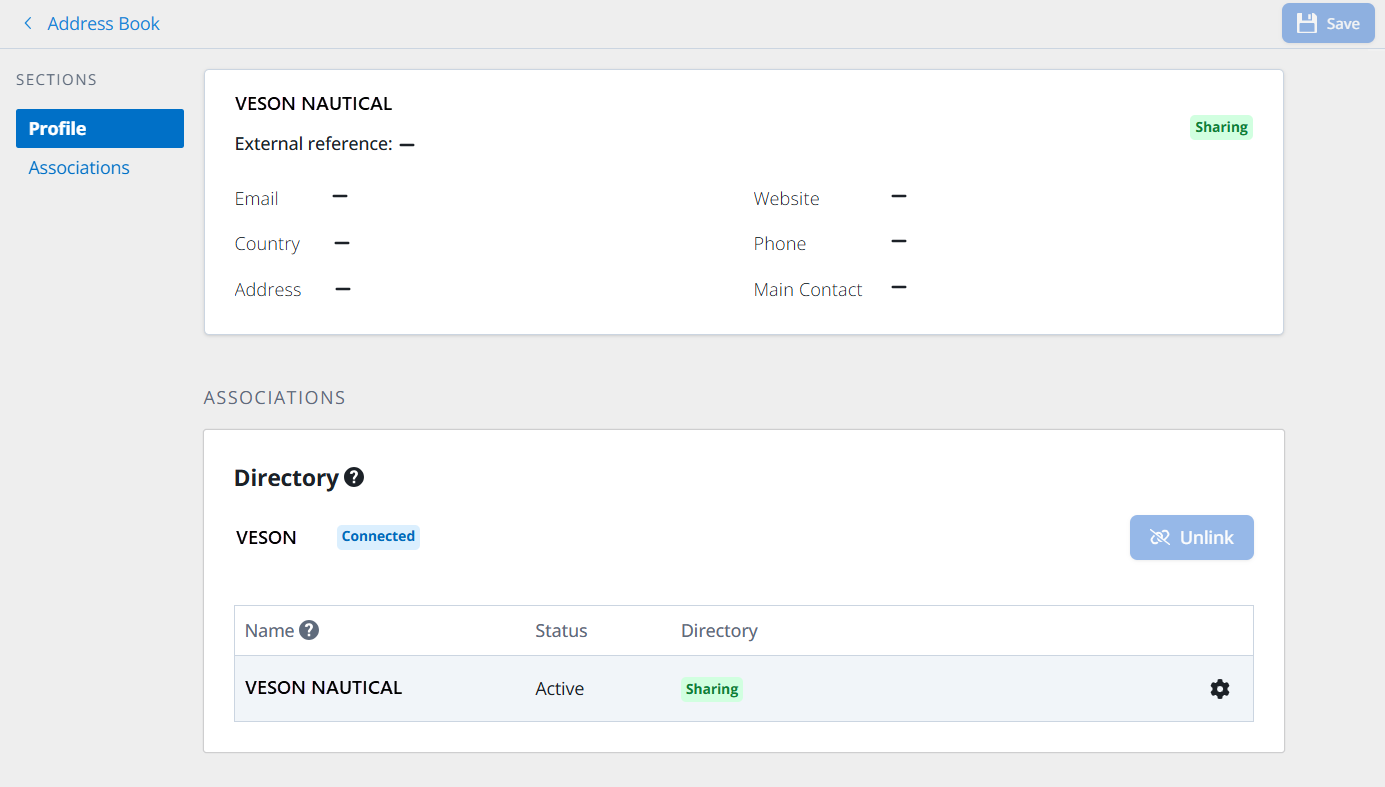
The Profile section includes the organization's contact email, address, country, website, phone number, and main contact. The Associations section gives you the name, overall status, and Directory status.
Status
These statuses reflect the ones in the IMOS Address Book.
-
Active: Usable throughout IMOS
-
Inactive: Not active in IMOS
Directory Status
-
Connected: The Directory entry is linked to at least one entry from your IMOS X Address Book, but no data is currently being shared.
-
Sharing: You are currently sharing data with this counterparty.
-
No Connection: The Directory entry is not linked to any of your IMOS X Address Book entries, and no data is being shared.
-
Not Registered: This counterparty is in our Directory, but they do not yet have an environment set up to log in to IMOS X, so a link cannot be established yet.
Apply Sharing Settings
-
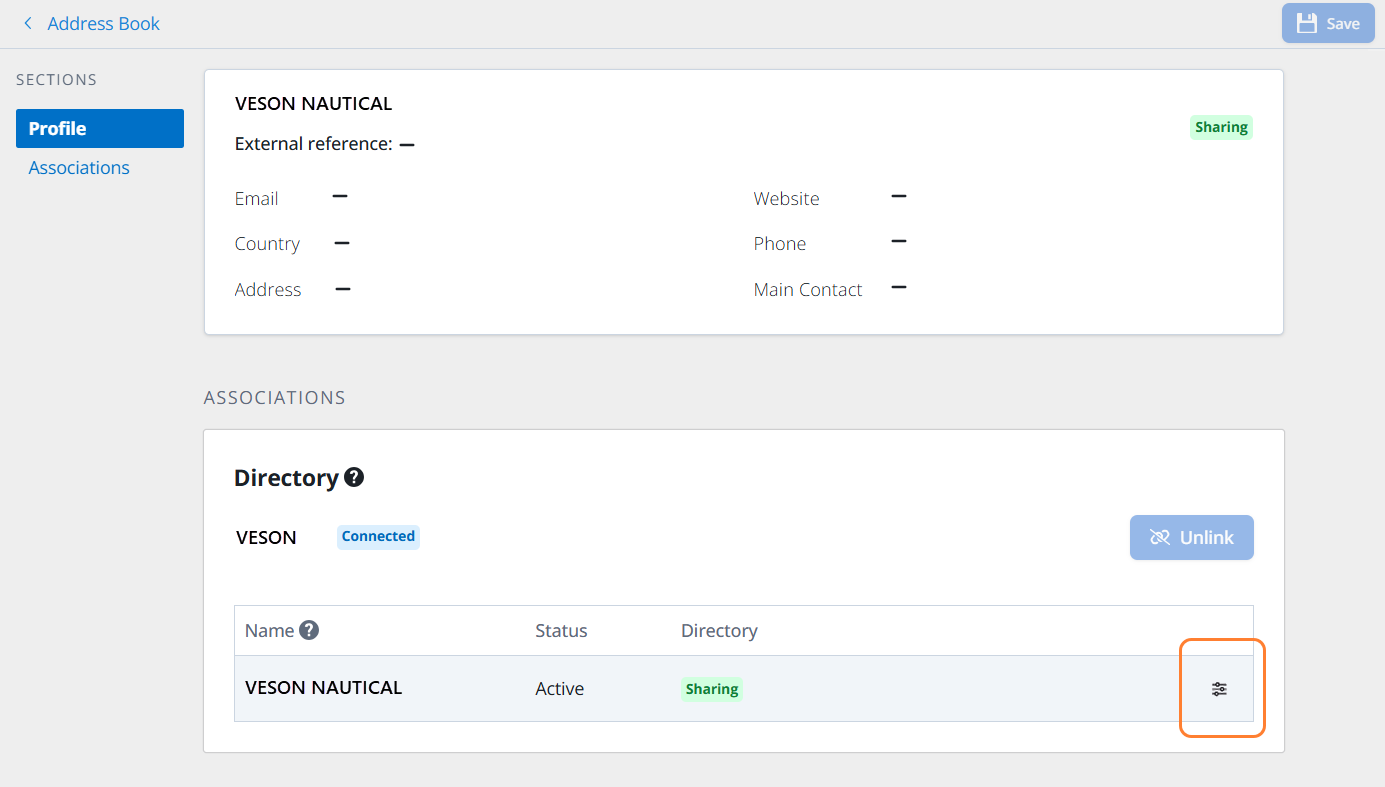
In the Address Book, under Associations, select the settings slider icon beside a specific counterparty in the list. The Sharing Settings window opens.
-
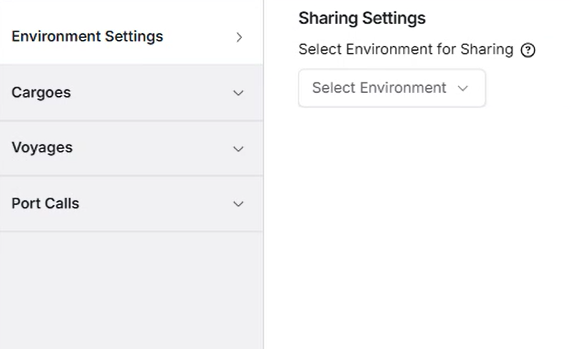
Review the Sharing Settings to choose the data you want to share with your counterparty. Select an Environment to configure. Use the tabs to switch the view from Cargoes, Voyages, or Port Calls to apply specific settings for each. Green check icons appear to indicate that settings are applied to that area.
-
Use the Exclusions search bar to search for specific IDs or names and exclude these details from sharing with your counterparty. The Share Preview table displays a sample of the records you will be sharing with your counterparty if the chosen settings are applied.
-
Once you have configured the settings, select Save to finalize your changes.