
Accessing Fleet Status
To view a summary of your vessels' status, navigate to Vessels → Fleet Status in the sidebar menu.
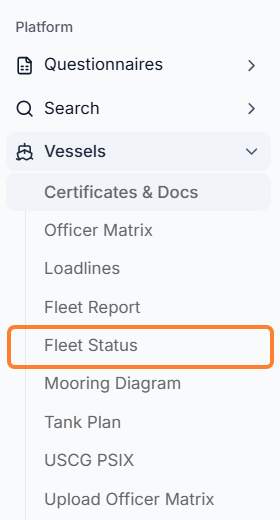
Fleet Status Table
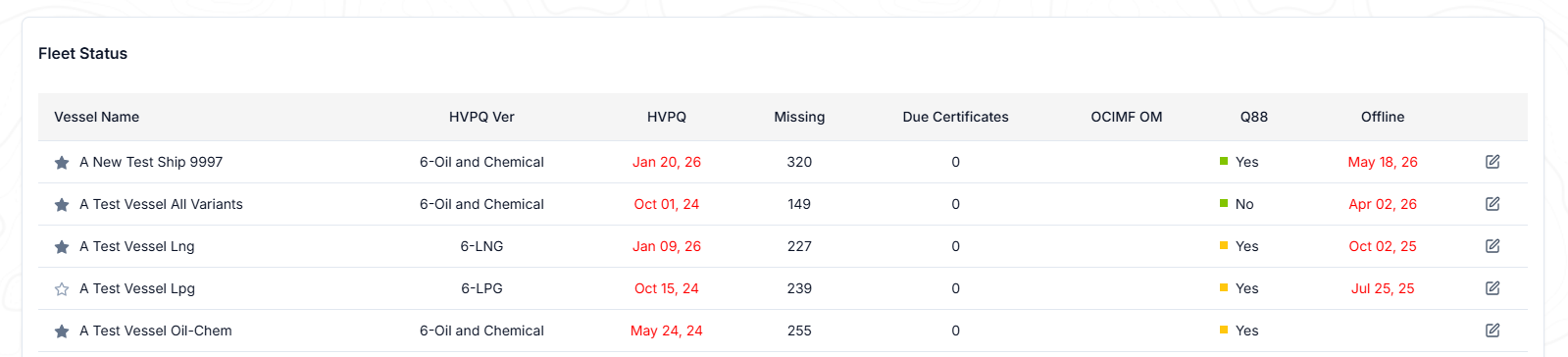
On the new window, a table with of your vessels will appear with the following columns.
-
Vessel Name: Name of the vessel.
-
Gray Star: Vessel is registered by your Company.
-
White Star: Vessel with shared access.
-
HVPQ Version: Last imported HVPQ.
-
Note: Use the HVPQ Import/Export tool to update your Fleet but please note that all vessels must be under Version 6).
-
-
HVPQ: The last date when you imported an HVPQ file into the Q88 Platform.
-
Missing: Questions (not answered) within the Q88 form.
-
Due Certificates: For the vessel, according to the Certificates and Documents module.
-
OCIMF OM: Date of latest submission to OCIMF via the App.
-
Q88: Yes/No field that indicates whether the Q88 form is published; the colors indicate how recently the vessel’s Q88 form has been updated. Please refer to the legend at the bottom of the page for more information.

-
Offline: Date of latest submission of Q88 offline form into the system.
-
Edit: Click the edit icon to make changes on the specific questionnaire.