
Overview
As part of Veson Nautical's ongoing platform improvements, Q88, Q88 Dry, Milbros, and VMS have been migrated to a new authentication system powered by Auth0. This means that all users, both new and existing, are required to authenticate through this new sign-in system.
When you're added to a Q88 product, your sign-in account is created automatically, so you don't need to sign up first. Self sign-up is only needed when you change the email address on an existing account. This guide walks through the sign-up process step by step, including what to expect at each stage, password requirements, and what to do if something goes wrong.
Do you need to sign up?
|
Your situation |
What to do |
|---|---|
|
You're a new user at your company |
Don't sign up. After you're added to your company's account, sign in with your corporate credentials if your company uses SSO. Otherwise, select Forgot Password on the sign-in page to set your password. |
|
You need to change the email address on your account |
Sign up using the new email address by following the steps below, then contact Veson Support. |
|
You need Q88 Position List access |
Don't sign up. Position List requires a cost agreement and a completed Order Form. Contact your Veson Account Manager or Support team. |
Prerequisites
Ensure the following before you sign up with a new email address:
-
You have access to your individual company email address (shared or group emails are not supported).
-
You are using a supported browser: Google Chrome, Microsoft Edge, or Mozilla Firefox (latest versions recommended).
-
You have checked with your IT department that emails from no-reply@veson.com are not blocked by your company's spam filters.
-
You are signing up for the correct product. Use the sign-up link that corresponds to the product you need access to:
Sign-up URLs by product
|
Product |
Sign-up URL/Step |
|---|---|
|
Q88 |
|
|
Q88 Dry |
|
|
Milbros |
|
|
VMS |
Important note for Position List users: Do NOT proceed with self sign-up for Q88 Position List access, as it requires a cost agreement and completed Order Form; please contact your Veson Account Manager or Support team to proceed.
Step-by-Step Sign-Up Process
Follow these steps when you need to sign up with a new email address, for example to change the email address on your account.
Step 1 — Navigate to the Sign-up Page
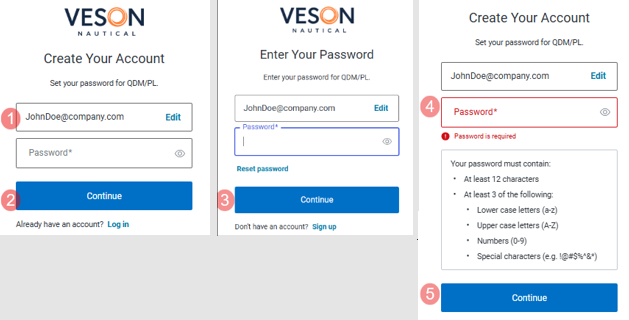
Open your preferred browser and go to the sign-up URL for your product (see the table above). You will land on the new registration page.
On this page, enter your individual company email address in the field provided. Make sure you are using your own personal work email — not a shared team or group email address, as shared sign-ins are no longer supported under the new authentication system.
After you enter your email, select Continue to proceed to the next step.
Step 2 — Create Your Password
Enter a strong password that meets the requirements listed, then select Continue.
Password Requirements:
-
Min. 8 characters
-
1 uppercase
-
1 lowercase
-
1 number
-
1 special character (for example V3s0n@2026!)
Step 3 — Verify Your Email Address
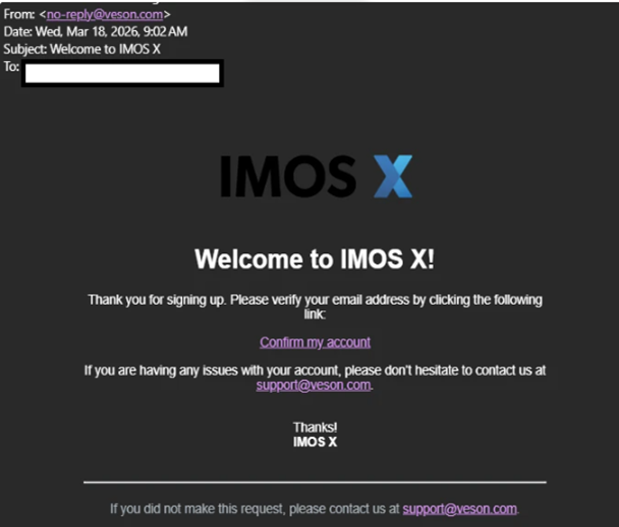
After you select Continue, the system sends a verification email to the address you provided. This is a mandatory step; your account will remain inactive until your email address has been confirmed.
Check your inbox for an email with the subject line "Welcome to IMOS X!" from no-reply@veson.com. Note that the email may reference IMOS X — this is expected, as the authentication system is shared across Veson products.
Not seeing the email? Check your spam/junk folder, make sure no-reply@veson.com isn’t blocked, try the “Resend email” option, and if it still doesn’t arrive, contact Veson Support at https://help.veson.com
Step 4 — Confirm Your Account
Open the verification email and select the Confirm my account button. This redirects you back to the new sign-in page and activates your account in the authentication system. You must select this link before your account can be used.
After you confirm, your account is active in the authentication system. The next step is to contact Veson Support so they can update the email address on your Q88 account.
Step 5 — Contact Veson Support to Update Your Email Address
After you confirm your email, contact support via https://help.veson.com, support@q88.com, or reply to an existing ticket. The team will verify your sign-up, update the email address on your account, and notify you when it's ready.
Signing In After Registration Is Complete
After Support confirms the update, sign in via your product’s main page using your sign-up credentials. Milbros users should enter their username, select Continue, then complete sign-in on the new sign-in page (not the old page), and use “Forgot Password” there if needed. Reset emails come from no-reply@veson.com.
Troubleshooting Common Issues
|
Issue |
Resolution |
|
Verification email not received |
Check spam/junk folder. Ask your IT department to add no-reply@veson.com to your allow list. Use the 'Resend email' option on the confirmation page. |
|
'Sign-ups are not allowed for your organization' error |
Contact Veson Support to assist you. |
|
Forgot Password email not received |
Check spam/junk folder. Confirm the email address matches your registered account. Contact Support if the issue persists. |
|
Account locked after multiple failed sign-in attempts |
Stop retrying immediately. Lockouts do not clear on their own and require manual removal by Veson Support. Contact Veson Support. |
|
Cannot sign in despite completing all steps |
Confirm with Support that your account has been fully linked to your company Q88 profile. Do not attempt to create a second account. |