
Home > Data Center > User-Defined Fields
You can create User-Defined Fields for use on several forms. After a User-Defined Field is defined and saved, the form includes a Properties tab or context menu item, on which Default and selected Normal fields appear.
-
They can be added to Cargo, VC In, TC In, and TC Out lists and can be added as columns in Report Designer reports with Source IMOS using relevant tables.
-
For Cargo/VC In and Time Charter In contracts, they are available as columns in the Cargo and Vessel grids of Matching.
-
In Financials, you can add them to the Transaction Data Entry form/invoices.
Creating User-Defined Fields
-
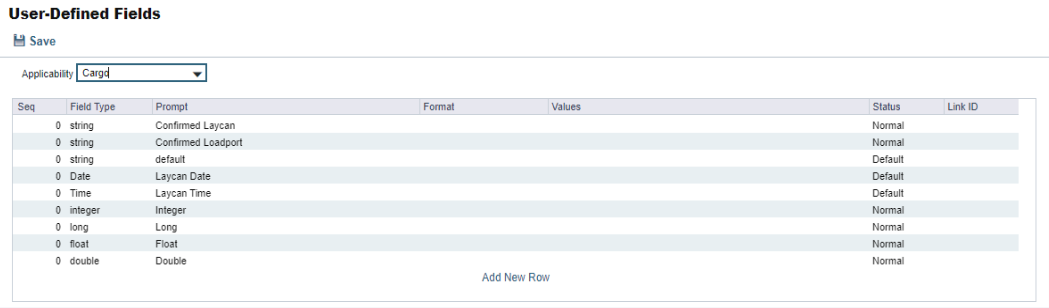
On the Data Center menu … > under Other > click User-Defined Fields.
-
Select the Applicability:
-
In the grid, define fields.
-
To create a custom drop-down menu:
-
Create a string and then do one of the following:
-
In its Values field, select Edit Values.
-
Right-click its row and then click Edit Values.
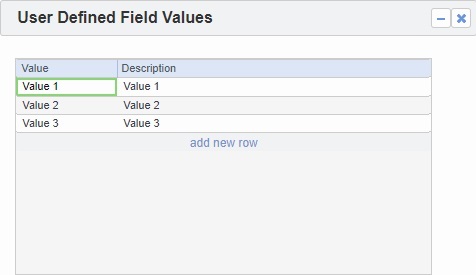
On the User Defined Field Values form:-
Enter the Values you want users to choose from, including a Description for each.
-
Close the User Defined Field Values form.
-
-
-
-
Select the field Status:
-
Default: The field appears on the Properties tab by default.
-
Normal: The field can be added to the Properties tab by adding a new row.
-
-
Define Format of the field:
-
For numerical format, enter the number of decimal places
-
For string, the number of maximum characters that can be supported
-
Add #vessel or #cargo so that the User-Defined Field will allow you to select a Vessel from the Vessel list or a Cargo from the Cargo list, respectively.
6. Link ID is used to map User-Defined fields between Applicabilities.
-
If the Link IDs of the User-Defined fields match, then user data will be automatically ported from COA to Cargo upon cargo creation. To map Link IDs, use a common link such as "link“.
7. After saving and exiting, a Properties tab appears on the applicable form, where the newly defined fields can be added.
Adding User-Defined Fields to the Properties Tab

In the Title column, click to select the field Prompt. The Value column will accept an entry based on the Field Type selection.
If the field is a drop-down menu, its values appear in the order they were created.
User-Defined fields can only be used once in the Properties tab (i.e., one cannot assign the same Prompt to multiple lines).
Size and range of User-Defined Field types
|
Type |
Size |
Data Range |
|---|---|---|
|
integer |
4 bytes |
-2,147,483,648 to 2,147,483,647 |
|
long |
4 bytes |
-2,147,483,648 to 2,147,483,647 |
|
float |
4 bytes |
3.4E +/- 38 (7 digits) |
|
double |
8 bytes |
1.7E +/- 308 (15 digits) |
|
string |
array of characters (up to 512 characters) |
|