
Explore a tailored list of features and fixes, including images and documentation, to better understand which changes apply to your workflow.
Update new feature Security PRODUCT
November 2026
CoCaptain
CoCaptain Agentic Workflows for Chartering, Operations, and Claims new feature
CoCaptain Agentic Workflows can now complete multi-step work for you in Chartering, Operations, and Claims, and return the result for your review. These prebuilt, configurable workflows take on routine tasks. For example, a workflow can turn a broker email into a ranked opportunity, or a fixture recap into a cargo record. Your Veson team sets up and enables each workflow with you. Contact your Veson representative to get started. For details, see CoCaptain Agentic Workflows: Enhancing Your Veson Platform Experience.
Register for the webinar to see live demos of these workflows: registration link
October 2026
Veson Platform UI
Identify open tabs at a glance with descriptive tab titles Update
Tab titles on Veson Platform, when viewing IMOS and enhanced views, will have the same name as they had on veslink.com for easy identification when multiple tabs are open. These include voyage, vessel, cargo, and other areas of the platform. This helps you move quickly between several open records.
Open Trade Details from the Exposure view Update
Previously, clicking the Details link in the Exposure view in Trading & Risk redirected you to the IMOS login screen instead of opening the trade details. Now, the Details link opens the Trade Details window in Veson Platform. This change helps you review trade details and the market calculation without leaving your exposure analysis.
Filter Cargo and Voyage maps by vessel Update
Previously, clicking a vessel on the Cargo map or Voyage map did not display any information about that vessel. Now, clicking a vessel filters the list and the map to the cargoes or voyages of that vessel, and a filter pill appears. You can clear the filter by clicking the vessel again or by clicking the × on the filter pill. This helps you focus on the cargoes and voyages of a single vessel without leaving the map.
Sign Back In After a Session Timeout by Refreshing the Browser Update
Previously, when the Auth0 sign-in page displayed an error after a Veson Platform session timed out, refreshing the browser did not recover the page. Now, refreshing the browser starts a new sign-in so that users can sign in again.
Net Voyage Days in the Enhanced View P&L now matches the classic IMOS P&L Update
Previously, when off hire or waiting days were added to a voyage, the Net Voyage Days row in the Enhanced View P&L displayed Total Voyage Days. Now, Net Voyage Days excludes these days and matches the classic IMOS P&L.
Snapshot Type Now Accepts Custom Snapshot Names on Monthly Accruals and Voyage Period Journals Update
Previously, you could not enter a snapshot name in the Snapshot Type field on Monthly Accruals and Voyage Period Journals; only Manual Date and Current were available. Now, you can select a configured P&L Snapshot Type or enter any snapshot name, as you can in IMOS, and run from the latest snapshot with that name on the date you select. A snapshot date is required when the Snapshot Type is anything other than Current.
Stay signed into the Veson Platform after a short break Update
You can now step away from the Veson Platform and return without signing in again. Previously, a break of 15 minutes or more, for example while your computer was asleep, sent you and each of your other open tabs back through sign-in and a slow page reload. Now, you stay signed in during any break that is shorter than your idle timeout, which is 90 minutes by default and is set by a tenant setting, so you pick up exactly where you left off. For security, each session ends 12 hours after you sign in, and you sign in again at that time.
Navigate Veson Platform and identify your environment more easily Update
The Veson Platform navigation rail now lists CoCaptain, Mail, IMOS, Insights, Market Screens, VesselsValue, Q88, Q88 Dry, Milbros, and Chat in that order. The environment bar at the top of the page now has the same height in every environment, and the environment badge next to the logo appears as text with a colored dot. The environment list in the avatar menu is more compact, with one line for each environment, and the colored ring around your avatar expands slightly when you point to it or select it.
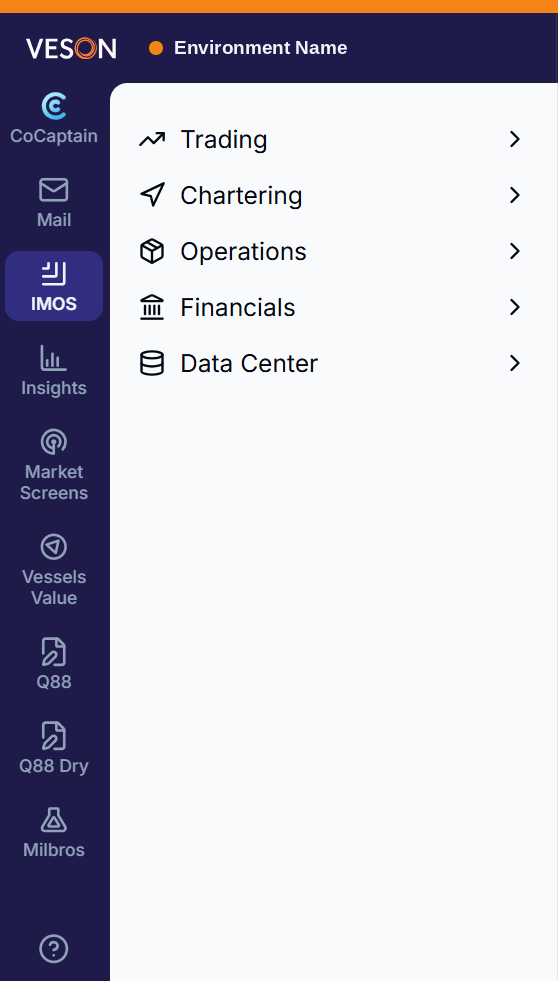
Consistent Masthead Color for IMOS-Linked Tenants Update
For tenants that are linked to IMOS, the color of the top bar, the environment indicator, and the ring around the user menu now always matches the IMOS masthead color. You can no longer select your own environment color for these tenants, and the Environment Settings section no longer appears if you have access only to IMOS-linked tenants. There is no change for tenants that are not linked to IMOS.
CoCaptain
Find cargoes by CP Form in CoCaptain Update
Previously, CoCaptain could not list or filter cargoes by CP Form, so questions about a cargo’s CP Form took several minutes or went unanswered. Now, CoCaptain can list cargoes with their CP Form and filter cargoes by CP Form in a single search. This helps you get answers about your cargoes faster, without manual lookups.
Find records in CoCaptain with multi-word names and free-text searches Update
Previously, CoCaptain did not return records when users searched by a name of more than one word, or when users searched for invoices, Time Charter contracts, and emails by free text. Now, CoCaptain finds these records faster and more reliably. This change helps you get answers about your vessels, contracts, and invoices without waiting for repeated searches.
Keep important CoCaptain chats at the top of your history Update
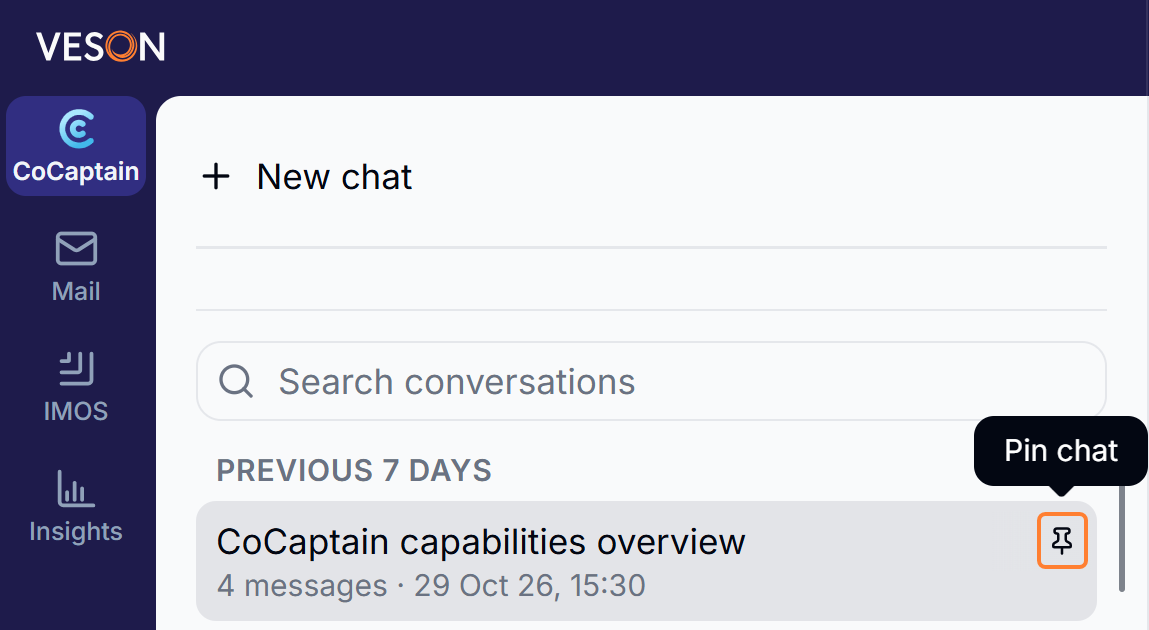
You can now choose to pin CoCaptain chat sessions to the top of your history for easy access. This change helps you return to your important conversations quickly without searching through your chat history.
CoCaptain Menu Items on Read-Only Records Update
Previously, users with read-only access to a record could not use CoCaptain to open its menu items or to access the data in the windows that those menu items open. Now, CoCaptain can open menu items and access the data in their windows for read-only records.
CoCaptain Q88 Vessel Context Update Q88
CoCaptain is now aware of the vessel that you are viewing in Q88. When you ask CoCaptain a question from a Q88 page, for example Create Questionnaire, Inspections, or Certificates, it automatically uses the current vessel and its IMO number as context. You no longer need to specify the vessel in your request.
CoCaptain now updates P&L Remarks correctly Update
Previously, when you asked CoCaptain to update P&L Remarks on a voyage, CoCaptain did not change P&L Remarks and instead wrote the text in Voyage Remarks. Now, CoCaptain writes the text in P&L Remarks and updates Voyage Remarks only when you ask for that field. This helps you keep financial notes in the correct field, so voyage records stay accurate and complete.
Accurate currency symbols and quotation marks in CoCaptain P&L remarks Update
Previously, when CoCaptain wrote text to the P&L Remarks field on a voyage, the characters €, —, ’, “, and ” were stored as question marks (?). Now, CoCaptain stores these characters, and other Windows punctuation, exactly as written. This applies when your IMOS includes the 10-16 release. This helps you rely on the remarks CoCaptain writes without rechecking them for lost characters.
Set Dem/Des Rate/Day with CoCaptain on an Estimate Update
Previously, CoCaptain could not set the Dem/Des Rate/Day in the Itinerary Details dialog on an Estimate, and the value did not change. Now, CoCaptain sets the Dem/Des Rate/Day. This has been fixed. This helps you complete demurrage and despatch setup on your Estimates without switching away from CoCaptain.