
Home is your centralized workspace in the Veson Platform. It's where you review and approve the work CoCaptain Agentic Workflows prepare for you, approve or reject Veslink forms, and keep the areas you use most close at hand with shortcuts. Every workflow, across chartering, operations, and claims, places what needs your attention on Home, so you review and approve in one place instead of searching your inbox. Some workflows, mainly in claims, can also return results by email or directly on the claim. Administrators also use it to see which workflows are running and how many credits they use.
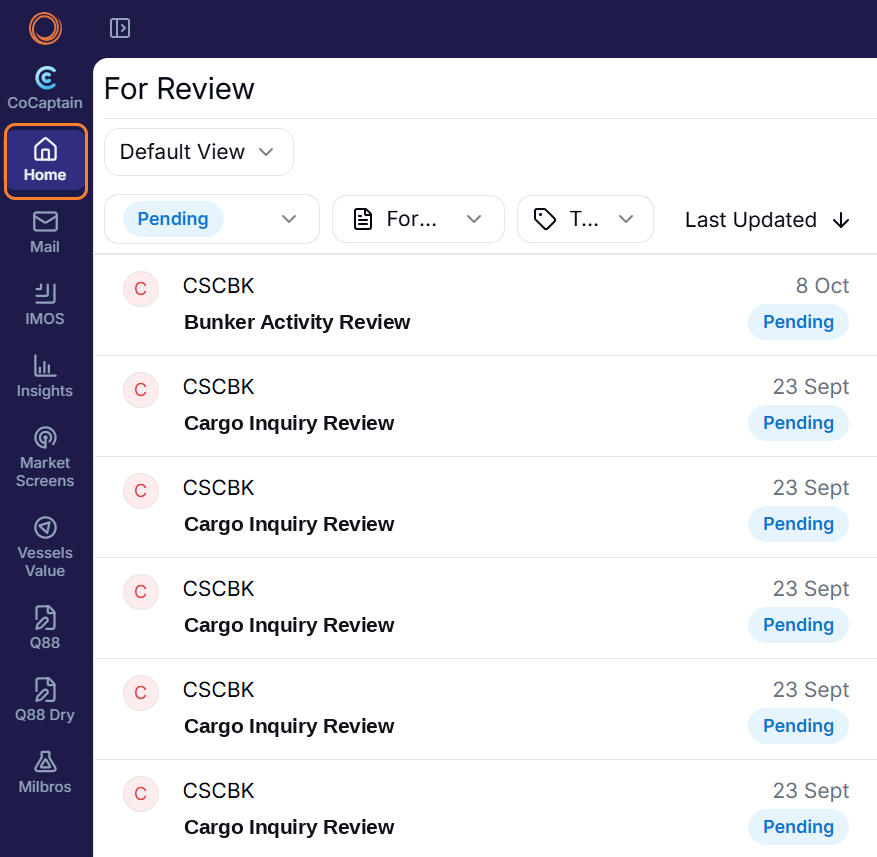
What do I see on the Home page?
-
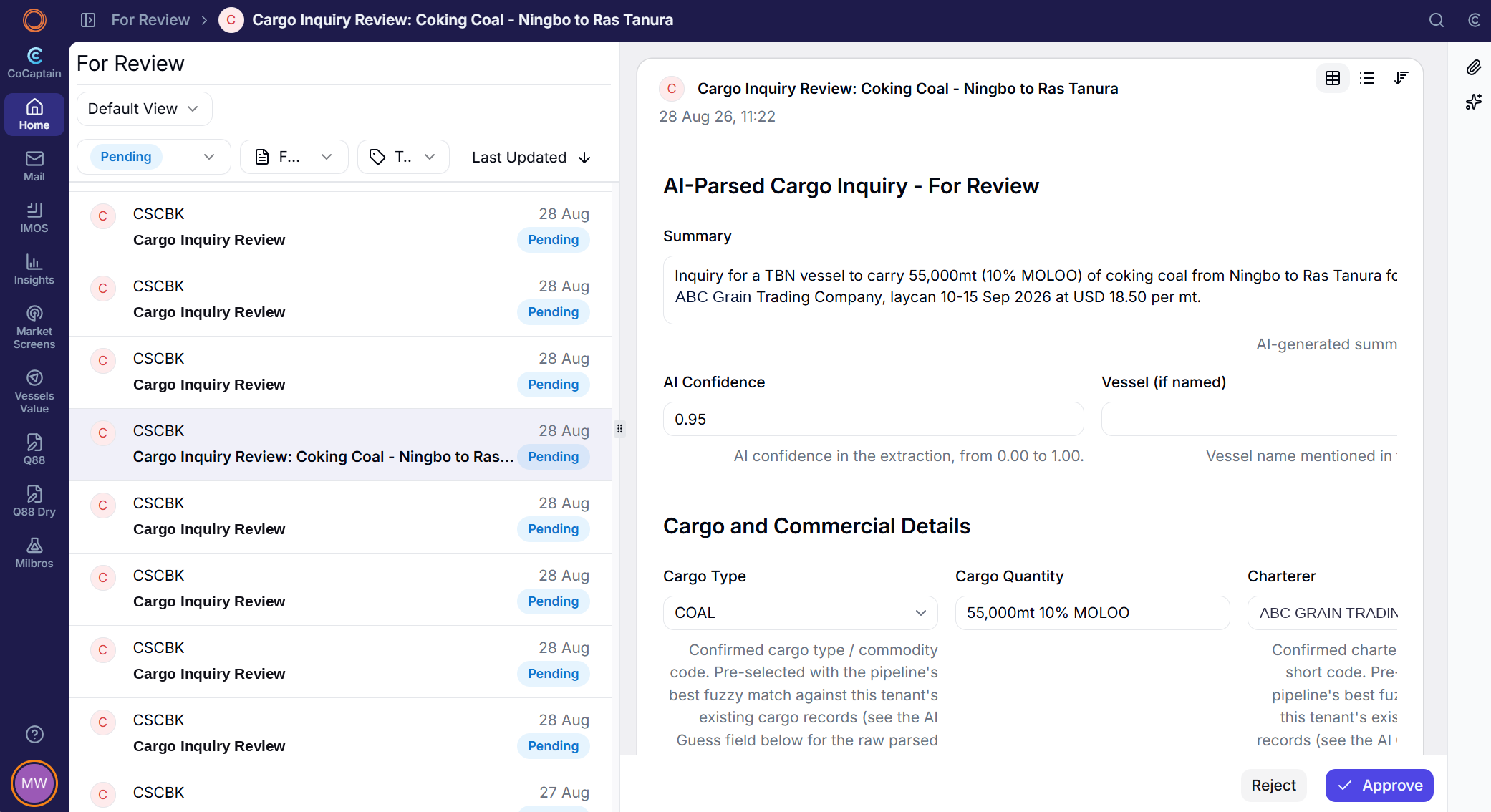
Items that need your action: Each item is a form CoCaptain prepared, such as an estimate to approve, a recap to book, or a draft invoice to send.
-
Source documents and CoCaptain’s reasoning: Each form links to the email or document it came from. The AI insights panel shows what CoCaptain extracted, where it looked, its confidence score, and anything it could not find or match.
-
Your approved items: After you approve a form, it moves to your approved list so you can see what was done and open the record it created.
-
Other forms that need approval: Standard Veslink forms also appear on Home, alongside the forms workflows prepare, so everything waiting for you is in one place.
-
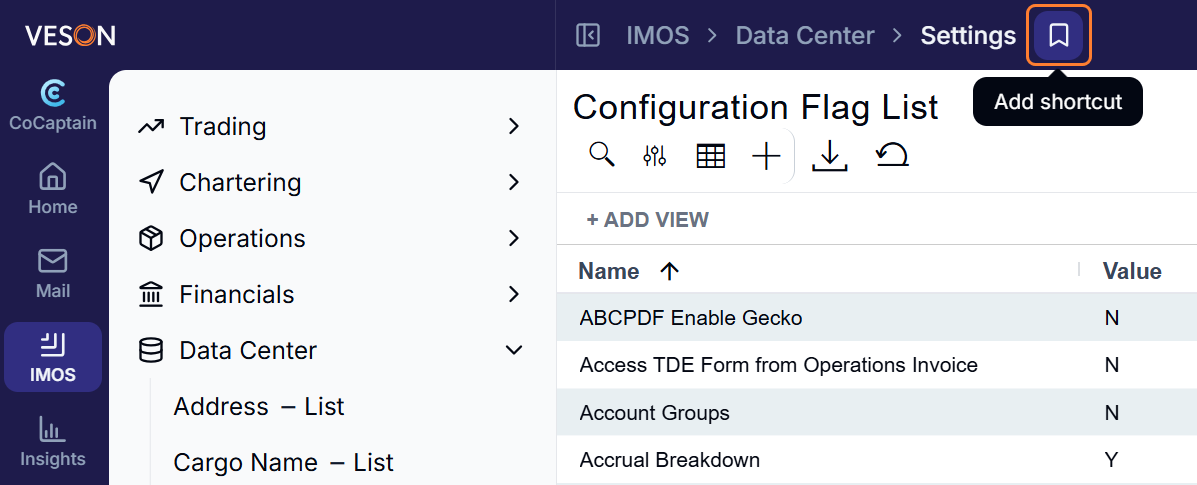
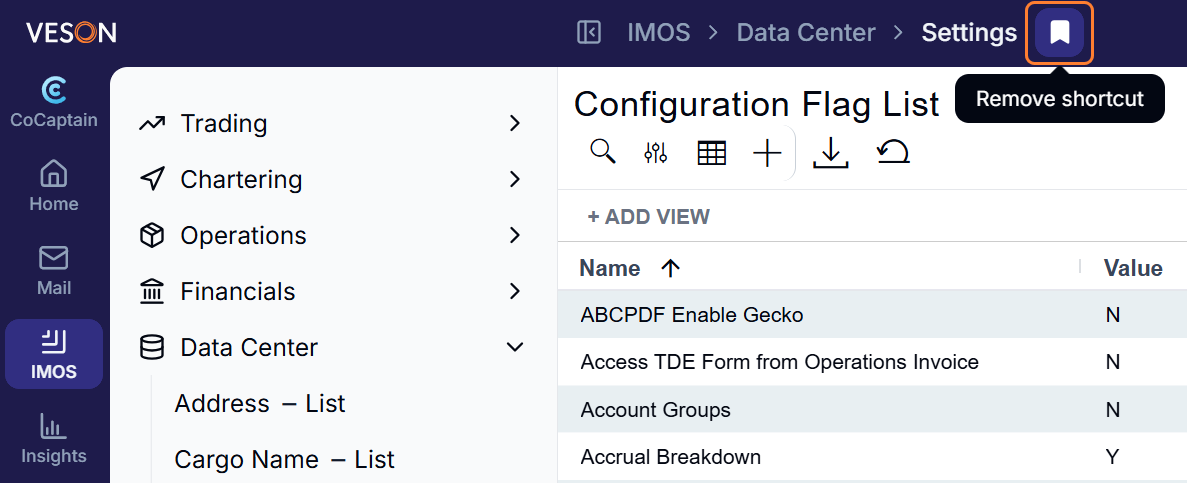
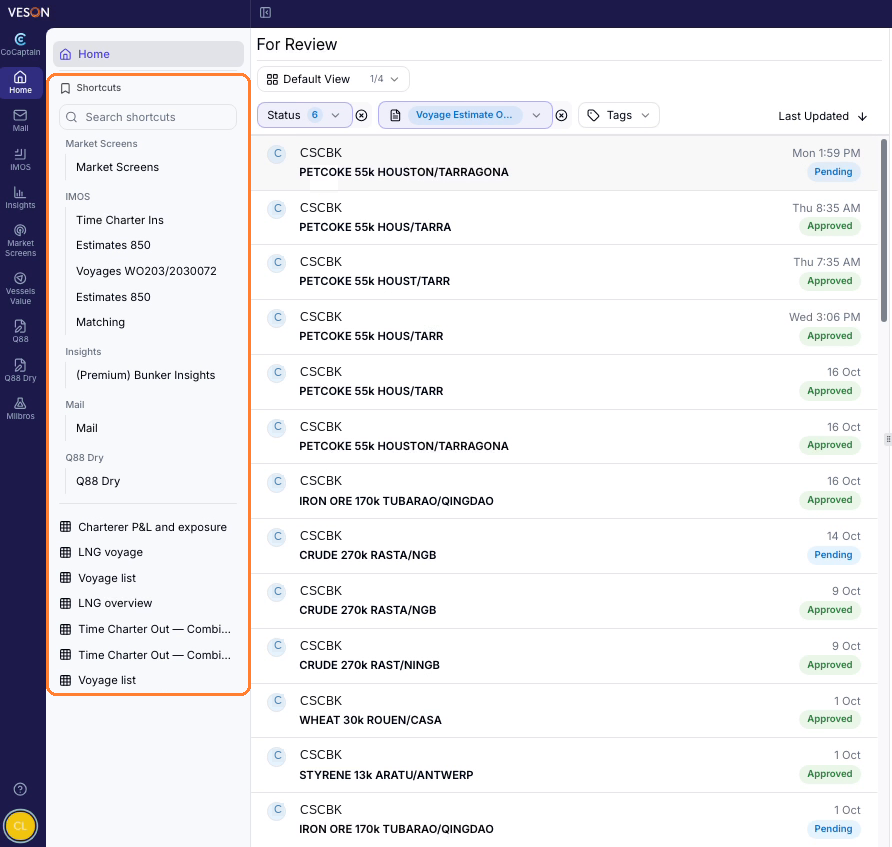
Shortcuts: To add to the Shortcuts panel on your Home page, select the shortcut icon next to the page name in the breadcrumb to add any page or list. When a page is saved as a shortcut, the shortcut icon is filled in. Select the icon again to remove an existing shortcut. Shortcuts are grouped by area, such as IMOS, Insights, and Mail, and you can search them from the Shortcuts panel.
-
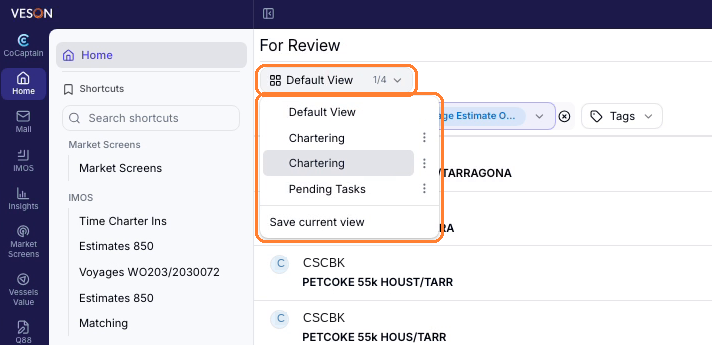
Saved views: You can filter your list by status, form type, or tag, and sort it to suit how you work. To keep a setup, open the view menu and select Save current view, then enter a name. Your saved views appear in the view menu, so you can switch between them, for example a Chartering view and a Pending Tasks view. If you change a view and leave without saving, Home asks whether to create a new view or continue without saving.
-
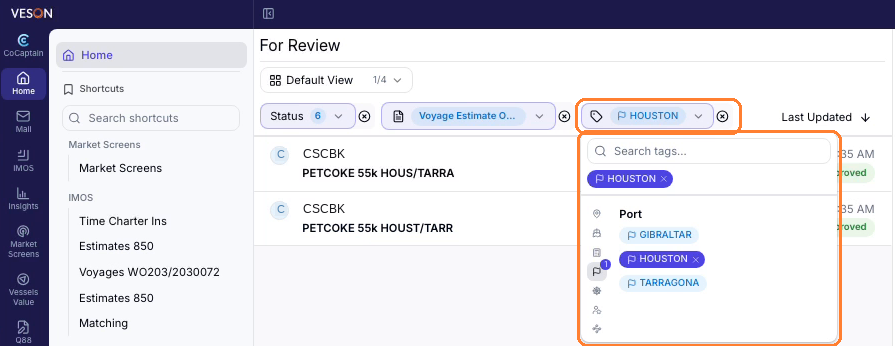
Tags: Forms are tagged with the records they relate to, such as ports, vessels, and voyages. Select Tags and choose one or more tags to show only the matching items, for example everything tagged to a single port.
How do I review and approve a workflow's work?
-
Open Home in the sidebar navigation and select the item. You do not need to open the email first.
-
Review the details, the source, and the AI insights panel. Edit anything that is incorrect.
-
Approve the form. The change is applied in IMOS, or the record is created, and you can open it from the form. If your organization set approval rules, a rule approves routine items for you.
Workflows can run at any time, including overnight, so items may be waiting when you sign in.