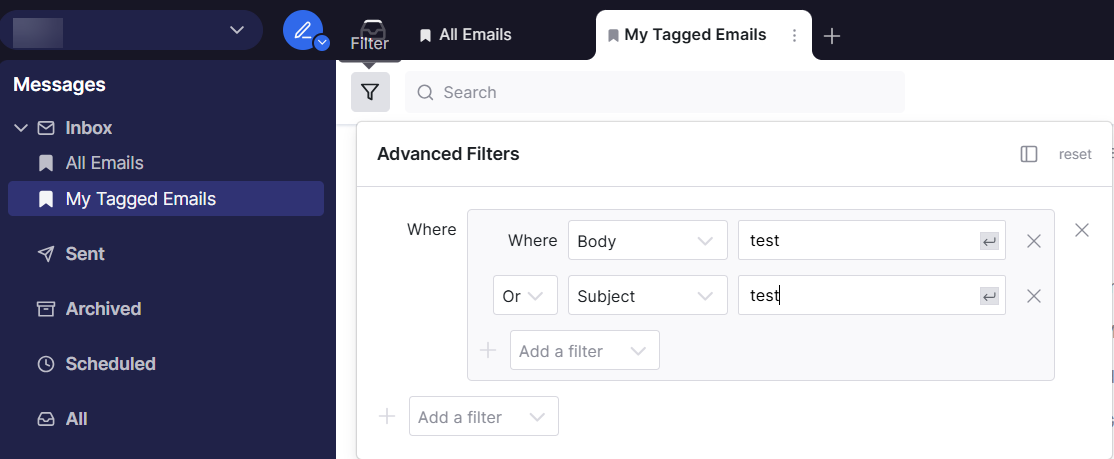
To apply OR logic to two or more filters on a single folder, use advanced filters with filter groups.
To set up multiple filters with OR conditions:
-
Navigate to your inbox folder or tab.
-
Click on the

-
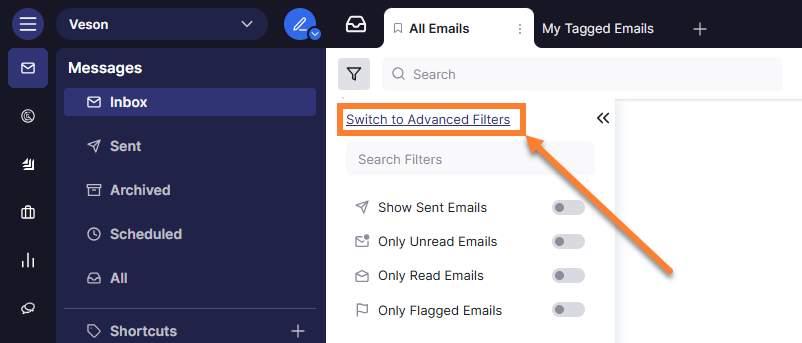
Click Switch to Advanced Filters (toggle from basic to advanced mode).
-
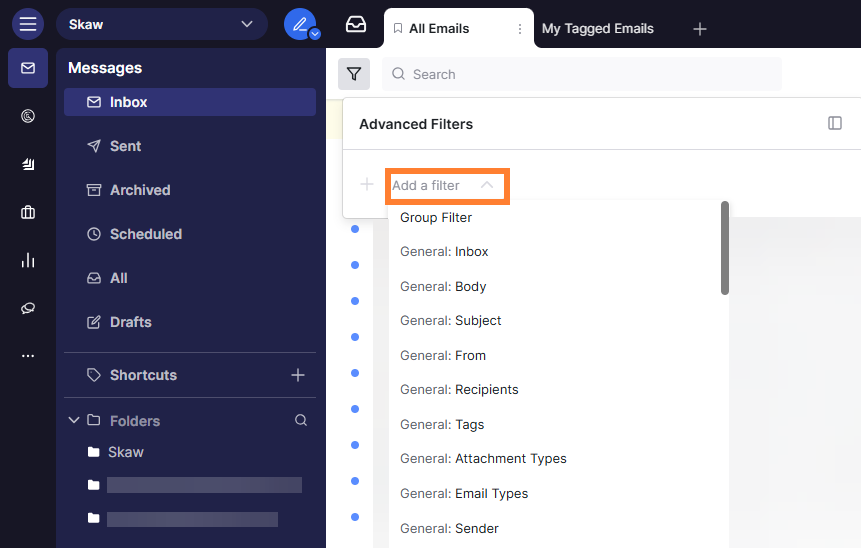
Click Add Group to create a filter group.
-
Add your filter conditions within the group:
-
Select Body as your first filter field.
-
Enter your search term.
-
Add another condition by clicking Add Condition.
-
Select Subject as your second filter field.
-
Enter your search term.
-