
Claims in the Veson Platform give you an AI-supported, end-to-end demurrage claims workflow. CoCaptain classifies and extracts documents, reconciles the claim against your IMOS data, and shares the claim package with your counterparties — without leaving the platform. This solution requires an additional subscription and an IMOS Claims license.
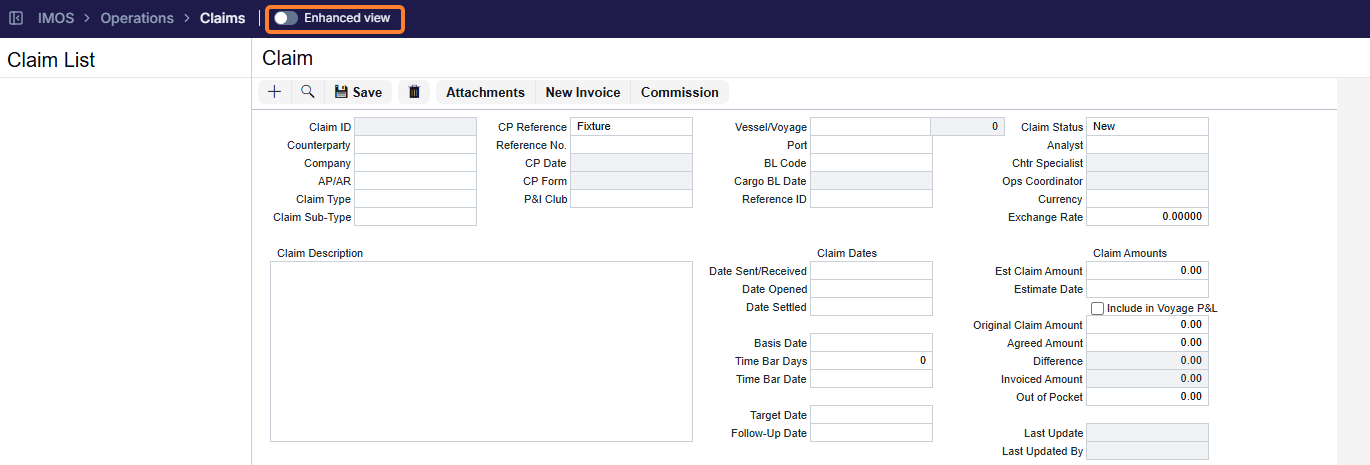
The Demurrage Claims Enhanced view is the Veson Platform's native view of your IMOS laytime claims. Toggle it on to see the same laytime claim you maintain in IMOS in a modern layout with CoCaptain context.
How to Access
Open the IMOS menu from the sidebar and expand the Operations section to see the Claims List option. You can also use global search to find a specific claim or review the Needs Attention queue for claims the system has flagged for review.
In the Claims workspace, use the Enhanced view toggle in the header to switch between the classic IMOS view and the Enhanced view. Your choice is remembered per workspace for the rest of your session. The toggle is not shown on non-demurrage claims and when used in the list it will only display demurrage claims.
Claims Intake
Claim packet received via email
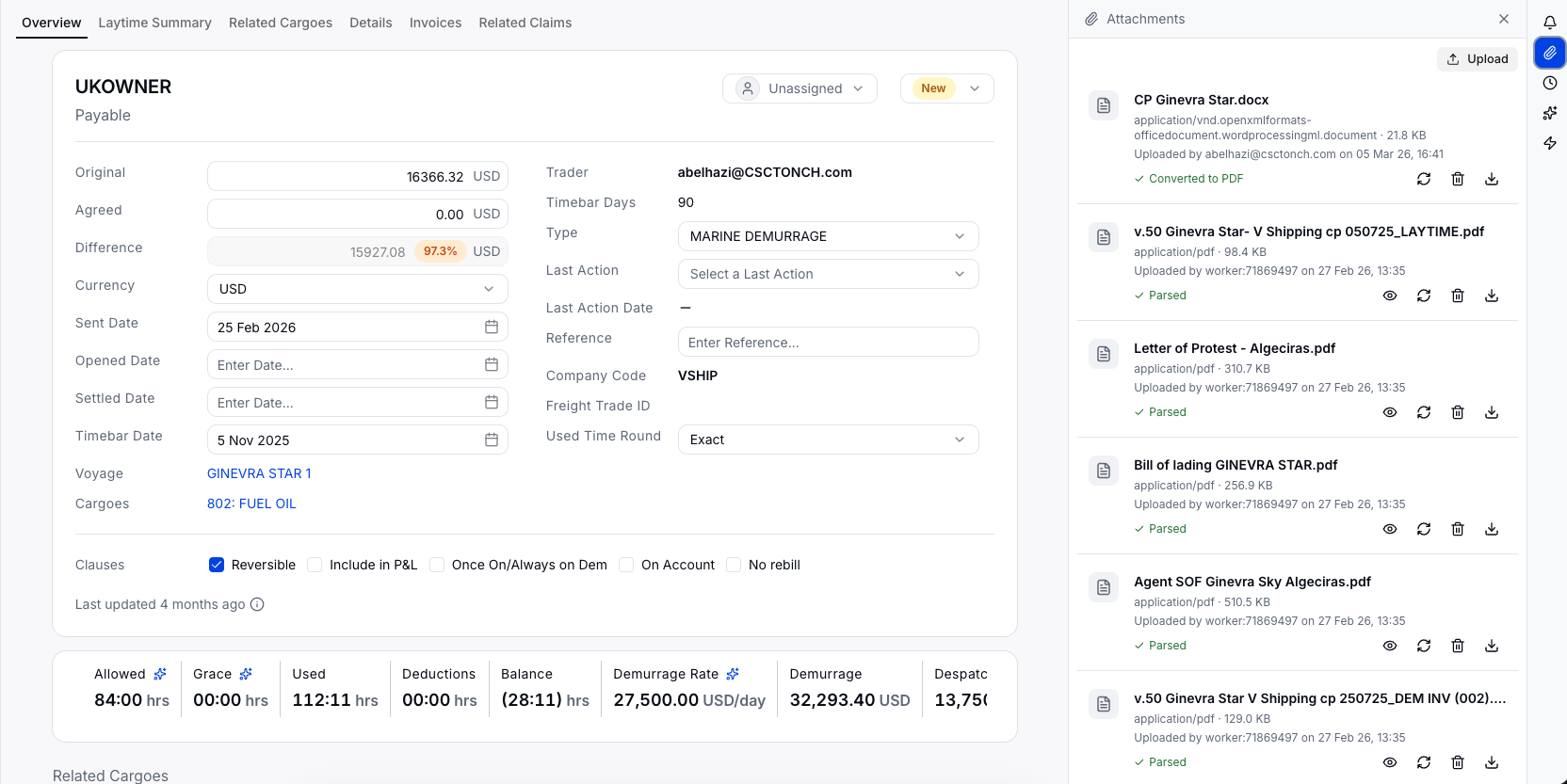
When a claim arrives by email, CoCaptain automatically determines if the email and attached documents contain details that pertain to a specific claim. If it determines that it does, it links the email to the matched claim and classifies and extracts information from the relevant attached documents — for example the Statement of Facts, Notice of Readiness, charter party, bill of lading, or letter of protest. The documents are then attached to the relevant claim.
Claim Validation Screening (requires enablement)
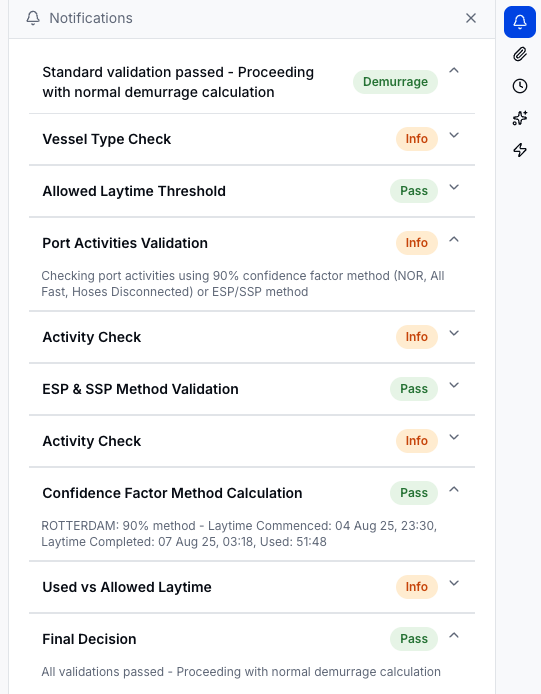
When enabled for your environment, CoCaptain automatically screens incoming claims and proposes an outcome — Demurrage, No Demurrage, or Needs Input (split into Needs Input — SOF and Needs Input — Allowed Laytime) — so analysts can focus on the complex, high-value cases. CoCaptain shows how it reached each conclusion so you can confirm or override it.
Processing Log
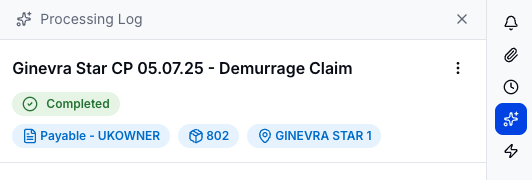
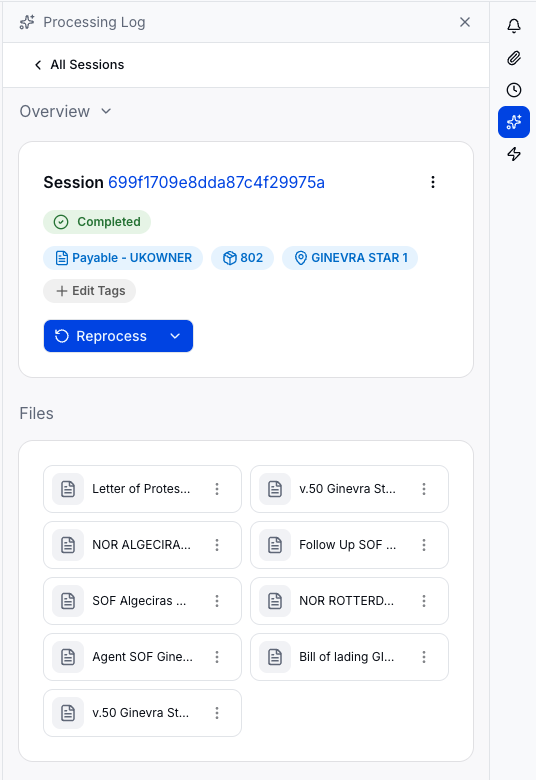
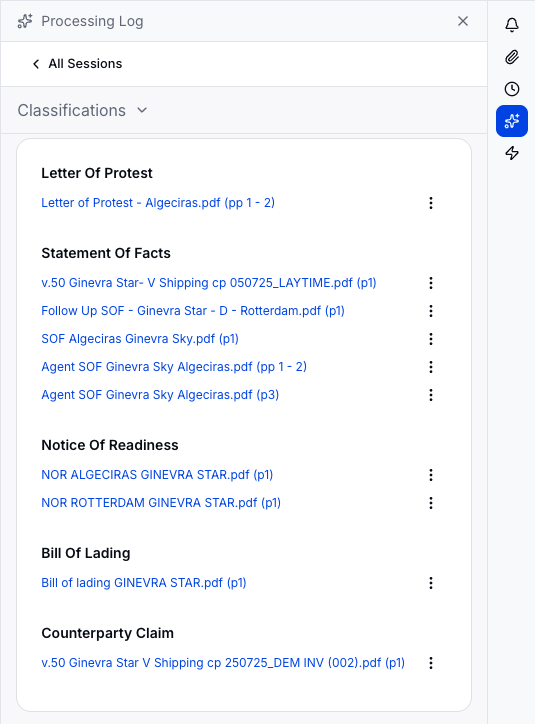
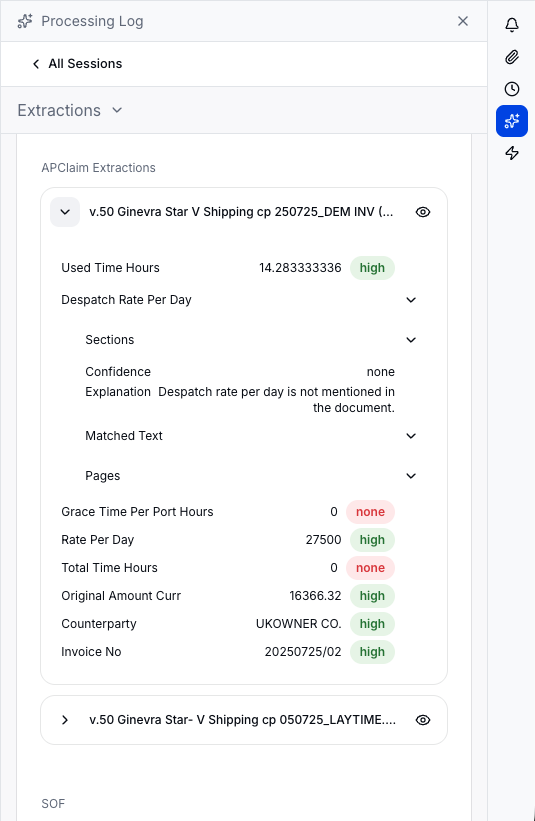
The Processing Log panel shows where CoCaptain pulled each value from. It contains Files (every document, grouped by type, with Upload to add more — uploaded files are parsed automatically and mirrored to related claims), Classifications (documents grouped by assigned type), and Extractions (the contract elements, each with a confidence level shown as a color-coded label; select the eye icon to preview the source). You can Reprocess a claim and use Edit Tags to correct the linked voyage, cargo, or claim.
Reconcile a Claim
Ask CoCaptain
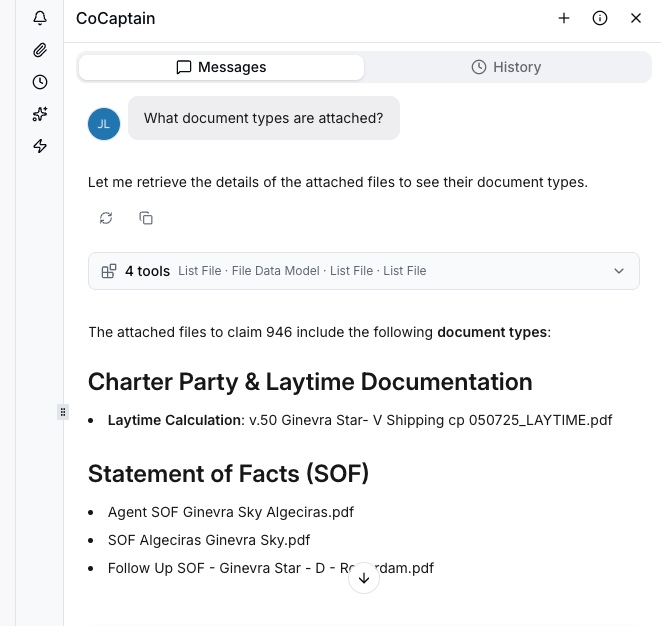
Use the CoCaptain chat to analyze the open claim — request an executive summary, pull rate and allowed-time details, assess a document, or ask your own question.
Validate the contract elements
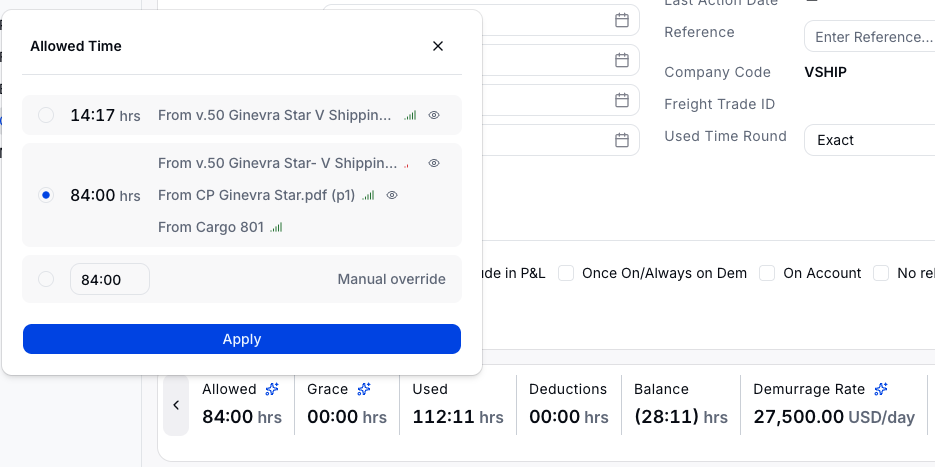
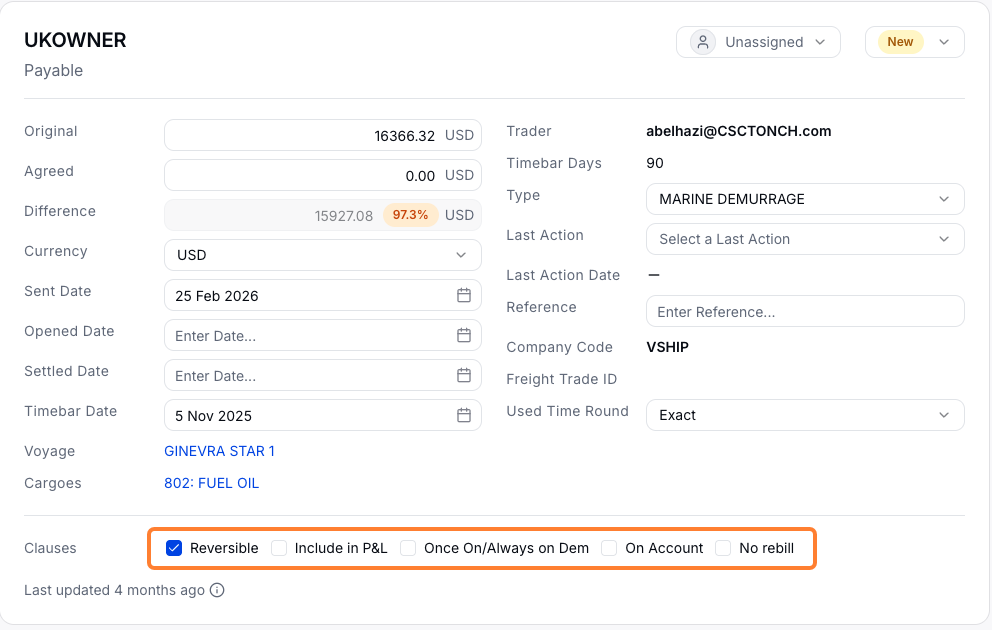
Review the Original and Agreed values (the Agreed field reads Agreed Demurrage or Agreed Despatch by claim type); set the Type, Last Action, and dates; update the clauses (for example Reversible) and select Include in P&L; and confirm the Timebar Date. Unsaved changes are highlighted; select Save to apply them. Where a value came from more than one source, use the field-version popover (icon on the field) to switch between document-sourced versions and a manual entry.
Review voyage and cargo
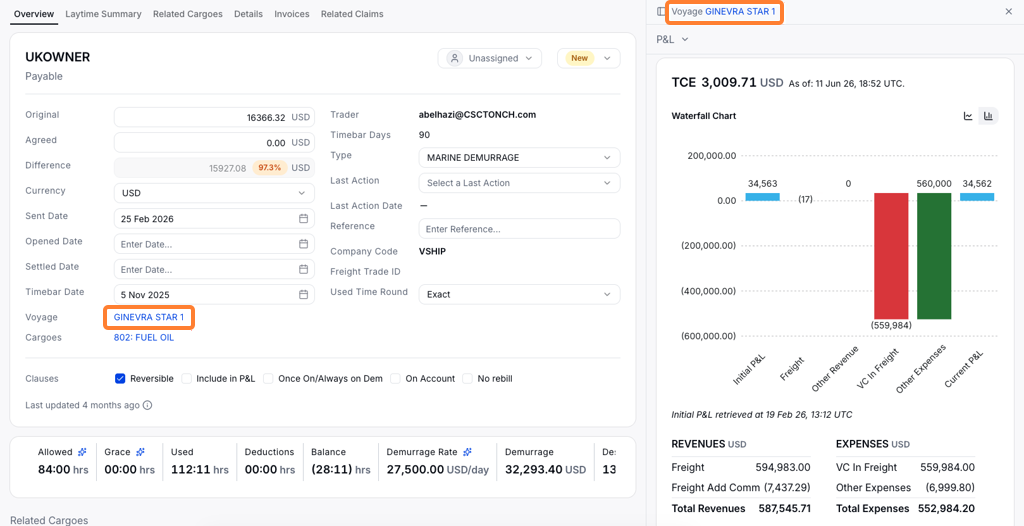
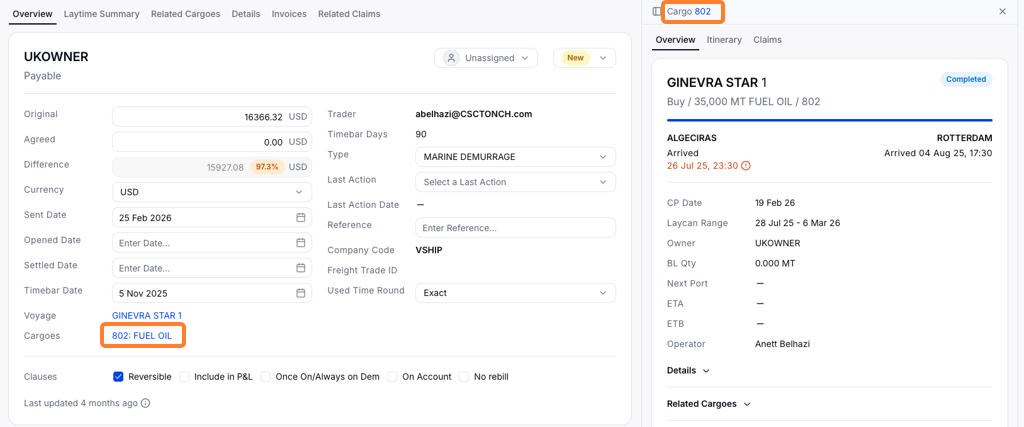
Select the linked Voyage or Cargo to open details in the side panel.
Laytime Details
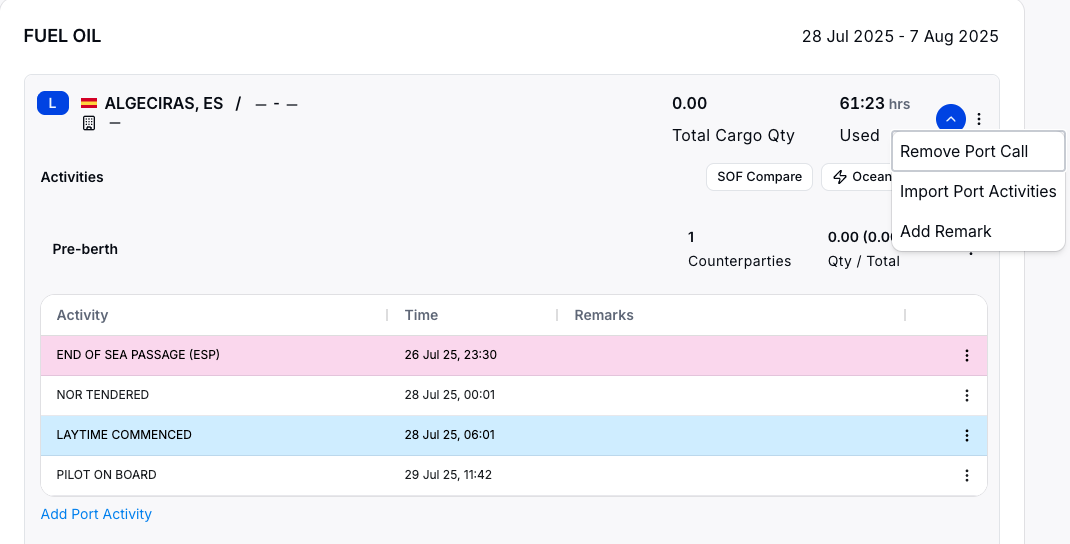
The Laytime Details view shows the claim's ports and activities. Use the three-dot menu next to a port to Remove Port Call or Import Port Activities; edit the laytime calculation and rates inline; review Allocations to see used time against allowed time; and, where applicable, review the extracted grace time (now included in total allowed time).

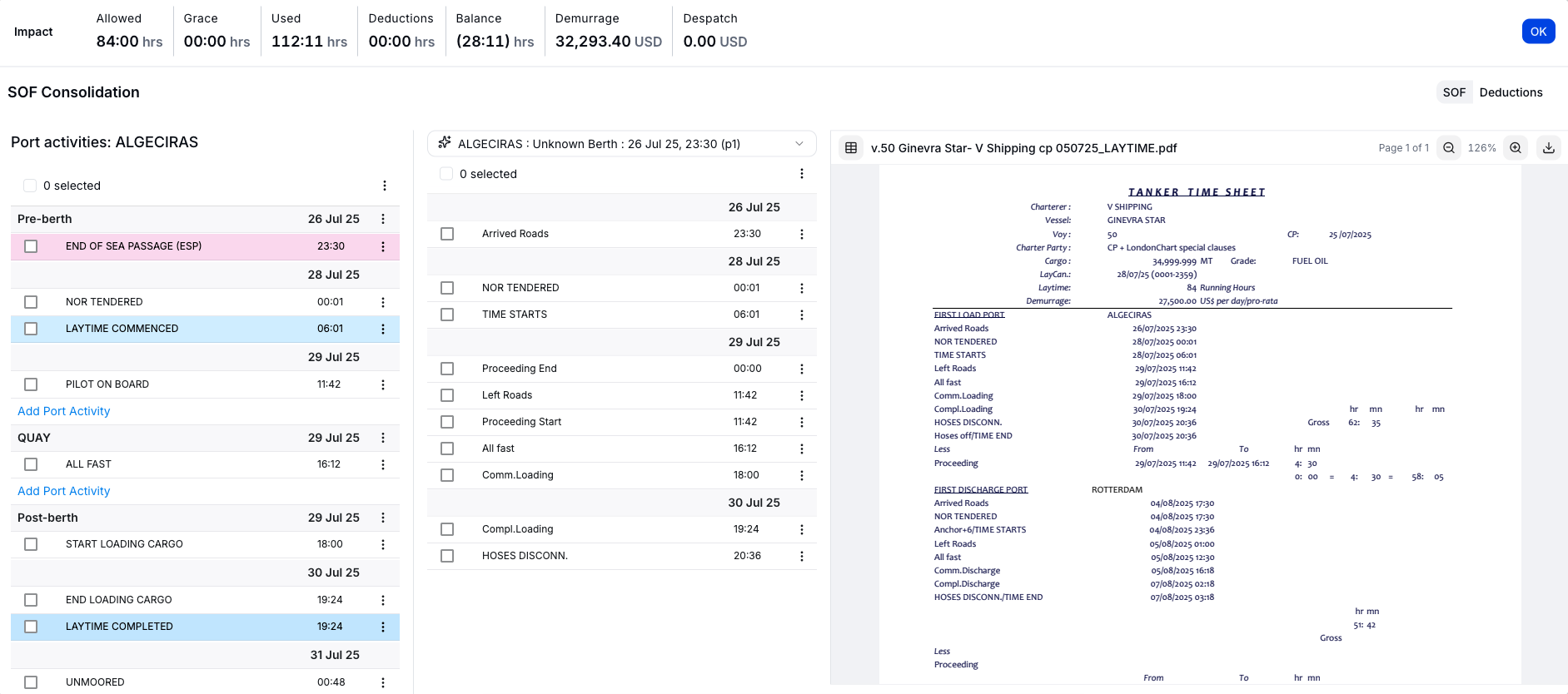
SOF Compare
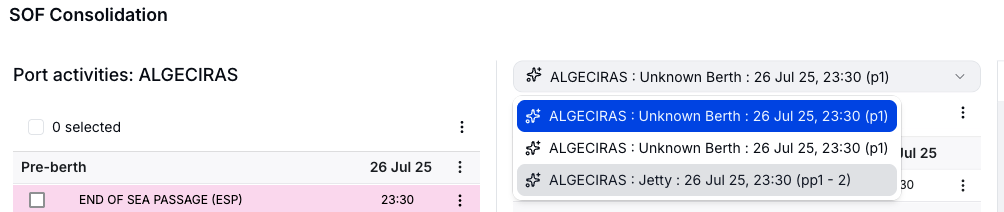
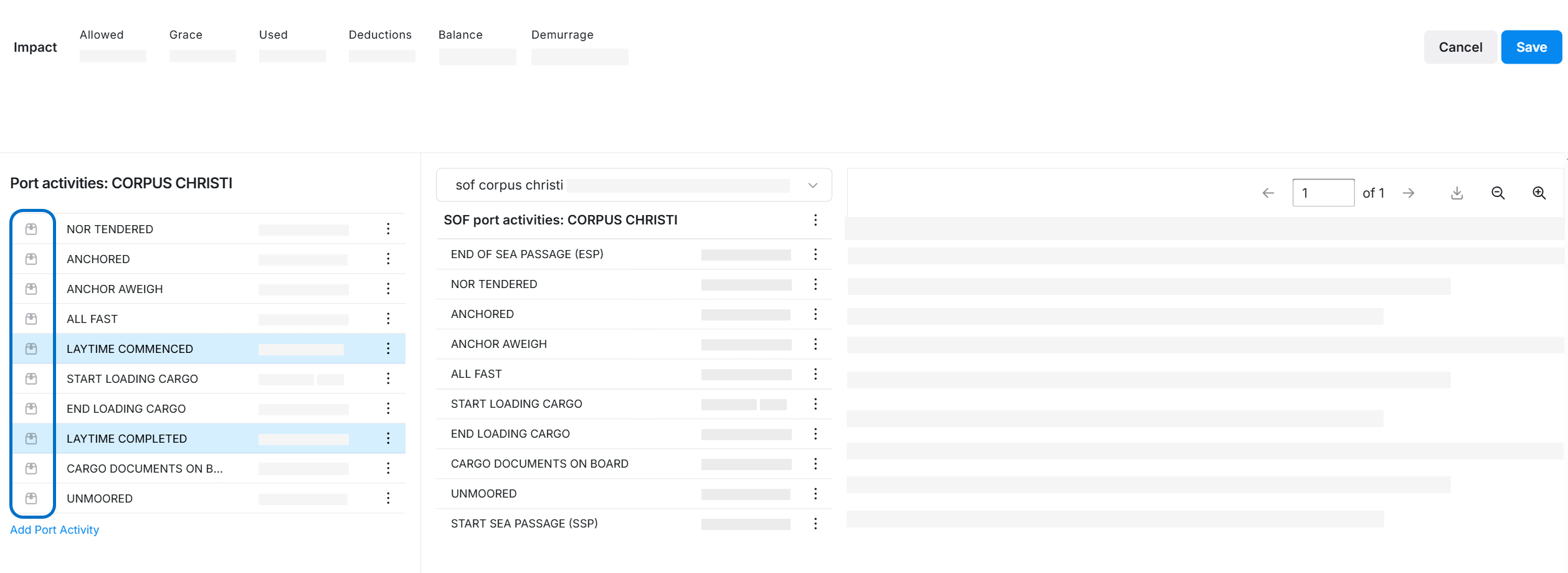
Select SOF Compare to reconcile port activities between the parsed documents and what is stored in IMOS. You can group activities, move them between berth phases, and create a deduction from two selected activities.
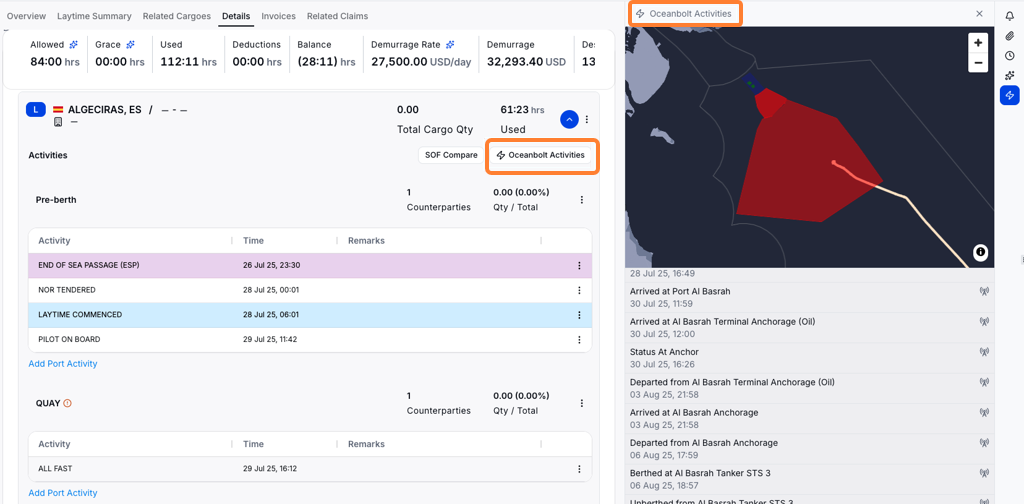
Oceanbolt Activities
Select Oceanbolt Activities button to open AIS-derived port activity for the vessel in a map side panel. This requires a vessel with an IMO number.
Deductions
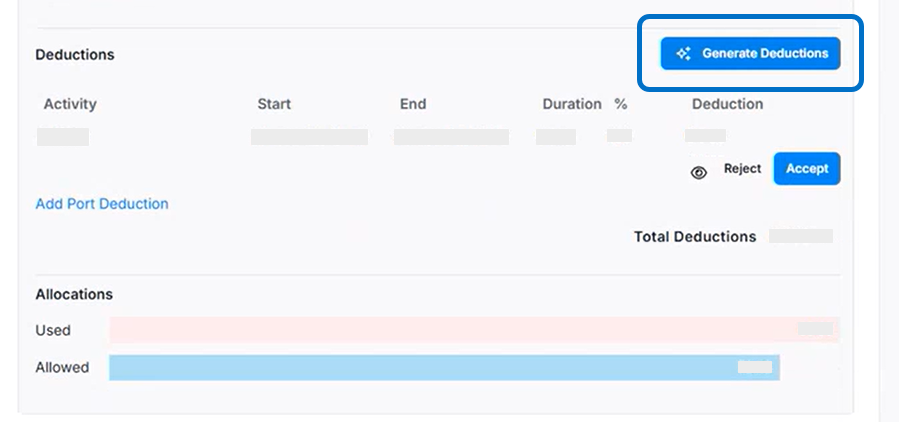
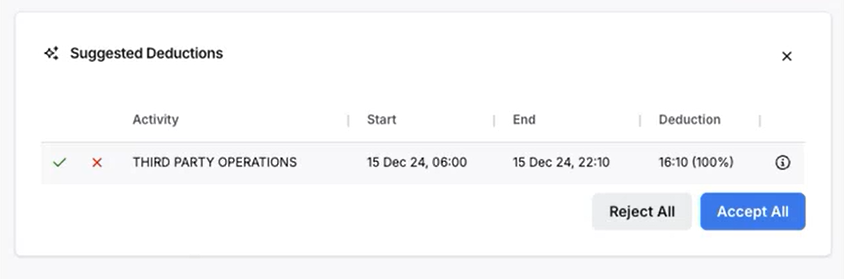
Select Generate Deductions to have CoCaptain propose deductions from the documents and port activities, each with its reasoning and impact. Review Suggested Deductions individually, or use Accept All / Reject All. Accepted deductions update the laytime calculation automatically. (Deduction extraction requires enablement and is run on demand.)
Related Cargoes and proration
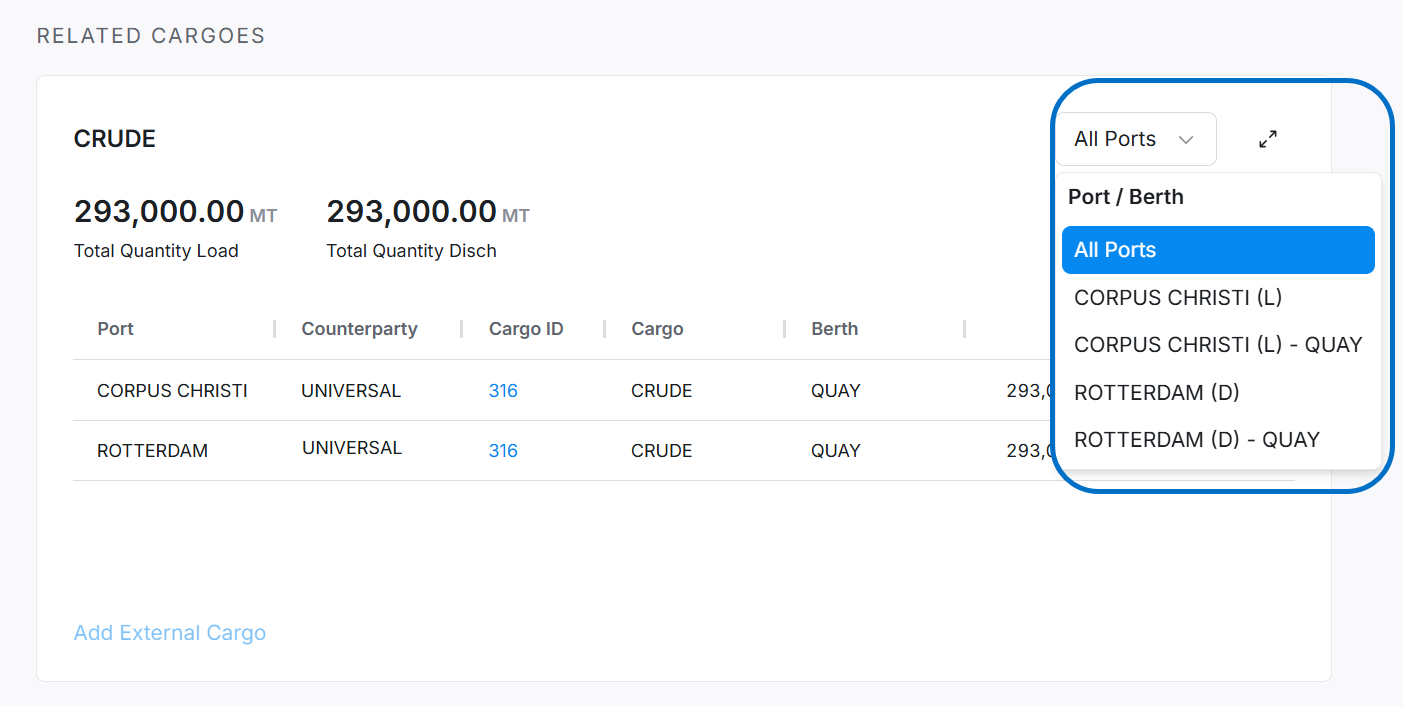
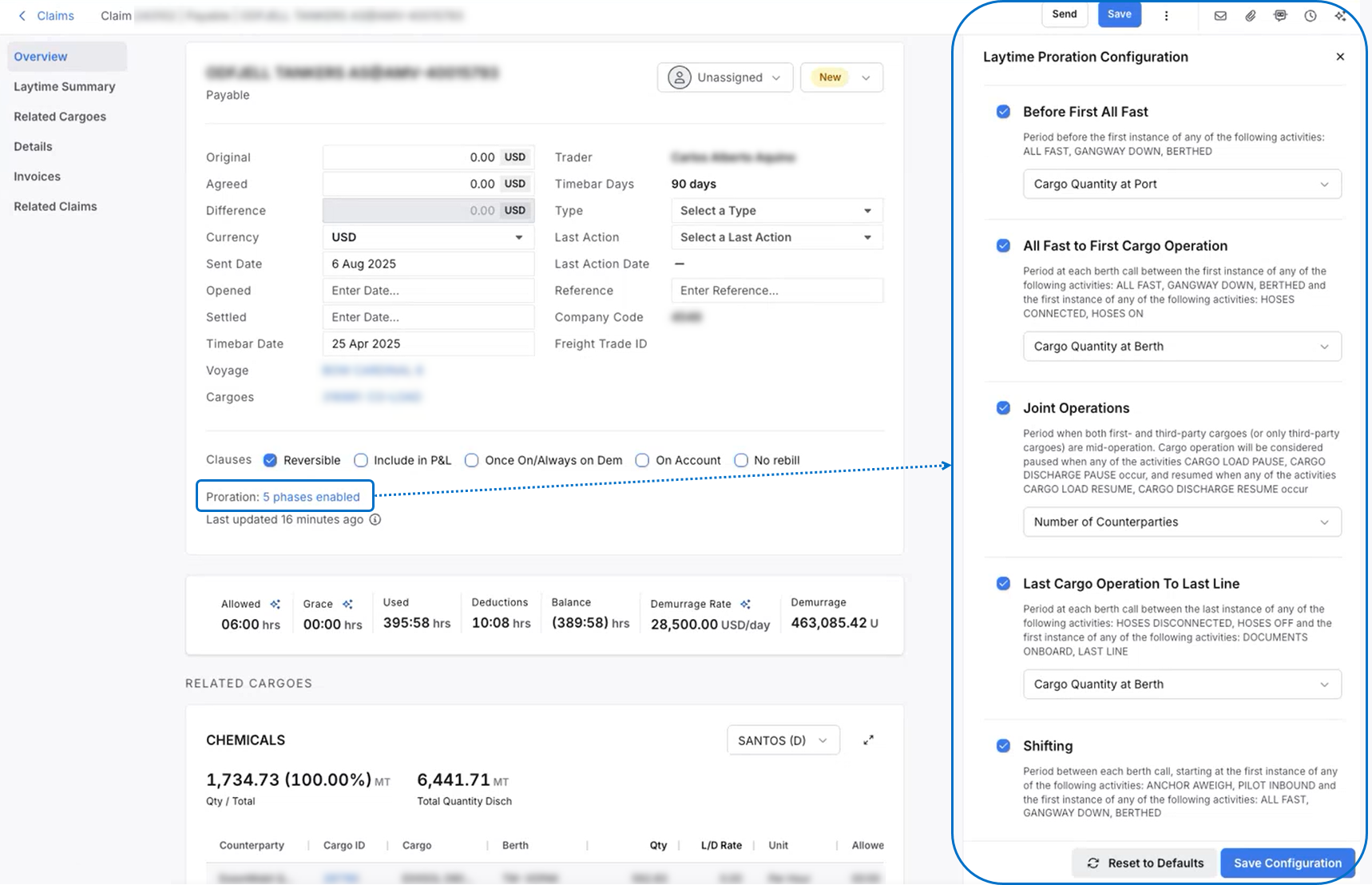
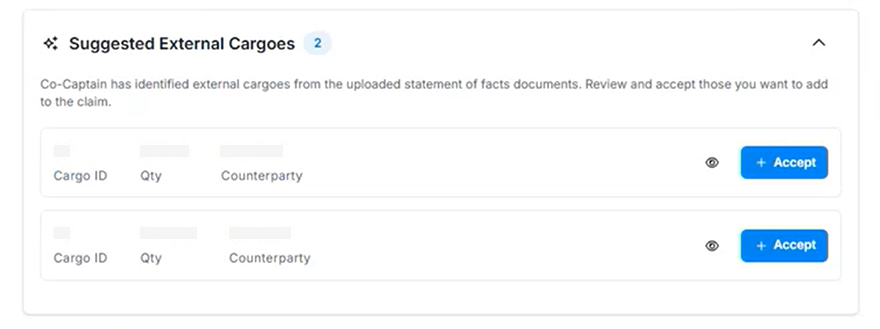
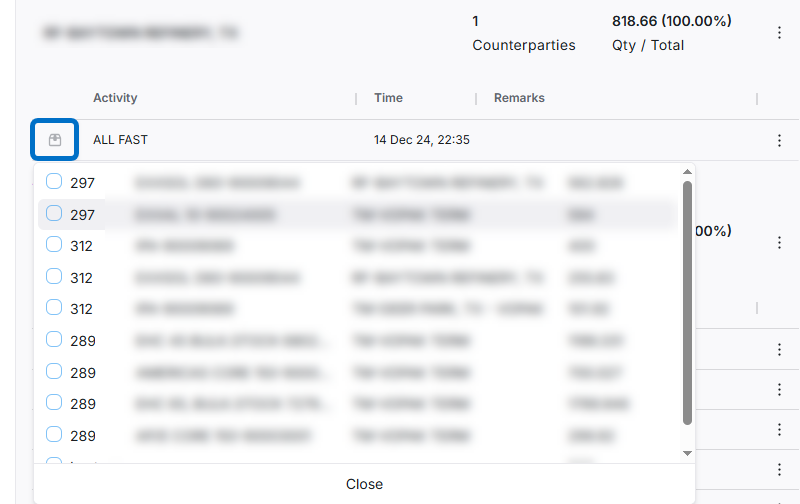
The Related Cargoes section shows the cargo on the claim. Select All Ports or a specific port to filter, maximize the view, reorder columns, and edit cargo Quantity and L/D Rate — changes update the allowed-time calculation. Select Add External Cargo to add another counterparty's cargo manually for proration. For shared (multi-parcel) claims, select the phases enabled link to open the Laytime Proration Configuration panel and adjust how demurrage is split across the phases (Joint Waiting Time, First Inward Passage, All Fast to First Cargo Operation, Joint Operations, Shifting Between Berths), with Reset to Defaults to revert. Port activities are grouped into Pre-berth, Inter-berth, and Post-berth; use the three-dot menu to move activities between groups.
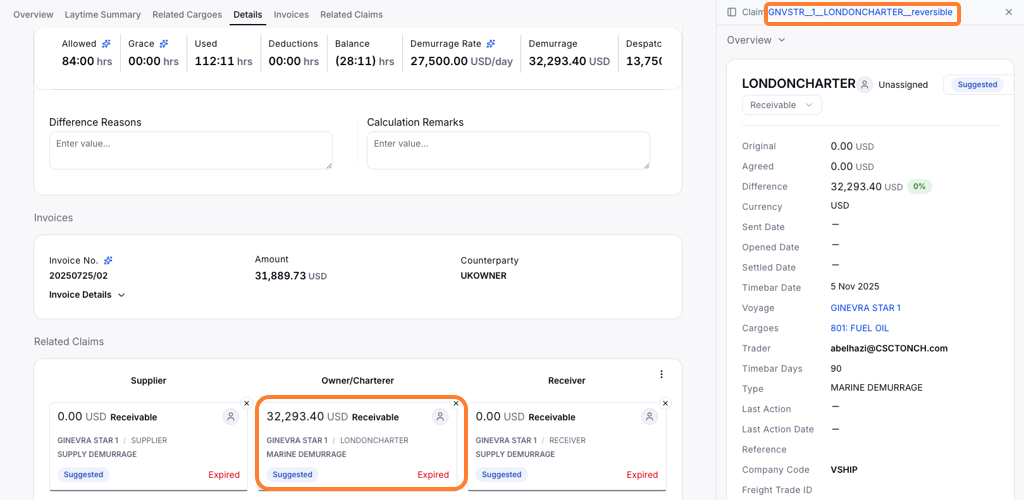
Suggested and Related Claims
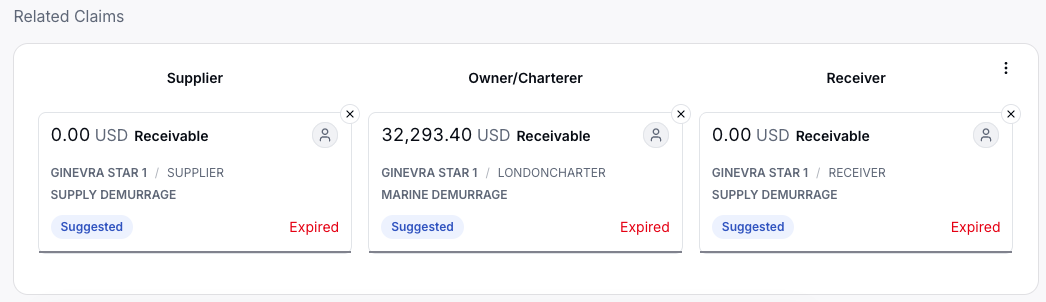
The Related Claims section lists existing claims that may be associated with the current one. Claims that CoCaptain has proposed appear here with a Suggested status; suggested claims are generated automatically as your voyages, cargoes, and claims are updated.

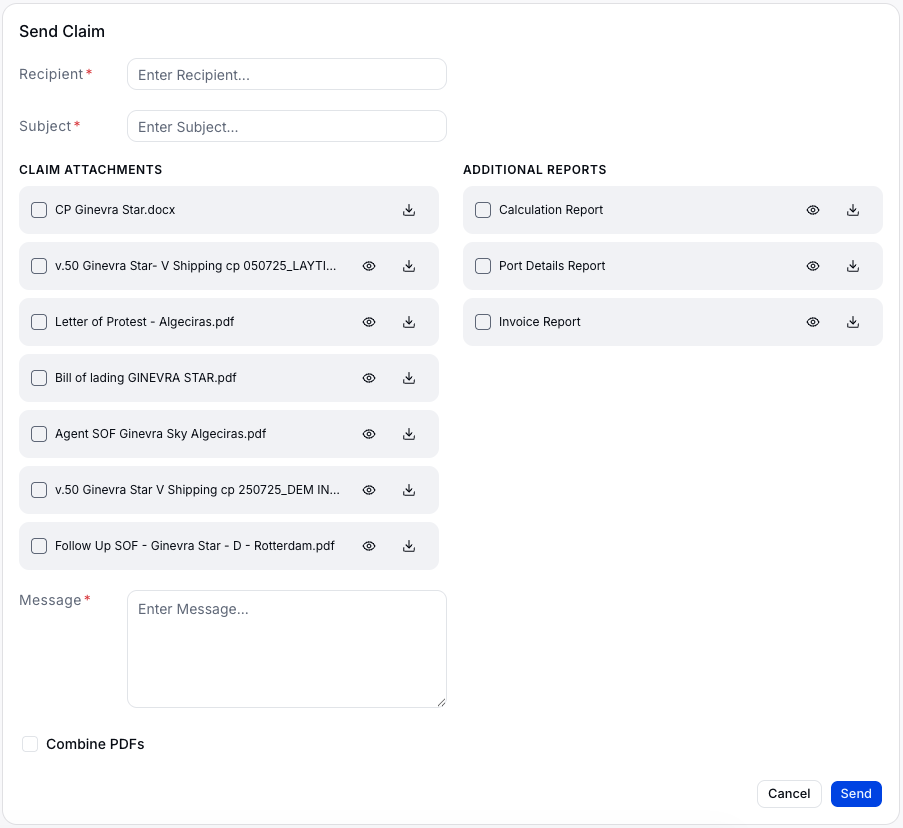
Send a Claim
Select Send to send the claim to the counterparty. Customize the message, choose attachments, and include generated Claim Reports.
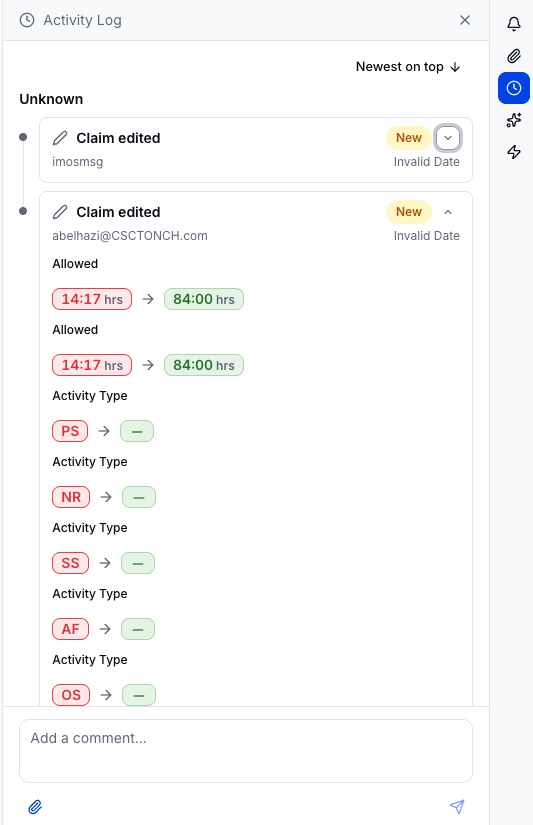
Activity Log
The Activity Log captures every change to the claim — emails, metadata changes, related-record updates, assignments, and approvals. Changes made at the same time are grouped together, and you can sort by newest or oldest and add notes into the activity log using through comments.
Workflow Notes by Trade
Dry bulk demurrage
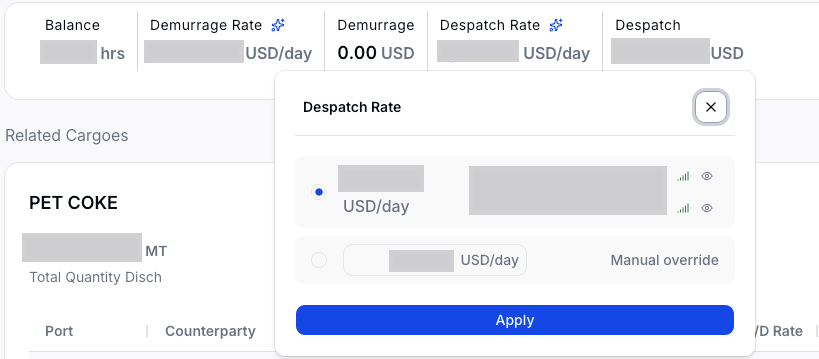
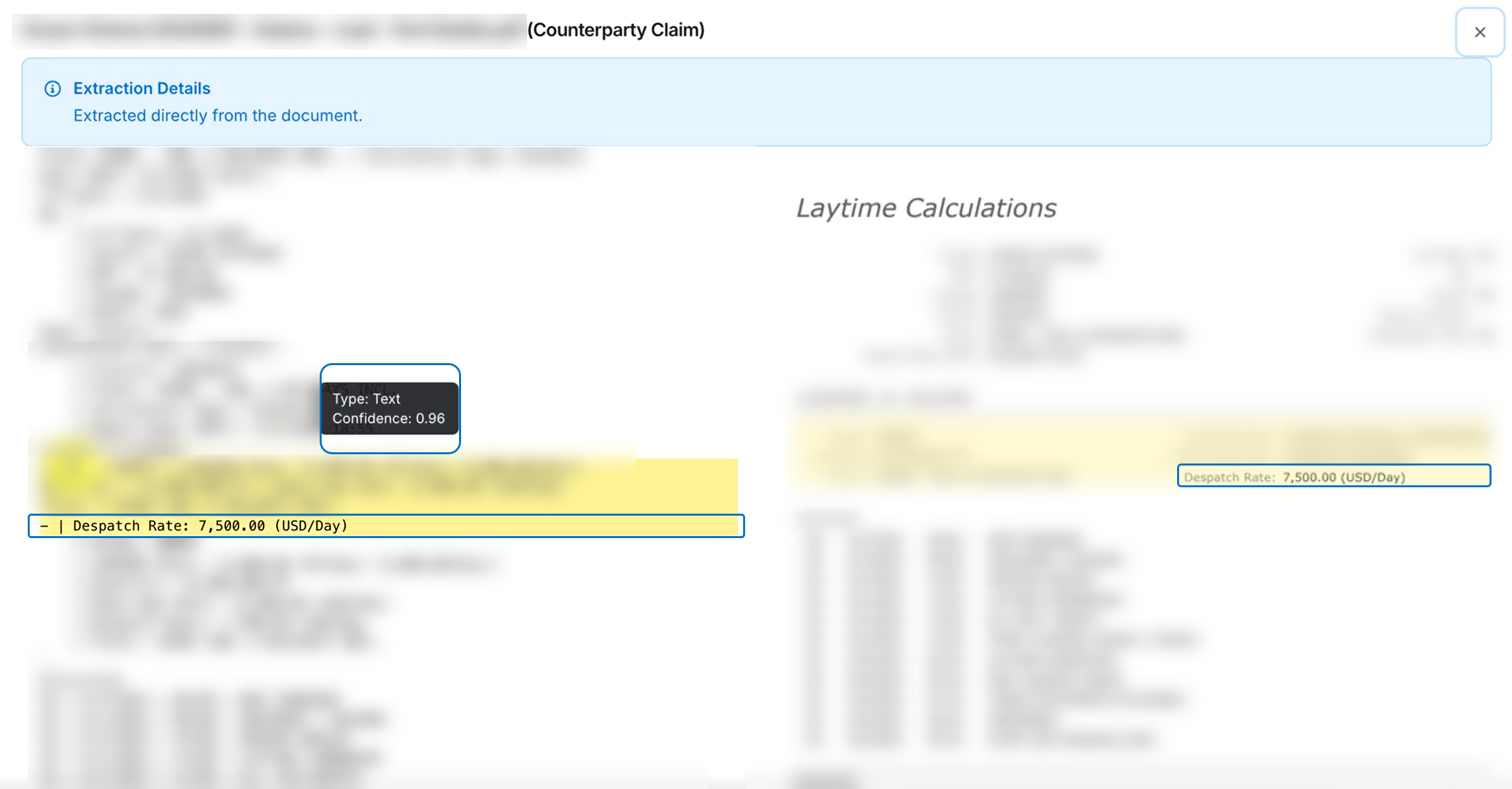
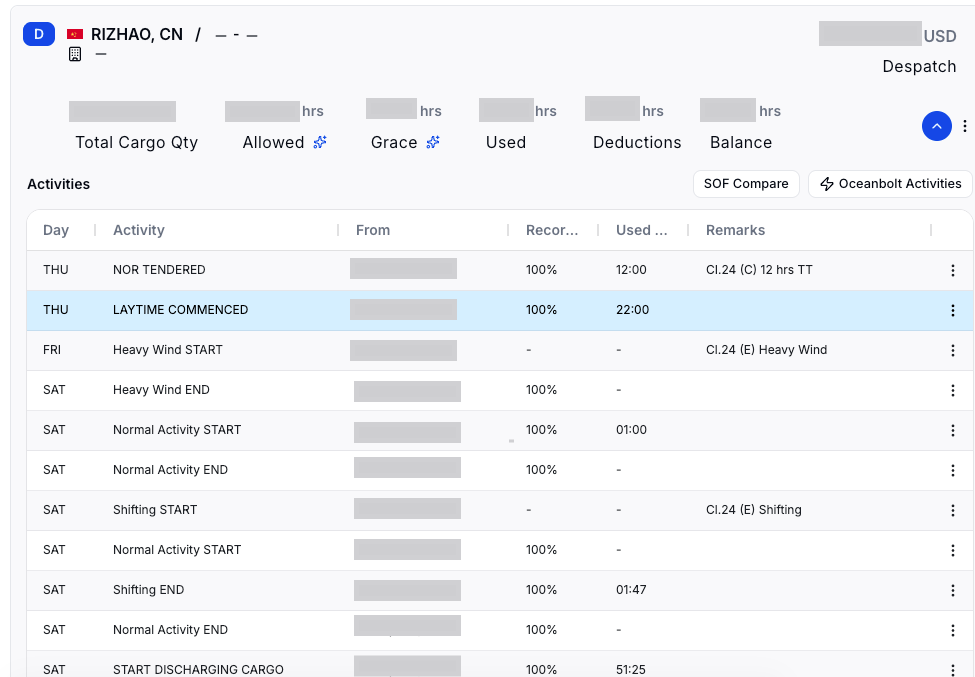
Select Create Claim and choose Deduction or Time Counting. Dry claims are commonly non-reversible, so the Reversible clause is typically deselected and a claim is generated per port. CoCaptain extracts the Despatch Rate from the charter party; select the rate to see its source documents and extraction detail, or override it manually. Time-counting claims show Recorded %, Used Time, and Remarks on the activity grid, recalculated in real time. The calculation method is resolved as: the voyage template's laytimeCalcMethod, then your tenant's preferred calculation type, otherwise IMOS decides.


Chemical and tanker parcels
Use the Laytime Proration Configuration (the phases enabled link) to split demurrage across counterparties on shared liftings. Grace time is parsed from documents and shown in the claim. Manually added external cargoes let you pro-rate demurrage across all parties at a berth. Hourly demurrage rates are handled automatically. (See the Related Cargoes and proration and Deductions sections above for the proration, external-cargo, and deduction screenshots.)
FAQs
Why am I seeing multiple suggested claims for one voyage?
Non-reversible cargo is calculated per port rather than across the whole voyage, so the system generates a suggested claim for each completed port.
How does the system choose between time counting and deduction?
It uses the voyage template's calculation method first, then your tenant's preferred calculation type, and otherwise defers to IMOS.
Can I edit cargo quantities and rates directly?
Yes. Editing quantity or L/D Rate in Related Cargoes updates the allowed-time calculation automatically.
Where do I see why CoCaptain extracted a value?
Open the Processing Log and review the Extractions section, then select the eye icon to preview the source document.