
The Cargo Enhanced view is the Veson Platform's native view of your IMOS cargoes — including cargo shared to you by counterparties. Turn on the toggle to see the same cargo you maintain in IMOS, with a modern list, map, deal chain, and CoCaptain context. Your cargoes are mirrored from IMOS and kept in sync automatically. VC-In contracts appear here too, as a cargo variant.
Toggle the Enhanced view
In the Cargoes workspace, use the Enhanced view toggle in the header to switch between the classic IMOS view and the Enhanced view. Your choice is remembered per workspace for the rest of your session. The toggle is not shown on cargo that was shared to you by a counterparty.
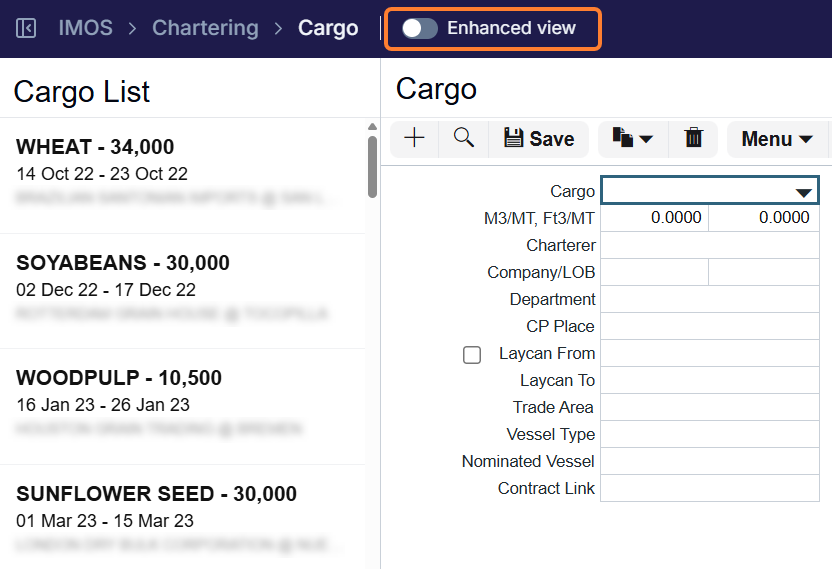
Cargo List
The Cargoes list shows your cargoes with these columns: Status, ID, Cargo (name + quantity), Counterparty, Ref No, CP Date, Voyage, Laycan Range, Load, Discharge, and Sharing. The Sharing column reads Shared by {organization} on cargo shared to you, or Sharing with {organization} (with a +N for additional recipients) on cargo you've shared. Filter by Cargo Status and Voyage Status, and switch between List and Map views.
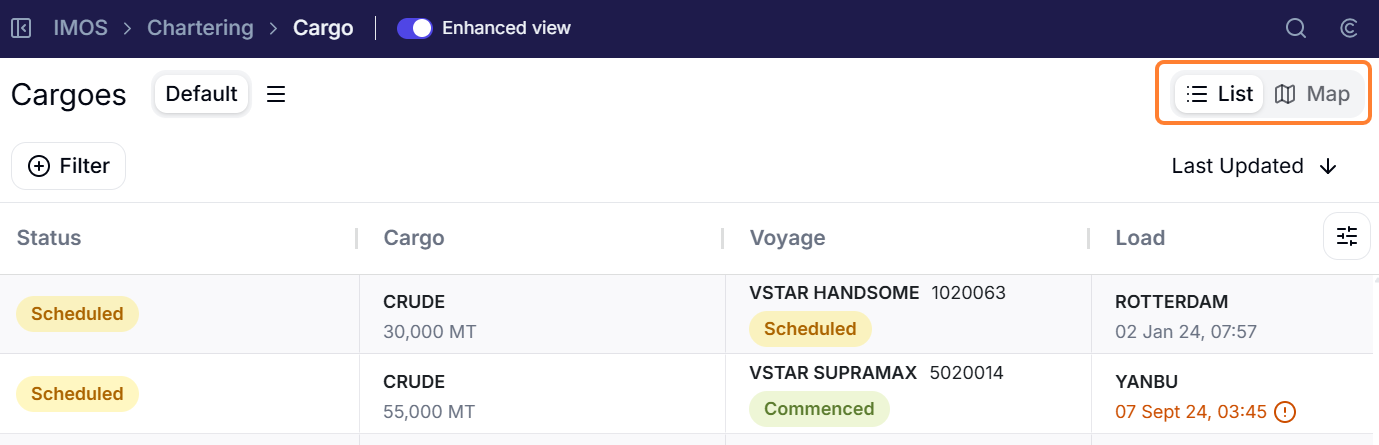
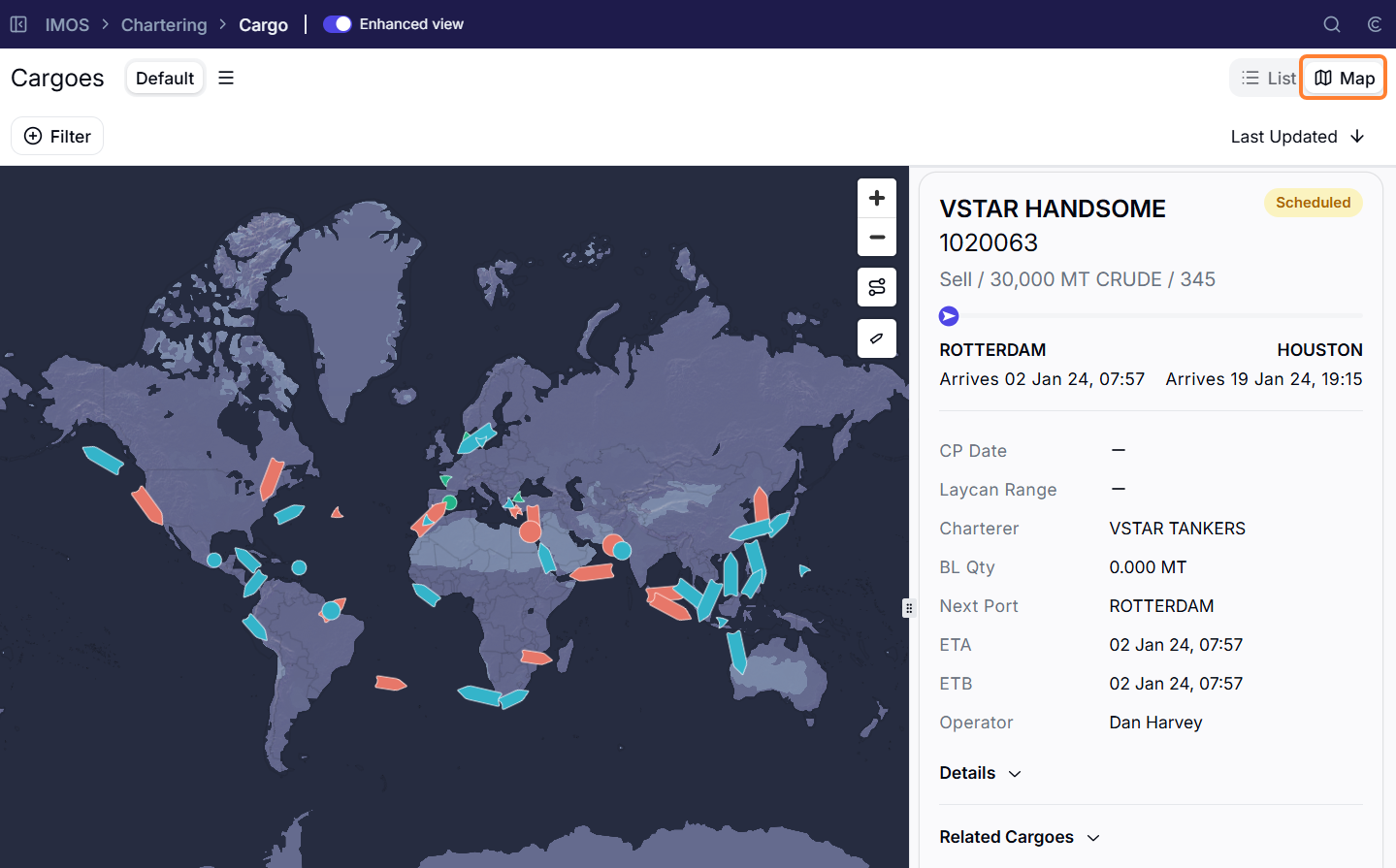
Cargo Map
The map plots cargoes by their vessel position and draws the voyage route for a selected cargo. A cargo shows a position only when its vessel has an IMO number. A Show in Cargo Map link appears on the cargo detail when the voyage is Scheduled or Commenced.
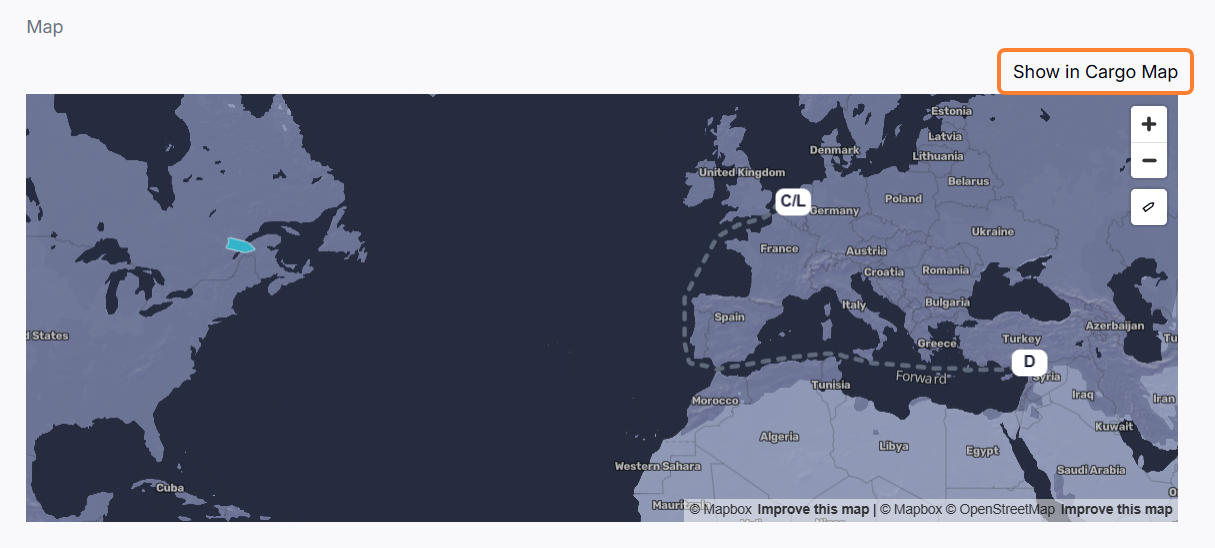
Cargo Detail
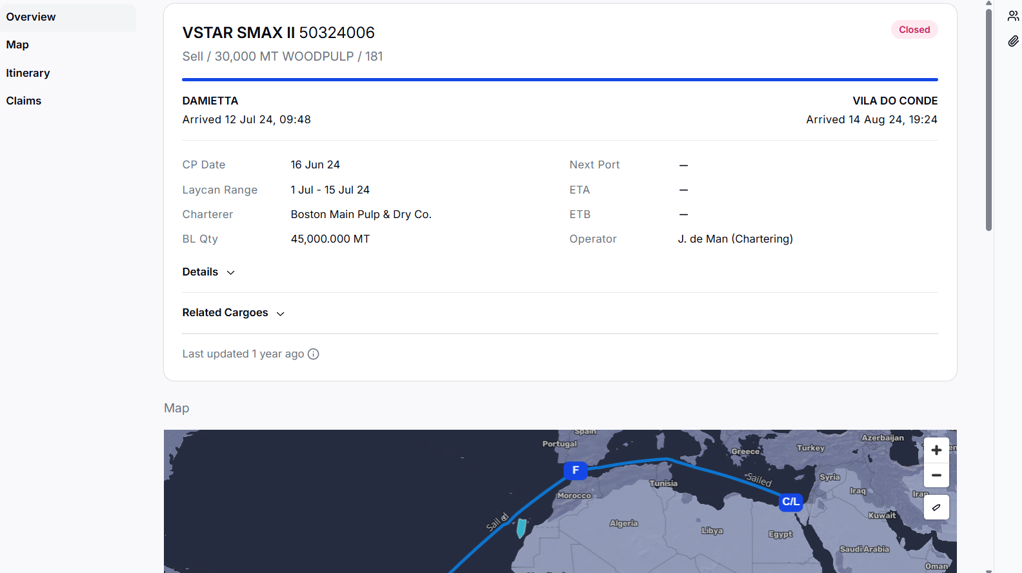
Overview
A header with the vessel and voyage (or FOB Voyage / Vessel TBN), status, and a buy/sell summary with quantity and cargo name. Primary fields include CP Date, Laycan Range, Owner/Charterer, and BL Qty. Expand Details for Freight, Dem Rate, Freight Type, Option Type, NOR Offset, Laytime Allowed, Vessel Type, Voyage, and Cargo COA, plus Related Cargoes. Cargo shared to you shows a Shared By line and hides the buy/sell label.
Itinerary
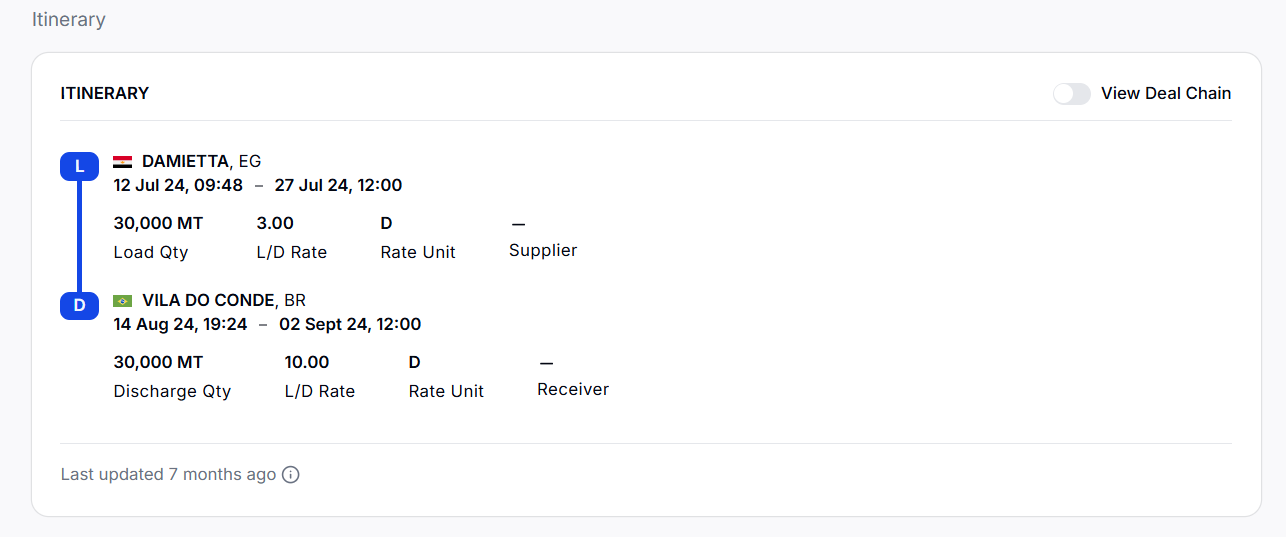
A timeline of the cargo's load and discharge ports with ETAs, laycan, quantities, and L/D rates and terms. Use the View Deal Chain toggle to see the suppliers, freight, and receivers chain with incoterm (FOB/CIF/CFR) badges.
Claims
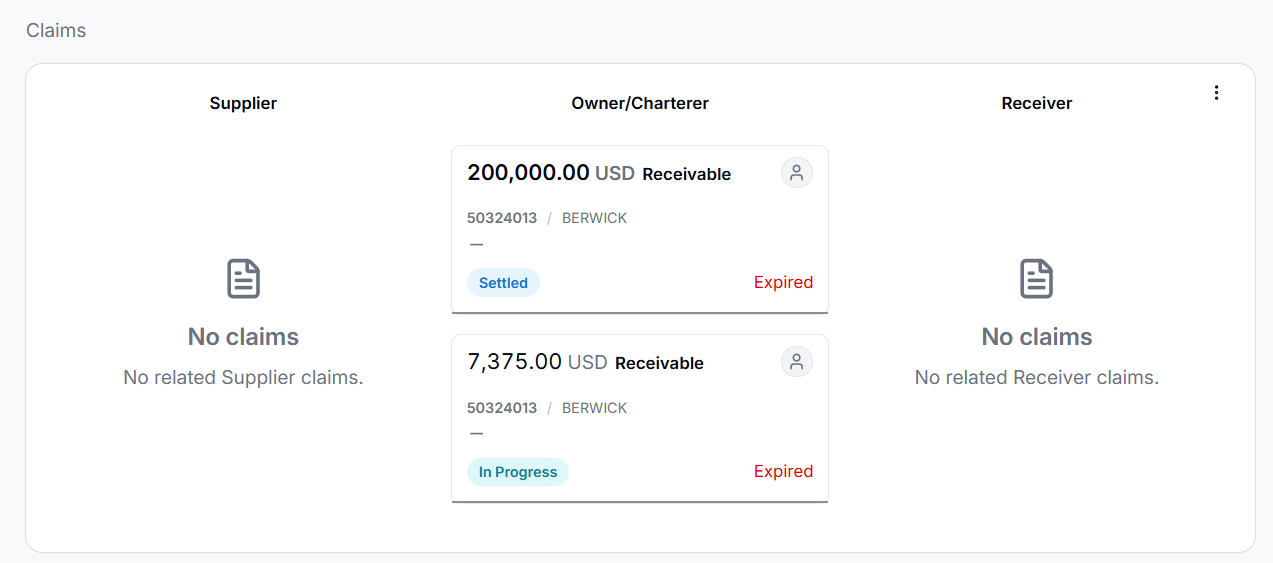
Claims related to the cargo. This is hidden on cargo shared to you.
Side panels
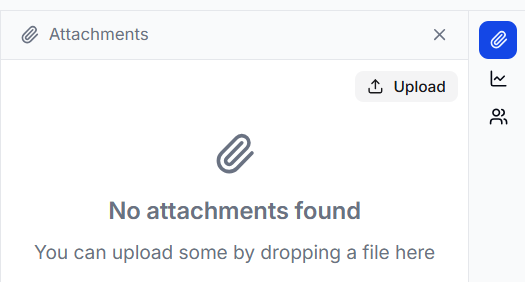
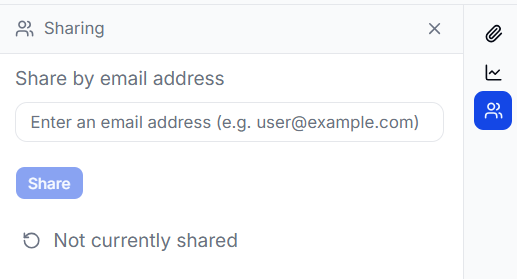
The cargo detail page has a side-panel rail: Sharing (visible only on cargo you own, with the right permissions), Attachments, Claim Details, and Voyage Details.
Sharing a Cargo
You can share a live copy of a cargo to a counterparty's environment. See the Sharing in the Veson Platform articles for full details.
Receiving Shared Cargo
Cargo shared to you appears in your own Cargoes list with a Shared by {organization} indicator. You see a read-only standard view: the Overview, Itinerary, and Map are available, but the buy/sell label, the Claims section, and the Sharing panel are not, and you cannot re-share or flip the record to the classic IMOS view. See the Receiving Shared Cargo Data article for more details.
FAQs
Is the Enhanced view a different system from IMOS?
No. It's a native view of your existing IMOS cargoes, kept in sync automatically. IMOS remains your system of record; edits route back to IMOS through forms.
Why can't I share a cargo?
Sharing must be enabled for your organization by an administrator, and you need the sharing permission. If sharing isn't enabled, you'll see a message to contact your admin.
Can I manage COAs here?
The cargo shows which COA it belongs to (its COA number), but COA setup and administration still happen in IMOS.
What does a recipient of my shared cargo see?
A read-only standard view of the cargo — core terms, counterparties, itinerary, and map — that stays in sync with yours. They do not see your claims, the buy/sell label, or the sharing controls.