
Overview
Sharing lets you send a live copy of a document (voyage, cargo, or port call) to a counterparty's environment. The shared copy includes only the fields defined by a standard document view — other fields are set to defaults. Once shared, the recipient's copy stays continuously in sync with your own: any change you make is reflected in real time. The share remains active until you explicitly remove it.
The sharing panel is available on the detail page of any document you own; it is not visible on documents shared to you.
Supported Document Types
Cargo, Voyage, and Port Call can be shared. Each type has a pre-defined standard view that controls which fields are included in the share.
Setup
Enable Sharing for Your Organization
An IMOS Security Administrator must enable sharing
Before anyone can use sharing, an IMOS Security Administrator must enable it. An IMOS Security Administrator is a user with the Security Administrator checkbox selected in their IMOS user rights.
To enable sharing:
-
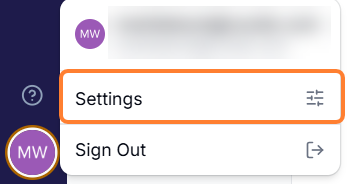
In the Veson Platform, select your user initials in the lower left (My Profile) and go to Settings.
-
Scroll to the Sharing section.
-
Click Enable and accept the terms & conditions.
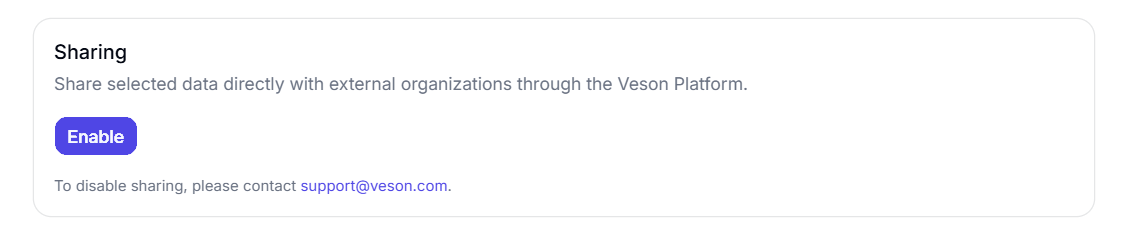
This only needs to be done once per environment.
Sharing Permissions
Once sharing is enabled, only users with the sharing permission can share data.
To have the sharing permission granted to a user, submit a ticket requesting that a Veson employee assign it. If you would like to grant access to multiple users, a single ticket with a list of their email addresses is appreciated.
Sharing a Document
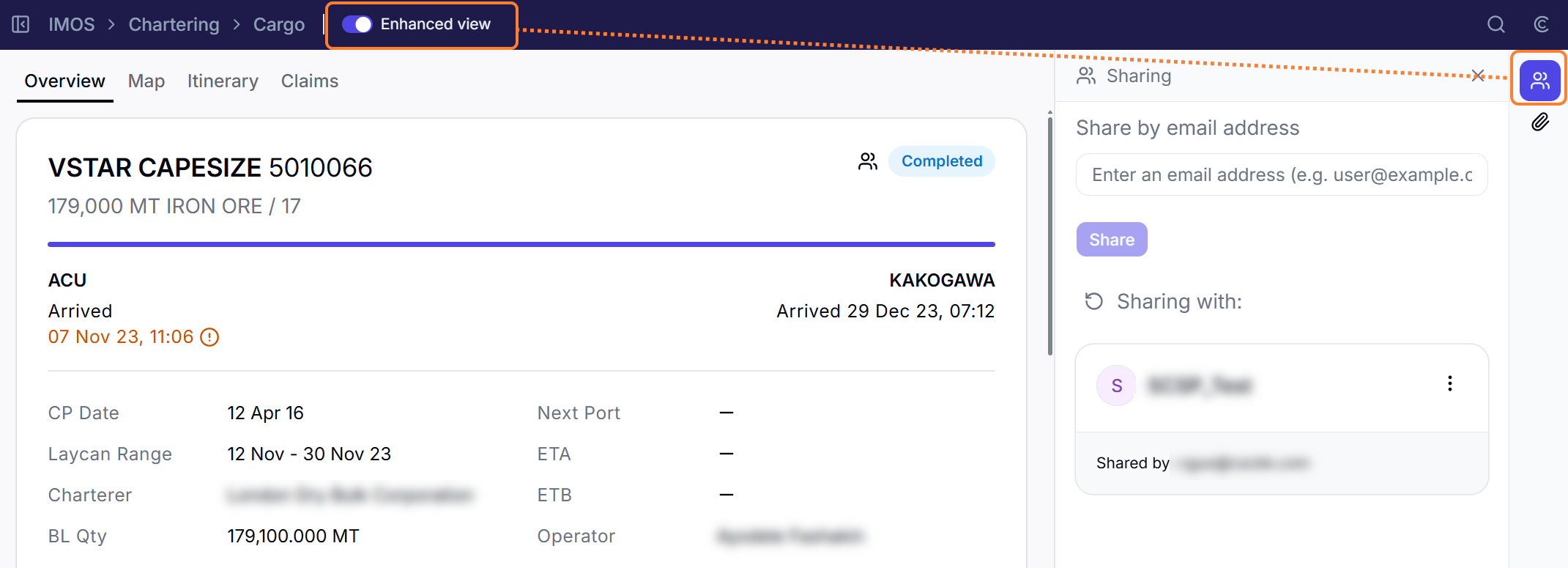
In the Veson Platform, navigate to the detail page of a Cargo, Voyage, or Port Call that you own. Turn on the Enhanced view toggle, then click the sharing icon in the side panel toolbar.
Enter Recipient Email(s)
Type one or more email addresses into the input field. Press Enter, comma, or Tab to commit each address. Email validation is performed, and certain domains are blocked. Each address triggers a domain-based lookup to find matching environments in the Veson network:
-
Single match — the environment is auto-selected (e.g., "Resolved to Acme Shipping")
-
Multiple matches — you are prompted to pick one or more environments from a list ("Matches multiple environments — pick one or more")
-
Unknown domain — an alert indicates the domain isn't in the Veson network, with an "Invite this company" option to onboard the recipient. Entering a domain that is not currently part of the Veson network gives you the option to extend access to a new partner: you can invite the recipient to join. Note the following:
-
An existing Veson account is not required. The recipient can create a free account.
-
After you send the invitation, the recipient receives a notification with setup instructions.
-
Once setup is complete, the recipient can access the shared data immediately.
-
-
Already shared — if you're already sharing with every tenant for that domain, you'll see a message confirming this
This feature works with company email addresses only. Addresses from personal providers such as gmail.com aren't eligible for sharing.
Confirm the Share
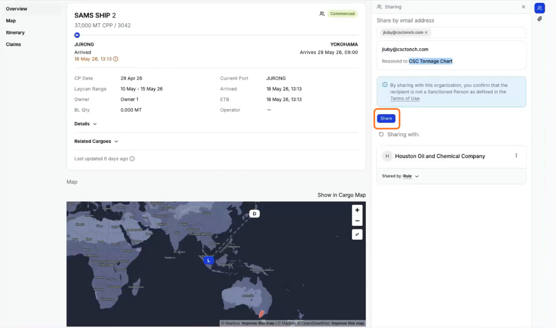
Click Share. Note: the button disabled until at least one valid recipient is resolved. A confirmation dialog lists the target environments; click Confirm to proceed. A success notification appears for each recipient.
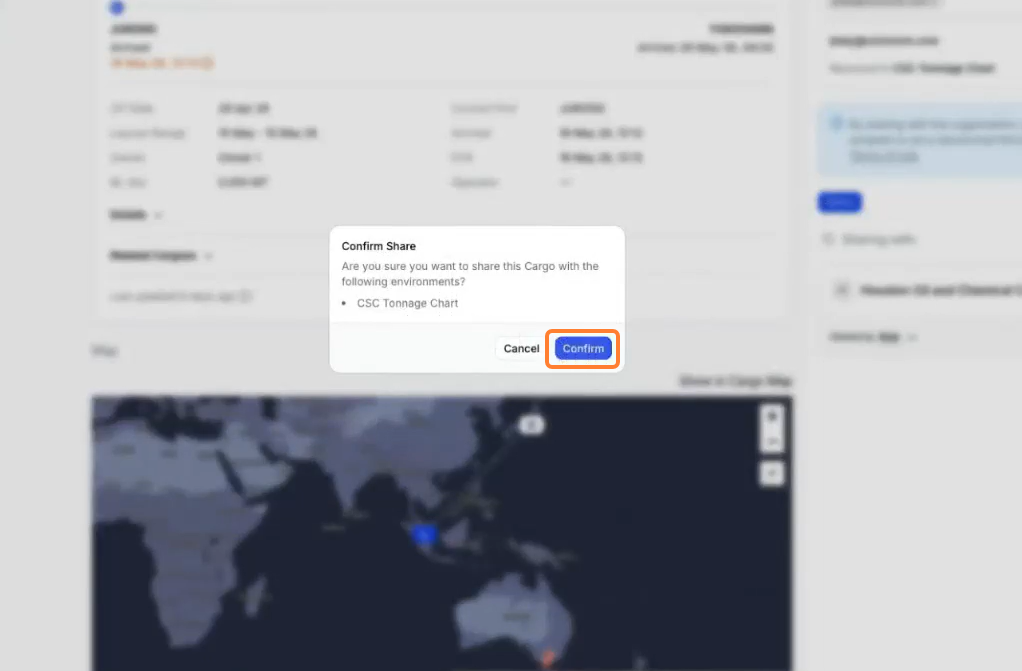
Email Notification
After a successful share, an email notification is sent to the entered addresses. This is best-effort — a delivery failure does not undo the share. Recipients who have opted out of email notifications are not emailed.
Viewing Current Shares
The panel shows all active shares below the input. Each share appears as a card with the recipient environment's name. The card footer indicates who initiated the share — either a username (for manual shares) or "Rule" (for rule-based shares, with expandable details). If no shares exist, the panel shows "Not currently shared." A refresh button lets you reload the sharing status manually.
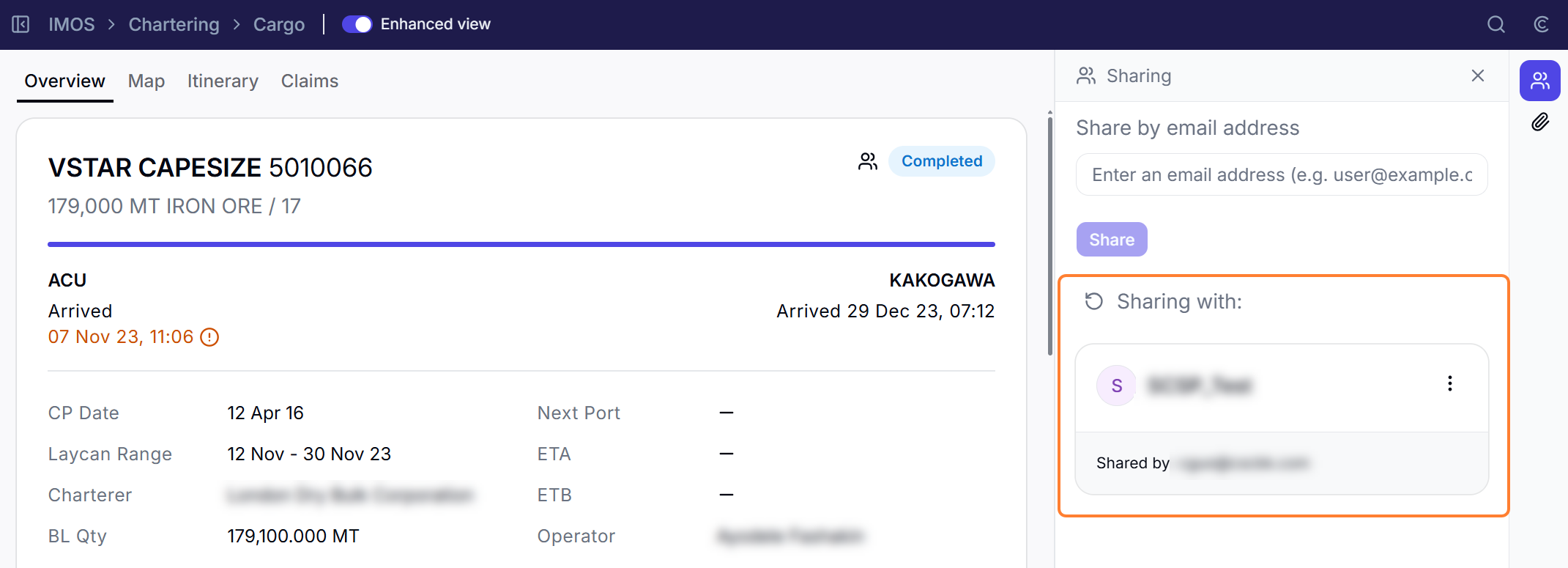
Removing a Share
Click the three-dot menu on a share card and select Remove Share.
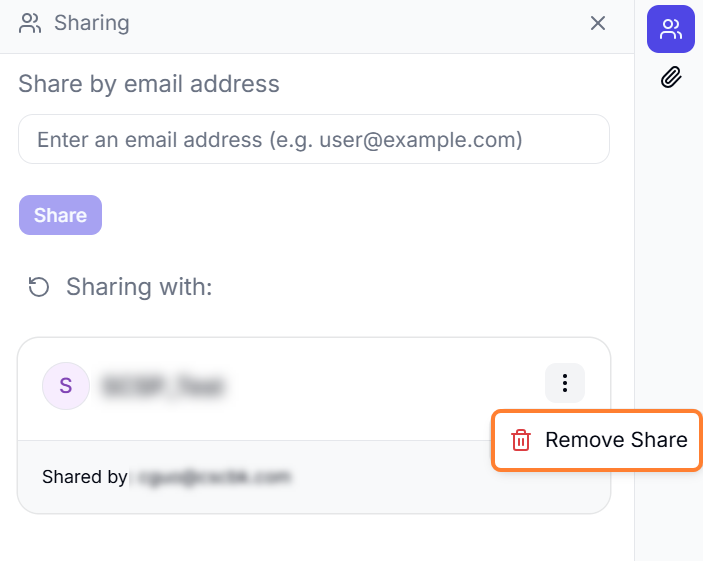
A confirmation dialog appears:
-
Manual share — "Are you sure you want to stop sharing this [document type] with [environment]?"
-
Rule-based share — "Are you sure you want to exclude this [document type] from the sharing rule for [environment]?" (the document will remain excluded from the rule until the rule configuration is updated)
On confirmation, a success notification is shown, and the share is revoked immediately.
If you're interested in rule-based sharing—where documents are shared automatically based on configurable criteria—contact your Veson representative to learn more.