Navigating to Portfolios
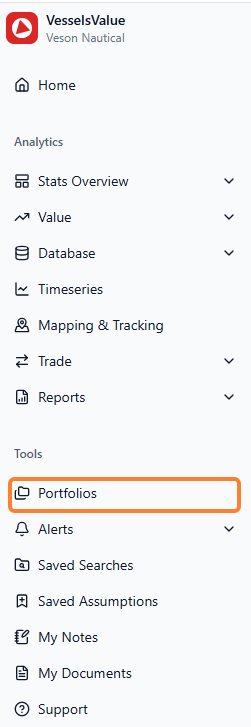
Select Portfolios in the sidebar menu.
Overview the Portfolios pages
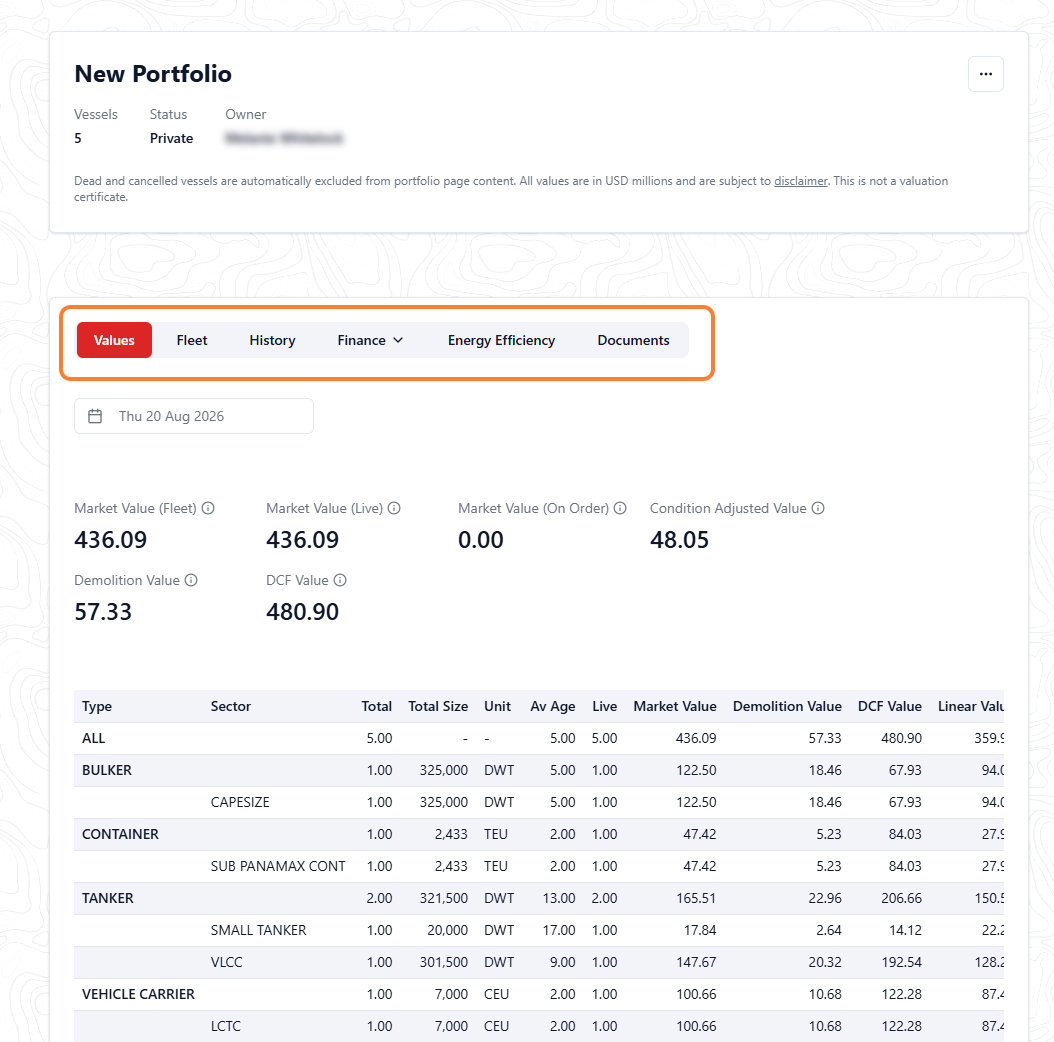
Our Portfolio pages are broken up into several key areas.
-
Values: This is where you can see all our valuation data for your portfolio. It now includes the ability to see your portfolio's historical valuations. With vessel-specific historical valuations coming soon.
-
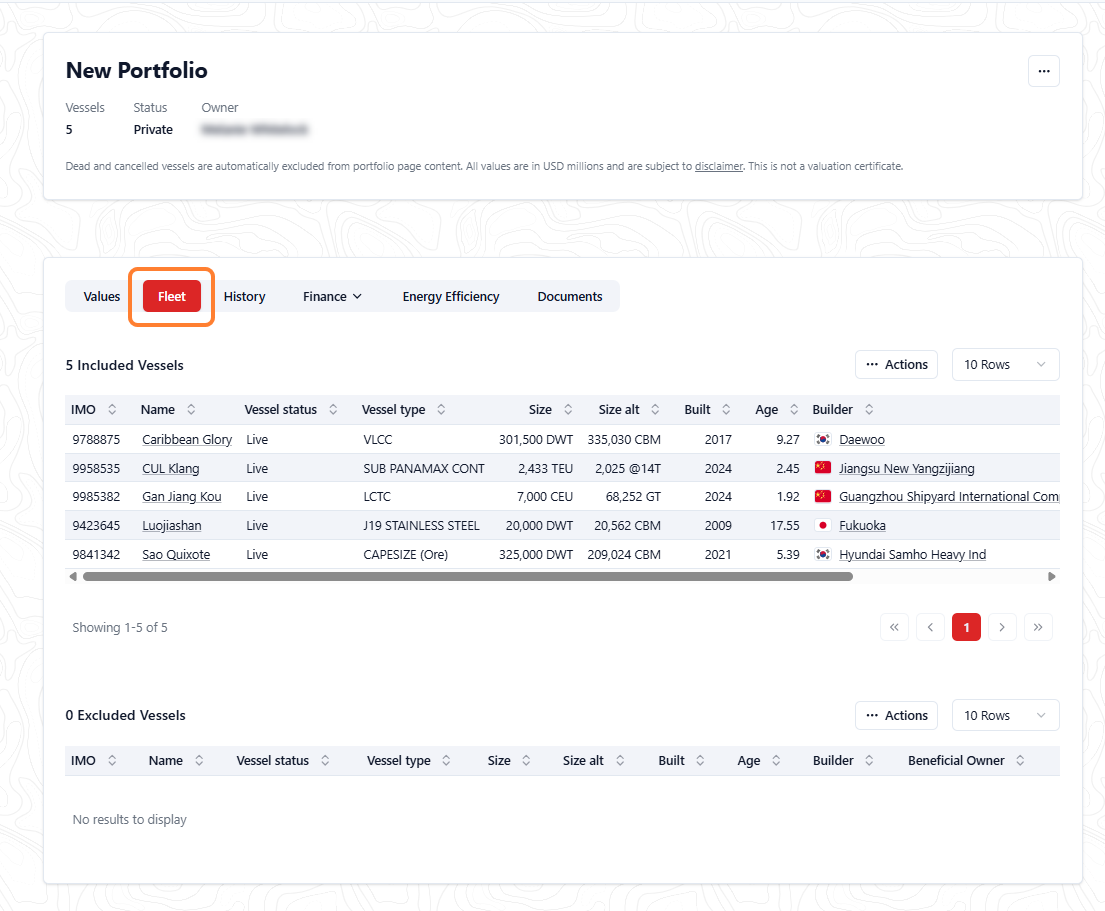
Fleet: This is where you can see the set of vessels currently within your portfolio and those that may have been excluded due to their status or not being valuable. It now includes the ability to customise these table’s columns. Allowing you to see different vessel specifications or ownership conveniently in one place.
-
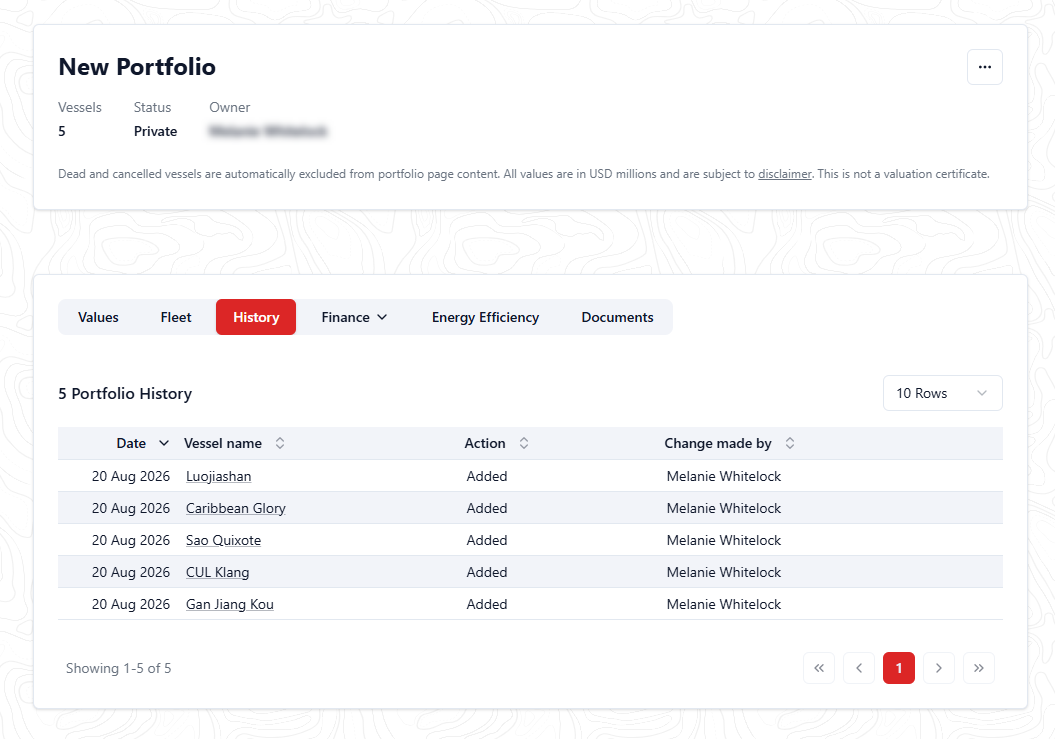
History: This is where you can see the history of your portfolio. See the details of any vessels which have been added or removed and who has made these changes.
-
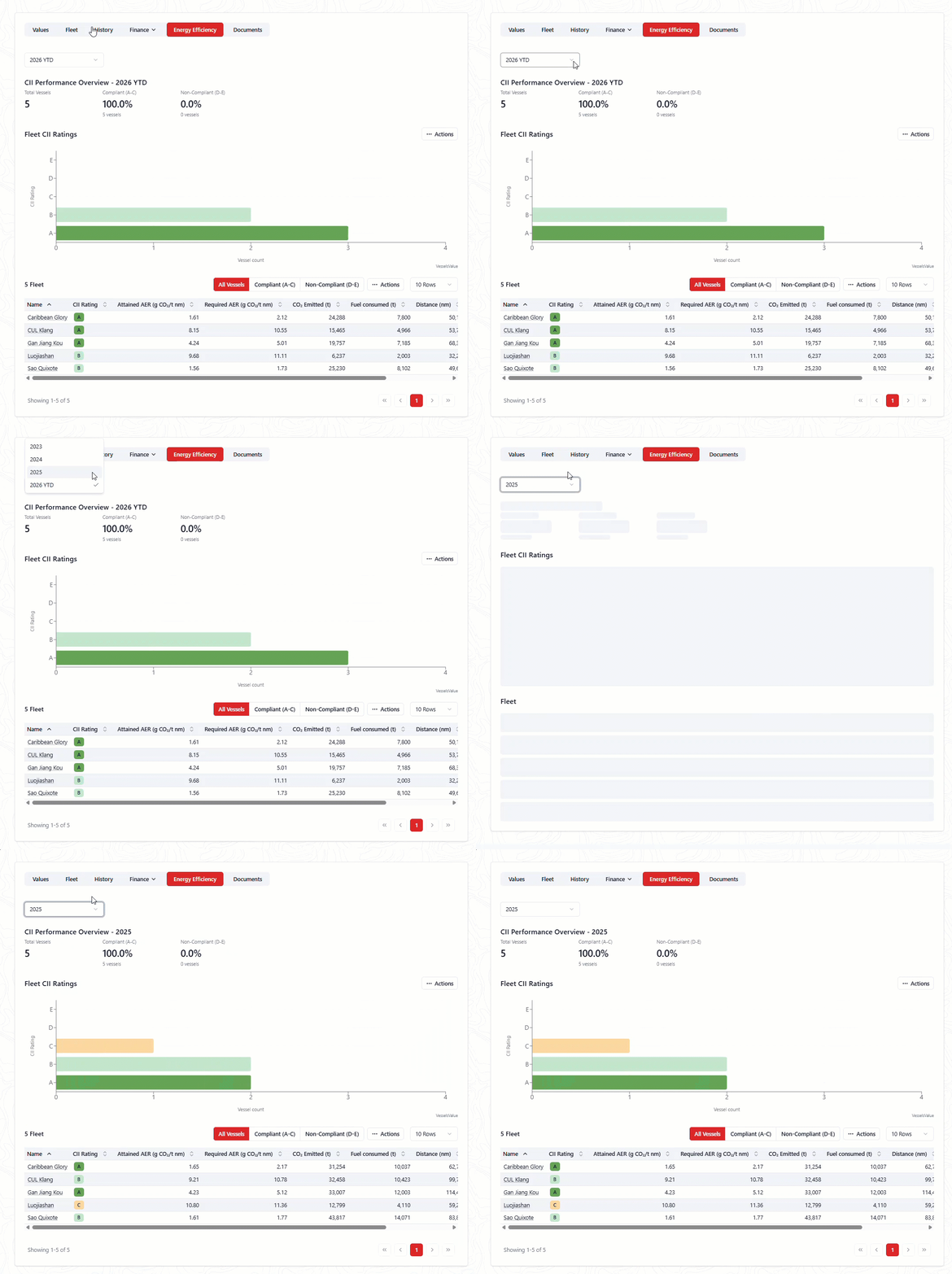
Energy Efficiency: This is where you can see the CII information for vessels in your portfolio. With the ability to view on a year-by-year basis and customise the table columns to compare vessel specifications, which could be impacting the vessel’s CII rating.
-
Documents NEW : See all your files by category, uploaded date, and creator.
Setting up a new portfolio
Creating a new portfolio
-
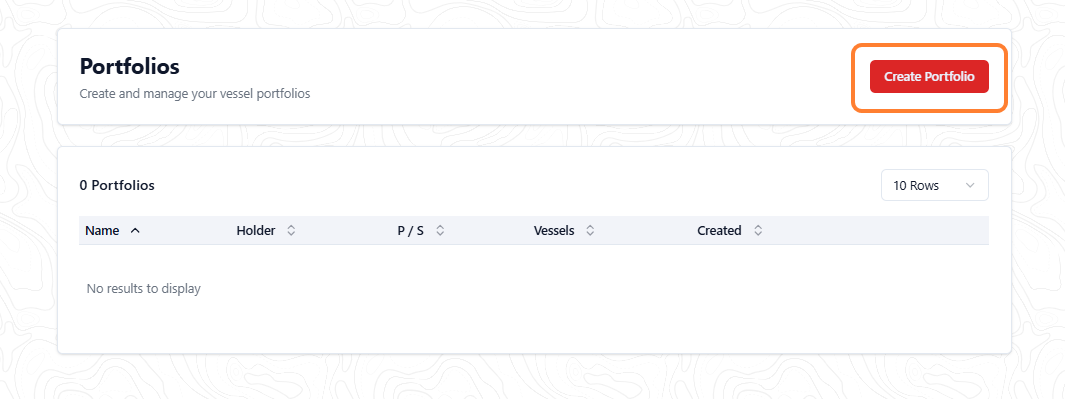
Select the Create Portfolio button.
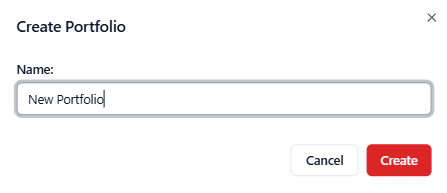
Input a name for your portfolio in the modal and press Create. Your new portfolio page will automatically load.
Add vessels to your portfolio
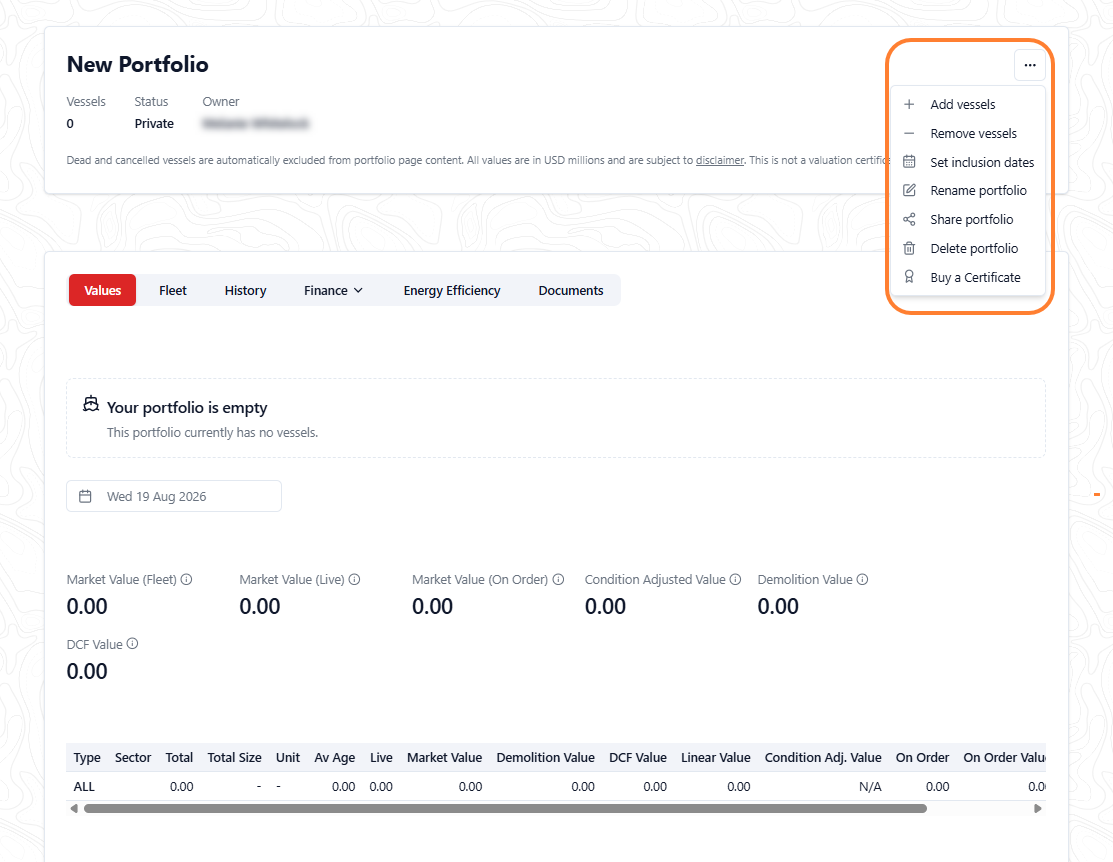
Select the three-dot menu in the upper right and choose Add Vessels from the dropdown list.
A pop-up window appears, showing options for adding vessels to your portfolio.
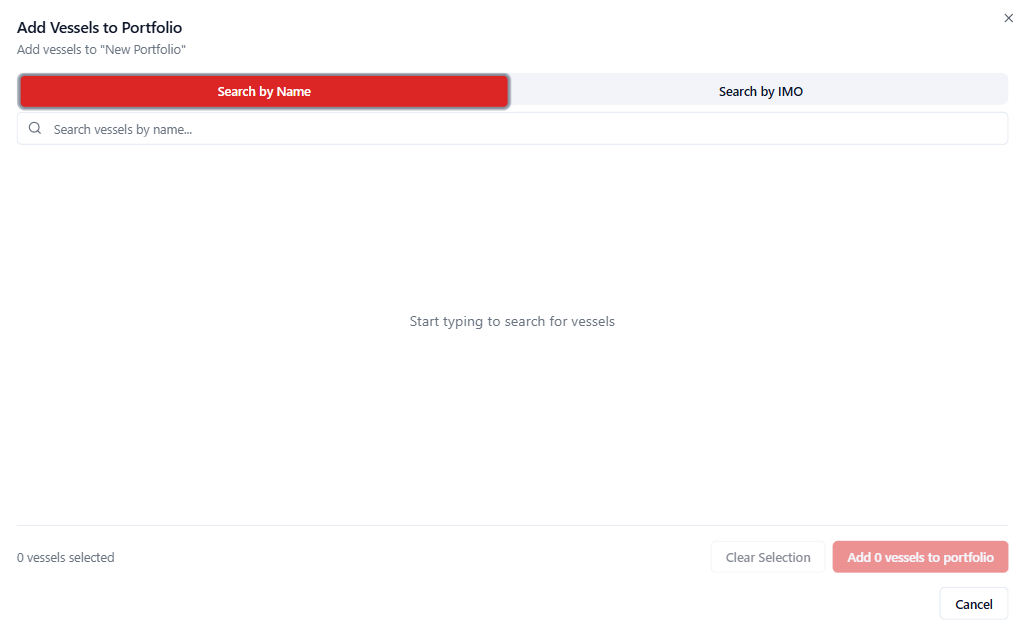
There are two options to add vessels into your portfolio:
-
Search by the vessel’s name
-
Search by singular or multiple vessel IMO’s
To search by the vessel’s name, use the search bar. This will return the matching vessels in the table below.
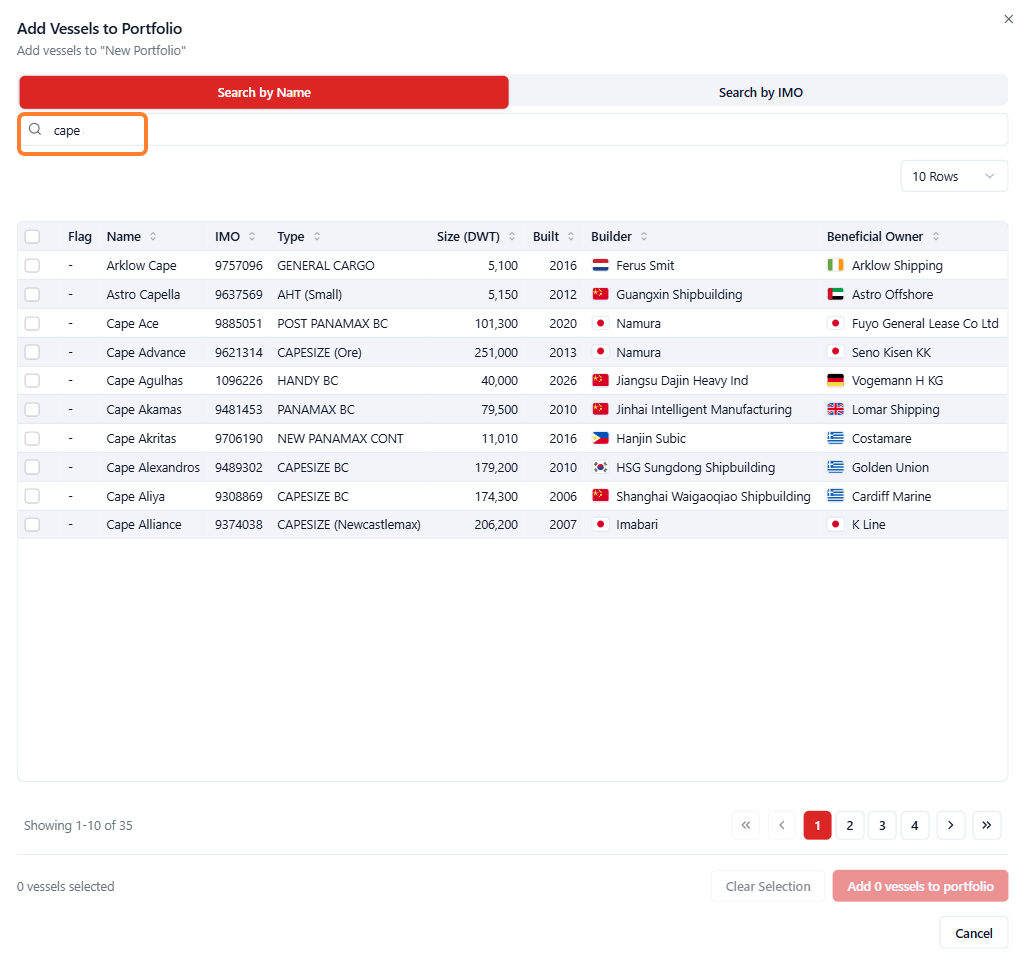
Using the checkboxes to the left of each table row, select the vessels you wish to add to your portfolio, or choose the top checkbox in the header row to select all vessels.
Once selected, choose the Add <X> vessel(s) to portfolio button, and you’ll see a confirmation message. Or a message indicating this vessel is already in your portfolio.
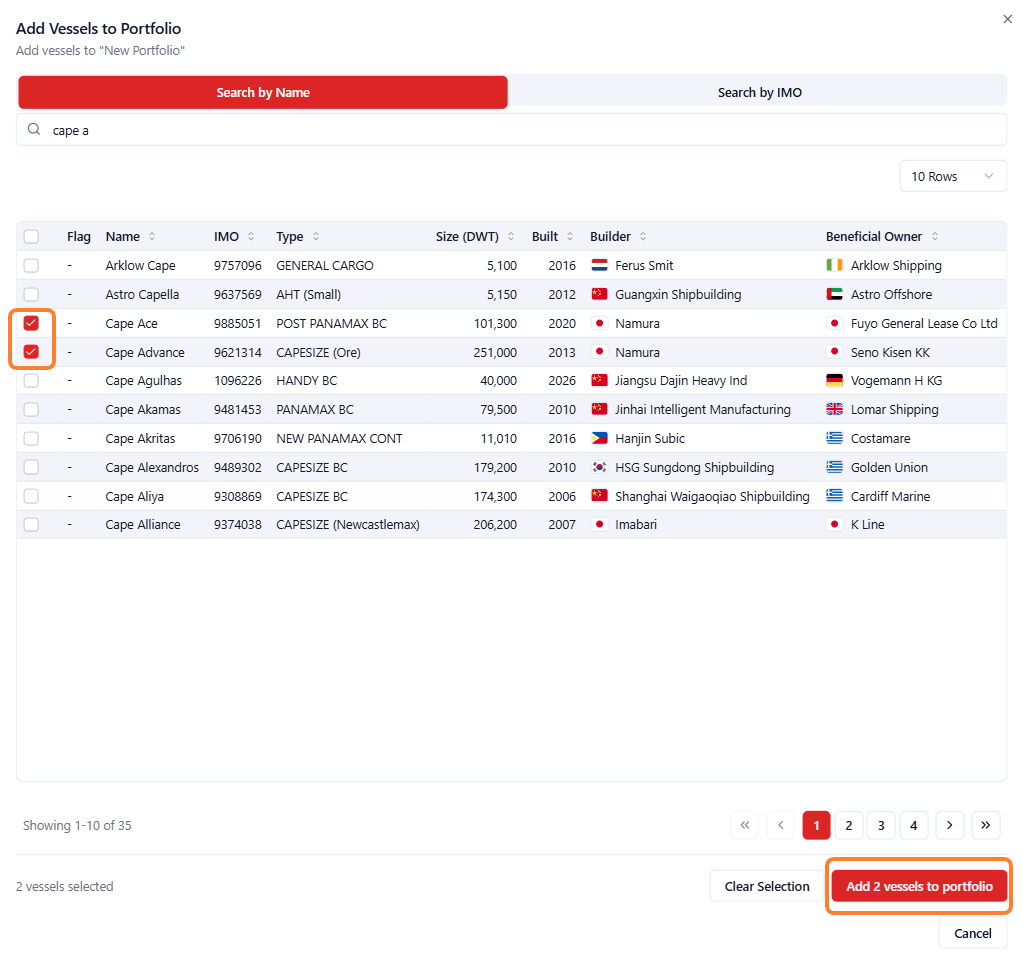
Alternatively, you can choose to add vessels by their IMO number. Select the Search by IMO option.
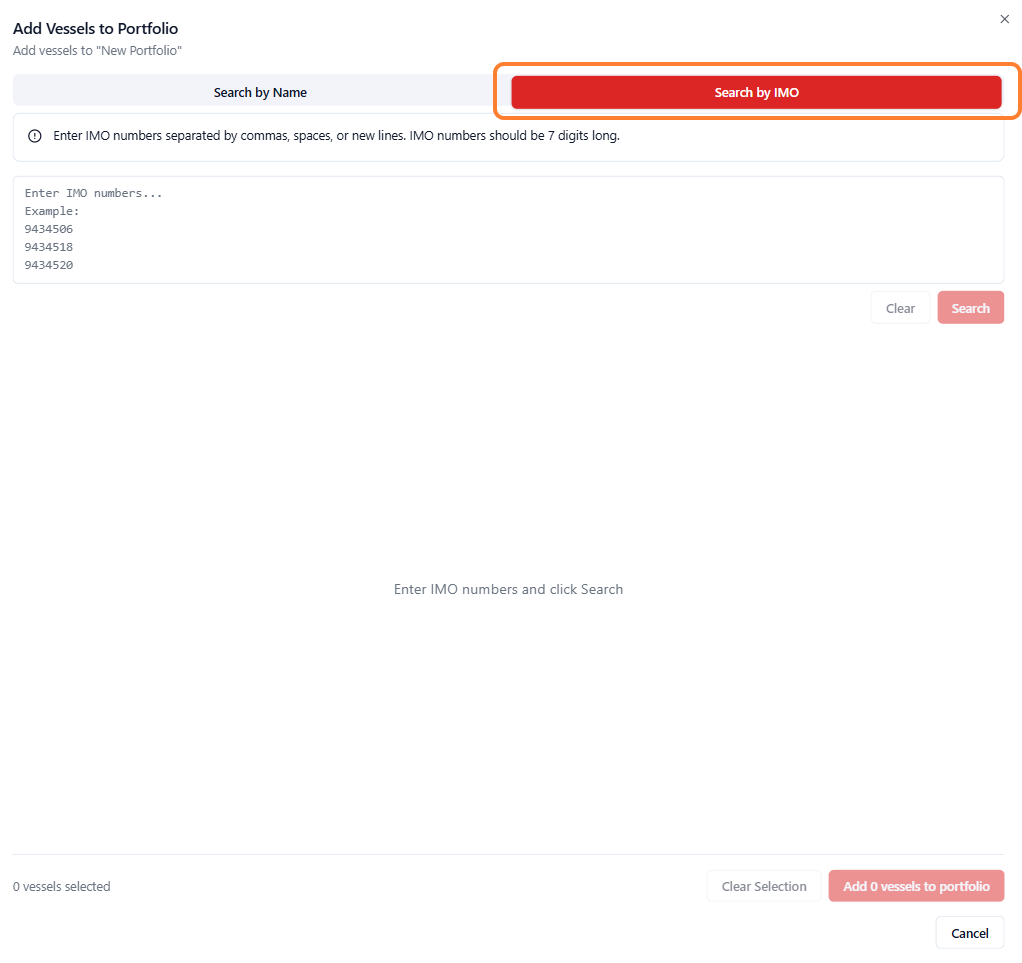
And add your list of IMOs separated by a comma and select Search.
Using the checkboxes on the left of each table row, select the vessels you wish to add to your portfolio, or choose to Add <X> vessels to your portfolio using the button in the lower right.
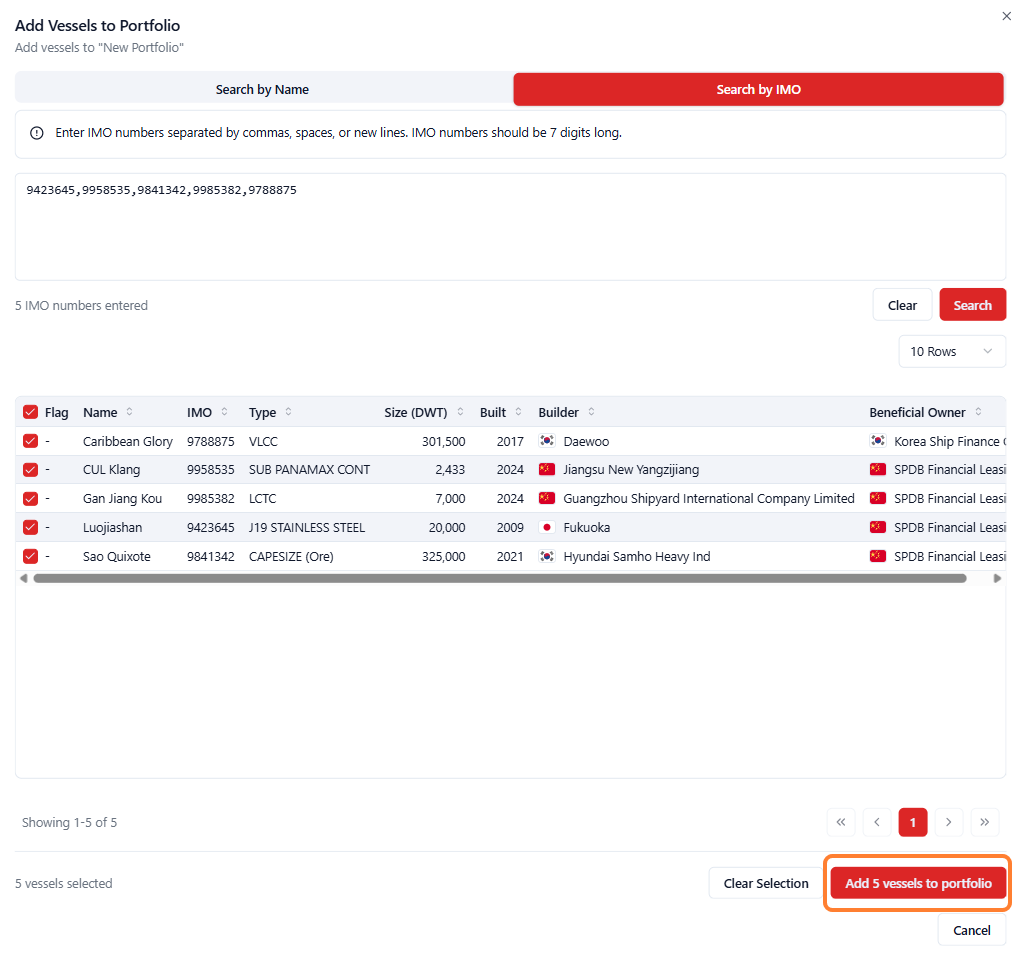
Once selected, you’ll see a confirmation message or a message indicating this vessel is already in your portfolio.
Removing vessels from your portfolio
To remove vessels, go to the three-dot menu in the upper right and choose the Remove vessels option.
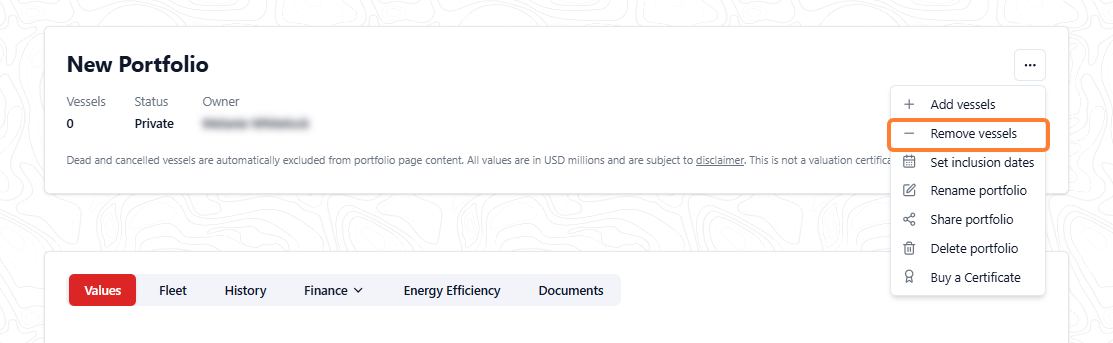
Once selected, you’ll see a pop-up with listed vessels. To narrow down this list further, you can search for specific vessels to remove using the vessel name in the search box. You have two options for removing vessels:
-
Use the checkboxes on the left of each table row to select the vessels you wish to remove
-
Or use the first checkbox in the header row to remove all listed vessels
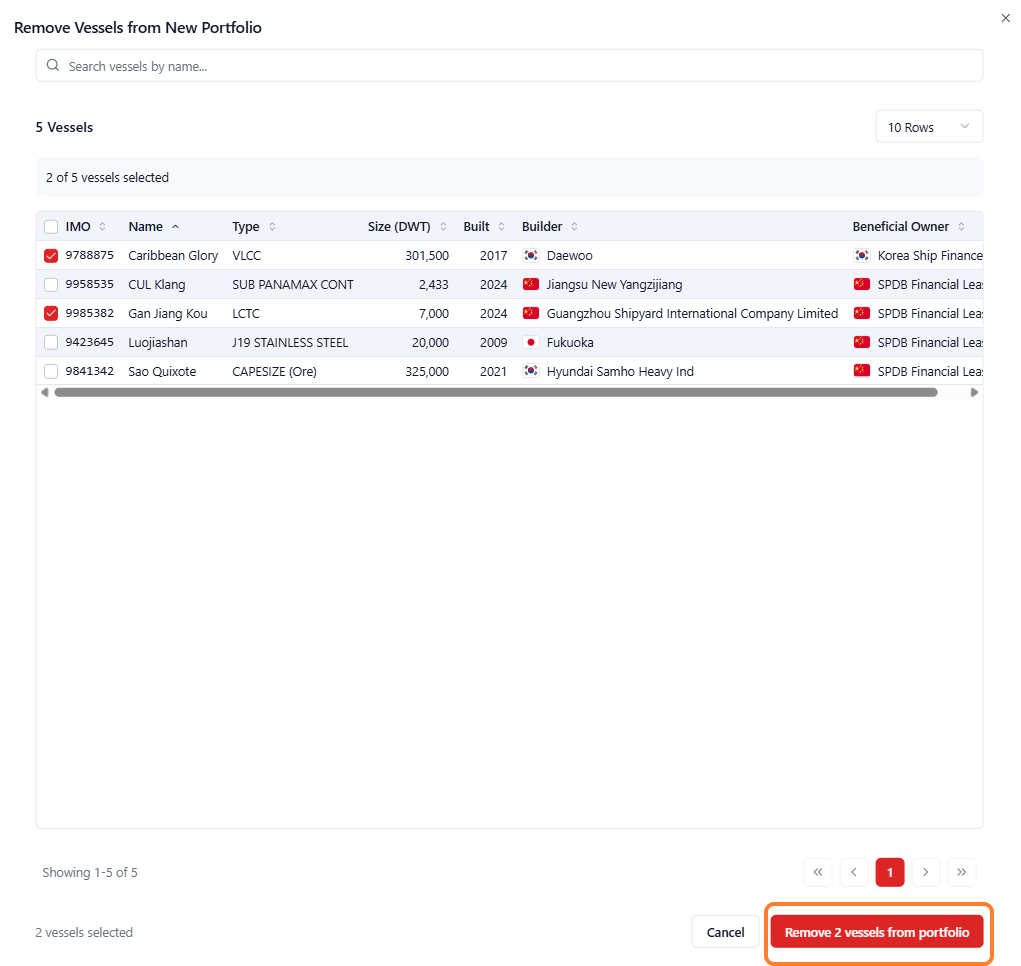
Once selected, choose the Remove <X> vessels from portfolio button, and you’ll see a pop-up asking you to confirm removal.
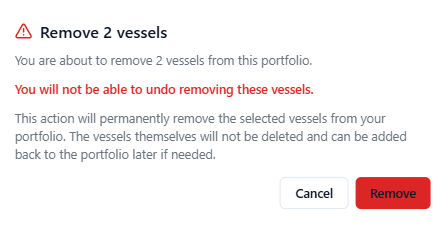
To proceed, select Remove and you’ll see a confirmation message.
Renaming your portfolio
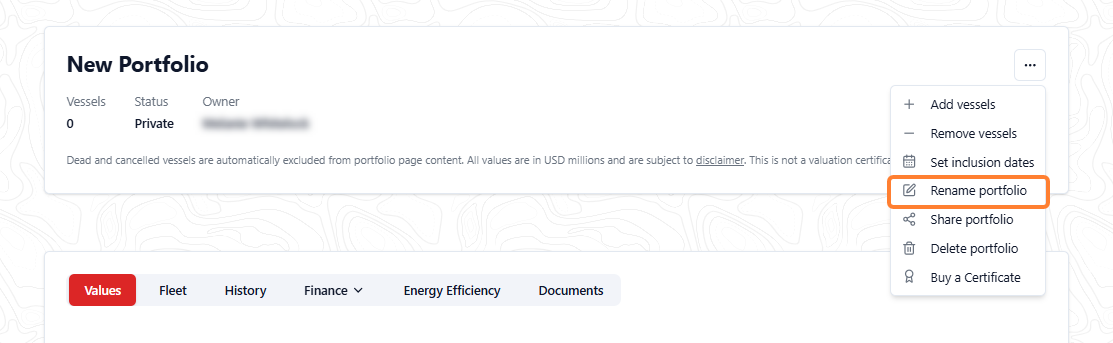
If you change your mind about the name of your portfolio chart, you can amend it by selecting Rename portfolio in the three-dot menu in the upper right.
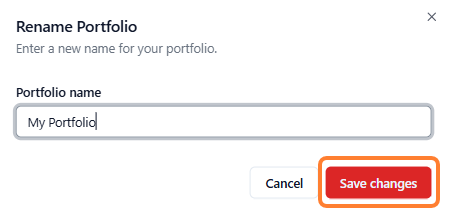
Input the new name for your portfolio and select Save changes.
Using the Portfolio pages
Viewing valuations data
One of the most useful aspects of our portfolio pages is that they allow you to monitor the value of a bespoke set of vessels. Use our Values tab to explore the valuations of your vessels. The page is broken up into 4 sections:
-
Aggregated types of values, with Market Value being broken down further by a vessel’s matching certain statuses
-
Stats table, which shows a full overview of your portfolio, aggregating by ship type
-
Portfolio history and Fleet history charts. Both of these charts serve different purposes. They differ:
-
The Portfolio history chart shows you the history of the portfolio since the day you created it
-
Fleet history chart shows you the full history of these vessels, way back to 1992 for most of our vessel types
-
-
Fleet values table which shows you each of the vessels within your portfolios and their values
Understand how to view historic valuations
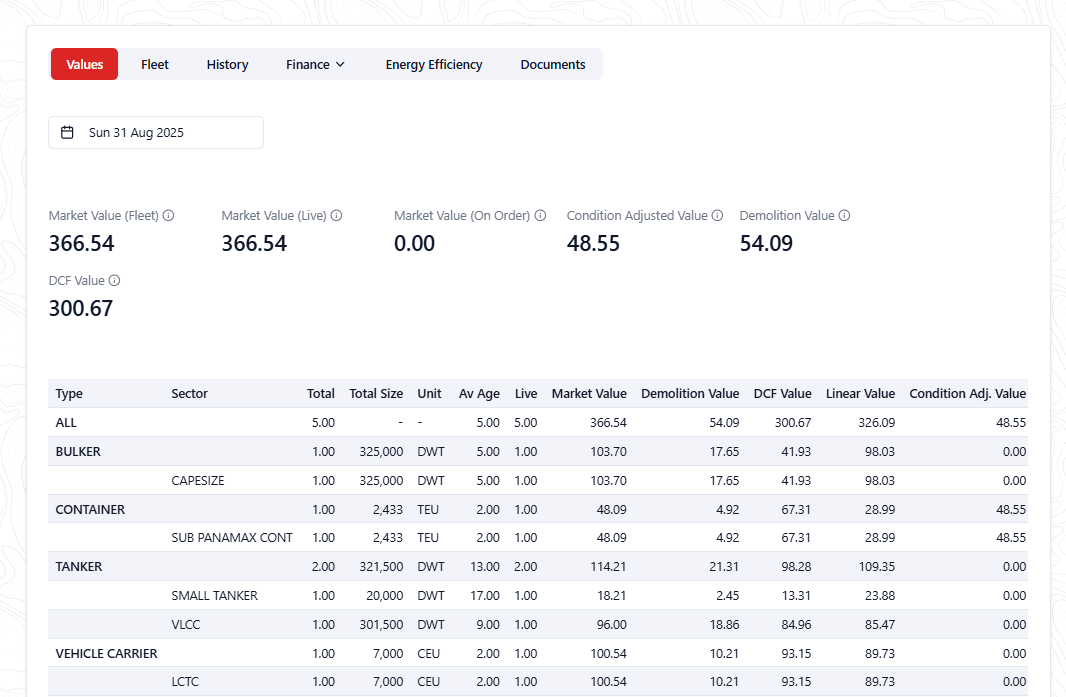
In our portfolios, you can select previous historical dates and view the valuations on that date.
Firstly, in the Values section, select the date picker.
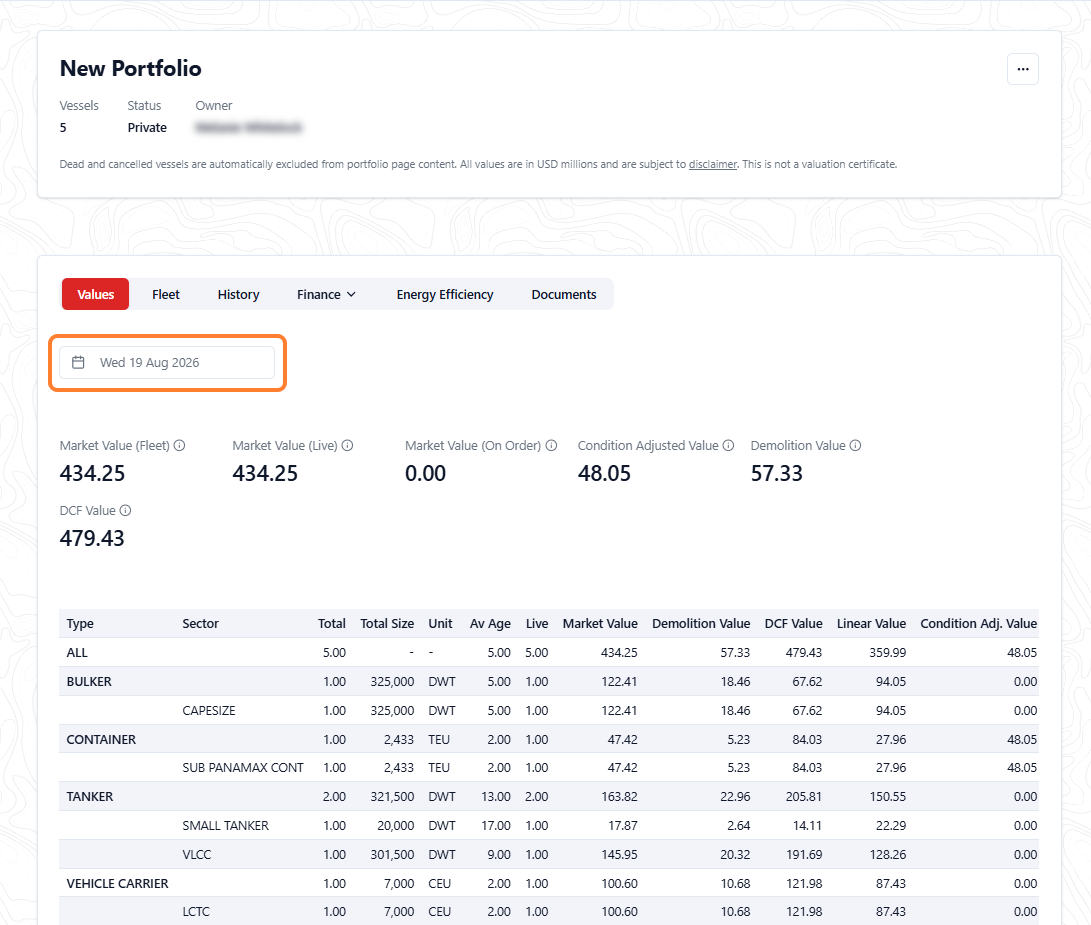
Choose the date in history you’d like to see the valuations for, and the page and all of its content will automatically reload to show the valuations from this date.
Viewing the vessels in your portfolio data
Within the Fleet tab, you can see a breakdown of vessels included and excluded in the portfolio. Use this tab to dig into the details of your vessels. We differentiate these due to some vessels not having valuations, so they are “excluded” from the valuations on the page. This can be for a myriad of reasons, such as them being dead or cancelled, VV not producing a valuation, or you don’t have the valuation for these vessel types included in your subscription.
Understand how to customise the data in your fleet tables
Available with our Fleet Database module.
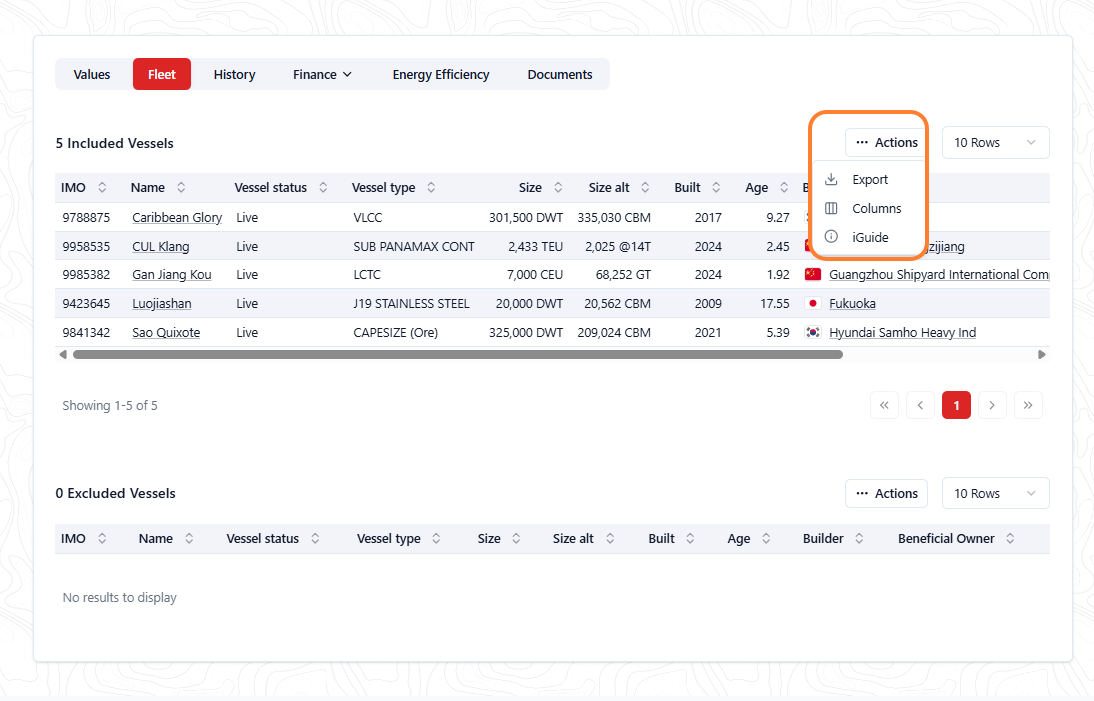
Also in our new portfolios, is the ability to customise the table columns in our fleet tables.
To see this functionality, navigate to the Fleet table section.
In the three-dot menu, select Columns to customize the displayed columns.
This opens a pop-up which displays all the columns available to add to this table. After selecting the columns, click Save changes to preserve them.
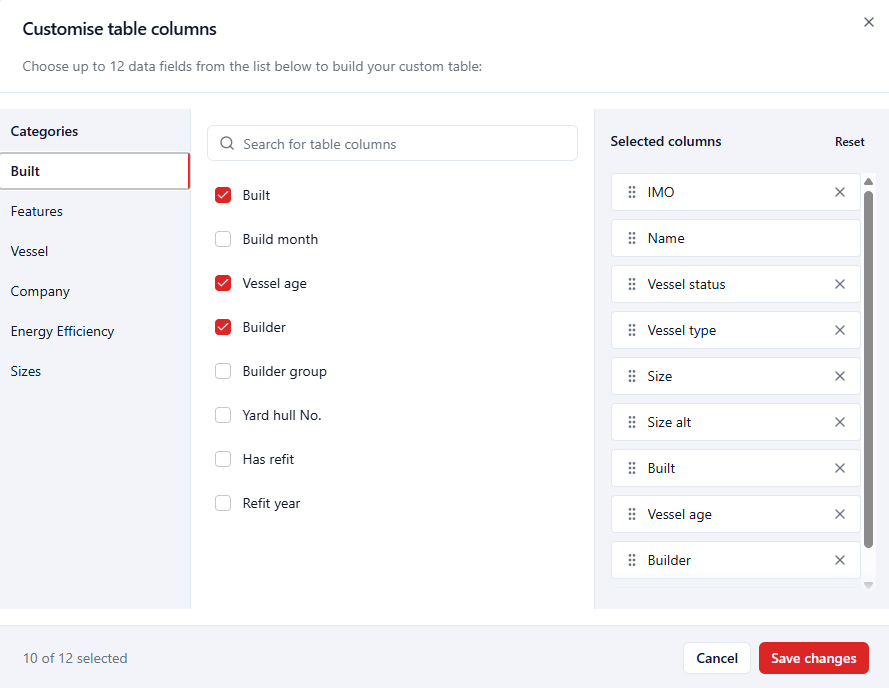
Note, the columns available to you are tailored by your VesselsValue subscription. There is also a maximum limit of 11 columns that can be added to the table.
Viewing history of your portfolio
Within the History tab, you’ll be able to see the full history of your portfolio. Specifically, vessels being added and removed from your portfolio, and who exactly made the change. Our portfolios encourage collaboration across teams, now you’ll be able to see who exactly has made changes for your tracking purposes.
Viewing Energy Efficiency of your portfolio
Along with valuations data, you also have the option to view the CII information of your portfolio. To view this information, navigate to the Energy Efficiency tab.
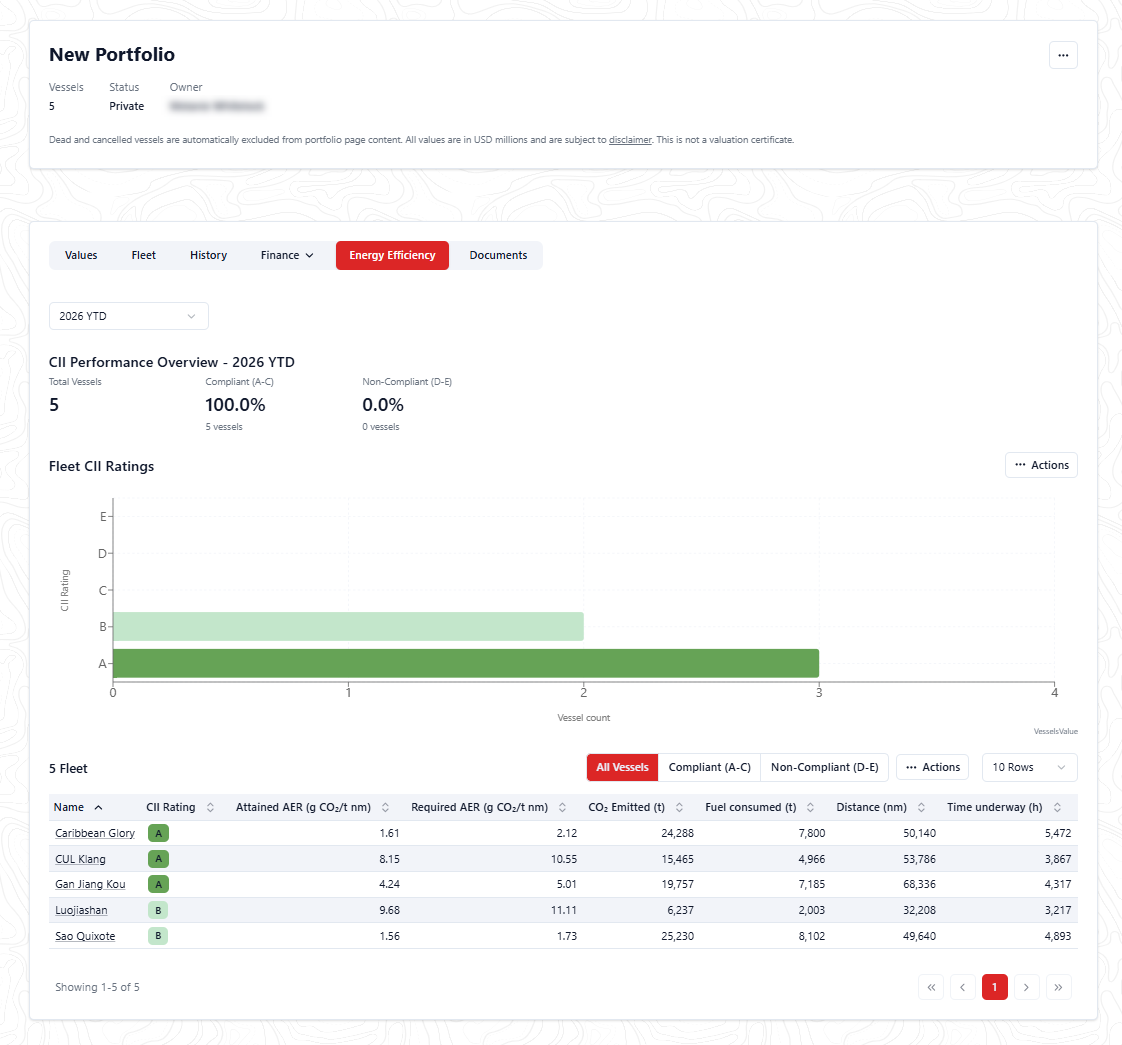
You’ll see a breakdown of all vessels by counts and percentages, a visual chart, and a table of results which you can filter by all, compliant, and non-compliant.
You can also see the past 3 years of CII data by selecting from the view dropdown. The default is the current year to date i.e. 2024 YTD.
Additional functionality
Buy a Market Valuation Certificate for your portfolio
You can purchase one of our Market Valuation certificates for your portfolio for auditing or sharing with third-party purposes.
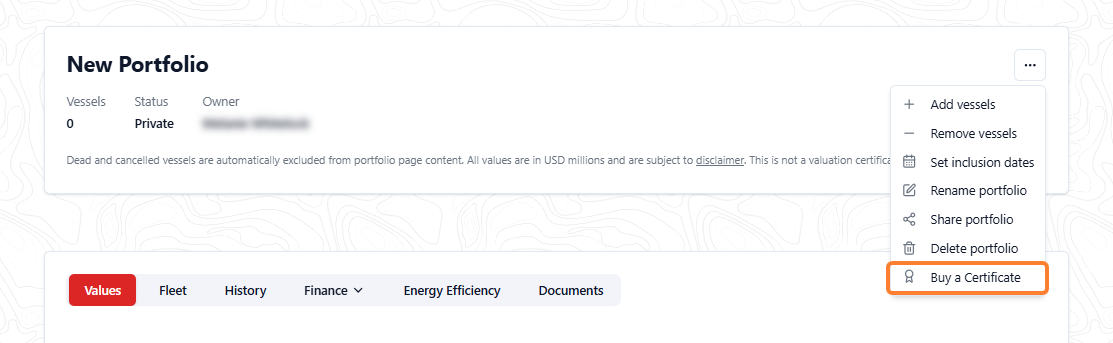
To generate a certificate, navigate to the Buy a Certificate option in three-dot menu in the upper right.
This will open in a new tab where you can purchase a certificate. It pre-fills with your selected portfolio and today’s date.
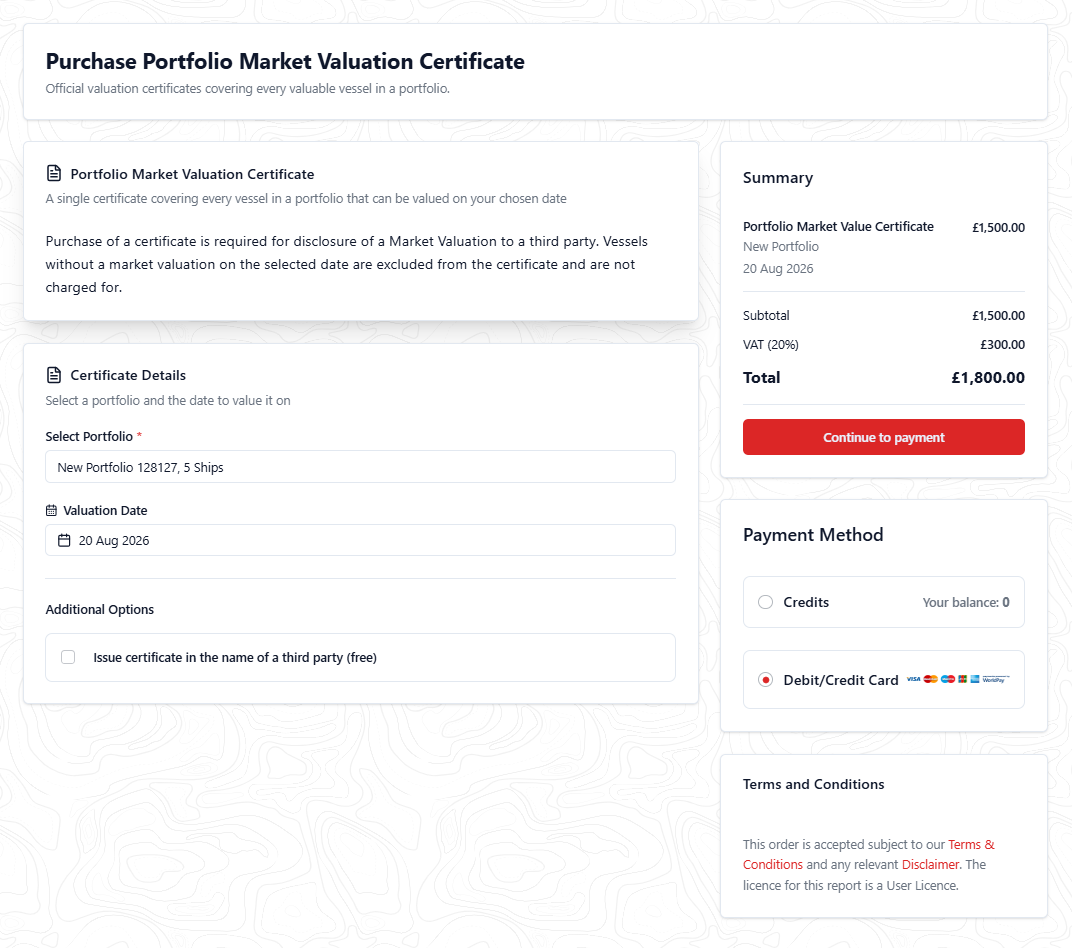
To generate a certificate on a previous date, amend the date using the valuation date picker.
Share your portfolio with your colleagues
To allow our subscribers to work collaboratively, we allow you to share portfolios you’ve created with one another. Once you do this, they’ll show up in the Dashboard > Your portfolios section as shown.
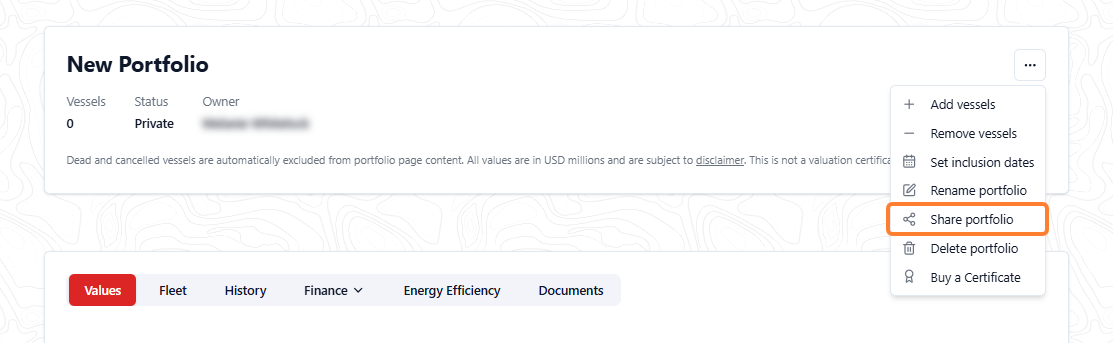
To share your portfolio with your colleagues, select the Share portfolio button, which will set your portfolio to shared or private depending on the current state.
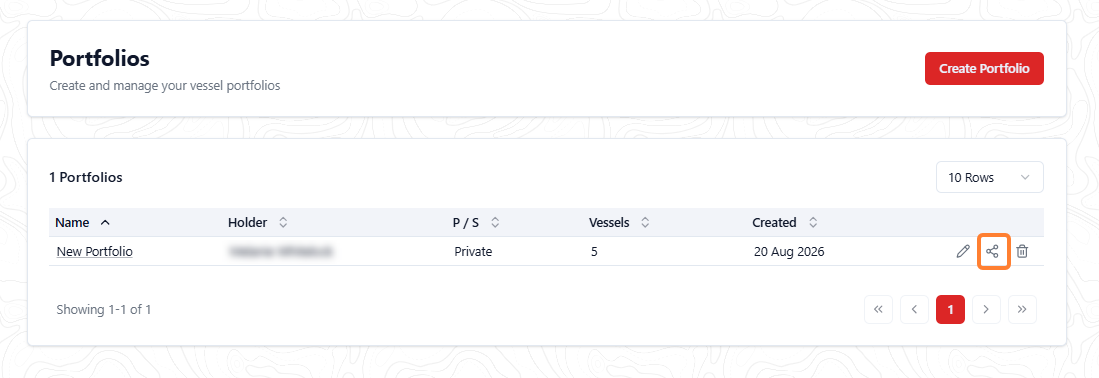
Alternatively, you can share a portfolio from the overall list view on the main portfolio page.
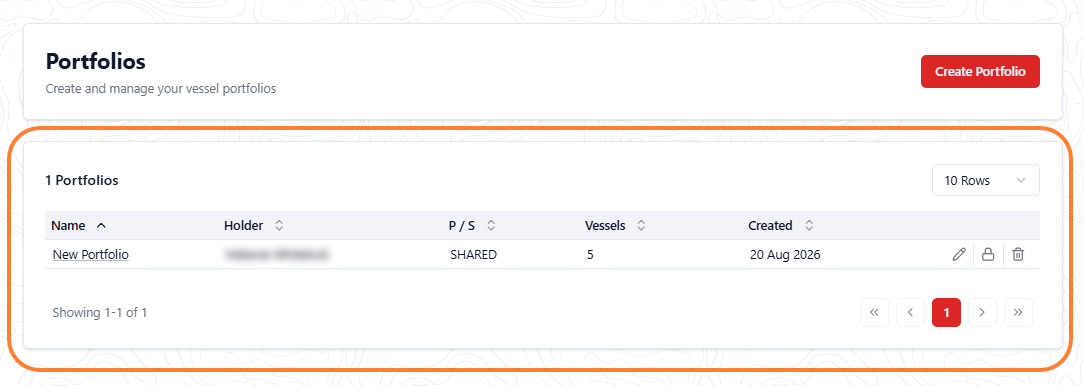
Once selected, a confirmation message will show if it’s shared or not.
Sharing details
If you share your portfolio then your colleagues will be able to:
-
Private
-
Only you can view and edit this portfolio
-
-
Shared
-
Contacts within the same company as the portfolio owner are now able to:
-
Add vessels to the portfolio
-
Remove vessels from the portfolio
-
Rename the portfolio
-
-
Portfolio owners are the only ones who can:
-
Change the shared status of the portfolio to shared or private
-
Delete the portfolio
-
-
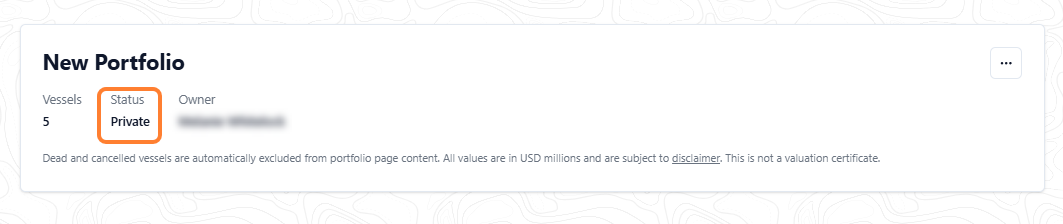
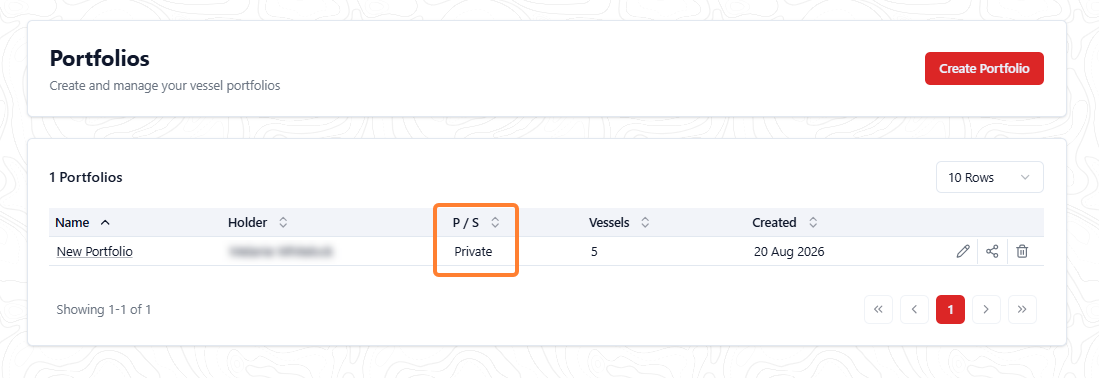
However, if you’re unsure, you can check the Status field to see if it’s private or shared. You’ll also see who owns the portfolio, listed under Holder so if you’re viewing someone else's, you know who originally created this portfolio.
Alternatively, you can see the P/S status (private or shared) at a glance from the portfolio list view.
Export
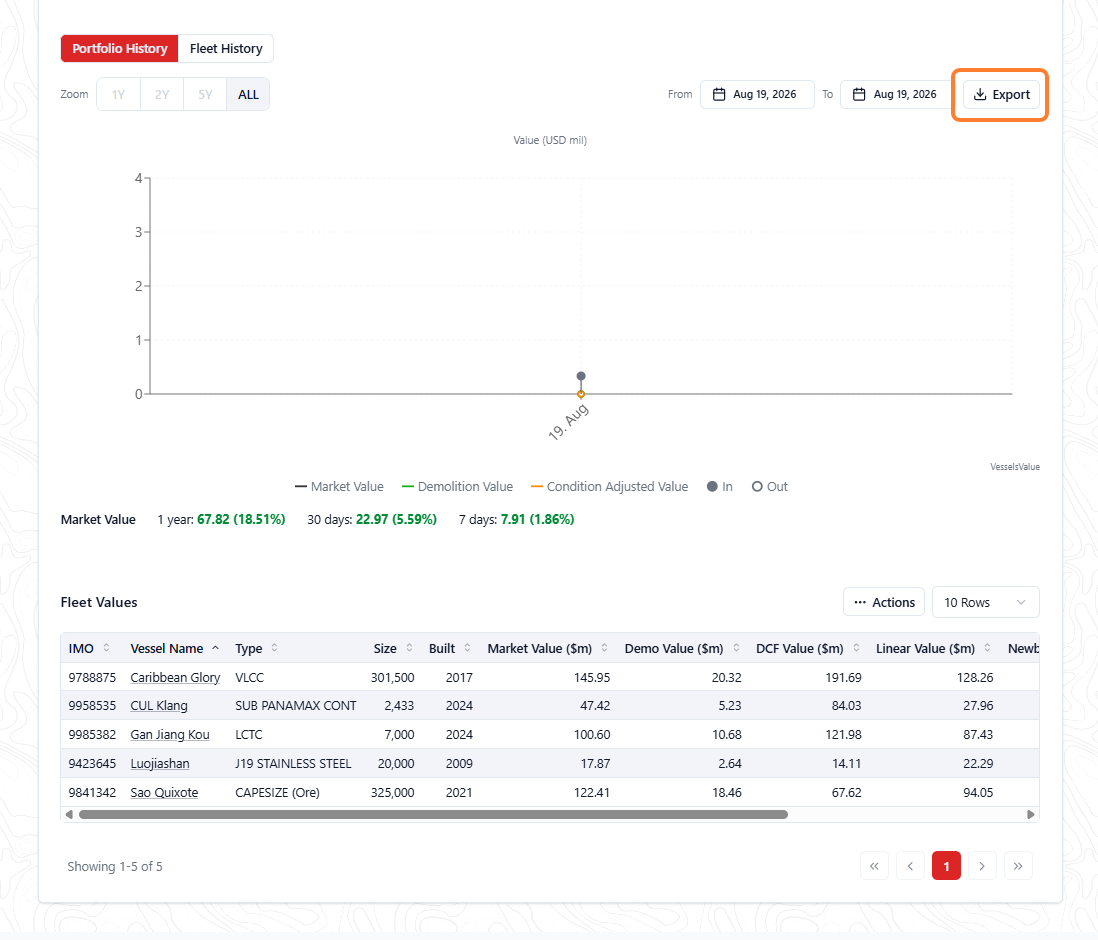
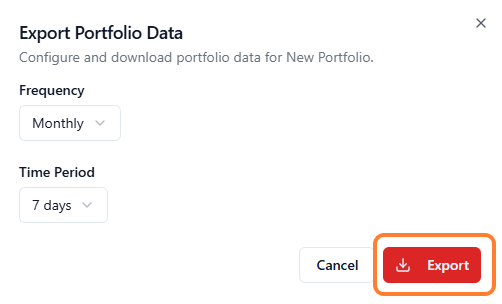
If you subscribe to our export module, you can export the tables and charts displayed within the portfolio pages using the Export icon in the upper right. This will trigger a pop-up presenting the options available to the user. The files will automatically download as .CSV files containing the data you’ve selected on the screen.
Export & Fleet Database
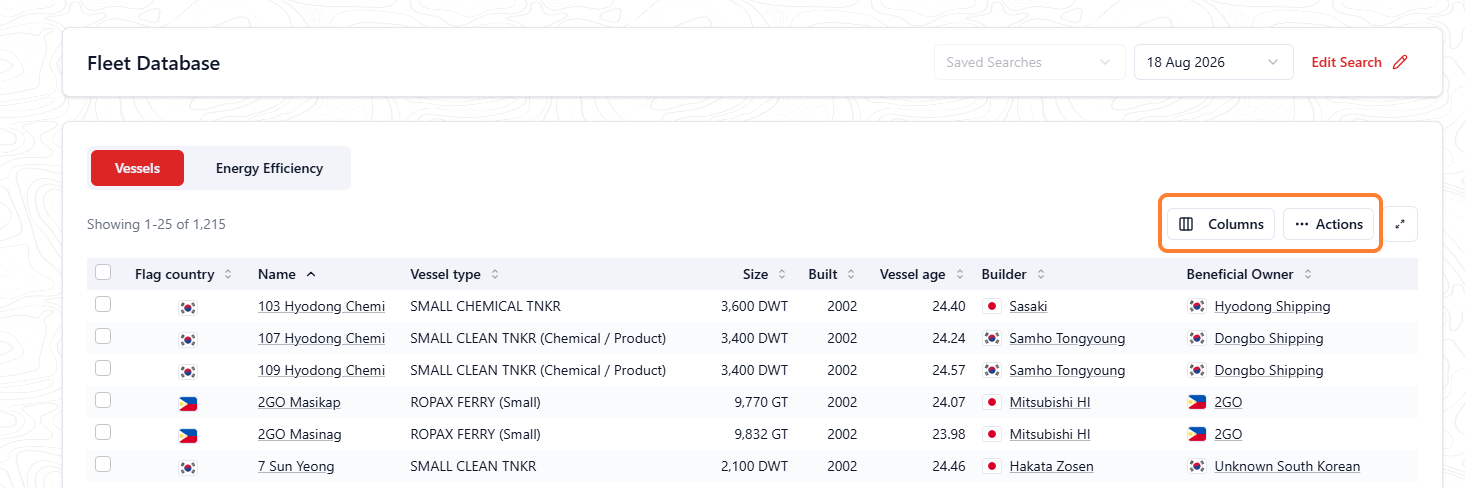
If you are one of our clients who subscribes to both Export and Fleet Database, this is when Export begins to shine. Use our customisable Columns functionality in the top right of each table section to customise the data to your needs and then use Actions to export it from the site for your own analysis. Choose from a selection of vessel specifications, valuations, ownership, and much more.
Limitations to be aware of:
-
Exports are limited to the number of series being exported per day
-
The default is 10 series per day
Please speak with your Account Manager if you have any questions.
Delete
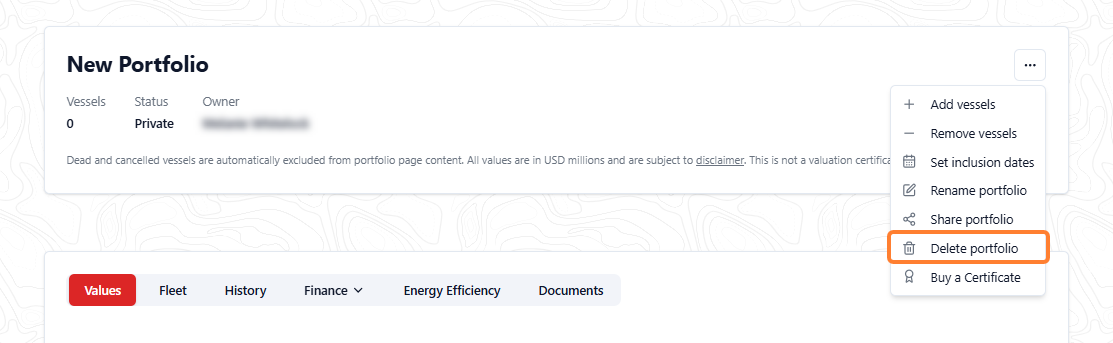
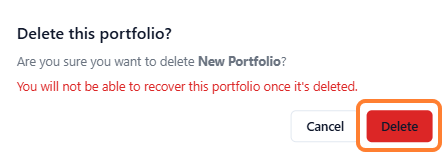
To delete a portfolio, select the Delete portfolio button in the three-dot menu and confirm within the pop-up window by selecting Delete.