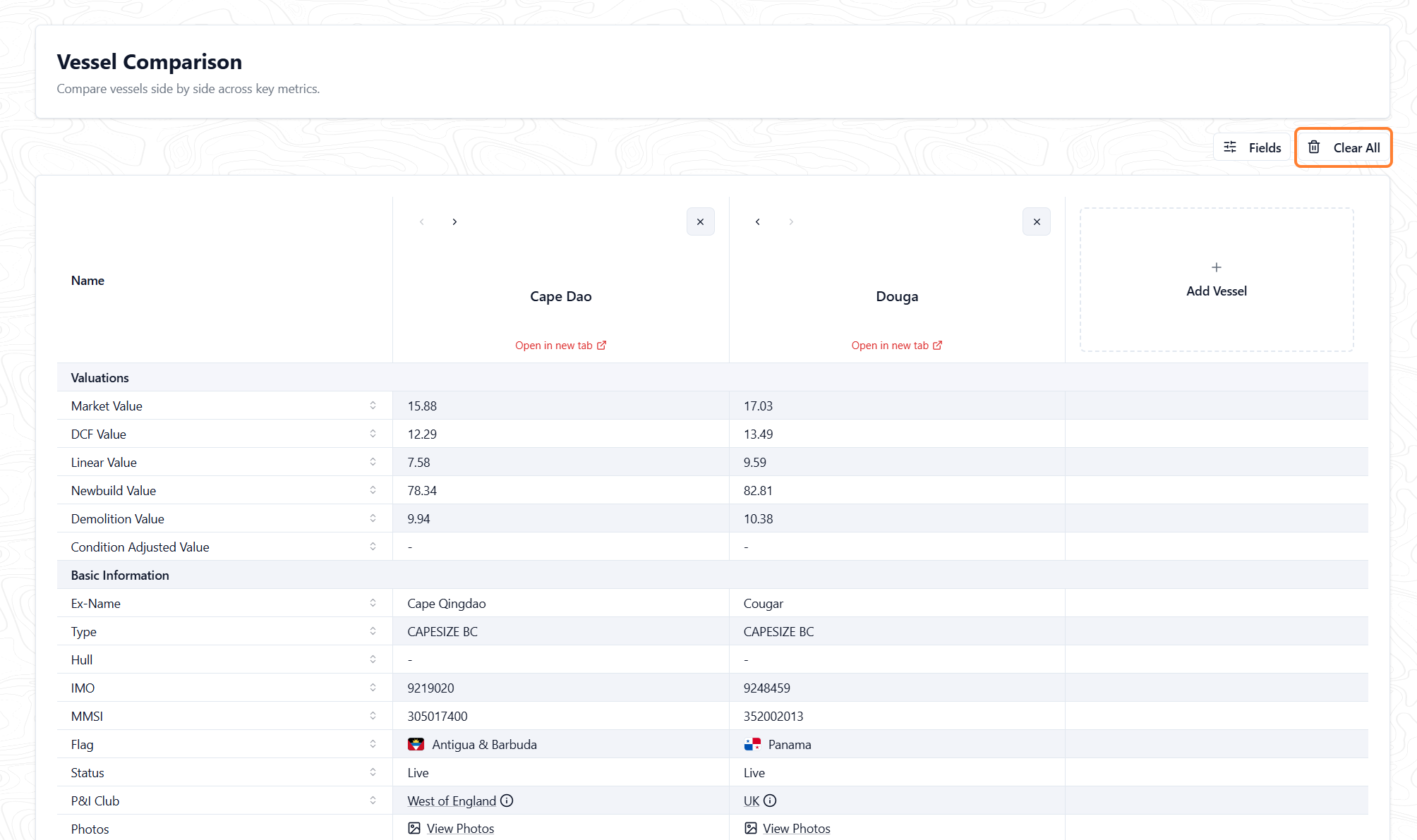
Vessel Compare is available from your search results in Fleet Database and Deals Database.
Vessel Compare lets you view the details of multiple vessels side by side in a single table. Use it to evaluate similar vessels before contacting an owner or making a decision, and to see why two similar vessels show different values. Differences in age, features, and size are common causes.
Navigating to Vessel Compare
-
In VesselsValue, select Database > Fleet Database or Deals Database.
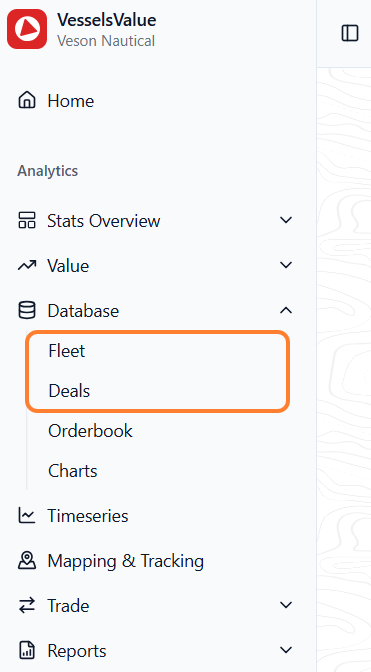
-
Search for the vessels you want to compare. For more guidance on creating a search criteria, see either Creating Search Criteria in Fleet Database or Adding New Search Conditions in Deals Database.
-
In the results table, select the checkbox next to each vessel in the first column. Selected rows show in blue.

-
Select With selected (x items) > Compare.
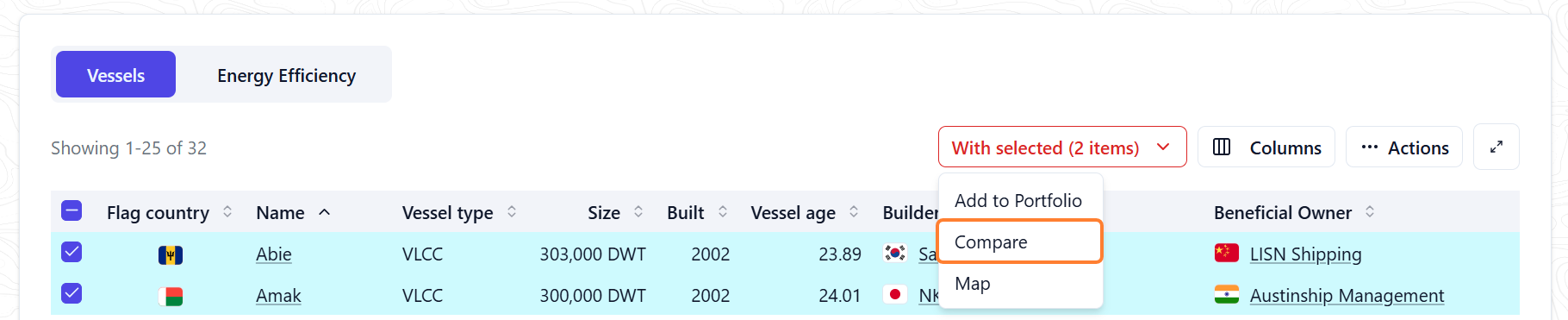
A new page opens with a table of vessel particulars for the vessels you selected.
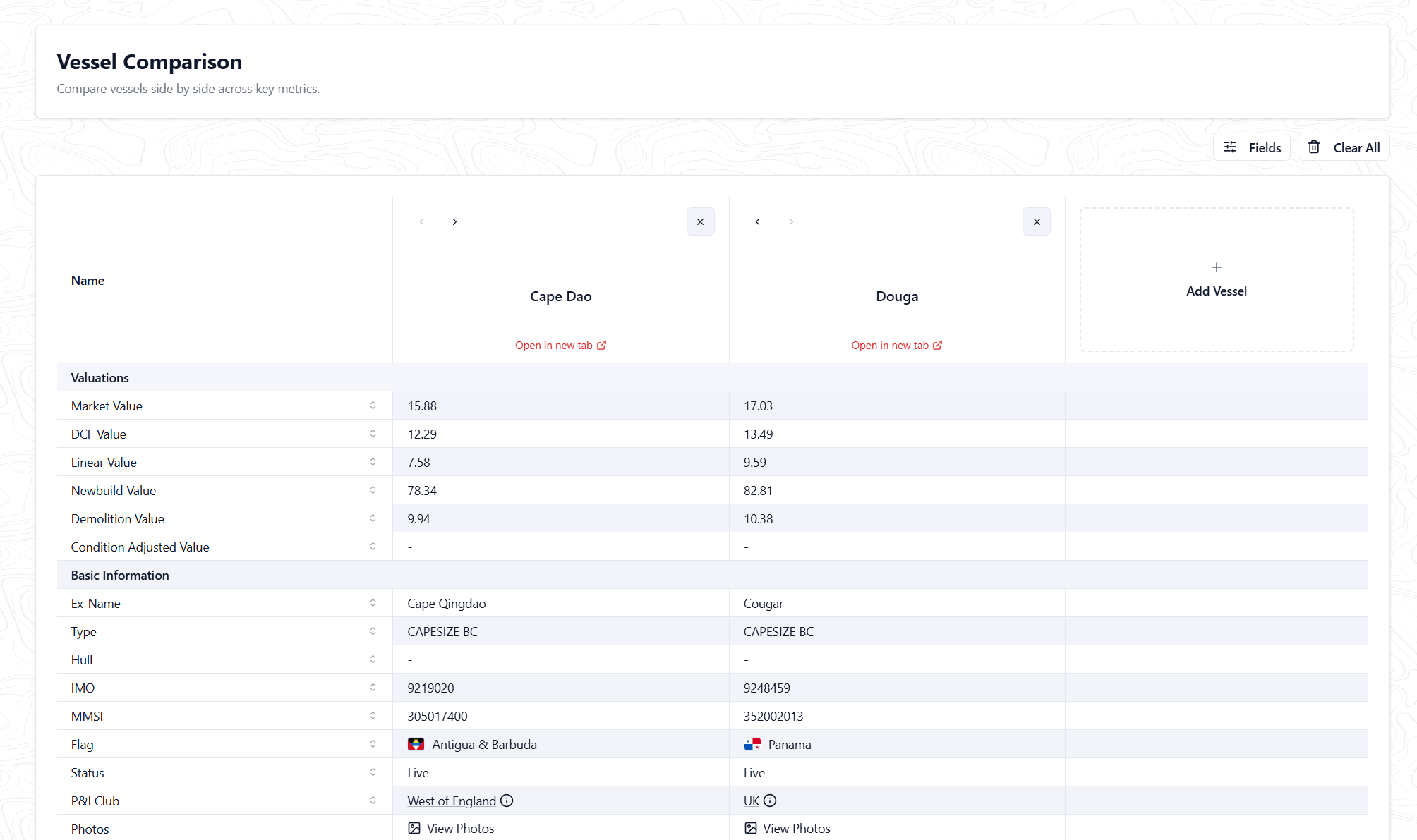
Comparing vessels
Add a vessel to an existing comparison
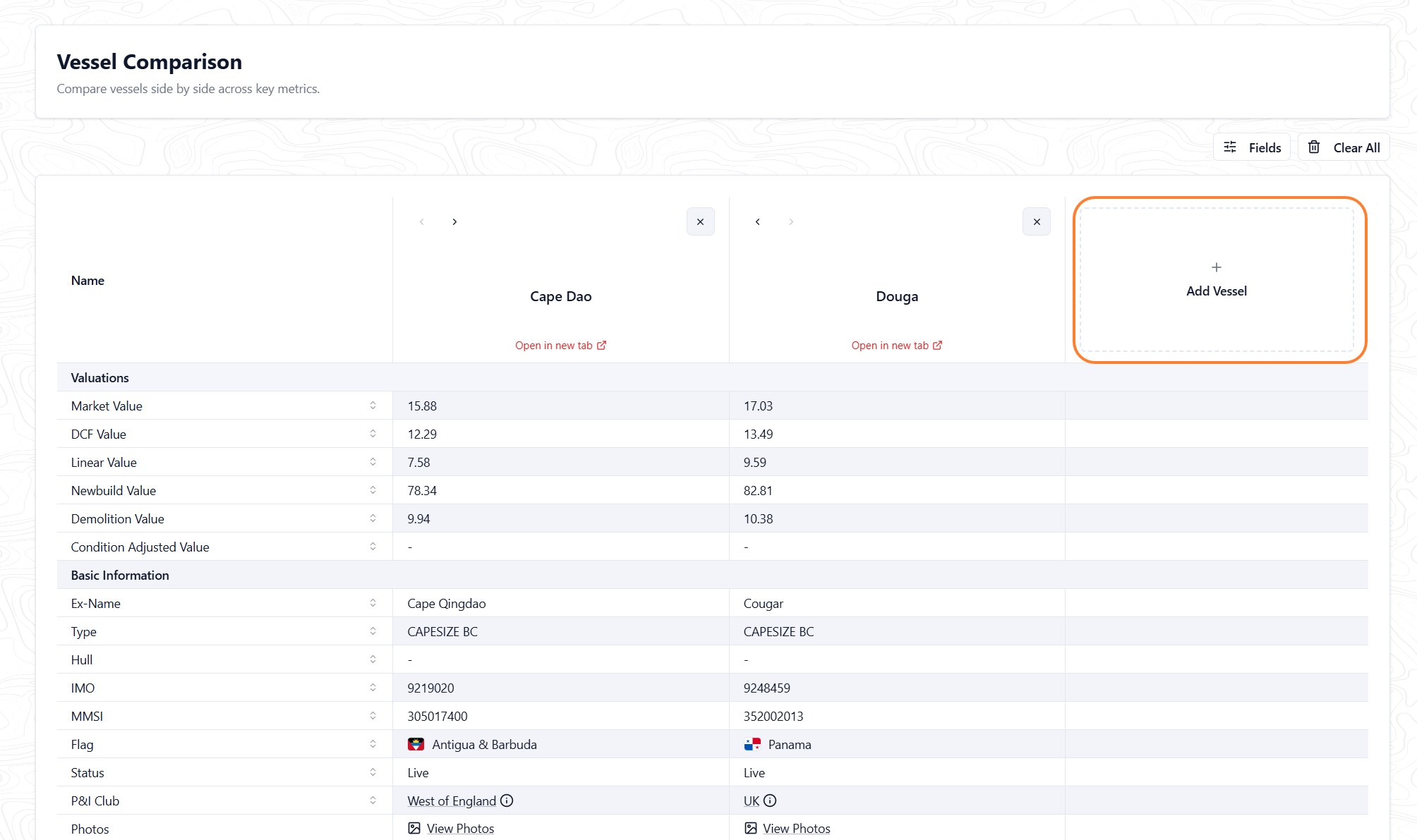
Click Add Vessel in the additional columns provided to add a vessel and then search via IMO or name.
Choosing the fields to compare
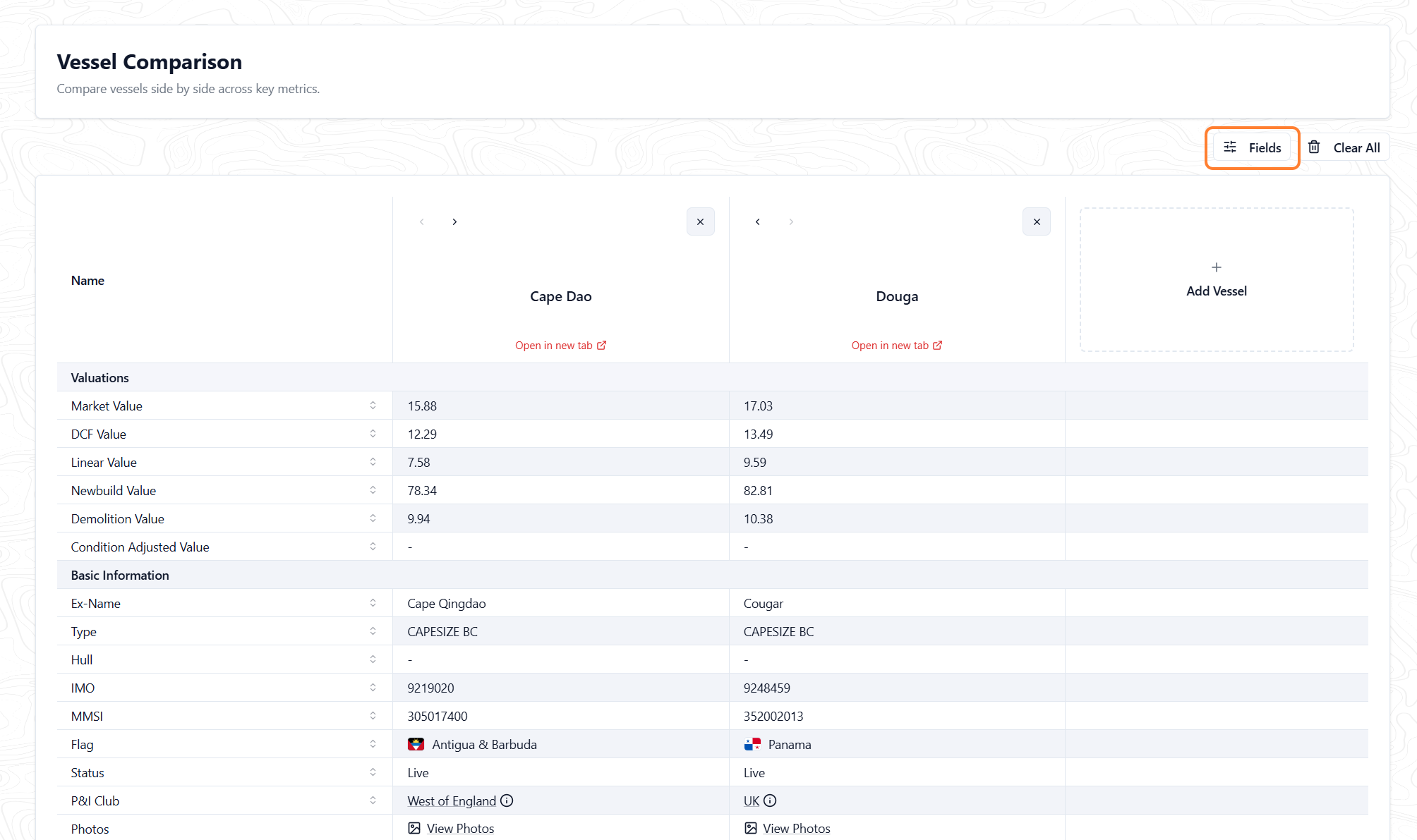
Select Fields to choose the vessel details shown in the comparison.
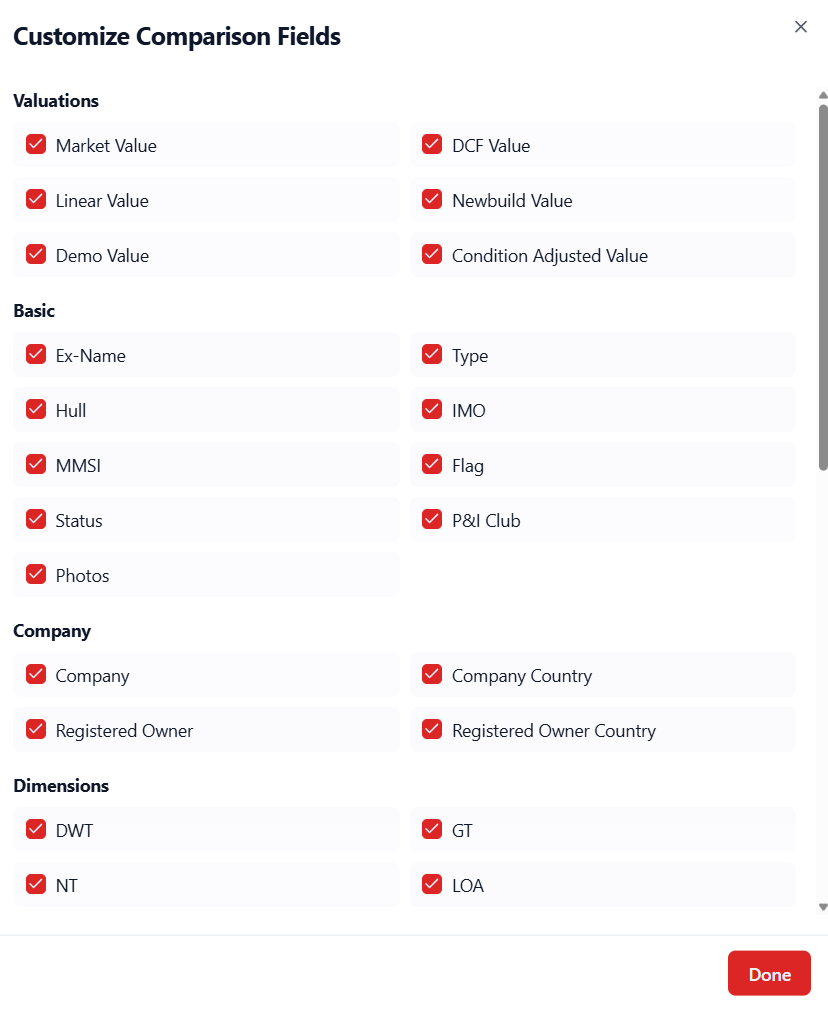
Deselect or select the checkbox by each field to customize your view.
Clear vessels from comparison
Select Clear All to remove all current vessels from the comparison.