
This guide will help walk you through the new SSO/Auth0 login process which has been implemented at VesselsValue to enhance security and improve your experience with our platform. Please follow the instructions below and use the helpful FAQs to diagnose any issues.
As always, if you need any support please reach out to either:
Table of contents
What will happen when I log in for the first time?
When you login for the first time, the login screen will look a little different and you will need to set 2FA up again. The steps below will guide you through this process. If your company is using their own IDP, see here. Otherwise, please follow along below:
Step 1: Go to VesselsValue platform
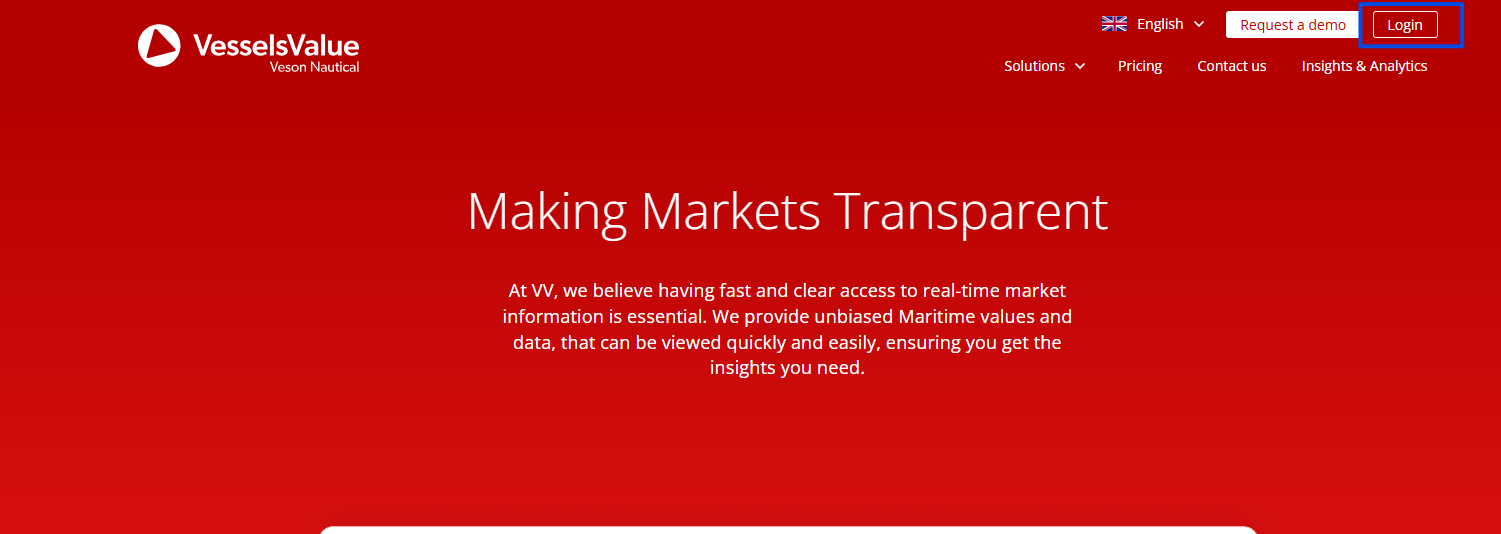
Navigate to VesselsValue as normal by going to https://www.vesselsvalue.com/ and selecting the Login button in the top right.
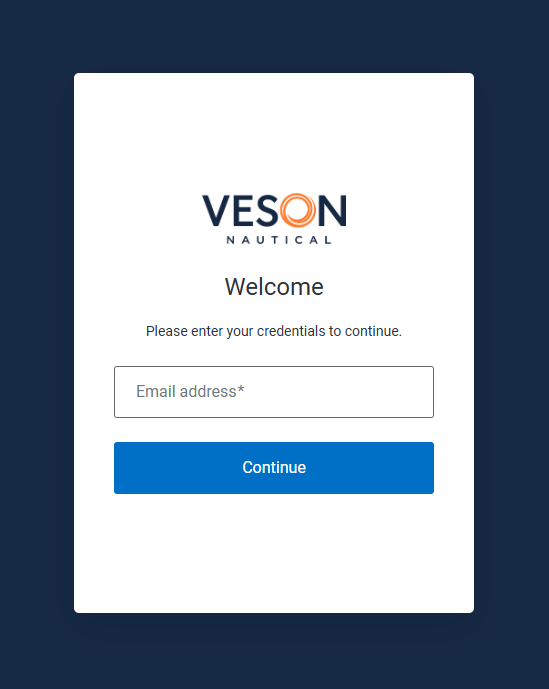
You will be directed to the new login page:
Step 2: Enter your login credentials
Enter your normal VesselsValue email and password.
If you have a saved password in your browser or a third party password manager, you will need to amend the URL
If you haven’t done this yet, you will likely need to enter your password manually for the first login as your password manager won’t recognise the URL and prompt you with your saved login details.
Step 3: Re-set up 2FA authentication
Once you’ve entered your login details successfully, you will then be prompted to re-set up 2FA authentication using an authentication app or email authentication.
App Authentication app
Follow along here: How to get setup with VV SSO | Step 3.1: Installing the authenticator app
Email Email authentication
Follow along here: How to get setup with VV SSO | [Email authentication] Step 3.1: Receiving the code via email
App Step 3.1: Installing the authenticator app
Do you have an authentication app already installed? If yes, skip this step.
You will need to install an authenticator application on your chosen device. We suggest one of the following via the Apple App Store or Google Play store:
Mobile
Desktop
-
Microsoft desktop
-
iOS desktop
If you choose to use a different application, it will need to support Time based One Time Password authentication (TOTP).
Please note that the developers of these applications are not affiliated or associated with VesselsValue, and the use of these applications is subject to the individual terms and conditions of the software, not those of VesselsValue.
App Step 3.2: Add an account to the downloaded 2FA app
Once installed, you will need to add an account to the 2FA application downloaded on your device. You are looking for a + button, or Add Account/Token
Mobile applications examples:
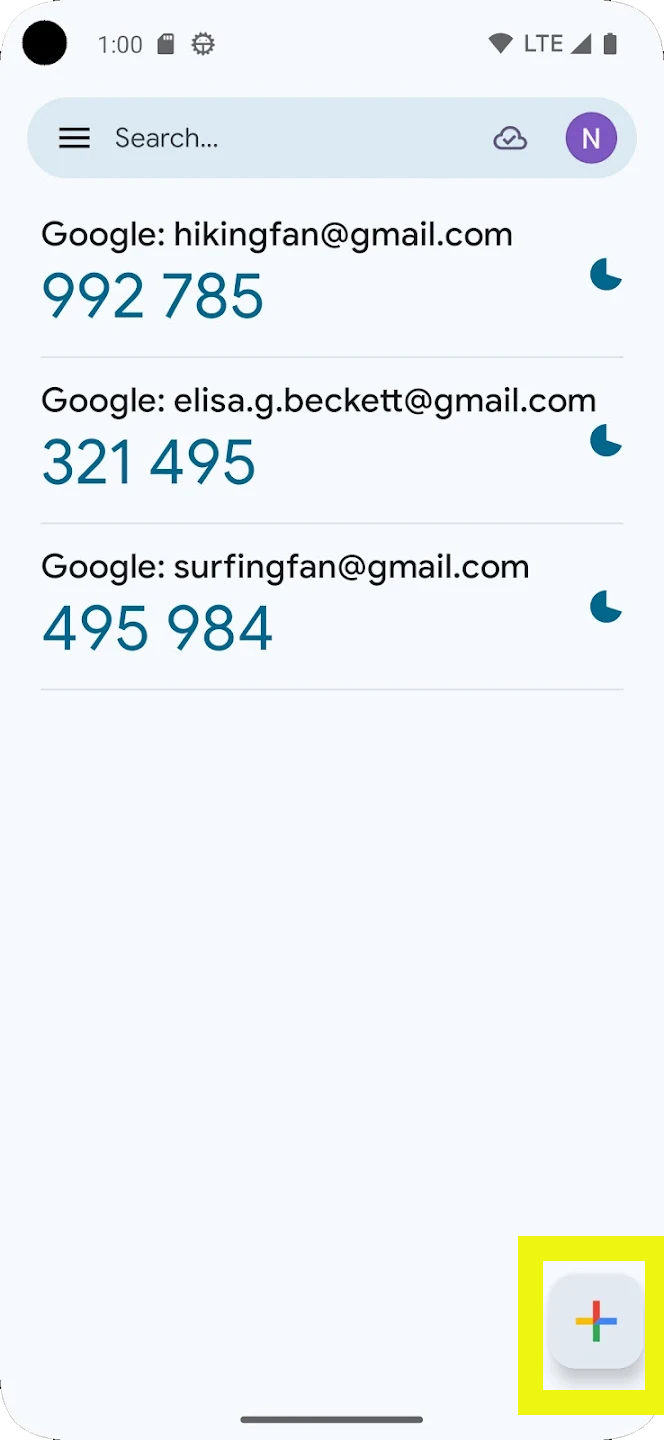
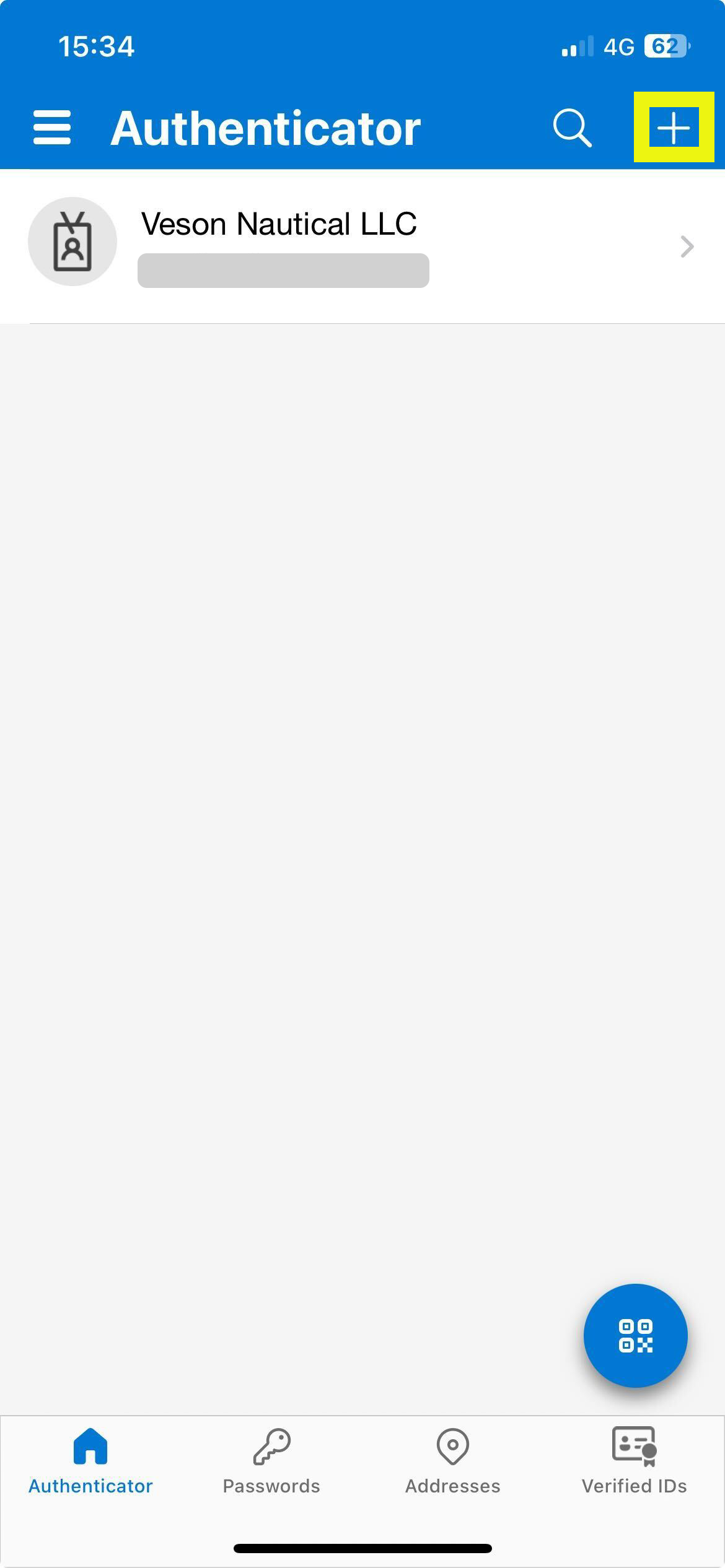
Desktop applications examples:
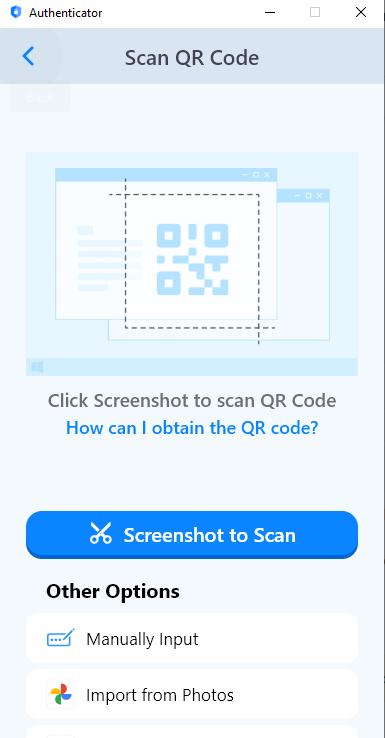
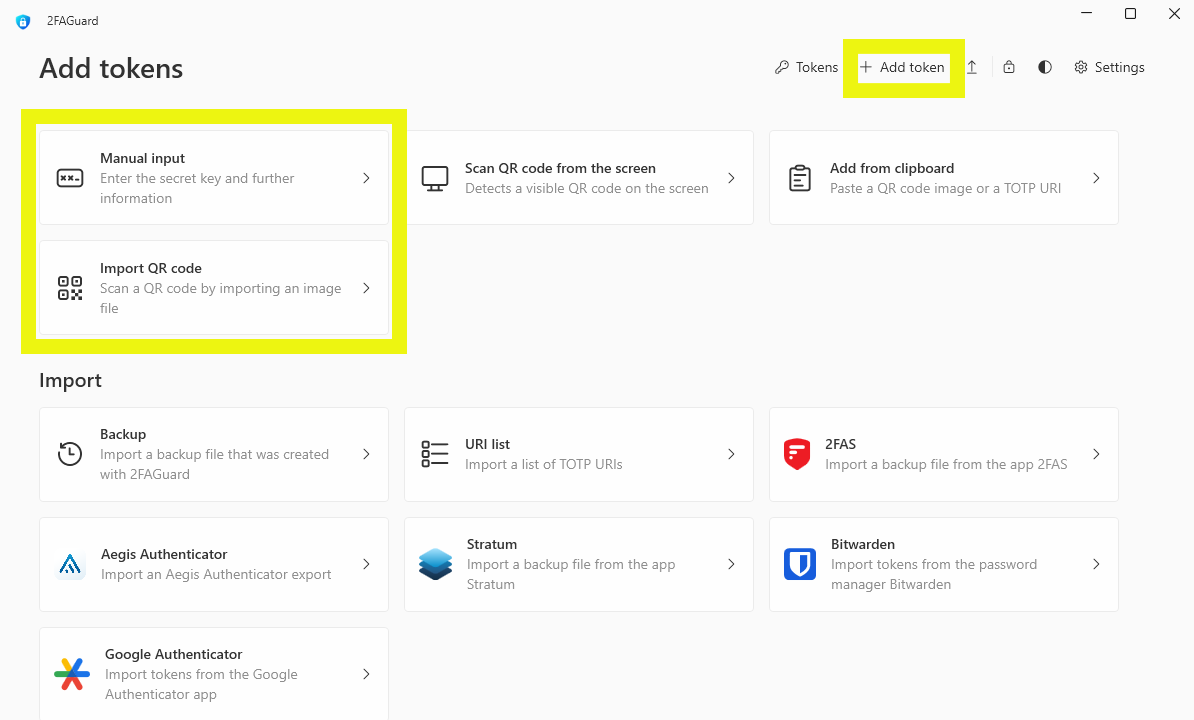
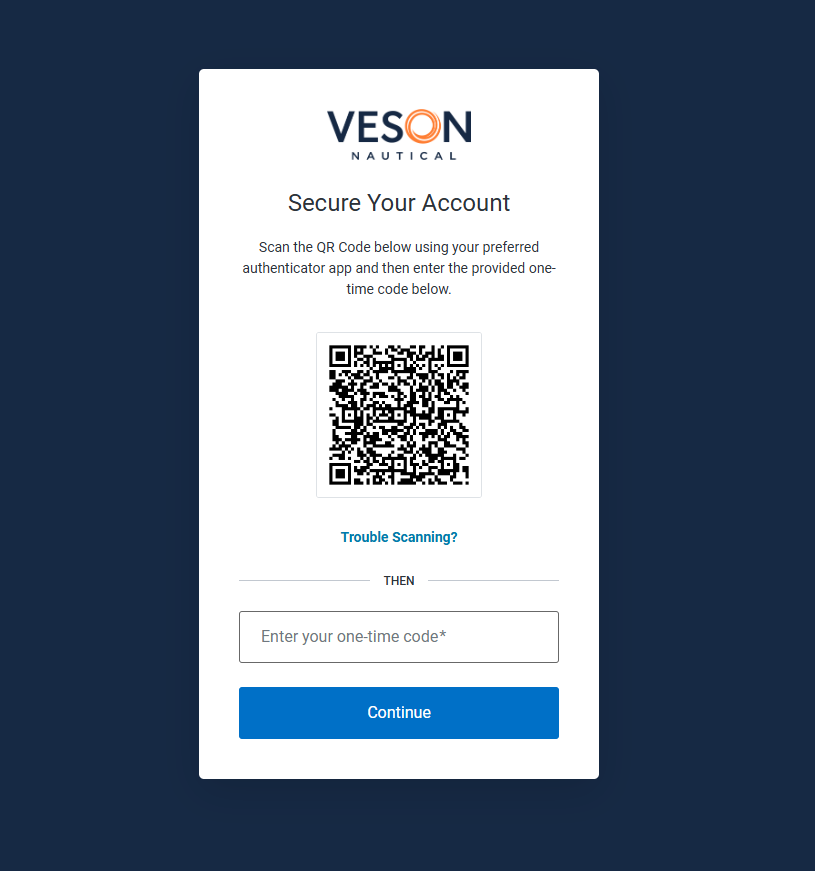
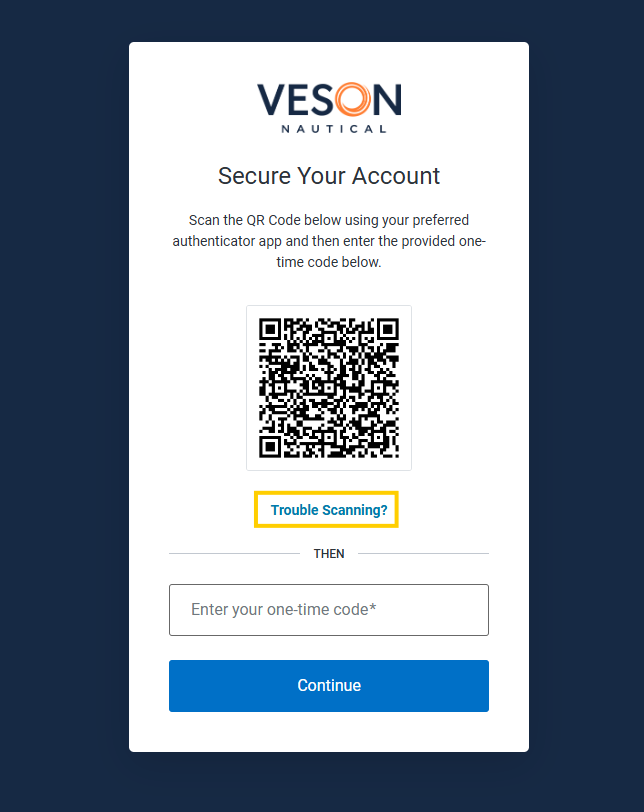
Once you’ve added an account, go back to the VesselsValue platform and scan the QR code.
Do not scan the screenshot below, each QR code is unique to you.
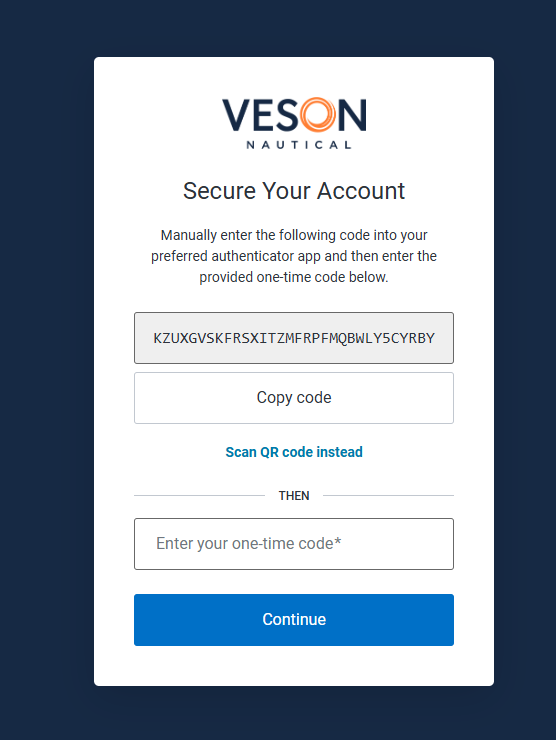
If you’re unable to scan the QR code, select Trouble Scanning?.
Once selected, you’ll see the option to enter a one-time code instead. Copy this code and input it into your 2FA application.
App Step 3.3: Enter your 6-digit verification code
Once your account is set up within the 2FA app, it will display a six-digit code that will change every 30 seconds. See the following example.
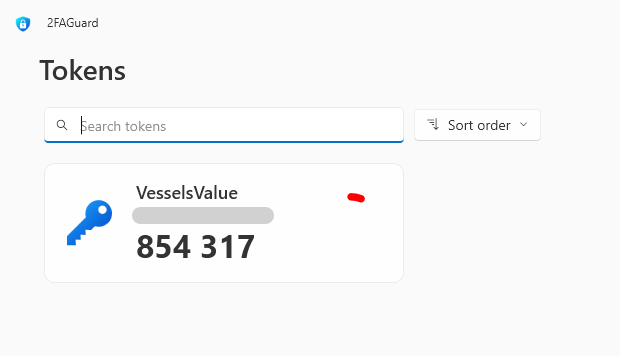
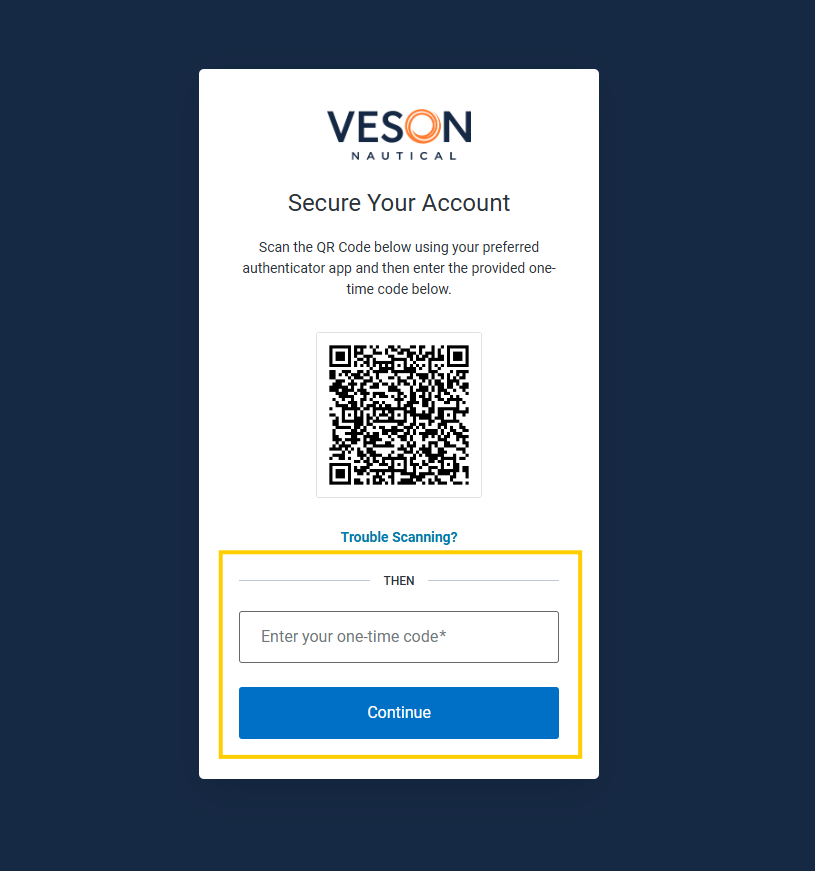
Copy this code and enter it into the setup box and press Continue.
Email Step 3.1: Receiving the code via email
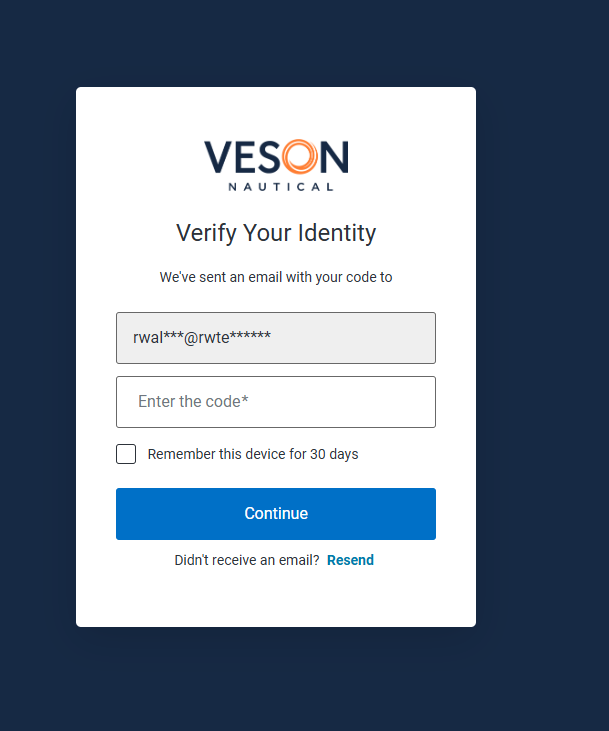
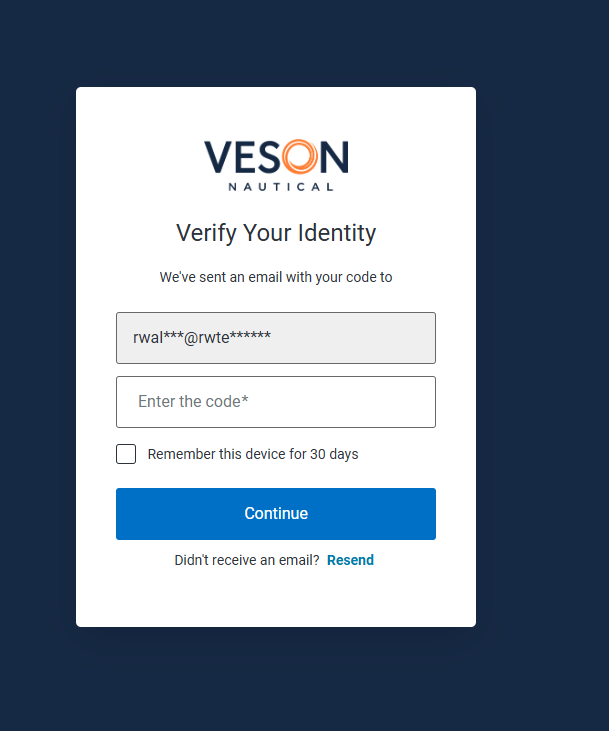
Once you have successfully inputted your email and password, you will be shown this screen.
An email will have been automatically sent to your email address inbox. Please check your inbox.
If you don’t receive the email, check How to get setup with VV SSO | Didn’t receive the email? for next steps.
Email Step 3.2: Receive your email
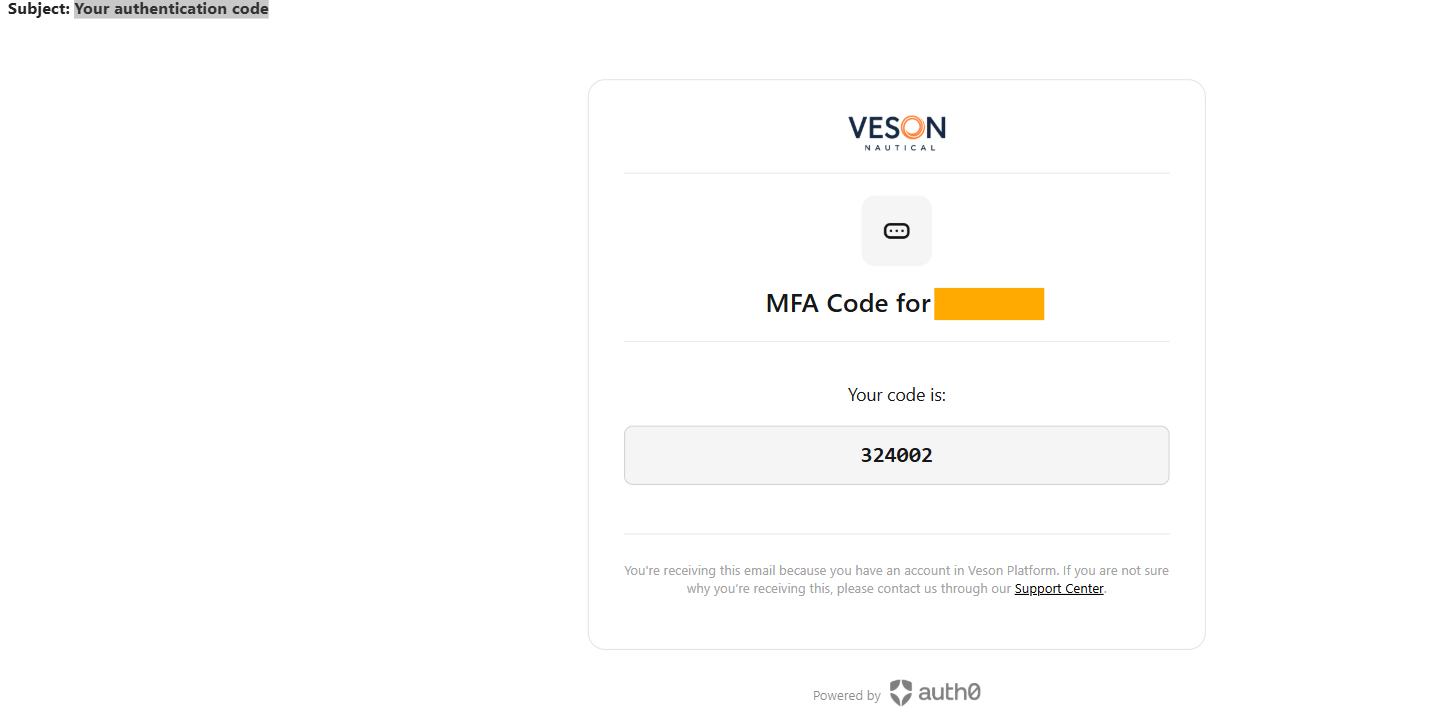
You should receive an email from no-reply@veson.com with a subject line of Your authentication code and it will look like below.
Copy the 6 digit code shown in the email.
Email Step 3.3: Enter your 6-digit verification code
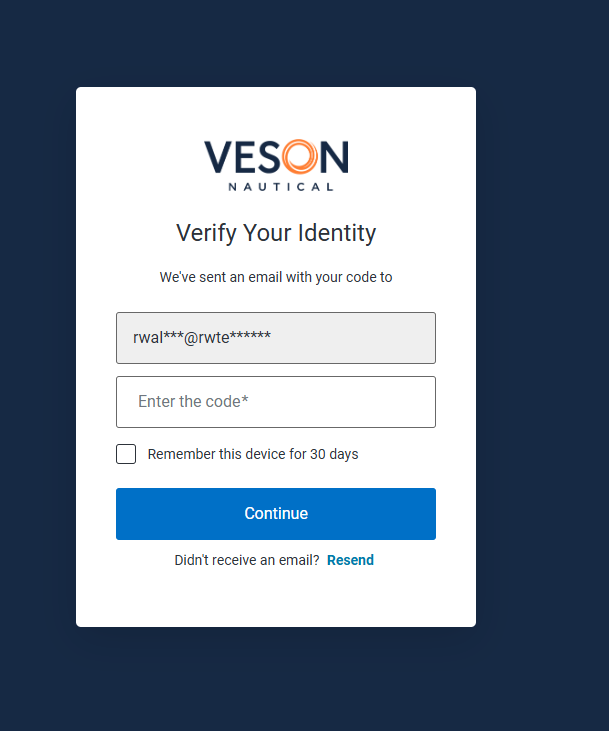
Go back to the website and input the 6 digit code into the Enter the code* input box and select Continue
Step 4: Success
You should now be logged into your VV account.
Now your account is set up, future logins will only require the 6 digit verification code shown in your 2FA app.
You can also choose to have your MFA remembered for 30 days. Note, this will not keep you logged in for 30 days, it will prevent you from having to re-enter your MFA for 30 days.
My company is using their own IDP, what will happen when I login for the first time?
When you login for the first time, the login screen will look a little different as it will show your company’s logo instead and you will need to use the login details you either have used for other Veson products i.e. IMOS, Q88, Shipfix, or the ones you use at your company.
Step 1: Go to VesselsValue platform
Navigate to VesselsValue as normal by going to https://www.vesselsvalue.com/ and selecting the Login button in the top right.
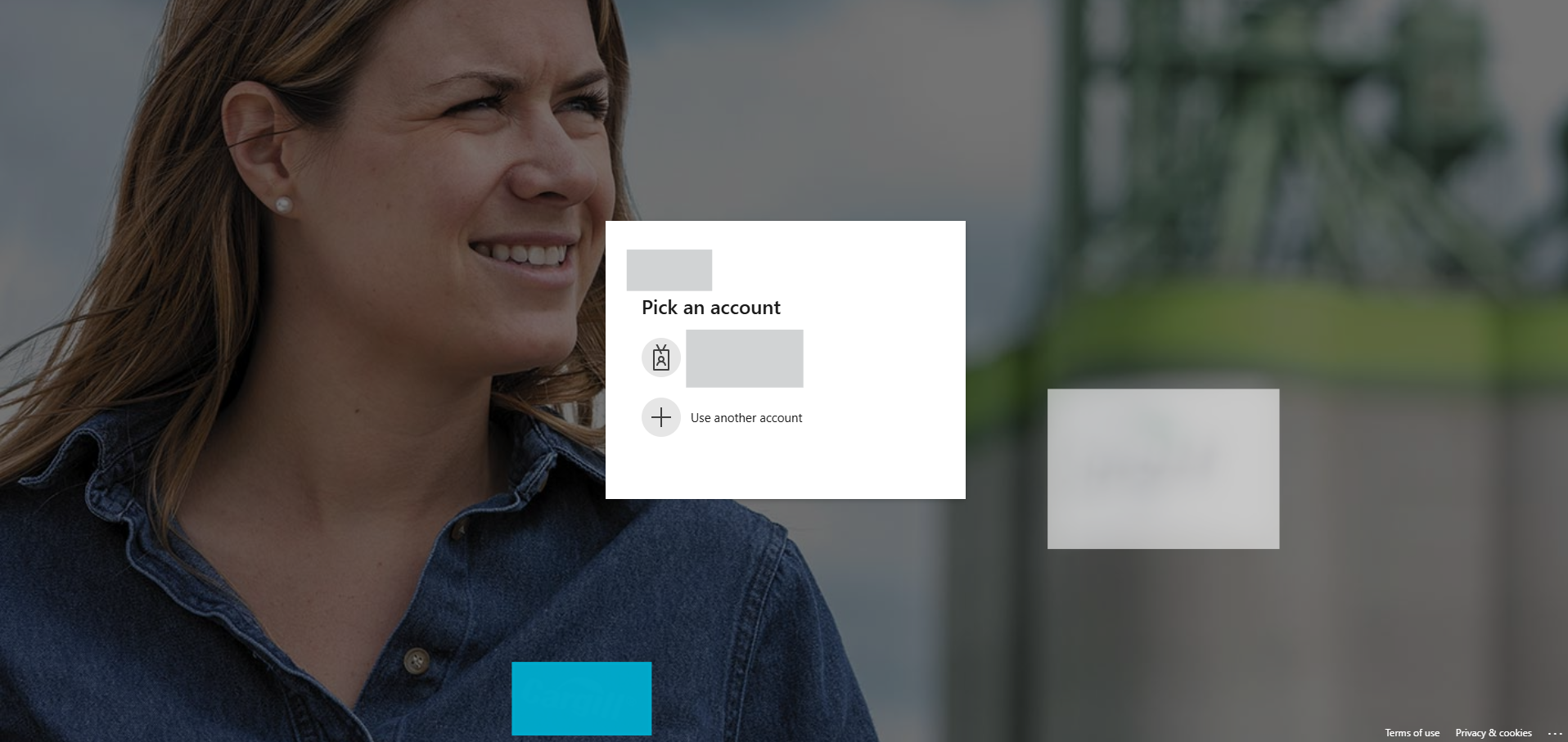
You will be directed to the new login page which will contain your company’s branding instead of the Veson Nautical login page. It may look something like below:
Step 2: Enter your login credentials
You will need to use the email and password combination you have used for either:
-
Other Veson products i.e. IMOS, Q88, Shipfix
-
Or what you use at your company
Step 3: Success
You should now be logged into your VV account.
I’m seeing my companies login screen but an application error screen, what should I do?
If you are seeing something like the below, we would recommend reaching out to your company’s IT team to ensure that your user has been setup on your SSO account. Once this has happened, please try again.
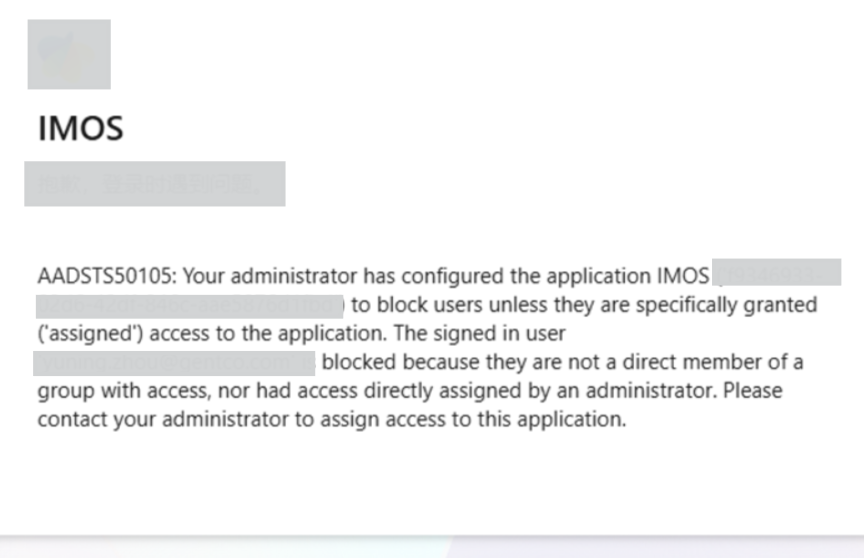
If you are still experiencing issues, please contact your Account Manager or our Support Team for assistance and we’ll be happy to help.
I would like to use email as my 2FA authentication method, how do I do this?
Email authentication is available as a primary method of authentication, similar to our old system. If you’d like this setting up for your organisation, please get in touch with your Account Manager or our support team.
To learn how you can use email as your 2FA method, see below:
Option one: use it as an alternative to your authentication app
-
Navigate to VesselsValue as normal by going to https://www.vesselsvalue.com/ and selecting the Login button in the upper right.
-
You will be directed to the new login page.
-
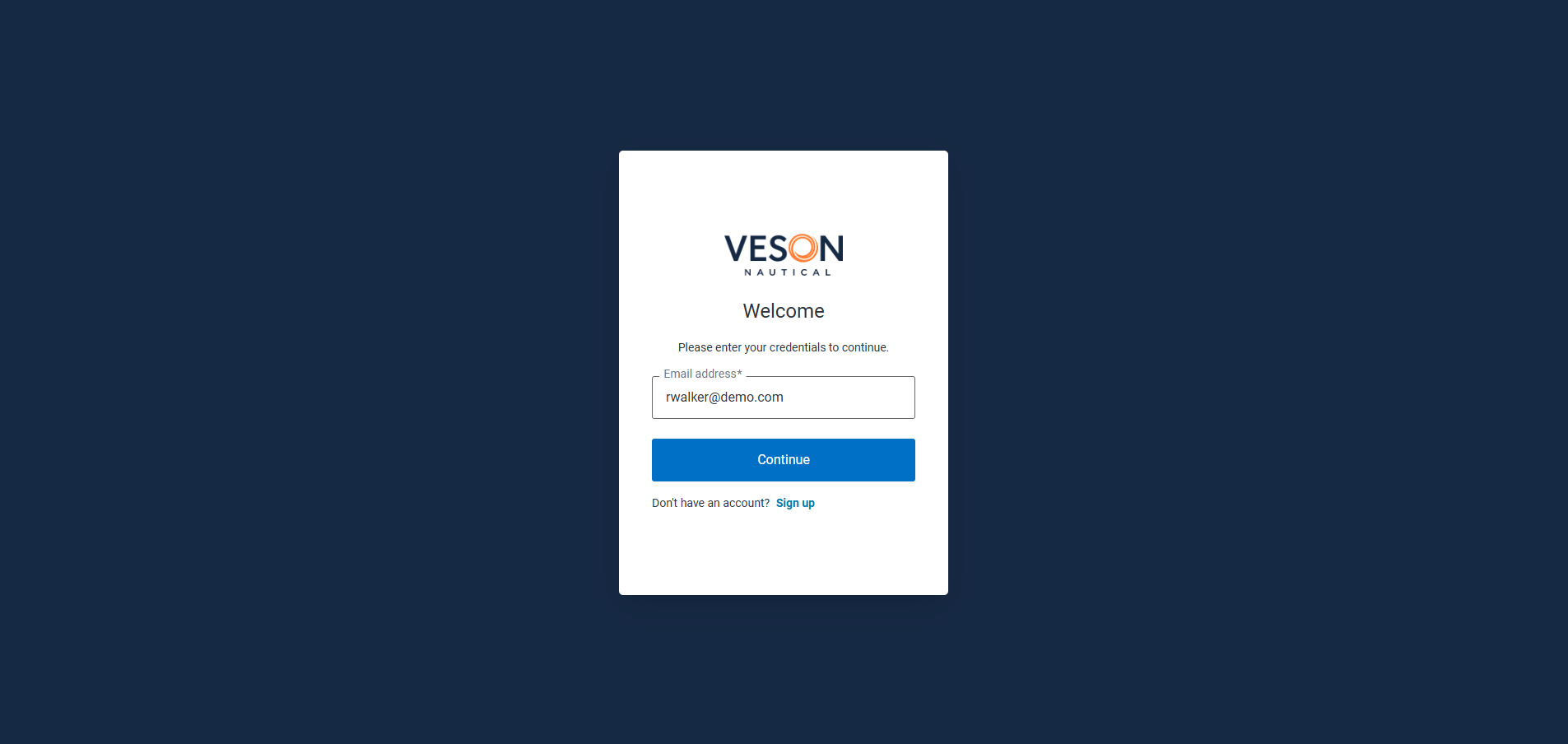
Enter your email.
-
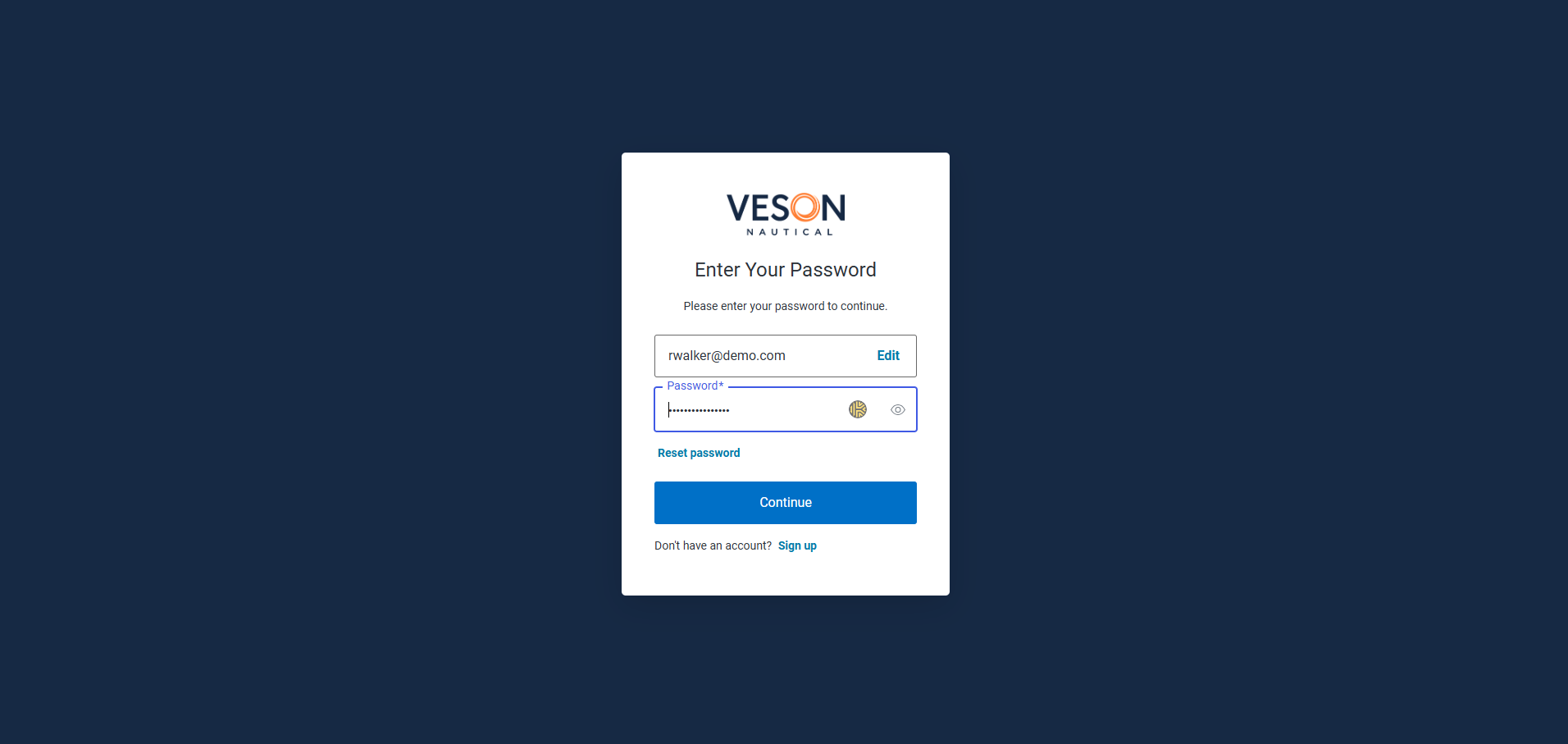
Enter your password.
-
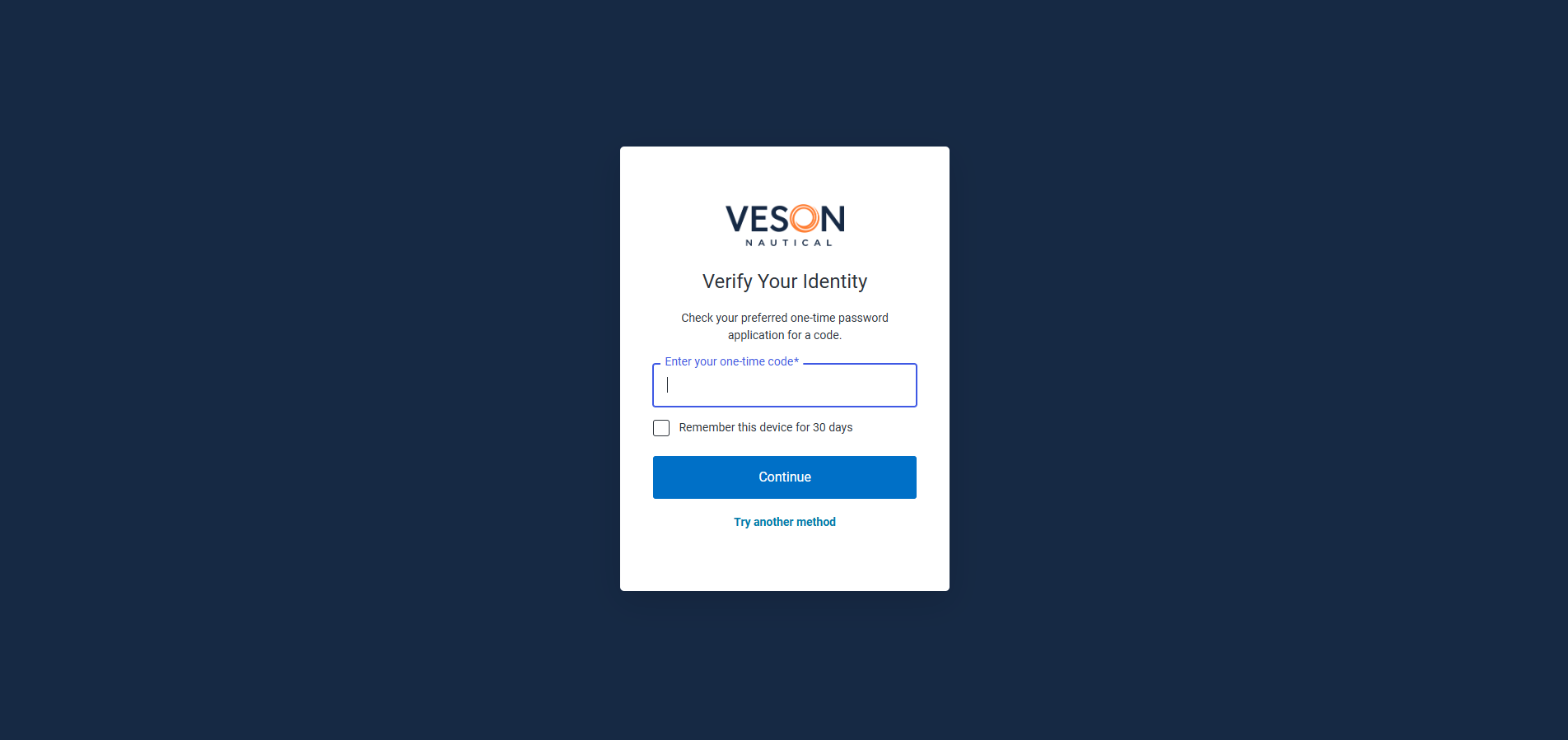
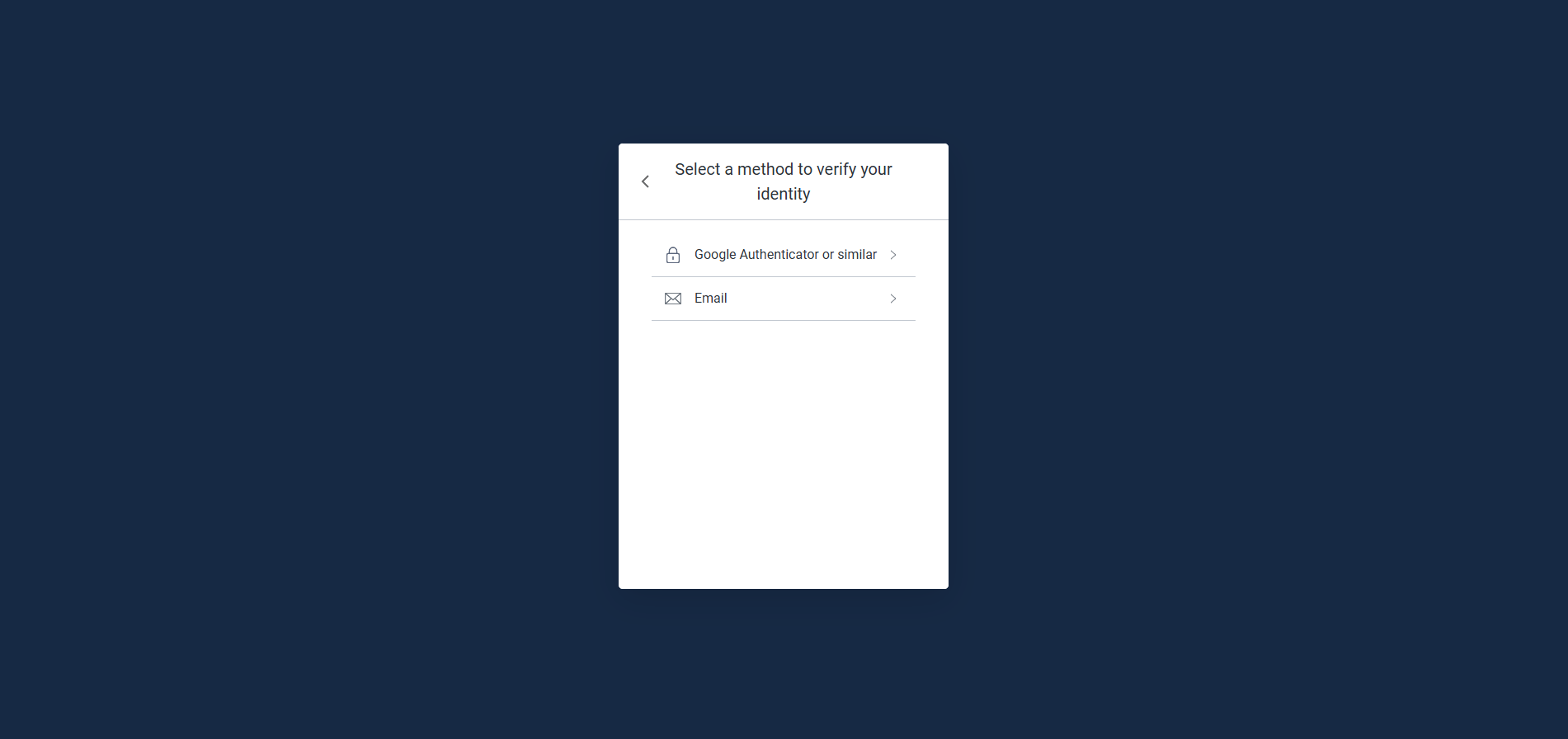
Select Try another method.
-
Select Email.
-
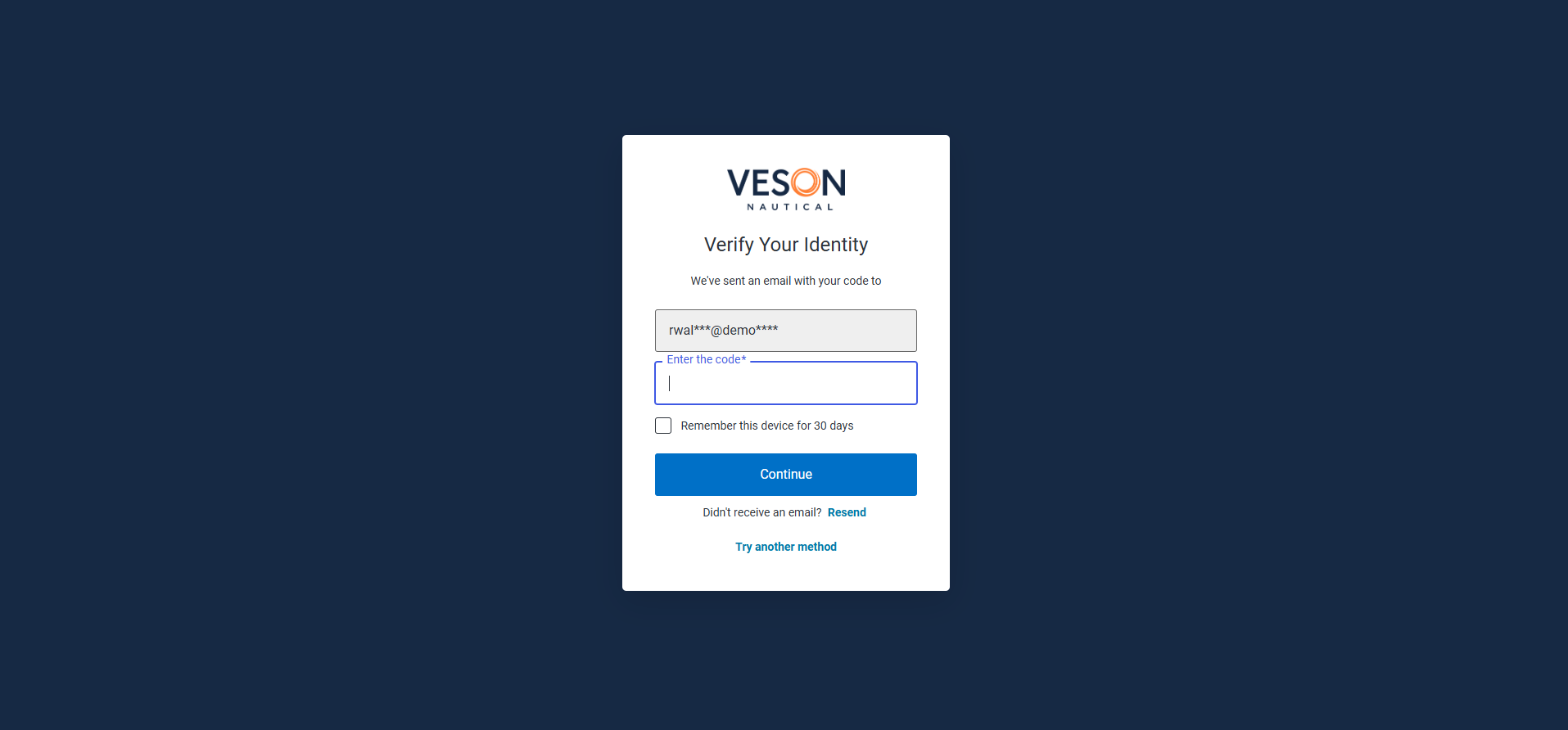
Wait for the email to be delivered, then input the 6-digit code.
-
Success! You should now be logged into your VV account.
Option two: use it as your primary authentication method
If you would like, we can switch your primary authentication method to be email. Please contact your Account Manager or our Support Team and we’ll get this changed over for you.
Steps then on how to use it can be found here: How to get setup with VV SSO | What will happen when I log in for the first time?
Didn’t receive the email?
If you don’t receive the email, please select Resend and wait for the email to arrive.
If that doesn’t work, please select Try another method, and login using Google Authenticator or similar option.
If you are still experiencing issues, please contact your Account Manager or our Support Team for assistance and we’ll be happy to help.
I’m seeing a “wrong email or password” error, what should I do?
If you are on your company’s own IDP
You will have recently been changed from using a set of login credentials unique to VesselsValue, to those of your corporate’s SSO. If you’re hitting this error, please ensure you are using your corporate email and password combination, not your previous VesselsValue login combination.
For everyone one else
Ensure that you are logging in using your normal VesselsValue email and password.
If this still doesn’t work, try resetting your password: How to get setup with VV SSO | I can’t login, what should I do?
I need to reset my password, how do I do this?
Option one: reset it from login screen
-
Go to https://app.vesselsvalue.com/login and input your email address
-
You will then be redirected to the new login page
-
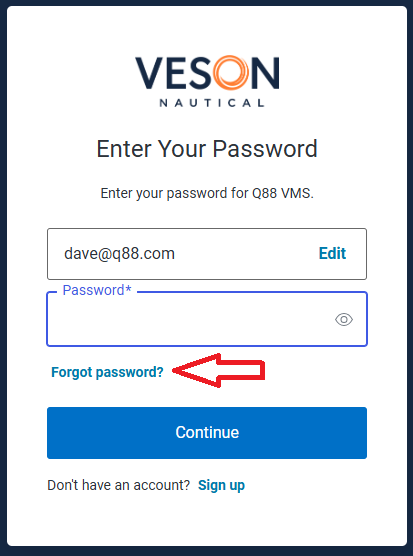
Select Forgot password?
-
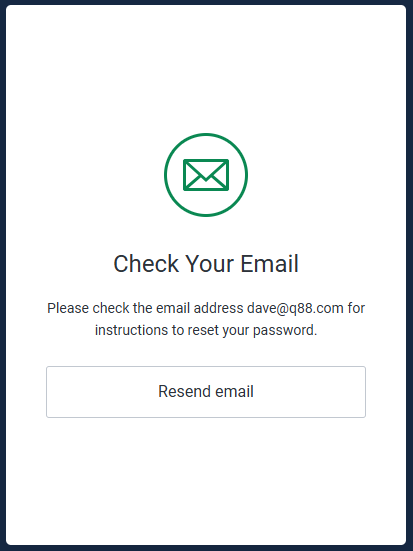
You will then see the confirmation screen like so:
-
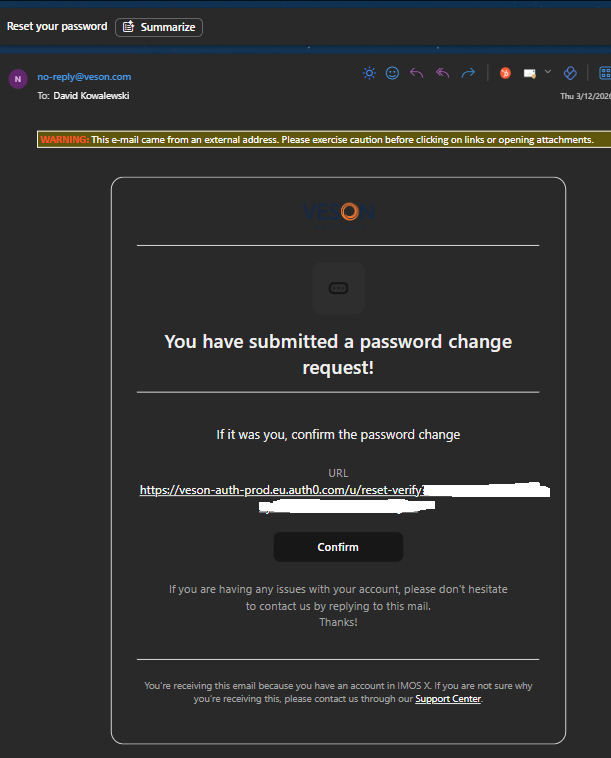
Please go to your email inbox and wait for the email to be delivered. If you don’t receive it after 5 minutes, trigger another by selecting Resend email
Email will be from: no-reply@veson.com and Subject: Reset your password
Option two: resets it from the Account settings page
This will only work for clients who are already logged into the platform.
-
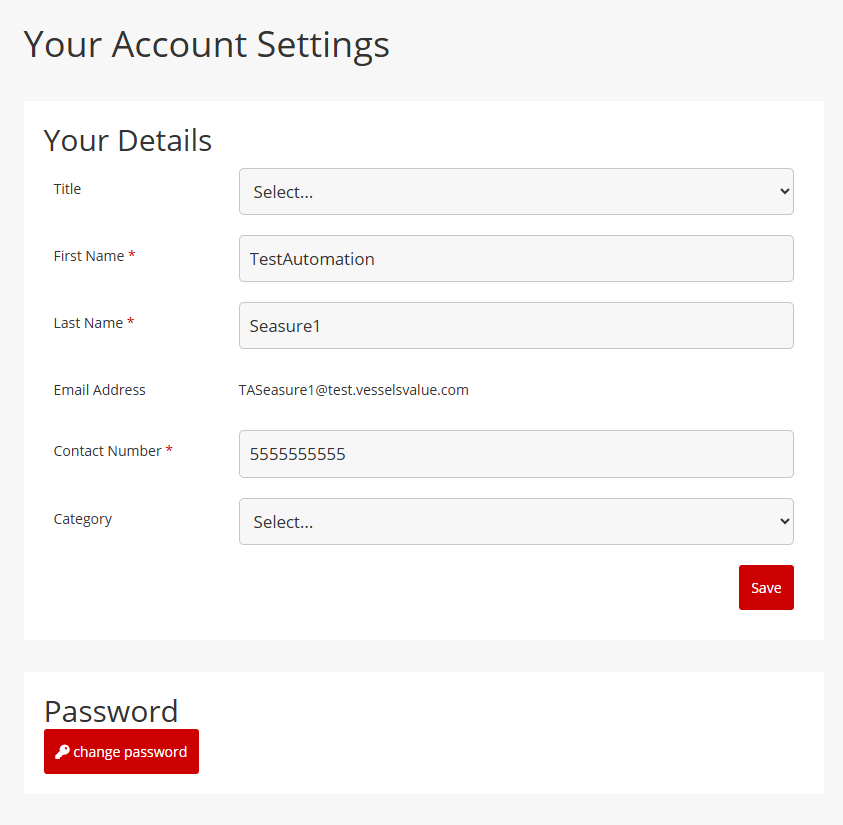
Go to the Account Settings page by navigating to the User icon in the main navigation and then selecting Account Settings
-
Select Change password
-
This will you to a page where you can change your password
Do not use the Forgot Password option on any old login screen you may have bookmarked. Multiple failed login attempts may lead to temporarily locking the account.
Using the VV mobile app?
Unfortunately resetting your password for the VV requires an additional step. Please find instructions below:
-
Follow the steps here How to get setup with VV SSO | Option one: reset it from login screen to reset your password in SSO
-
After this, go to https://app.vesselsvalue.com/forgot-password
-
Trigger a reset password email
-
Input the same password as the one you set in the SSO reset password flow
-
If you are still experiencing issues, please contact your Account Manager or our Support Team for assistance and we’ll be happy to help.
We use shared or group email accounts, what should we do?
Every user must have their own unique work email address to access VesselsValue. Group or shared mailboxes are not compatible with SSO. Please reach out to your Account Manager to get individual accounts setup.
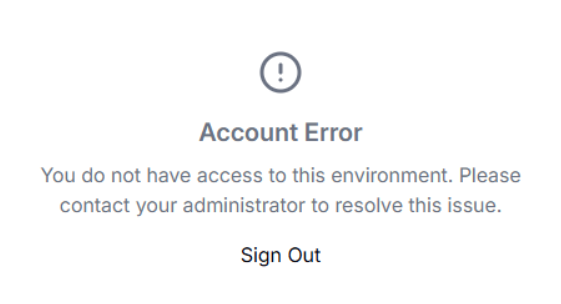
I’m seeing a “Account error, you do not have access to this environment” message, what do I do?
In our communications to you, we had mentioned about the URL changing to be login.veson.com so you could update any password managers. However, this URL will direct you to a different platform if you go there directly.
Please go to https://app.vesselsvalue.com/login directly and login again. We apologise for any confusion this caused.
Need further help?
If you need any support please reach out to either: