
From 17 July, we will be rolling out GateKeeper SSO to all VesselsValue clients over the coming weeks. This will conclude at the end of August.
As a part of this, all of our clients will be asked to reset their 2FA method up if you use an authentication app.
Email authentication is available as an alternative authentication method, please reach out to your Account Manager or Support team if you would like it enabling for your organisation.
We appreciate your patience whilst we work through this transition.
If you are yet to be migrated and are still seeing a login page without the Veson logo at the top, please follow these instructions instead: https://help.veson.com/vesselsvalue/set-up-2-factor-authentication-2fa
What is 2 Factor Authentication?
Introduction
The rudimentary "username and password" approach to security is simple and susceptible to attack. Logins can be compromised and private data, such as personal and financial details, is under increasing threat.
In order to secure your online experience, VesselsValue has implemented Two Factor Authentication, also known as 2FA or MFA. This provides another layer of security, supplementing the username and password model with a code that only a specific user has access to, typically sent to something they have immediately to hand, such as an application installed on a smartphone, or via a desktop application, or to their email inbox. This code changes regularly and must be entered when you log in.
Is it safe?
As passwords become more complex, the tendency to reuse or write down a password that is intended to be secure increases. This carries with it the risk that someone may be able to learn your password and access the VV website indirectly. Securing your account with 2FA ensures that simply knowing your username and password isn't enough for someone to breach your account, improving your security. Of course, no system is 100% secure; an insecure device, if lost or stolen, can provide access no matter how secure we make this process. We recommend that you secure your personal devices with a suitable password lock to prevent your account information falling into unintended hands if it is lost or stolen.
How to set up 2FA
This document will help walk you through setting up 2FA when you log in with our new SSO/Auth0 login screen. Please use in conjunction with the website to set your 2FA/MFA up.
Which 2FA method you use is now set at a company/organisation level rather than per user. Authenticator app is our default option, however email is available on request to your Account Manager or reach out to our support team.
Step 1: Go to the VesselsValue platform
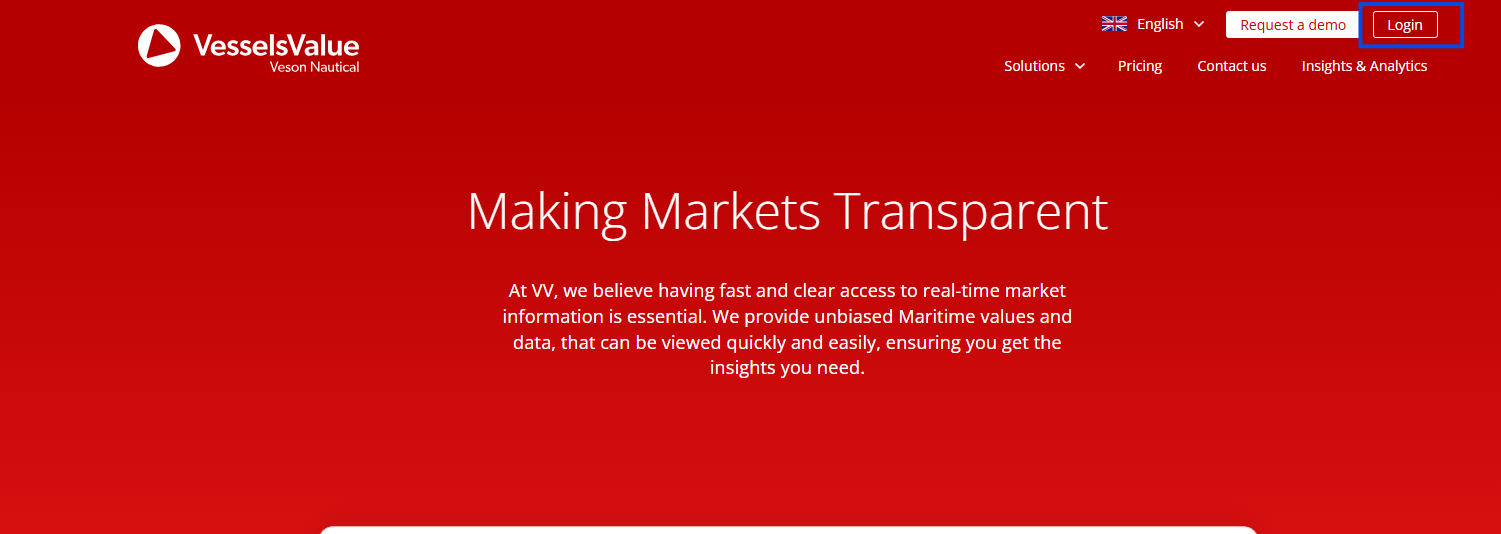
Navigate to VesselsValue as normal by going to https://www.vesselsvalue.com/ and selecting the Login button in the top right.
You will be directed to the new login page:
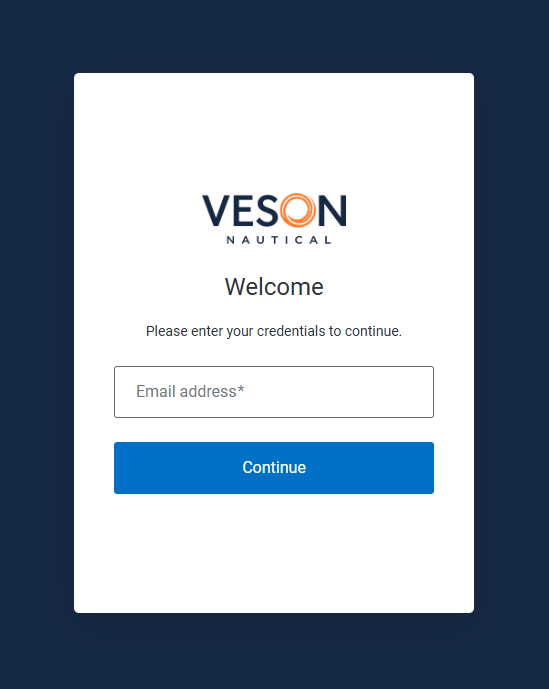
Step 2: Enter your login credentials
Enter your normal VesselsValue email and password.
If you have a saved password in your browser or a third-party password manager, you may need to enter your details manually the first time you log in, as your password manager won't yet recognise the new login page.
Step 2: Set up your 2FA method
Once you’ve entered your login details successfully, you will then be prompted to re-set up 2FA authentication using an authentication app or email, depending on which method is enabled for your organisation.
App Authentication app
Follow along here: How to get set up with VV SSO
Email Email authentication
Follow along here: How to get set up with VV SSO
App Step 3.1: Installing the authenticator app
Do you have an authentication app already installed? If yes, skip this step.
You will need to install an authenticator application on your chosen device. We suggest one of the following via the Apple App Store or Google Play store:
Mobile
Desktop
-
Microsoft desktop
-
iOS desktop
If you choose to use a different application, it will need to support Time based One Time Password authentication (TOTP).
Please note that the developers of these applications are not affiliated or associated with VesselsValue, and the use of these applications is subject to the individual terms and conditions of the software, not those of VesselsValue.
App Step 3.2: Add an account to the downloaded 2FA app
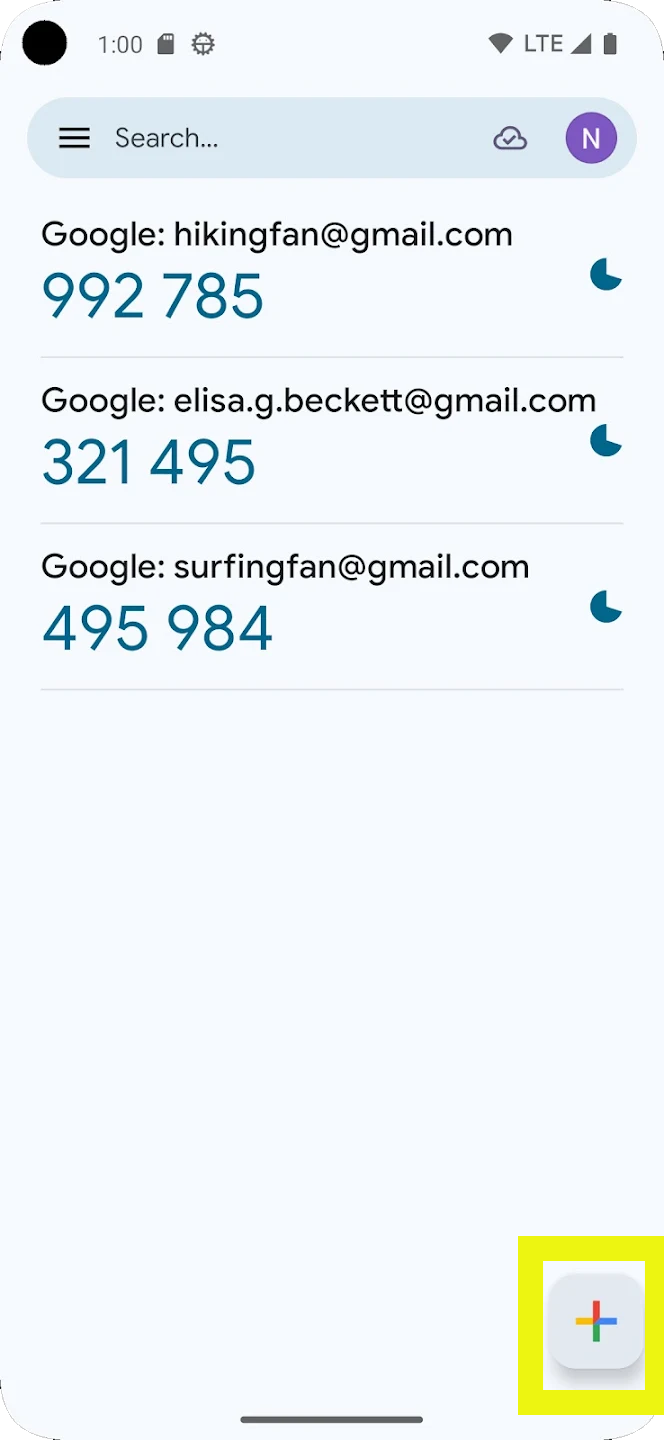
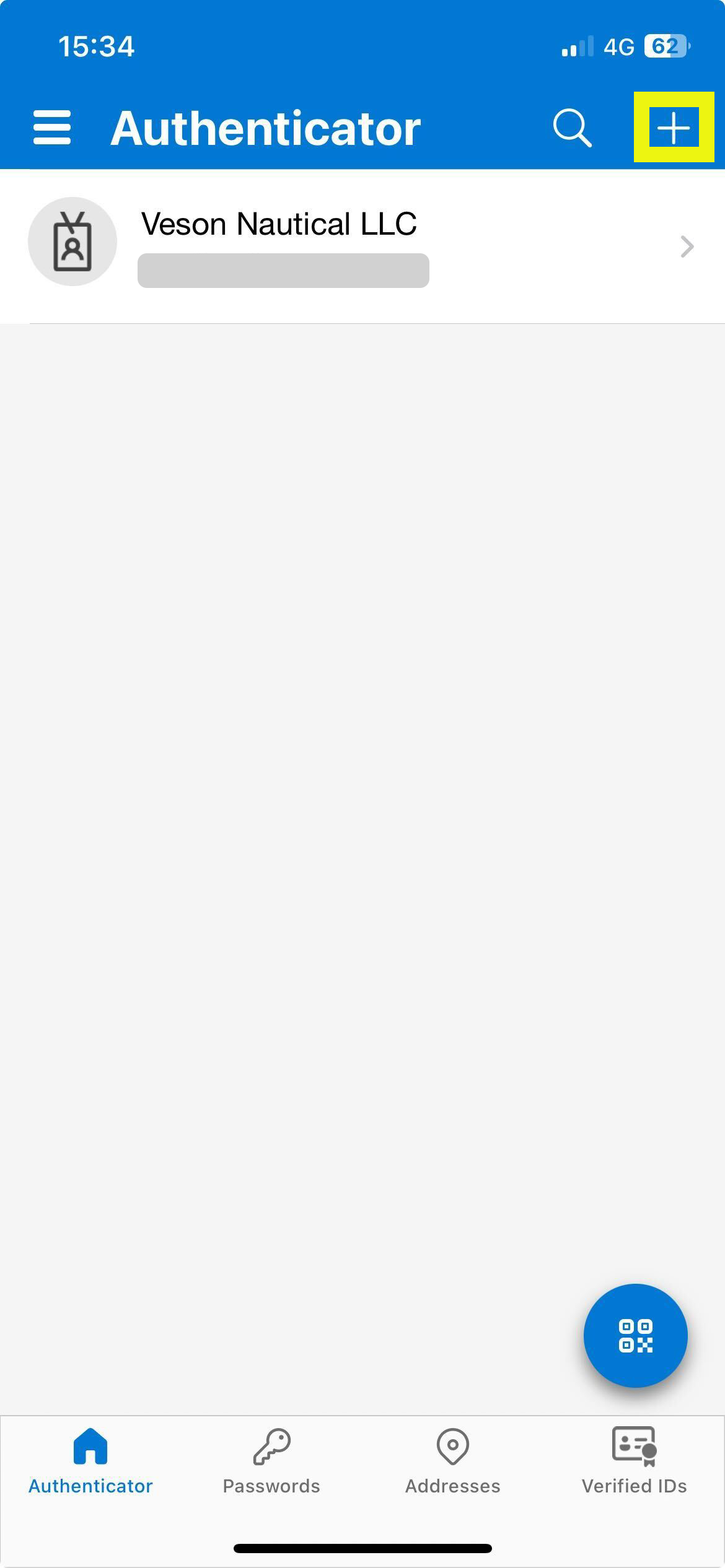
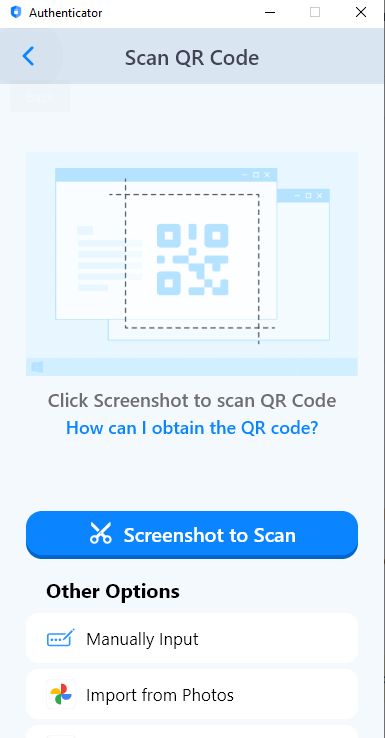
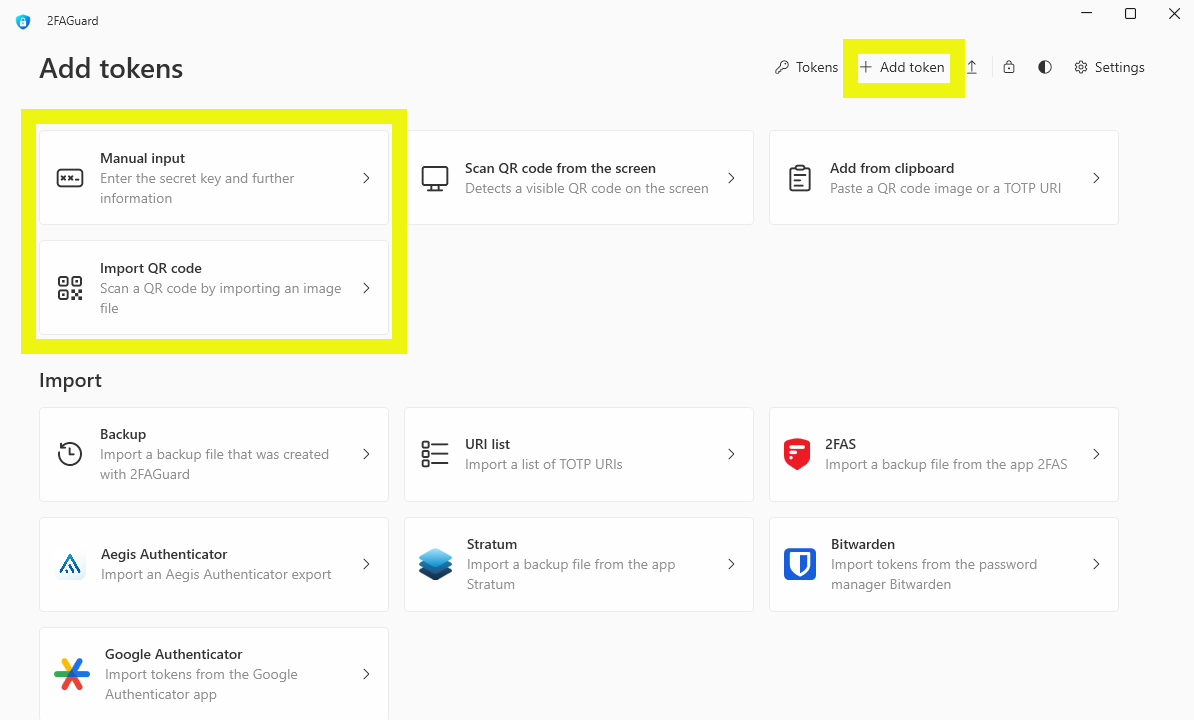
Once installed, you will need to add an account to the 2FA application downloaded on your device. You are looking for a + button, or Add Account/Token
Mobile applications examples:
Desktop applications examples:
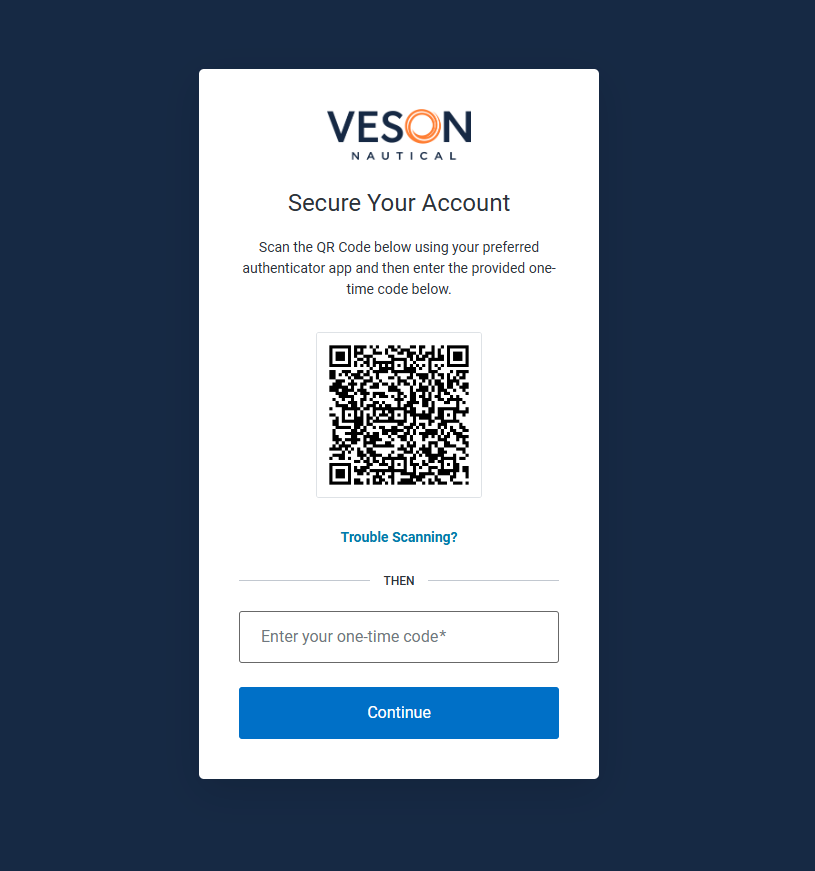
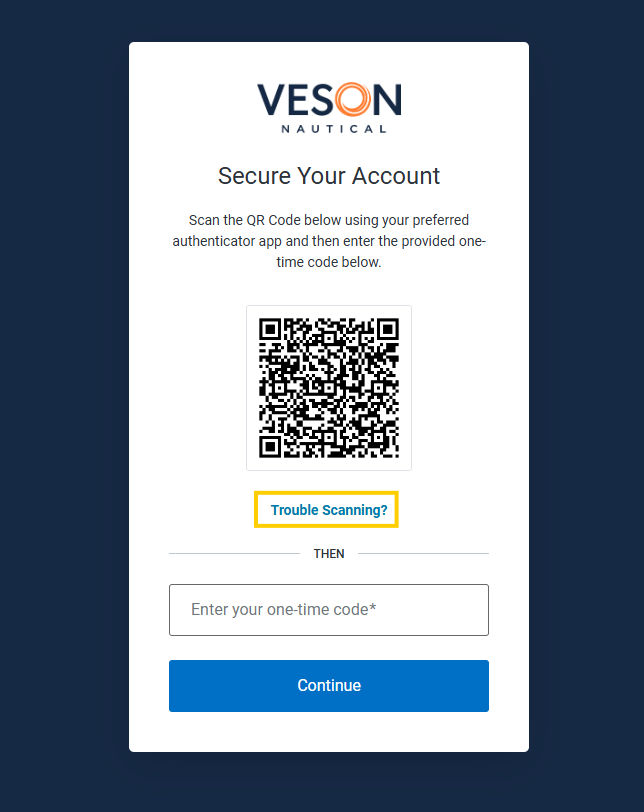
Once you’ve added an account, go back to the VesselsValue platform and scan the QR code.
Do not scan the screenshot below, each QR code is unique to you.
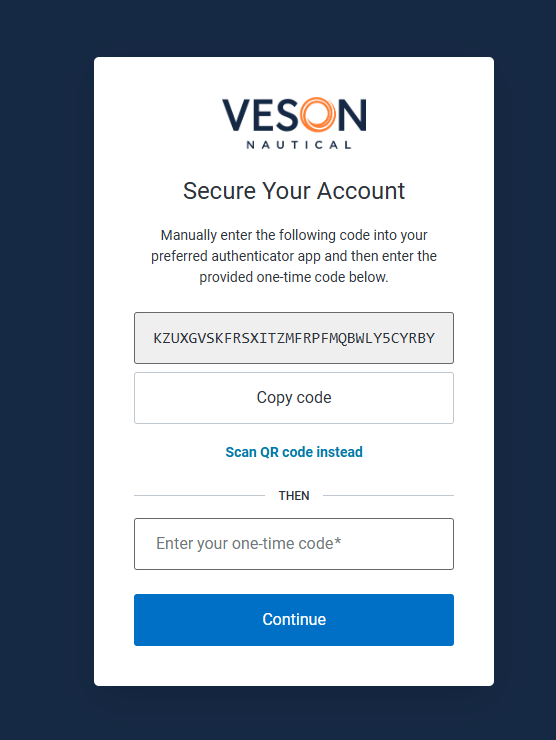
If you’re unable to scan the QR code, select Trouble Scanning?.
Once selected, you’ll see the option to enter a one-time code instead. Copy this code and input it into your 2FA application.
App Step 3.3: Enter your 6-digit verification code
Once your account is set up within the 2FA app, it will display a six-digit code that will change every 30 seconds. See the following example.
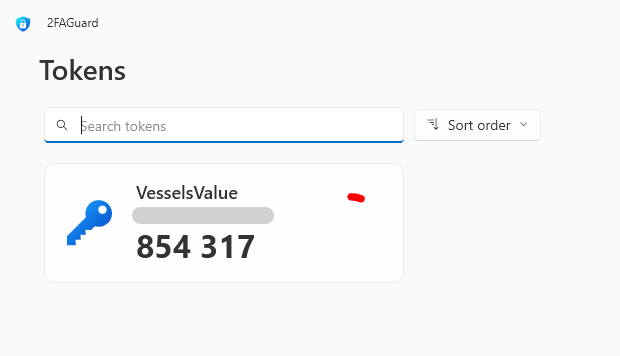
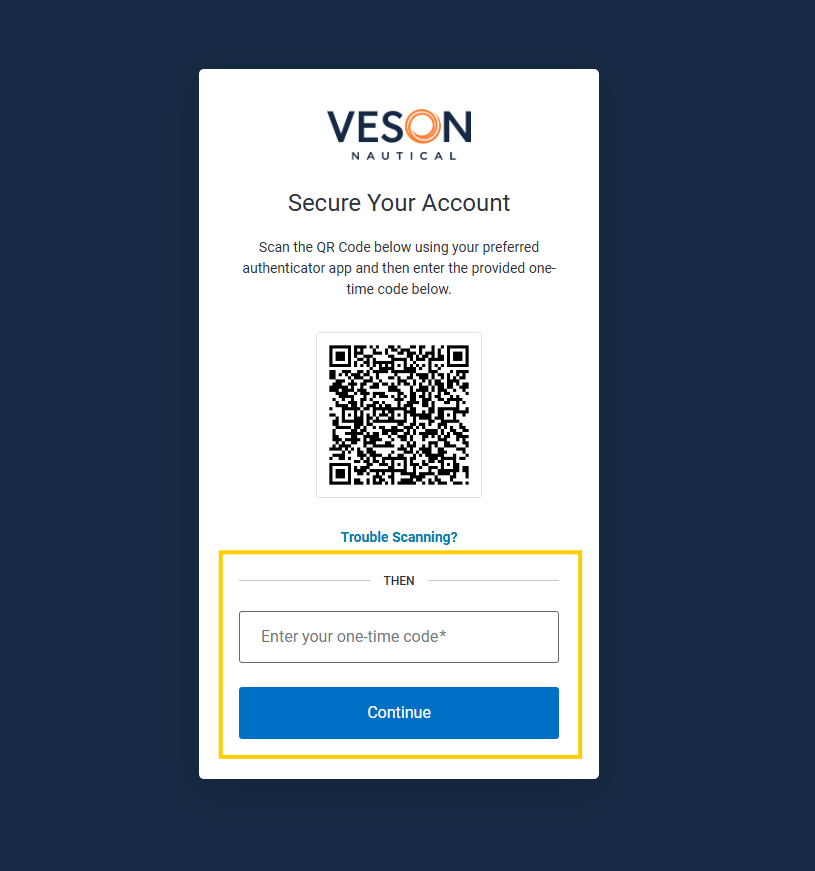
Copy this code and enter it into the setup box and press Continue.
Email Step 3.1: Receiving the code via email
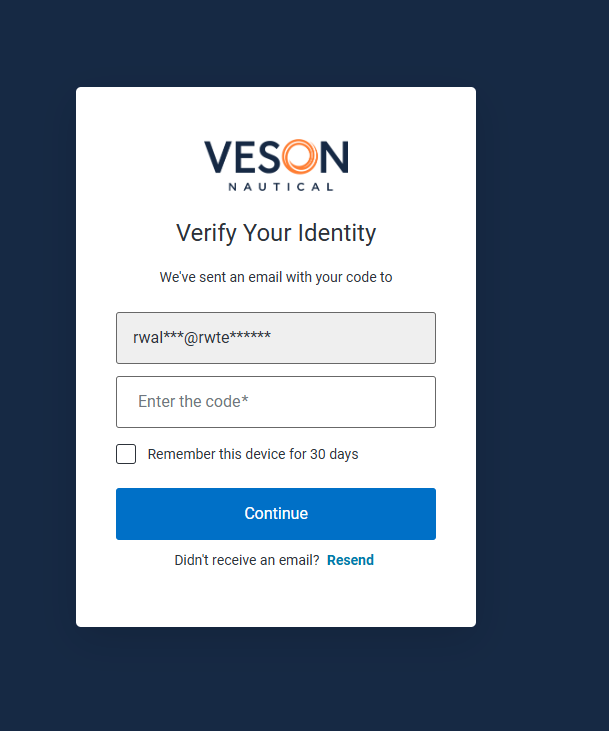
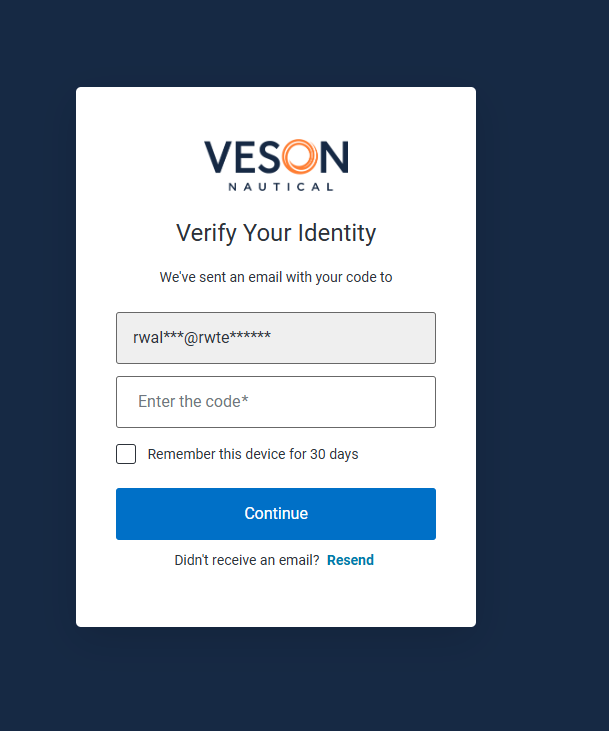
Once you have successfully inputted your email and password, you will be shown this screen.
An email will have been automatically sent to your email address inbox. Please check your inbox.
If you don’t receive the email, check How to get set up with VV SSO for next steps.
Email Step 3.2: Receive your email
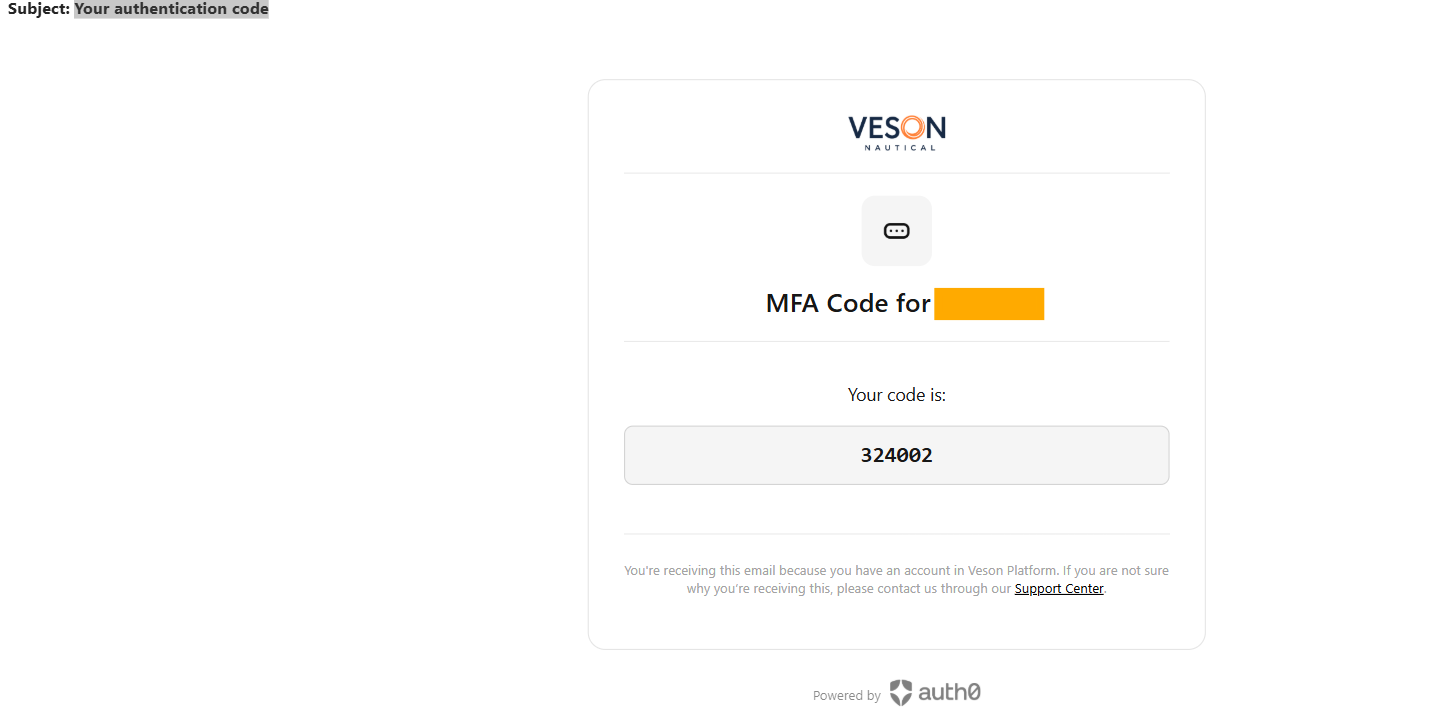
You should receive an email from no-reply@veson.com with a subject line of Your authentication code and it will look like below.
Copy the 6 digit code shown in the email.
Email Step 3.3: Enter your 6-digit verification code
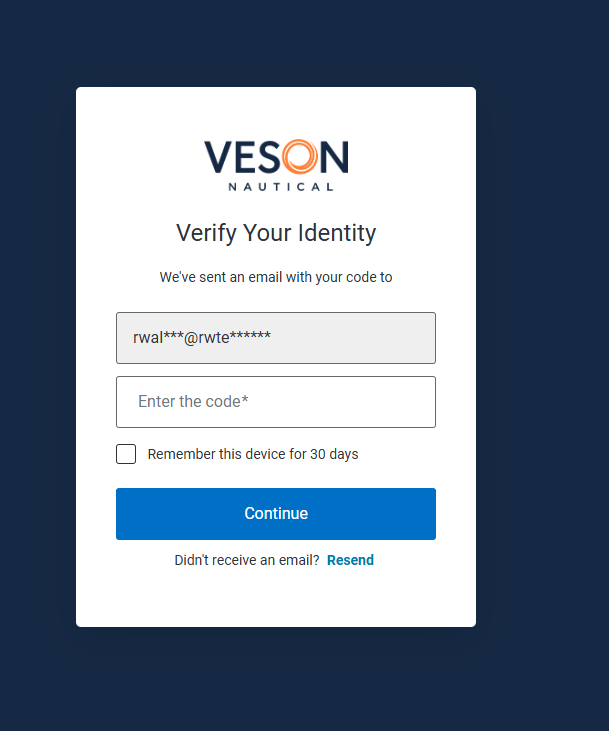
Go back to the website and input the 6 digit code into the Enter the code* input box and select Continue
Didn't receive the email?
-
Select Resend and wait for the email to arrive.
-
Check your junk or promotions folder.
-
If you're still having trouble, contact your Account Manager or our Support team and we'll be happy to help.
Step 4: Success
You should now be logged into your VV account.
Going forward, each login will only require the verification code from your chosen 2FA method.
You can also choose to have your device remembered for 30 days, so you won't be asked for a 2FA code on every login from that device.
Unlike the previous process, there is no option to skip 2FA setup, it must be completed to log in.
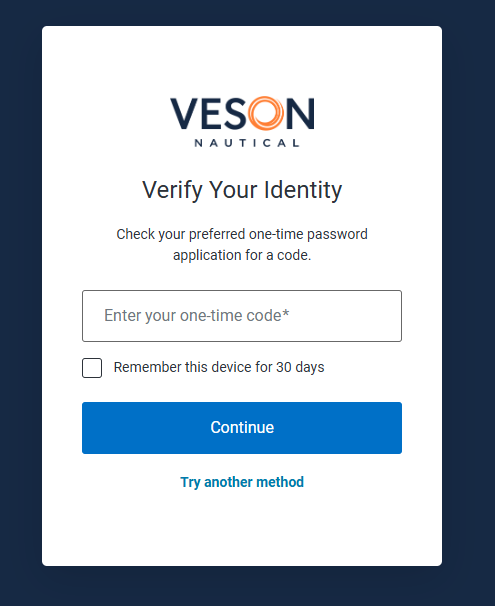
The screen you see will look like so:
Using email as your 2FA method
Email authentication is available either as an alternative to an authenticator app, or as your organisation's primary 2FA method.
Option one: use email as an alternative to your authenticator app
-
Navigate to VesselsValue and select Login in the top right.
-
Enter your email and password as normal.
-
Select Try another method.
-
Select Email.
-
Wait for the email to arrive, then enter the 6-digit code shown.
-
Success — you should now be logged in.
Option two: use email as your primary authentication method
If you'd like your organisation's default 2FA method switched to email, please contact your Account Manager or our Support team and we'll arrange this for you.
Something went wrong?
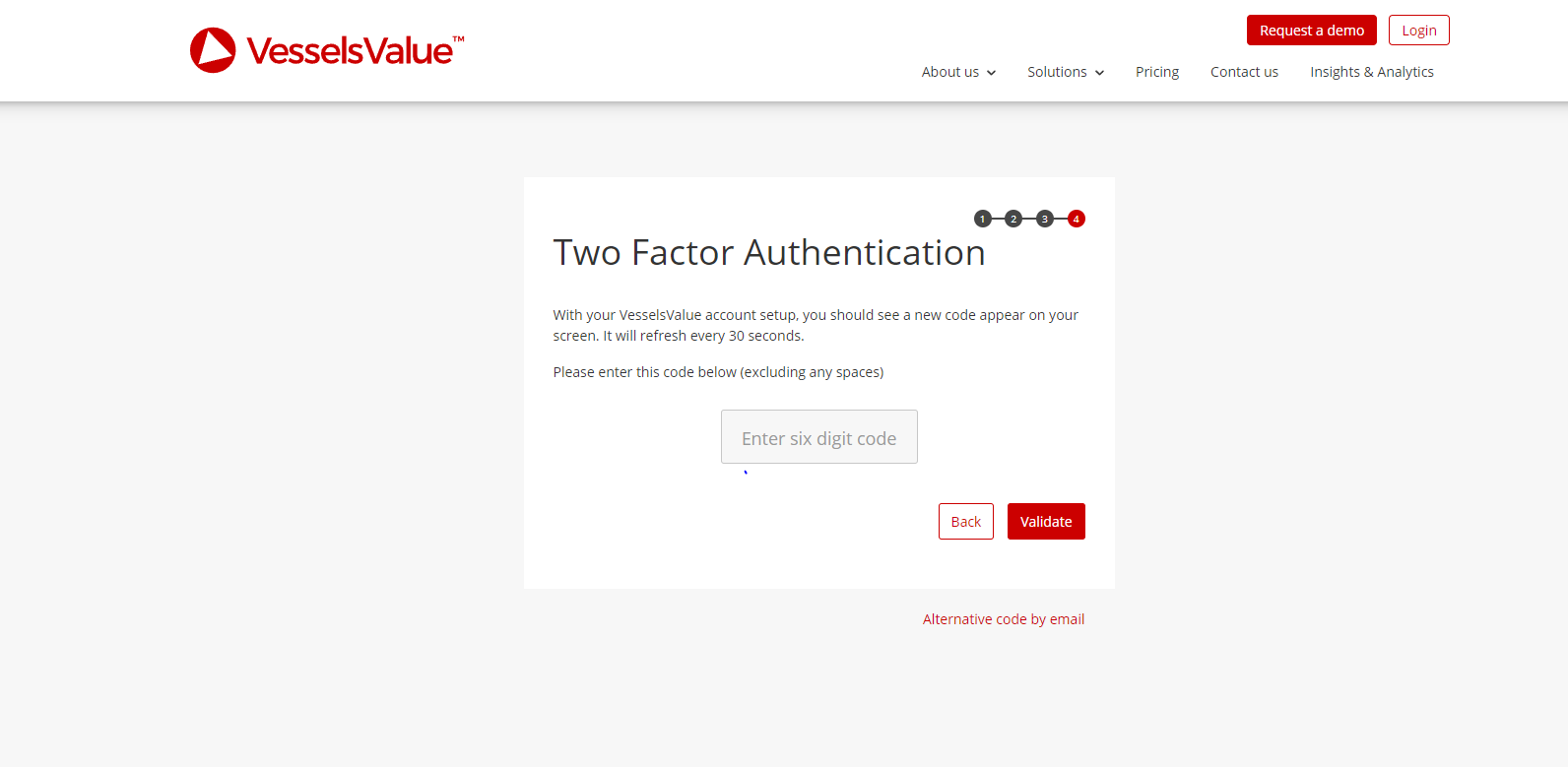
In the unlikely event that the above process does not work, you can still access your account via a code sent to your email address associated with your VV account.
Click on the ‘Alternative code by email’ link below the ‘Validate’ button. You will receive an email which contains a six digit code which you can use in place of the normal app generated code.
Emailed codes:
-
Must be used within one hour of being requested
-
Will only work once
-
May only be used by the person whose email address is requesting the code.
My organisation uses its own IDP
If your organisation manages its own single sign-on, 2FA for VesselsValue is handled by your organisation's own systems rather than by the steps above. Please contact your IT team if you're having trouble signing in.
I need to move 2FA to a new device, or my method isn't working, what do I do?
This is only relevant if you use an authenticator app.
If you've changed your phone or device and can no longer generate a 2FA code, please contact your Account Manager or our Support team. We'll reset your 2FA for you, and you'll be prompted to set it up again, as described above, the next time you log in.
If you still have your old device, we'd recommend removing the old account from your authenticator app once your 2FA has been reset, to avoid confusion.
Copy this code and enter it into the setup box and press ‘Validate’.
Contact Us
If you require further assistance or have any questions, please contact your Account Manager or our Support team, who will be happy to help.