
Home > Operations > Berth Management
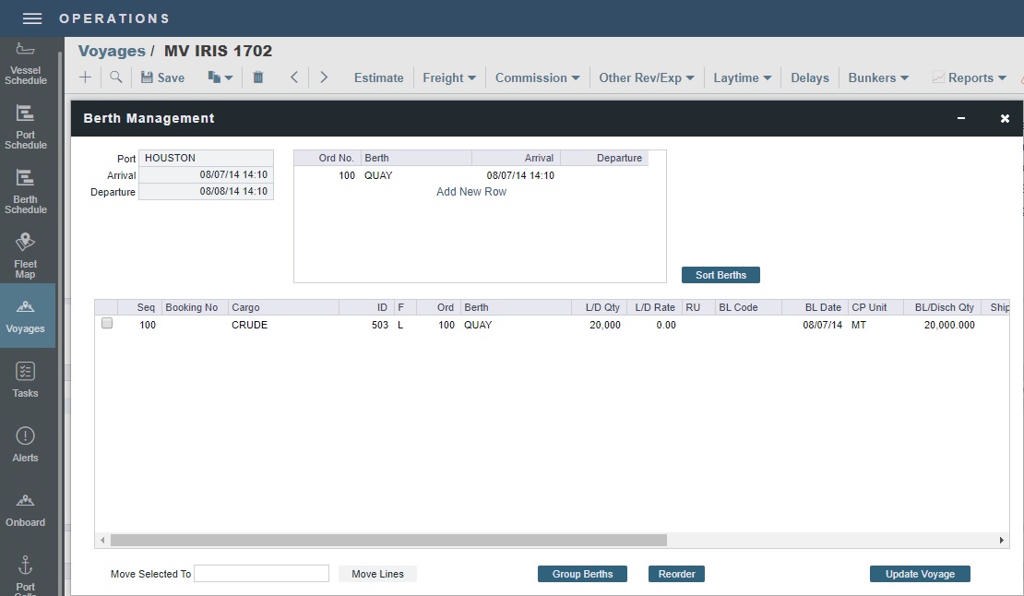
For a port call, the Berth Management form enables you to create a berth rotation with or without cargo operations.
On the Voyage Manager Itinerary, right-click a port that is not Commencing, Terminating, or Passing and then click Berth Management.
Creating a Berth Rotation
-
In the berth rotation grid at the top, for each berth call, add a row and then enter a Berth as well as Arrival and Departure dates.
-
To edit the berth rotation, do any of the following:
-
Right-click a berth call and then click Insert, Delete, Move Up, or Move Down.
-
Edit the Ord No. (Order Number) column and then click

-
If you have Onboard, vessel masters can also submit updates to the berth itinerary.
-
-
In the cargo handling grid at the bottom, any Cargoes entered on the Voyage Manager Cargoes grid appear.
-
Berth: You can select any of the berths entered in the berth rotation grid.
-
If you delete a row from the berth rotation grid, the Berth column clears in its associated cargo handling row.
-
-
Move Selected To: You can select one or more cargo handling rows to move to a different M port.
-
To reorder cargo handling lines, either:
-
Edit the cargo Sequence and then click

-
Edit the berth Order and then click

-
-
-
Click

Cargo and Vessel Compatibility
Note: Configuration flags CFGEnableBerthCargoCompatibility and CFGEnableVesselCompatibility must be enabled.
On the Port form, Berth Cargo Compatibility and Berth Vessel Compatibility grids define compatible cargoes and vessels for each berth.