
Home > Operations > Port Activities
On the Port Activities form, you can enter Statement of Facts data for a vessel calling at a port. You must commence the voyage before you can enter Port Activities. Arrival and departure dates and times are required for each port, so you must enter a date and time for at least the End of Sea Passage (arrival) and Start of Sea Passage (departure) activities.
Port Activities update the Port Status in the Itinerary in the following sequence:
-
.. = Scheduled
-
AR = Arrived
-
SA = Sailed
-
TE = Terminated (for the last port only)
To navigate between forms for the previous or next port, select < or >. You can create Voyage Templates to specify default Port Activities for different kinds of voyages.
Entering Port Activities
To enter port activities:
-
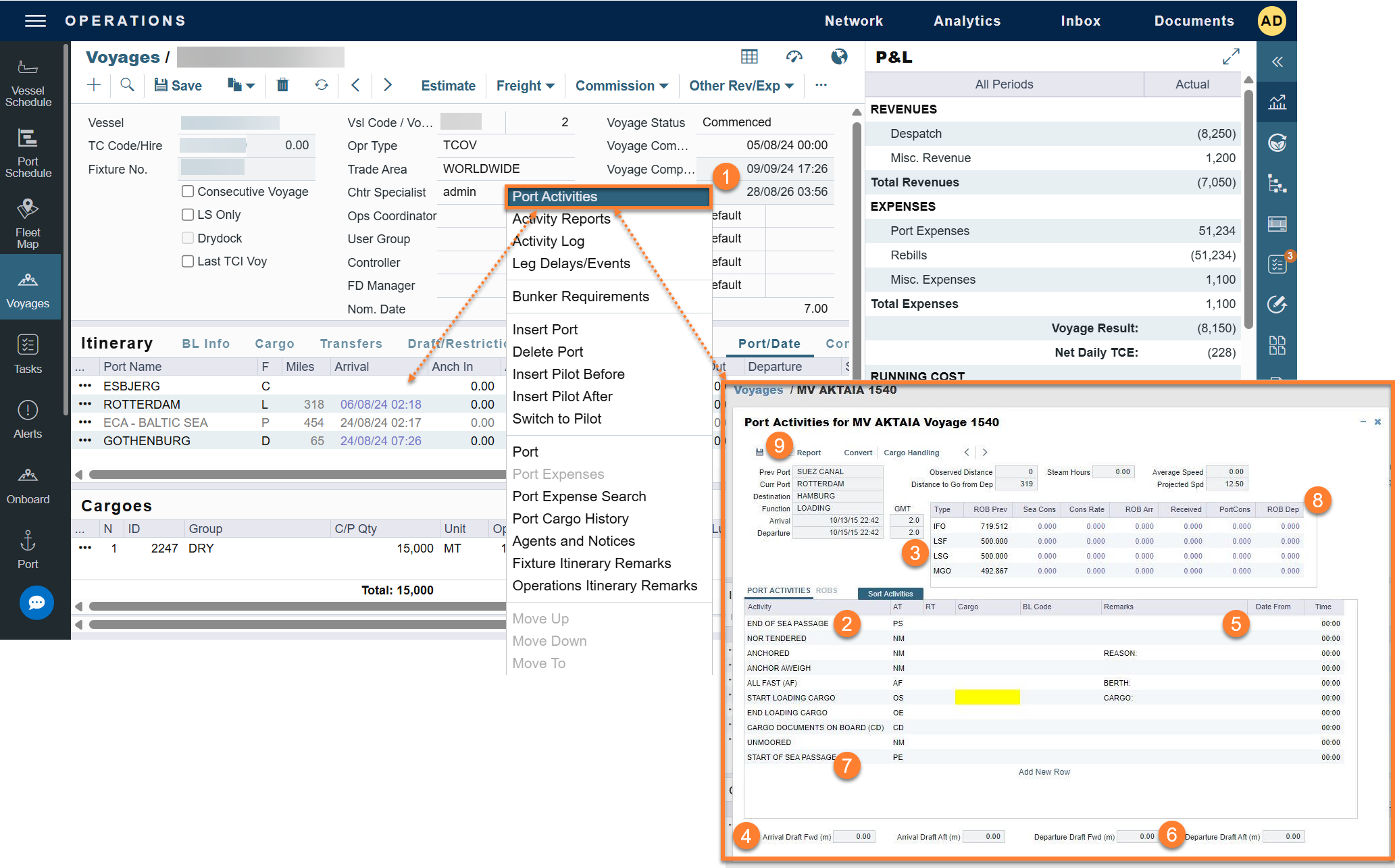
On the Voyage Manager or FOB Voyage Itinerary, right-click the port line and then select Port Activities.
Note: Steps 2 and 3 do not apply for the Barging module.
-
Enter End of Sea Passage (EOSP) before entering the bunker information.
-
You must commence the voyage before you can enter and save Port Start (PS) or Port End (PE) times, or bunkers.
-
-
Enter bunker information:
-
Enter ROB Arr for each applicable bunker grade. If an ROB is not entered for a grade, the ROB Arr amount defaults to the ROB Prev Amount.
-
Enter any bunkers received under Received.
-
Enter any bunkers consumed under Port Cons. If an ROB Dep amount is entered that is less than the ROB Arr amount without entering any consumption, the Port Cons amount is calculated and displayed.
-
If the ROB fields are locked, some bunker information has been entered on an Extra Information form for an Activity Report. To keep the data consistent, continue entering ROBs in the Activity Report after you enter them there for the first time.
-
-
Enter Arrival Drafts if needed (at the bottom).
-
Enter dates and times of activities. Dates and times use the regional settings of your computer.

-
To add a Port Activity, either select Add a New Row at the bottom of the list or right-click to insert a line. The date and time populate from the previous line, so you can adjust them as needed.
-
By default, every port activity must start or end with a PS or PE Action Type (AT column). You can override this requirement using the configuration flag CFGAllowActivitiesBeforePS.
-
The specific PS and PE activities required vary based on the port’s Port Function or a company’s specific configuration.
-
System Default Examples (without system customization):
-
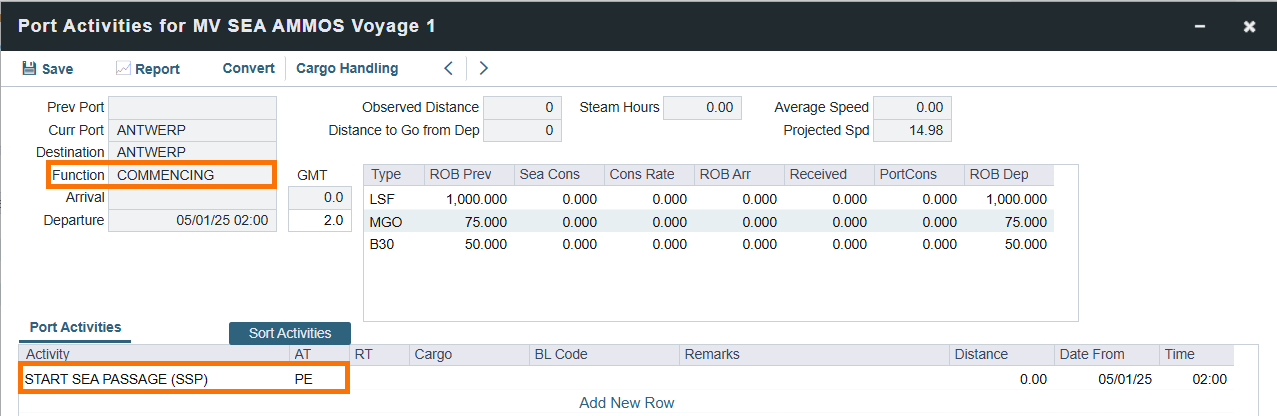
Commencing Port (Port Function C): requires Action Type PE.
-
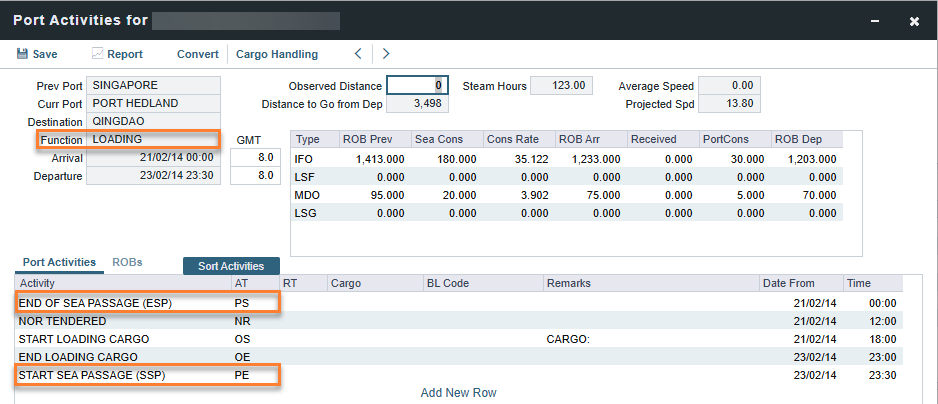
Load Port (Port Function L): requires both Action Types PS and PE.
-
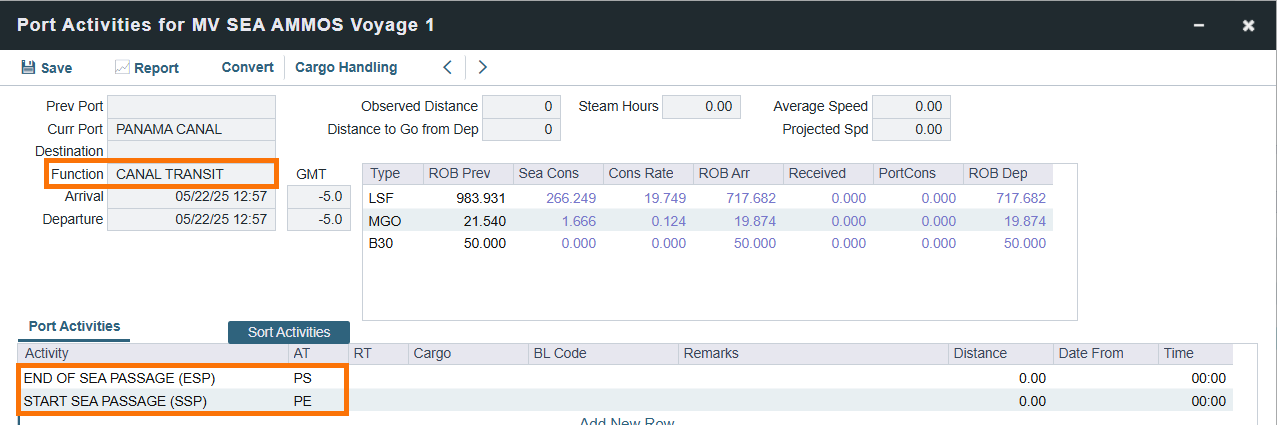
Canal Transit Port (Port Function I): requires both Action Types PS and PE.
-
-
To sort activities in ascending order by the entered date/time, select
-
For cargo-related activities, the Bill of Lading information must be entered on the Cargo Handling form. To open it, select Cargo Handling. You can select the cargo in the Cargo column. The associated BL information appears in the BL Code column. If there is more than one cargo, enter individual start and end loading and discharging operations for each cargo.
-
For paired activities such as Start Bad Weather and End Bad Weather, be sure to add both Start and End entries.
-
Note that the Port Start activity cannot occur before the Port End activity, as this results in a Port Activity error.
-
-
-
Enter Departure Drafts if needed (at the bottom).
-
Enter a date and time for the Start of Sea Passage (SOSP). You must do this before you can enter ROB Dep.
-
Enter ROBs on Departure (ROB Dep).
-
To save the information, select

Filtering Port Activities
You can filter by a column in the Port Activities grid using its column heading menu 
ROBs Tab
To enable the ROBs tab, select the ROBs check box for the activity in Data Center → Port Activities.
On the Port Activities ROBs tab, you can record in-port event ROBs for Activities specified in Port Activities Terms. When you add those Activities to the Port Activities tab, they also appear here. After you add a date and time on the Port Activities tab, you can edit the ROBs here.
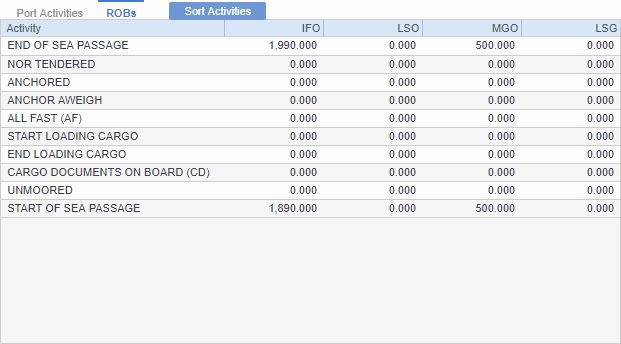
ROBs that you enter here do not affect the overall bunker calculation; these values are only available for reporting.
-
-
EOSP and SOSP ROBs are populated based on the existing ROBs grid and cannot be edited here.
-
Events are sorted the same way as on the Port Activities tab. Each event's ROBs must be lower than or equal to those of the previous chronological event.
-
When two Port Activities have the same date/time, they cannot have different ROBs for a fuel type.
-
ROB values are considered invalid if they show negative consumption or if some values are populated while others are missing. Invalid records are highlighted in the ROBs grid.
-