
Home > Operations > Activity Reports
🔑 This is a Key Topic, with high value for all users.
Activity Reports record the movement and operational status of a vessel throughout a voyage. Each report captures the vessel's position, speed, fuel consumption, and cargo status at a specific point in time, giving you a continuous, chronological record from departure to arrival.
You can create Activity Reports manually or configure them to generate automatically at set intervals. As reports accumulate, they form the basis for performance analysis, offhire tracking, and voyage cost calculations in IMOS.
How to Log an Activity Report
In the Voyage Manager, right-click an itinerary line item and click Activity Reports.
Activity Reports track vessel activity in port and during sea passages. You typically enter reports in the following sequence:
-
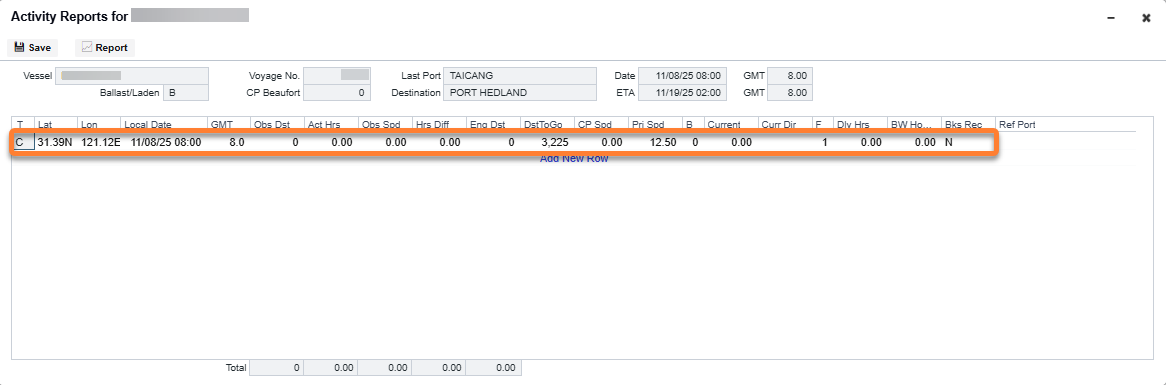
Commencing (C): Created when the voyage commences. Right-click the Commencing line item and click Activity Reports.
-
At sea:
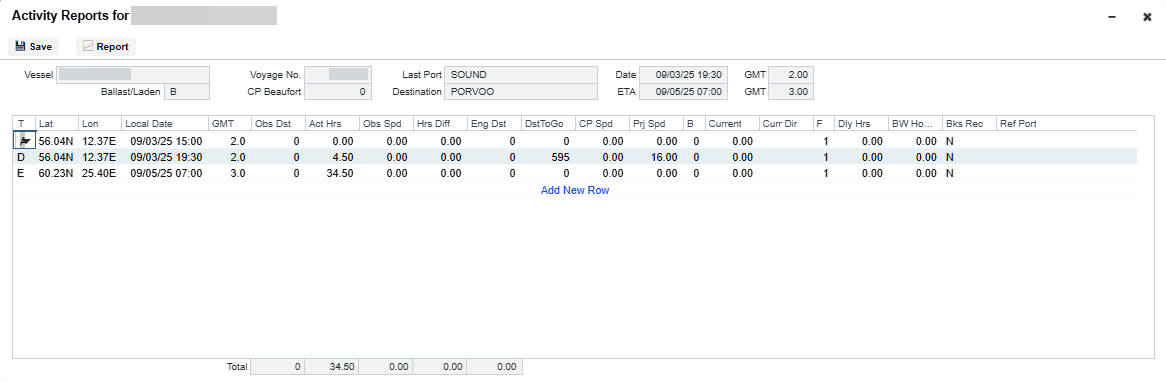
N = Noon: When you are sailing between ports, you can enter Noon Reports. After you enter one Noon report, the time defaults to 24 hours after the last one. This report can be entered multiple times per sea leg.
E = End of Leg: This report is created when you enter the arrival date and time for the next port in Port Activities.
Note: To complete a sea passage for a given port, End of Leg reports from the previous ports are required. Only one End of Leg report is allowed per port.
-
In port:
A = Arrival: This report is created when you enter the arrival date and time in Port Activities.
S = Special: While the vessel is in port, you can enter a special Noon Report. This report can be entered multiple times per port leg.
D = Departure: This report is created when you enter the departure date and time in Port Activities.
-
T = Terminating: This report is created when you either arrive at a Terminating port or sail from the last port in a voyage.
-
To enter more detailed information on the Extra Information for Report form, right-click a line item and then click Extra Information (Bunker/Technical/Weather/Remarks).
-
For an LNG Carrier (Type code L), Tanker (Type code T), or Gas Carrier (Type code G), to enter Tank Conditions, right-click the report line and then click Tank Conditions.
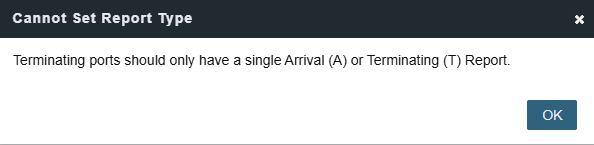
Kindly take note that T ports can only have either an Arrival (A) report or Terminating (T) report. Both cannot be present at the same time.
Attempting to add both leads to the error: Terminating ports should only have a single Arrival (A) or Terminating (T) Report, as shown below:
Bad Weather
Fuel consumption from Activity Reports where the Beaufort Scale (B) reading is above a certain level, set on the Vessel form Consumption tab or the Time Charter (TC) Performance tab, is excluded from performance calculations. Default values are taken from these forms, according to the voyage type:
-
OVOV/RELT: Values are taken from the Vessel form.
-
OVTO: Values are taken from the linked TC Out contract.
-
TCOV: Values are taken from the linked TC In contract.
-
TCTO: Values are taken from the linked TC Out contract.
If the total of your categorical bunker breakdown does not match the bunker consumption calculated from the inter-report change in ROB, a validation warning appears in the toolbar. Select the warning to see a list of affected reports and fuel types. On the form, any rows with a mismatch are highlighted in red until you correct the categorical breakdown.