
Home > Operations > Voyage Bunkers
If you have purchased the separate Bunkering module, refer to the Bunkering article.
Overview
On the Voyage Bunkers form, you can plan forward bunkerings and follow the progress of your Bunker Requirements.
-
Multiple types, or grades, of fuel can be set up on the Fuel/Lube Types Term List in the Data Center – where each vessel can track up to six fuel types.
-
The Bunker Calculation Method is the method of valuing the fuel onboard; it determines how the cost of fuel is allocated to voyages.
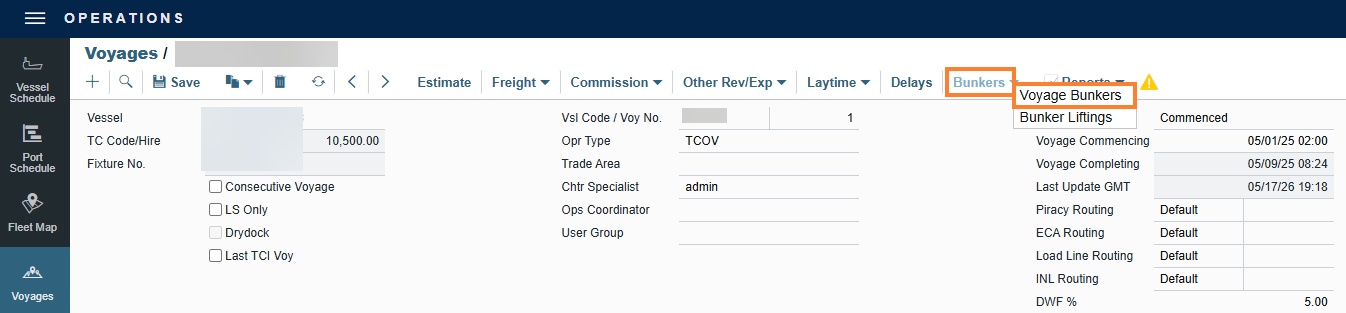
To work with bunkers for the voyage, navigate to the Voyage Manager toolbar → select Bunkers → select Voyage Bunkers.
Navigating between tabs
On the Voyage Bunker form there are a few tabs that will appear:
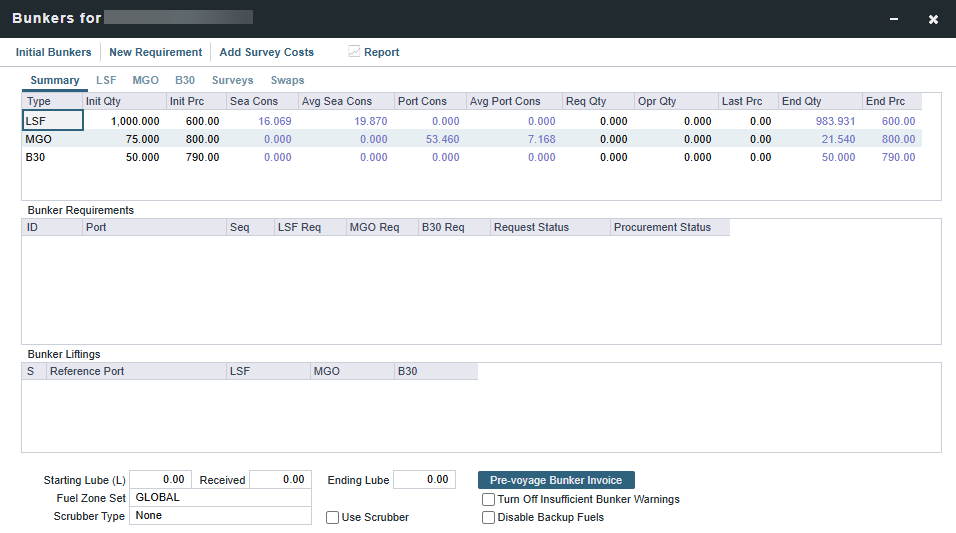
Summary Tab
Received quantities appear on the Summary tab after they are entered in Port Activities. To bind a Bunker Invoice to the voyage, the S check box must be selected in the Bunker Liftings grid.
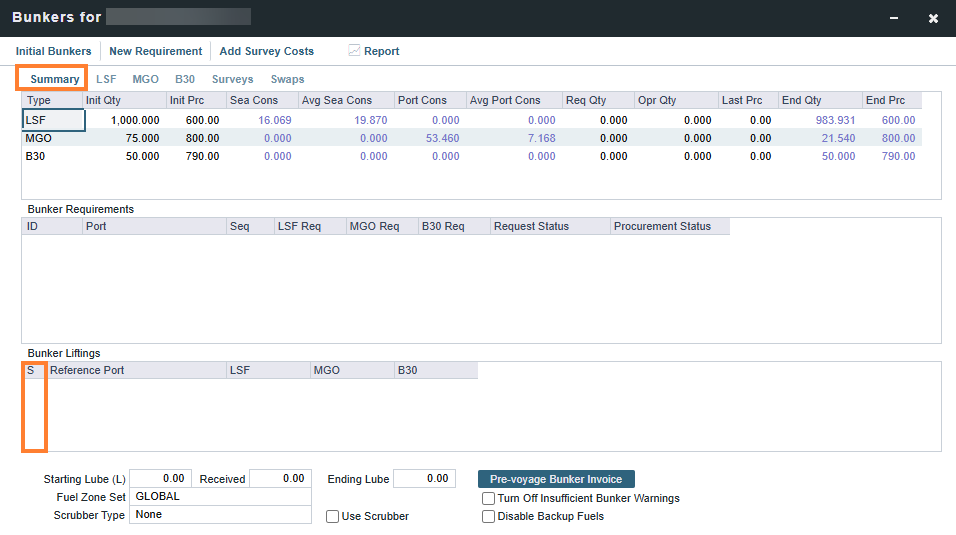
Note: End Qty and End Prc columns are imported to the next voyage as Initial Quantity and Price when this is a subsequent voyage. For example, if a vessel sails a TCTO voyage (1), a RELT voyage (2), and a TCTO voyage (3), the initial bunker quantity and price on the last voyage will be taken from the TCO contract (voyage 3) rather than from the End Qty and Price of the TCTO (voyage 1) because there are no bunkers recorded on the RELT voyage, which happens in between the two TC voyages. To commence a voyage, 0.1MT of a any fuel type is required.
For LNG with MMBTU Pricing enabled, the Discharge Price (USD/MMBTU) and Caloric Value (CV) from the completing voyage transfer to the Initial Price and Initial CV on the consecutive voyage. BOG consumed on the subsequent voyage is valued at this transferred Discharge Price/CV, not the original lifting price. See the Detail Tab for LNG section below.
Fuel Zones
For voyages that are not already using Fuel Zones to calculate bunker consumption and have unsailed ports, a Use Fuel Zones button appears in the bottom right corner. To recalculate estimated bunker consumption and cost based on information entered in Fuel Zones in the Data Center, select Use Fuel Zones.
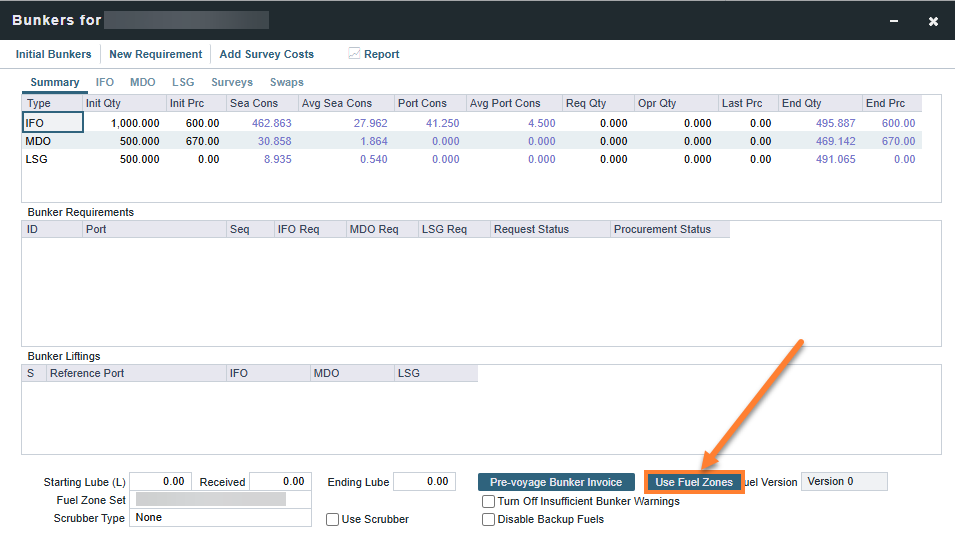
If you have configured a Fuel Zone Set, you can select it located at the bottom of this form.

If you have recently modified your Global Default Fuel Zone Set. Note that existing voyages do not automatically update to the new default configuration. IMOS uses the Fuel Zone Set that was active at the time of creation. To apply a new Fuel Zone Set, please access the Voyage Manager, navigate to Bunkers → Voyage Bunkers → manually select the desired updated Fuel Zone Set.
Use Scrubbers Check Box
When the Use Scrubbers check box is selected, low sulfur bunkers are not used for at-sea consumption within ECA zones. Instead, high sulfur ("H"-type in the Vessel) bunkers is consumed. In-port consumption still adheres to Vessel/Fuel Zone bunker configuration if a given port is within an ECA zone.
Fuel Tabs
This form has a detail tab for each bunker grade. On each individual bunker grade tab, you can enter the Operator Quantity. The best-known price defaults, but you can change it to maintain the P&L bunker expenses. It is the assigned price for this lifting until an invoice is issued for this lifting or a Bunker Purchase is recorded for the port.
Req Qty is only used for a standalone Bunker Requirement, and cannot be edited because a Bunker Requirement can be linked at a later time.
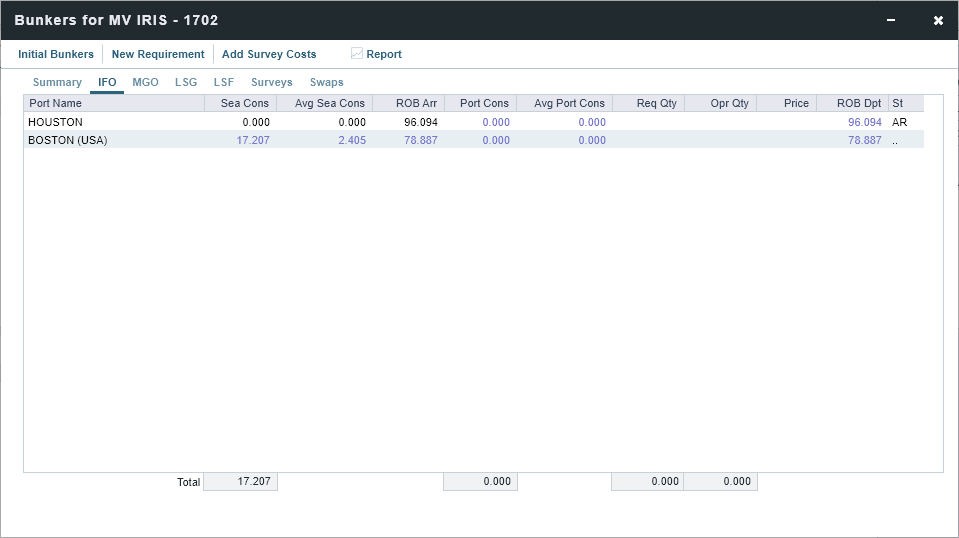
Note: The decimal places displayed for bunker quantity are hard-coded and cannot be configured.
LNG Detail Tab
The Detail tab for LNG has additional Boil-Off Price, Forced Boil-Off Price, and NBOG Speed Bal/Laden fields at the bottom.
When CFGEnableLNGMMBTUPricing is enabled, an LNG MMBTU Pricing check box is available at the bottom of the form. Selecting this enables you to record the Initial Price (USD/MMBTU) and CV, which is used to calculate boil off cost up to the load port; and the Discharge Price (USD/MMBTU) and CV, which is used to calculate the boil off cost from departure of the load port to the end of the voyage.
On consecutive voyages, the Discharge Price and CV from the completing voyage transfer to the Initial Price and Initial CV fields on the next voyage. As a result, BOG consumed as LNG fuel on the subsequent voyage (for example, during the ballast leg) is valued at the previous voyage's Discharge Price/CV, not the original lifting price. This can affect Voyage P&L when the Discharge Port Price differs significantly from the loading price.
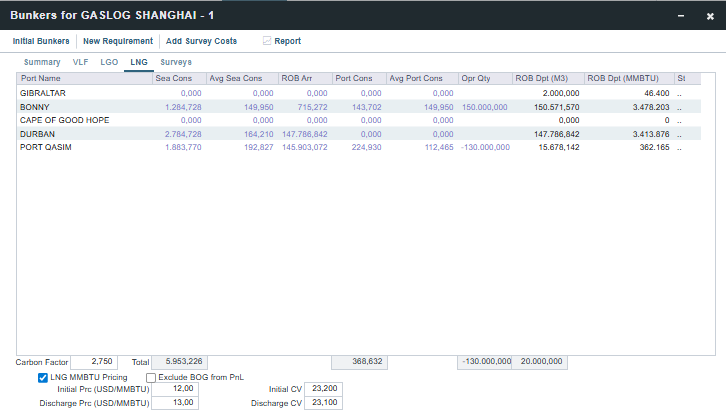
You can choose to select Exclude BOG from PnL if this costs should not be reflected as an expense in the Voyage P&L.
LNG MMBTU Pricing must be enabled for the first voyage, then it is selected by default for subsequent voyages. Alternatively, if a user clears the Consecutive Voyage check box on the most recently completed voyage, then LNG MMBTU Pricing can be enabled.
Bunker Calculations: Bunker Details Report
The Voyage Performance Report contains vital information for understanding the FIFO queue, quantity, and price associated with fuel for a voyage. When running this report, select Bunker Details during setup, navigate to that page of the report, where you see a breakdown of each fuel type, quantity, and price.
Surveys Tab
To enter Survey Costs, select Add Survey Costs on the Voyage Bunkers toolbar.
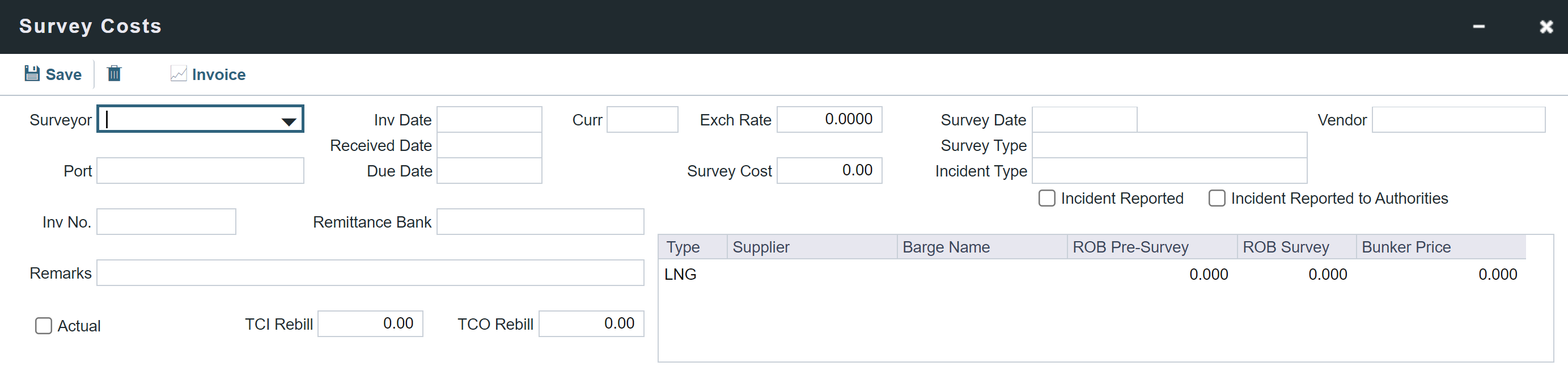
On the Survey Costs form, you can enter information about a survey and allocate parts of the paid amount to rebill the linked TCO/TCI counterparties.
The following fields require a schema of 40.8 and above.
-
Date of Survey
-
Type of Survey (ROB Survey, Onhire Survey, Offhire Survey, ROB Survey + Monitor Bunkering Ops, Other)
-
Incident Reported
-
Incident Reported to Authorities
-
Type Of Incident (None, Delay, Short Delivery, Density Claim, Off-spec claim, Other)
-
Vendor
In Report Designer, these fields are available in Voyage → Operations Invoices → Survey Cost Details.
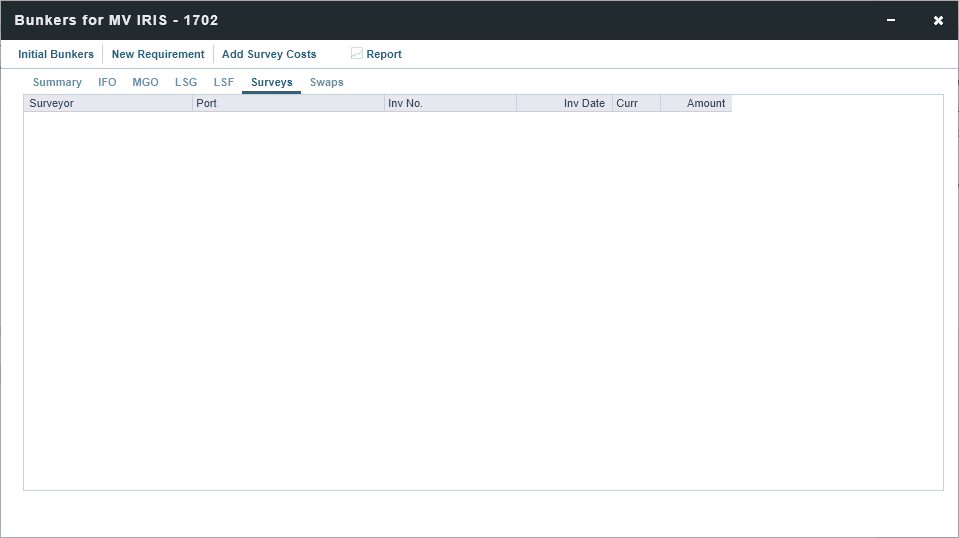
Survey costs appear on the Surveys tab.
You can record quantities prior to resurveying, a price for that quantity, and associated information such as fuel grade, supplier, and the barge name.
The following fields require a schema of 40.8 and above.
-
ROB Pre-Survey
-
Physical Supplier
-
Barge Name
-
Bunker Price
-
Grade (To view this field, enable the configuration flag CFGEnableVesselBunkerGrade.)
These fields are not accessible yet via Report Designer.
Swaps Tab
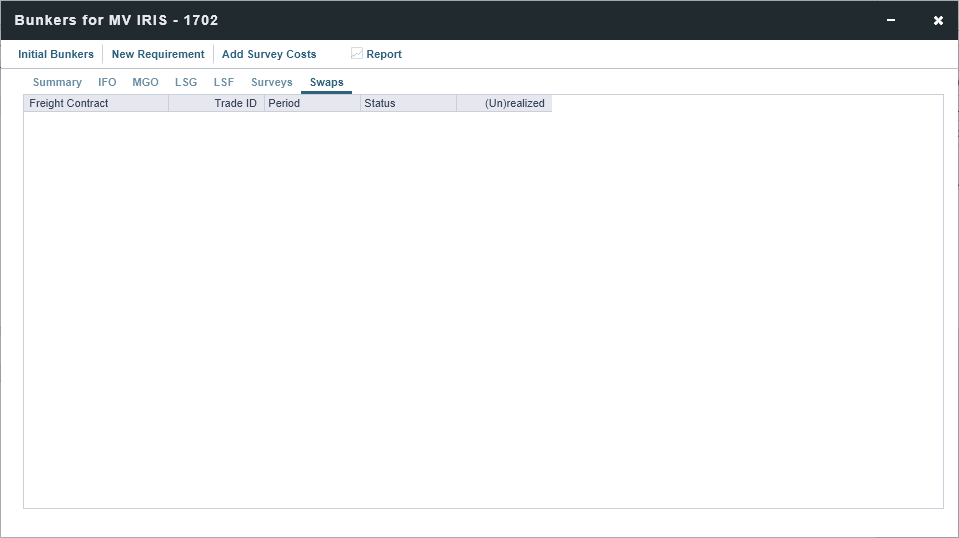
On the Swaps tab, all the linked trades appear. To access a Bunker Swap, right-click a line item and then select View Bunker Swap.
Bunker Requirements
To enter a Bunker Requirement, see the Typical Operator-Only Workflow or follow the steps for an Operator and a Bunker Manager.
Barging
With the Barging module, you can also do the following:
-
For Tow voyages, on the Voyage Bunkers toolbar, select Bunker Interpolator to access the Bunker Interpolator and initiate the calculation.
-
View bunker consumption during Stop delays in the voyage, calculated by the Bunker Interpolator. It appears in the Stop column on the Summary and Detail tabs.
-
On the Voyage Bunkers toolbar, select Reports and then select Bunker Interpolation Details Report.
Bunker Invoices for Same Bunker Grade at Multiple Prices at a Single Port
This only works for voyages whose status is Commenced. Ensure sub-steps within numbered steps are formatted consistently throughout the procedure, using either lettered sub-steps or indented bullets uniformly. Create a bunker requirement for each of the two prices.
For example:
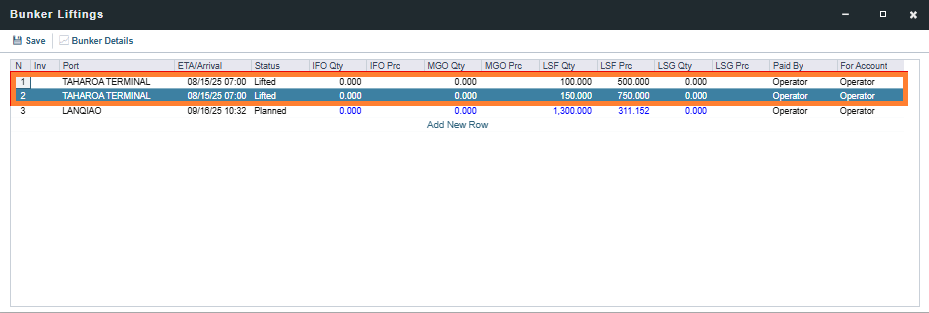
Using an example of two prices of LSF, one with qty = 100MT and price = $500/MT, and the other with qty = 150MT and price = $750/MT:
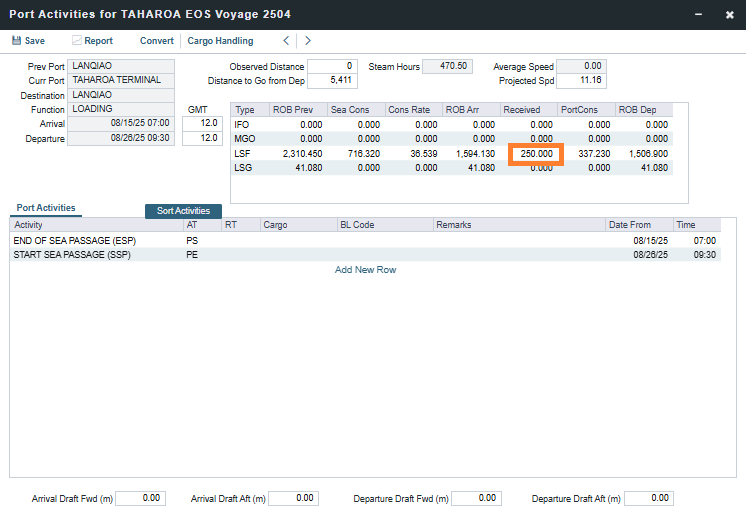
If you want to create a bunker invoice with multiple prices, you need to create a bunker requirement. If the Port Activities form for the certain port has already been completed, prior to creating the bunker requirement, you also need to update the total amount received on the Port Activities form.
-
Go to bunker lifting and there you should find one lifting row for each price.
-
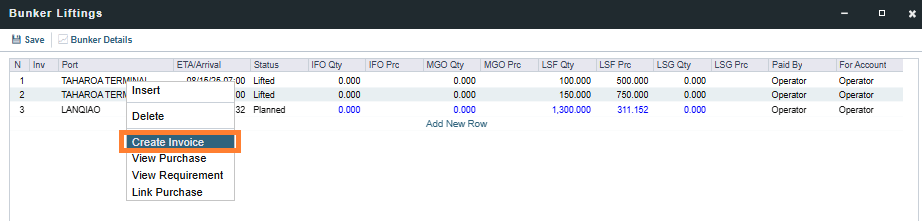
Create a bunker invoice for each price.
-
Right-click and select Create Invoice.
-
-
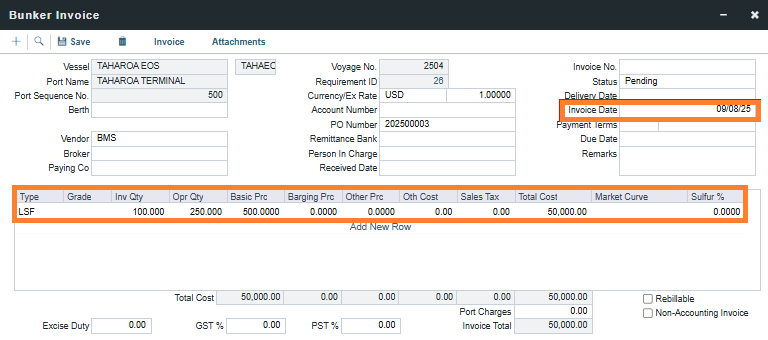
Verify the information, enter the invoice date, and save the invoice.
-
The relevant two bunker invoices will be created and you can proceed to post them.

This cannot be done via a single invoice and requires the creation of at least two separate invoices.