
Option one: from your portfolio
-
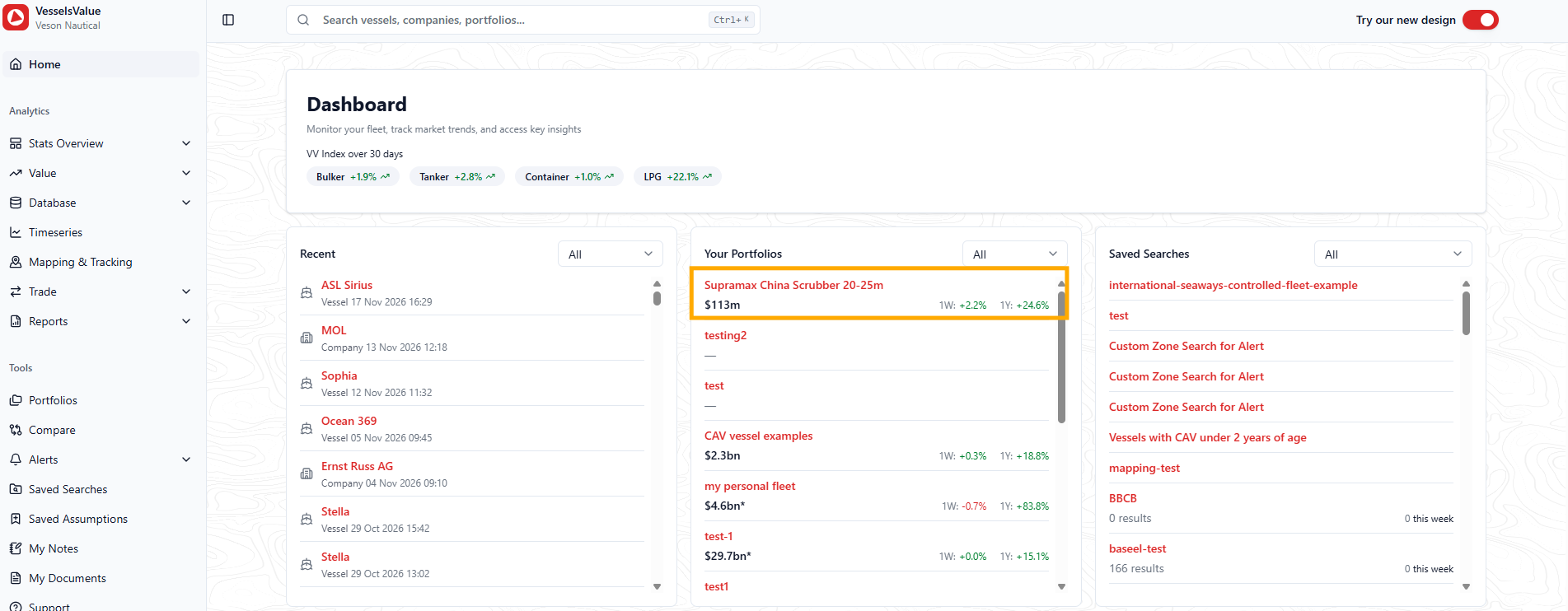
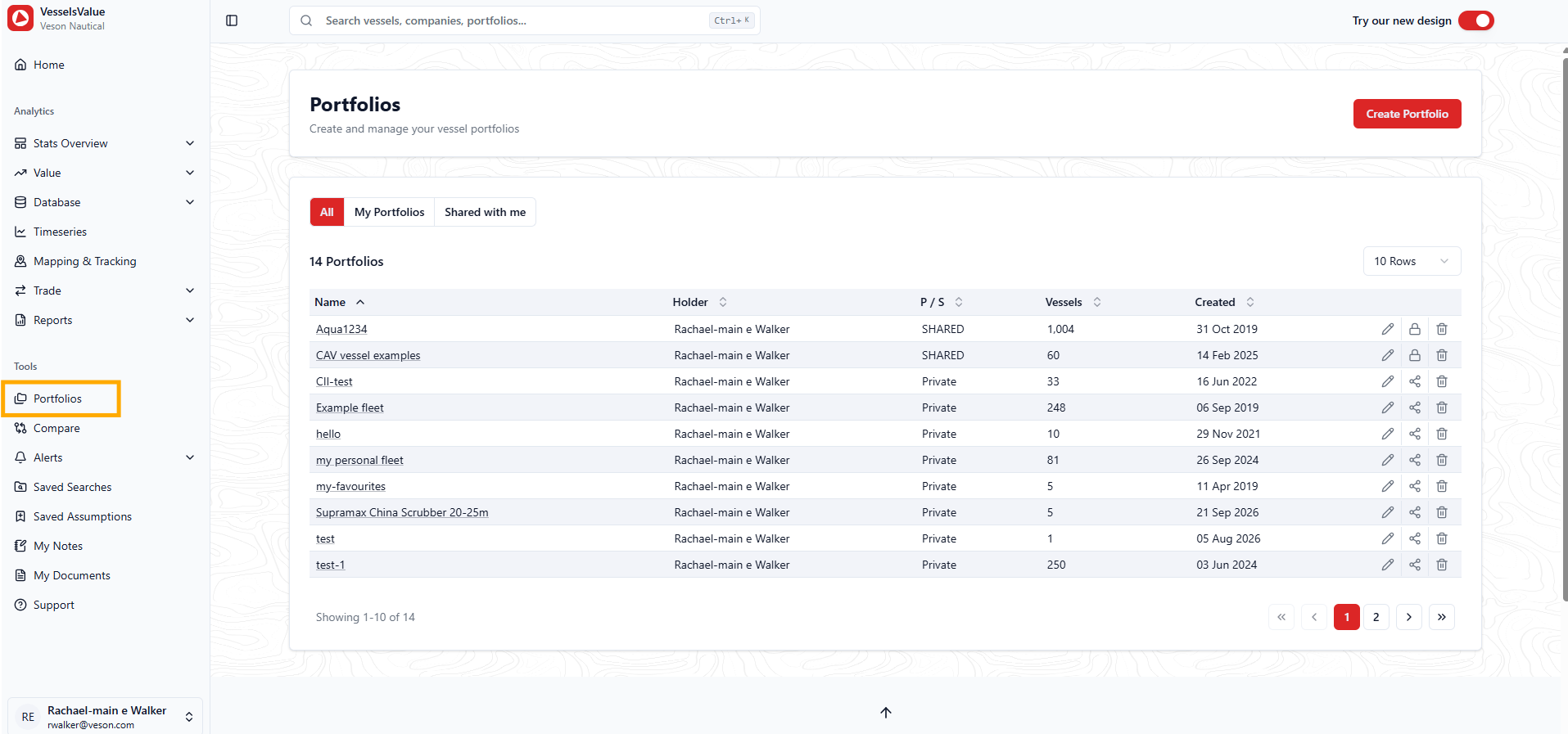
Navigate to your portfolios either by:
-
Main landing dashboard > Your Portfolio section > Select your portfolio
-
Side navigation > Portfolios > Select your portfolio
-
-
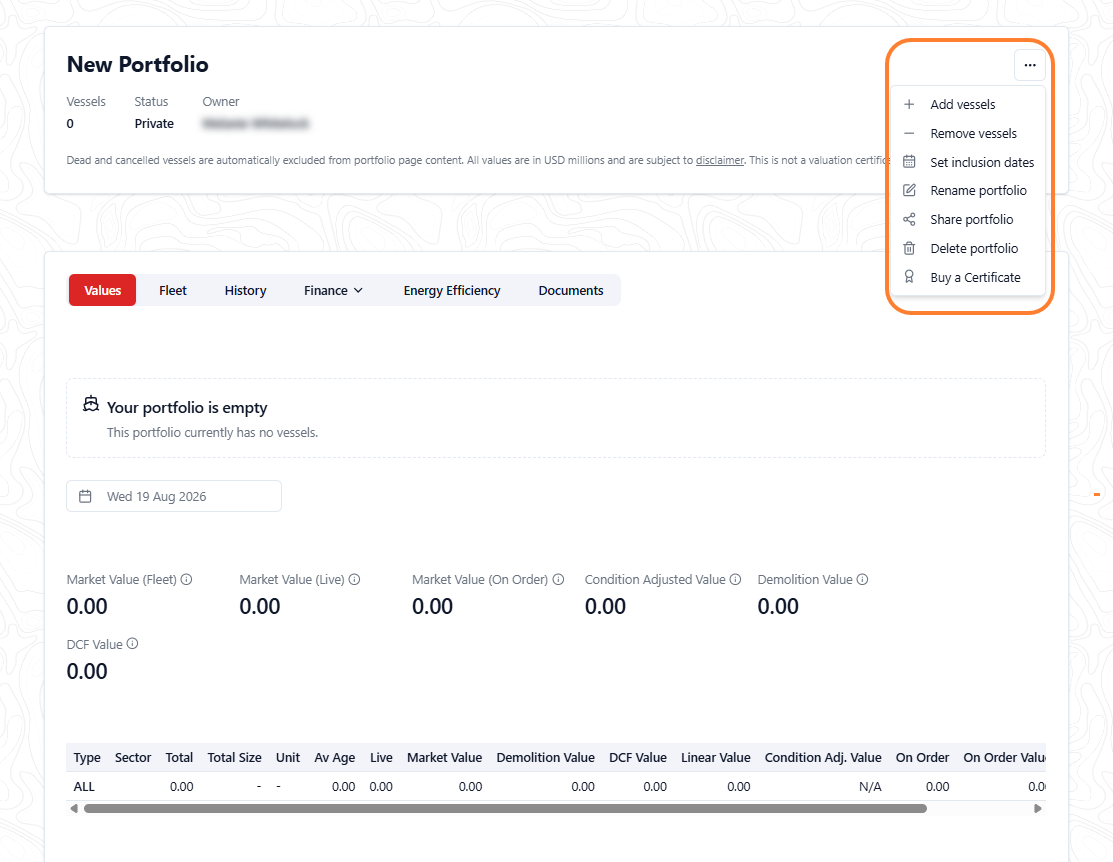
Select the three-dot menu in the upper right and choose Add Vessels from the dropdown list.
-
A pop-up window appears, showing options for adding vessels to your portfolio.
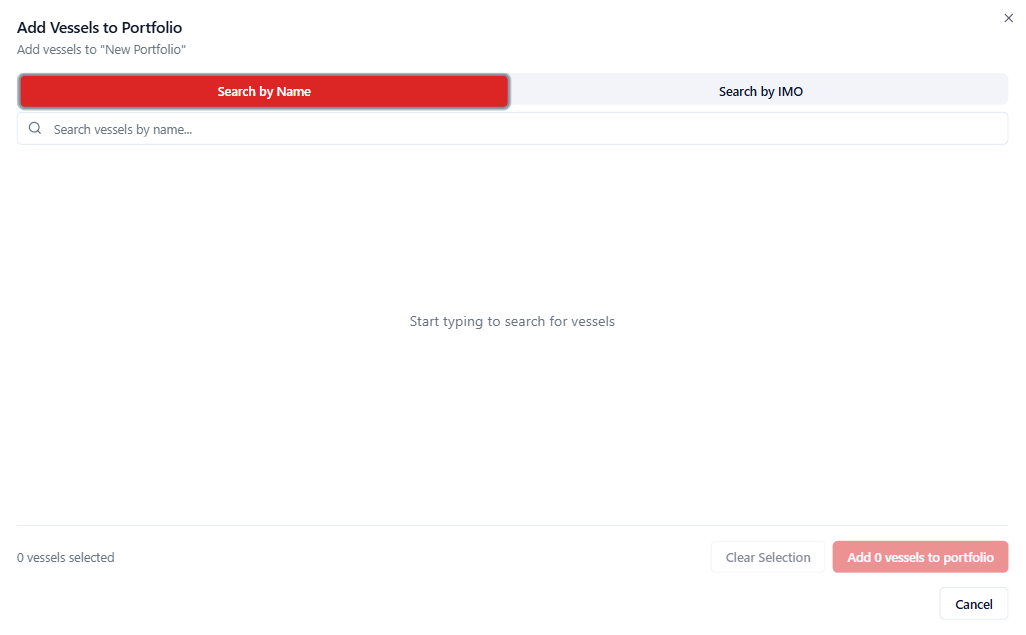
There are two options to add vessels into your portfolio:
-
Search by the vessel’s name
-
Search by singular or multiple vessel IMO’s
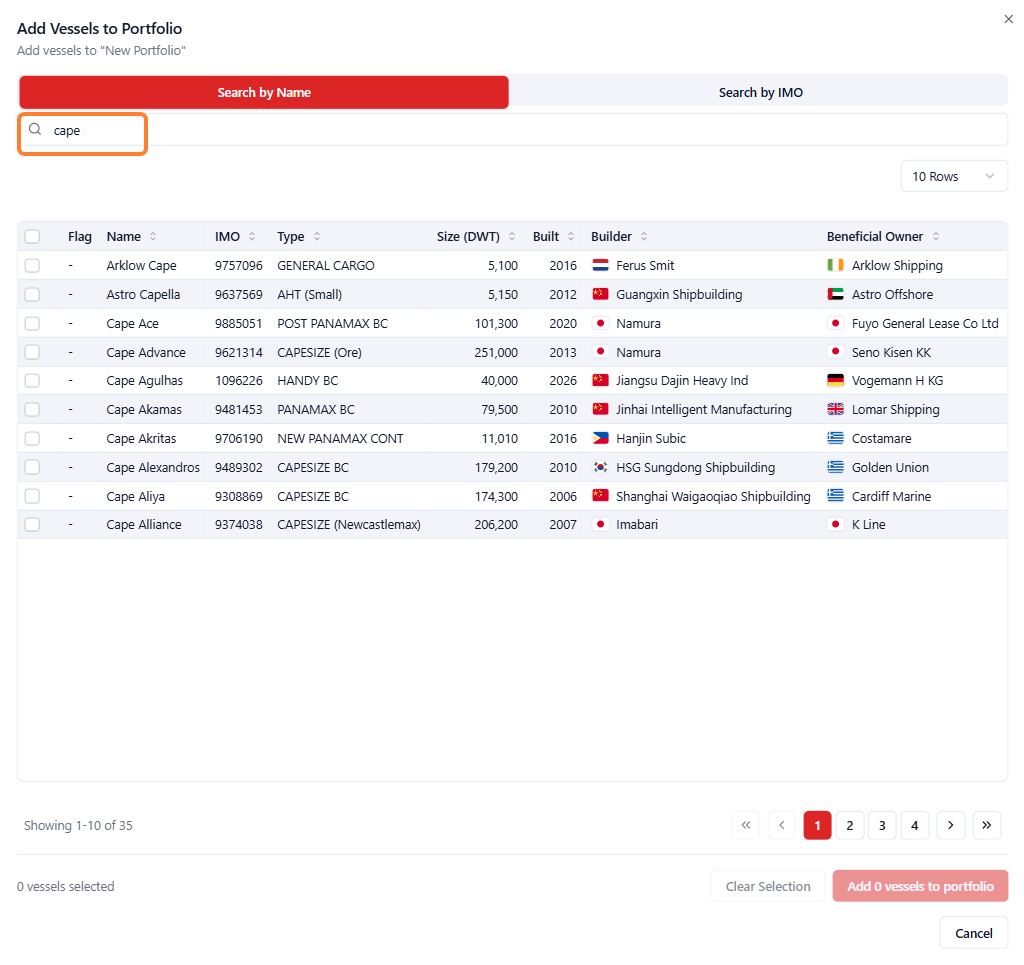
4. To search by the vessel’s name, use the search bar. This will return the matching vessels in the table below.
-
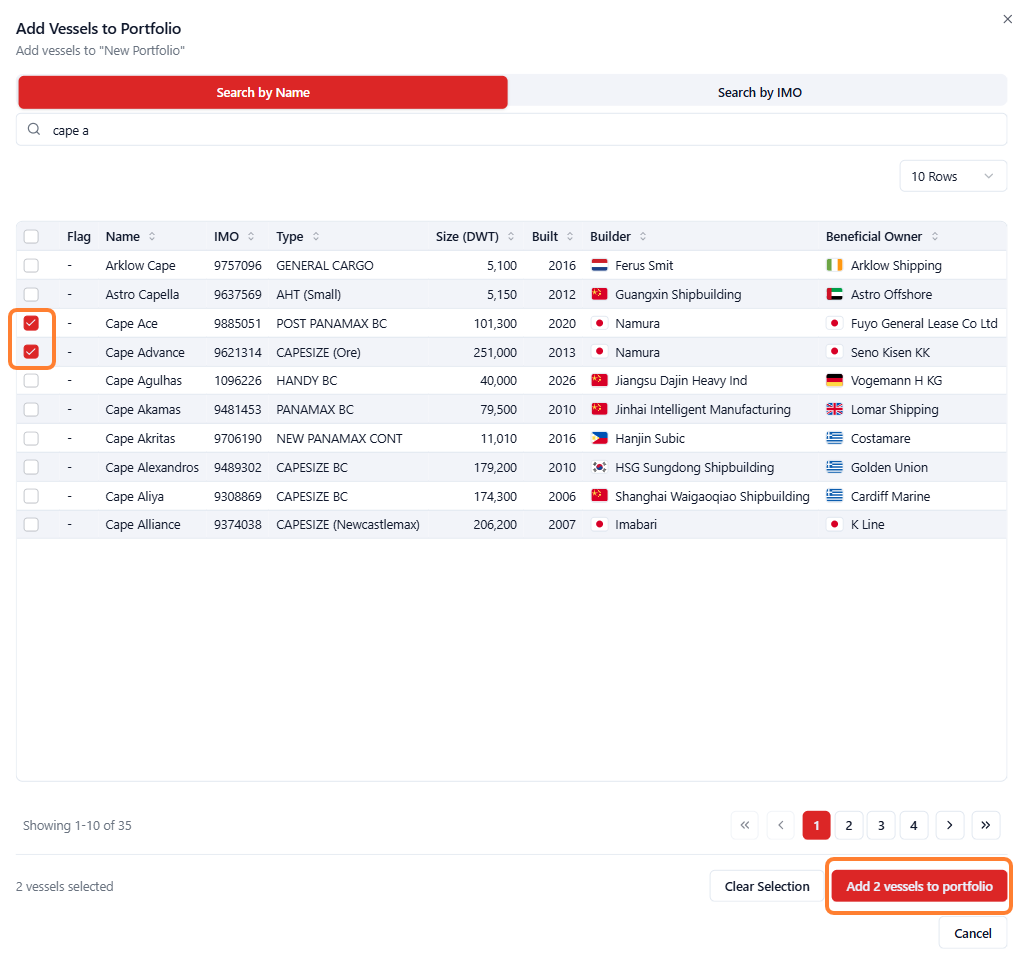
Using the checkboxes to the left of each table row, select the vessels you wish to add to your portfolio, or choose the top checkbox in the header row to select all vessels.
-
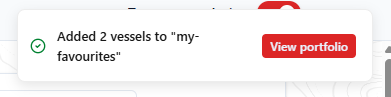
Once selected, choose the Add <X> vessel(s) to portfolio button, and you’ll see a confirmation message. Or a message indicating this vessel is already in your portfolio.
-
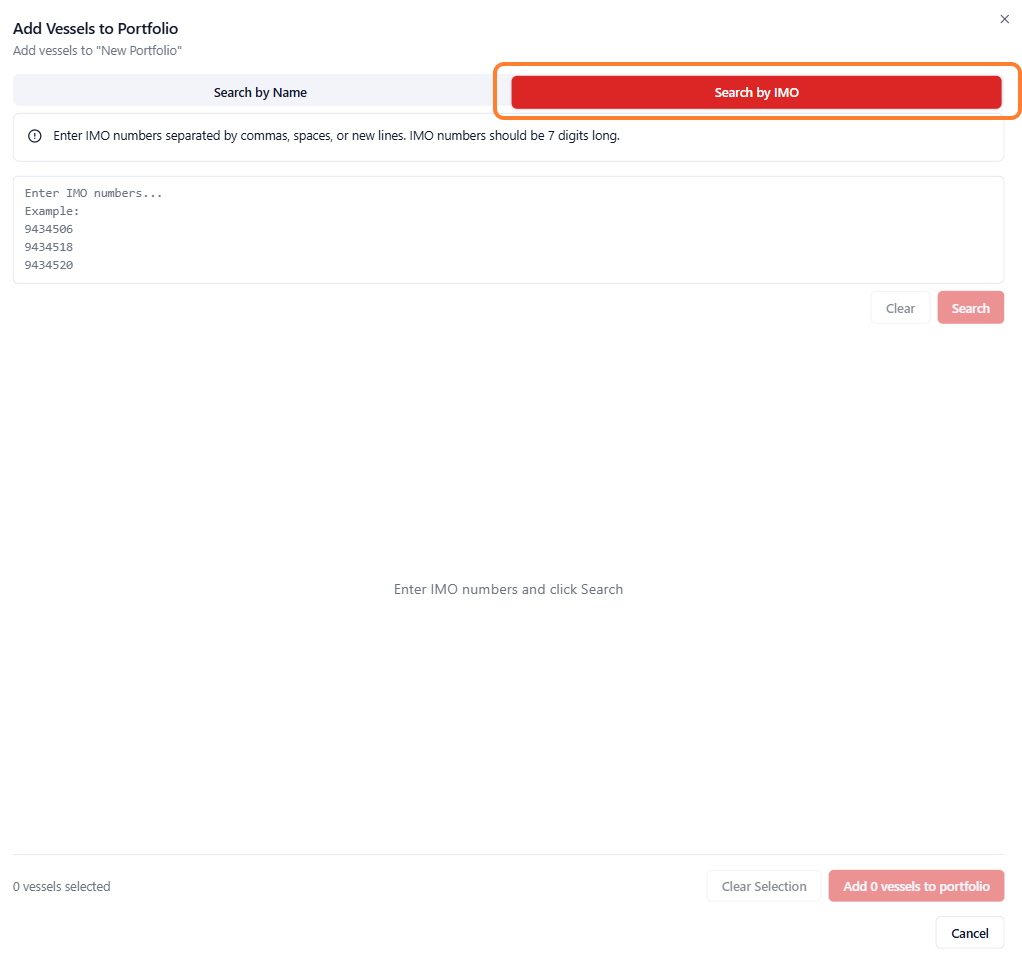
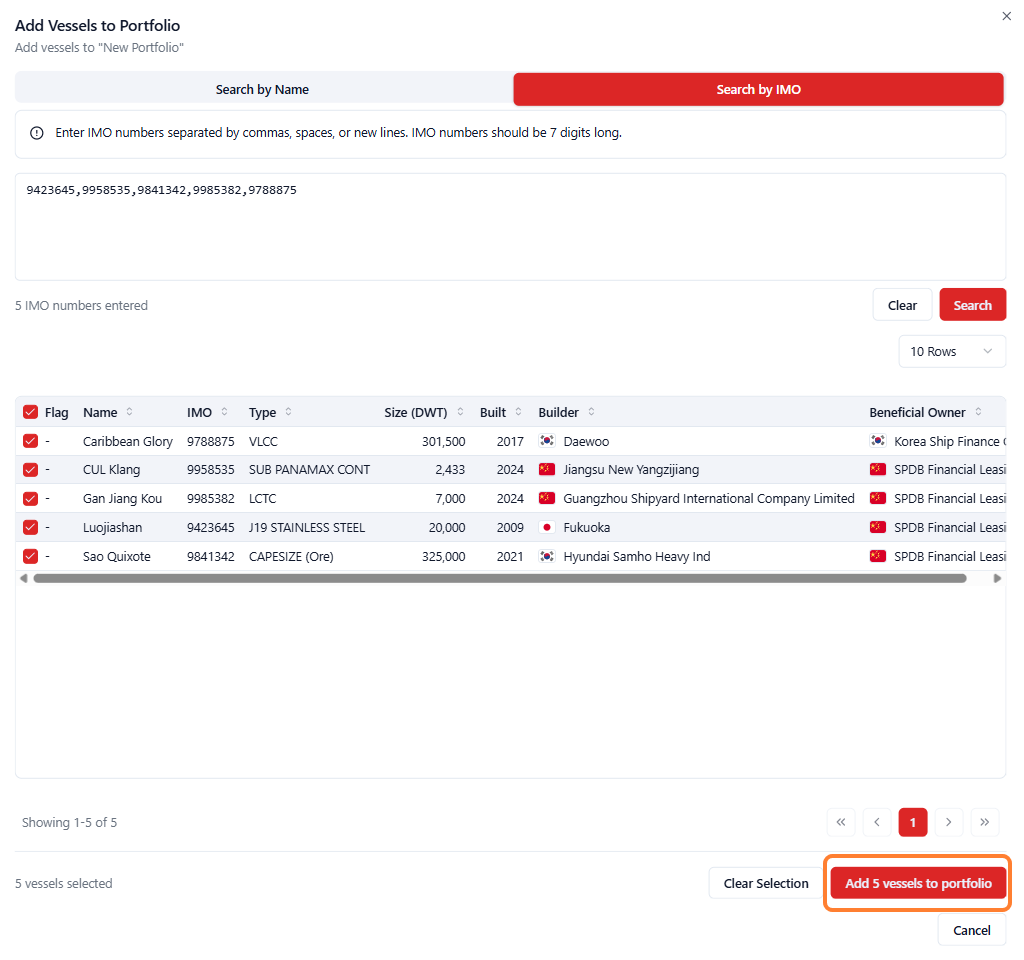
Alternatively, you can choose to add vessels by their IMO number. Select the Search by IMO option.
-
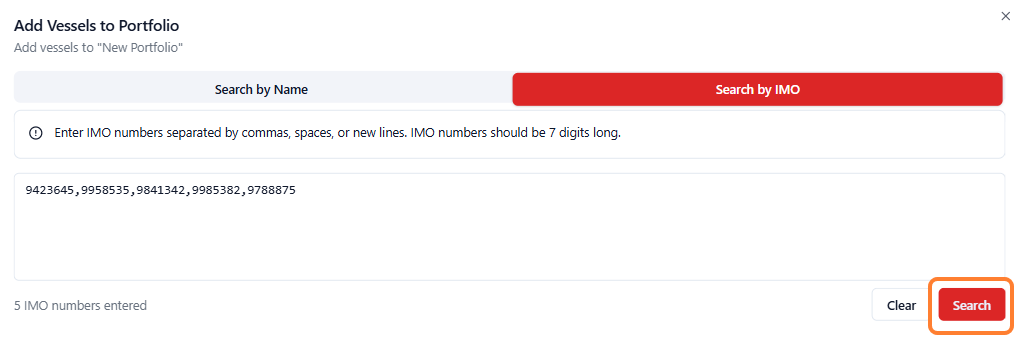
And add your list of IMOs separated by a comma and select Search.
-
Using the checkboxes on the left of each table row, select the vessels you wish to add to your portfolio, or choose to Add <X> vessels to your portfolio using the button in the lower right.
-
Once selected, you’ll see a confirmation message or a message indicating this vessel is already in your portfolio.
Option two: from a Database search
Available to subscribers of our Database products only
-
Navigate to your chosen Database, for example Fleet Database: https://app.vesselsvalue.com/fleet
-
Build your search criteria and press search
-
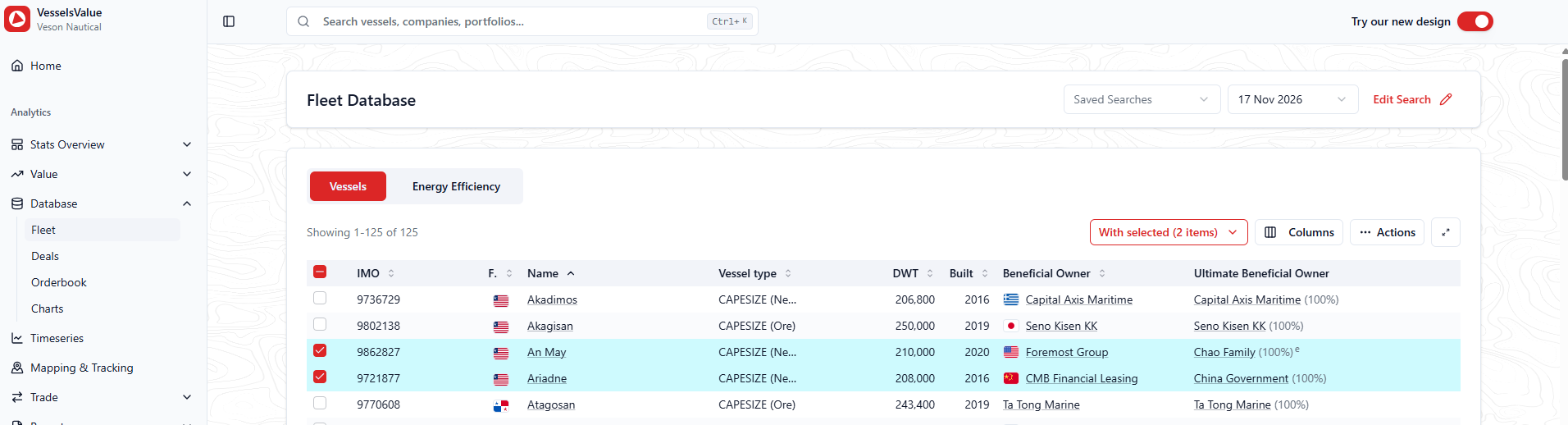
In your results, select the tickboxes on the rows of the vessels you would like to add to your portfolio
-
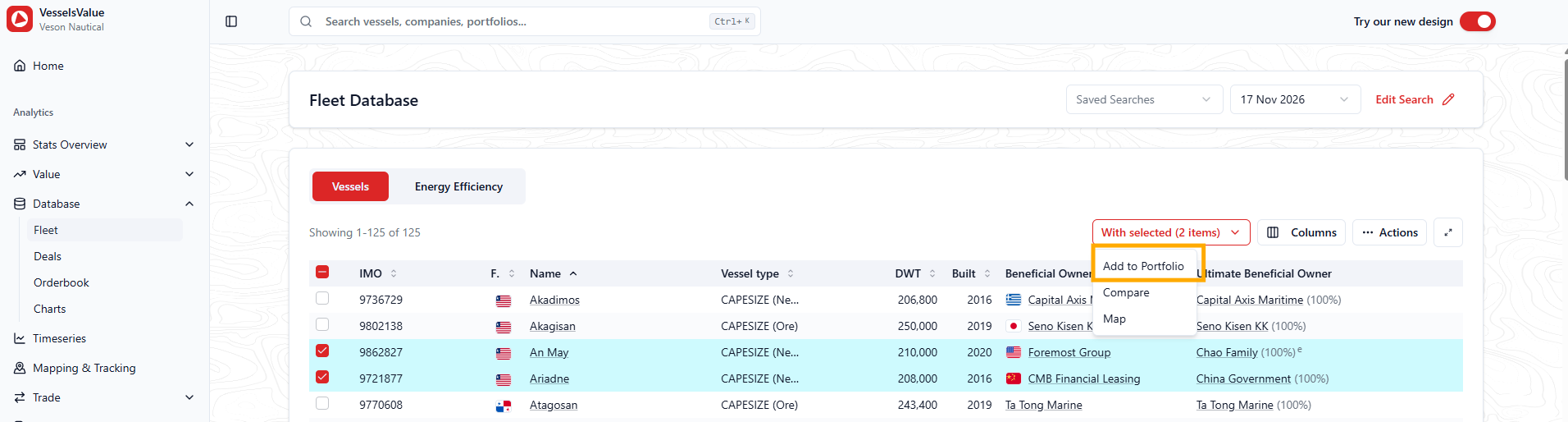
Select With selected (X items) > Add to portfolio
-
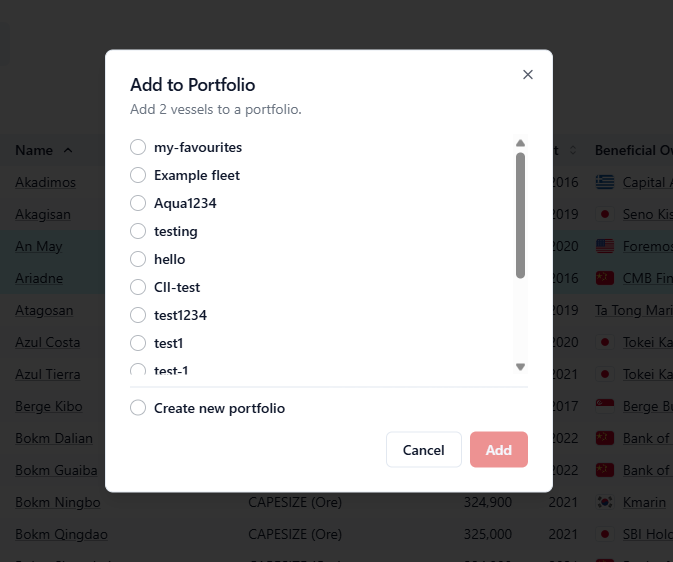
Select the portfolio you wish to add the vessels to from the list
-
Or create a new portfolio by selecting Create new portfolio
-
-
Select Add to add them to your portfolio
-
You will see a confirmation message that they have been added successfully to your portfolio
Option three: from CoCaptain
-
Navigate to the Veson Platform at https://app.veson.com/
-
Select CoCaptain in the side navigation
-
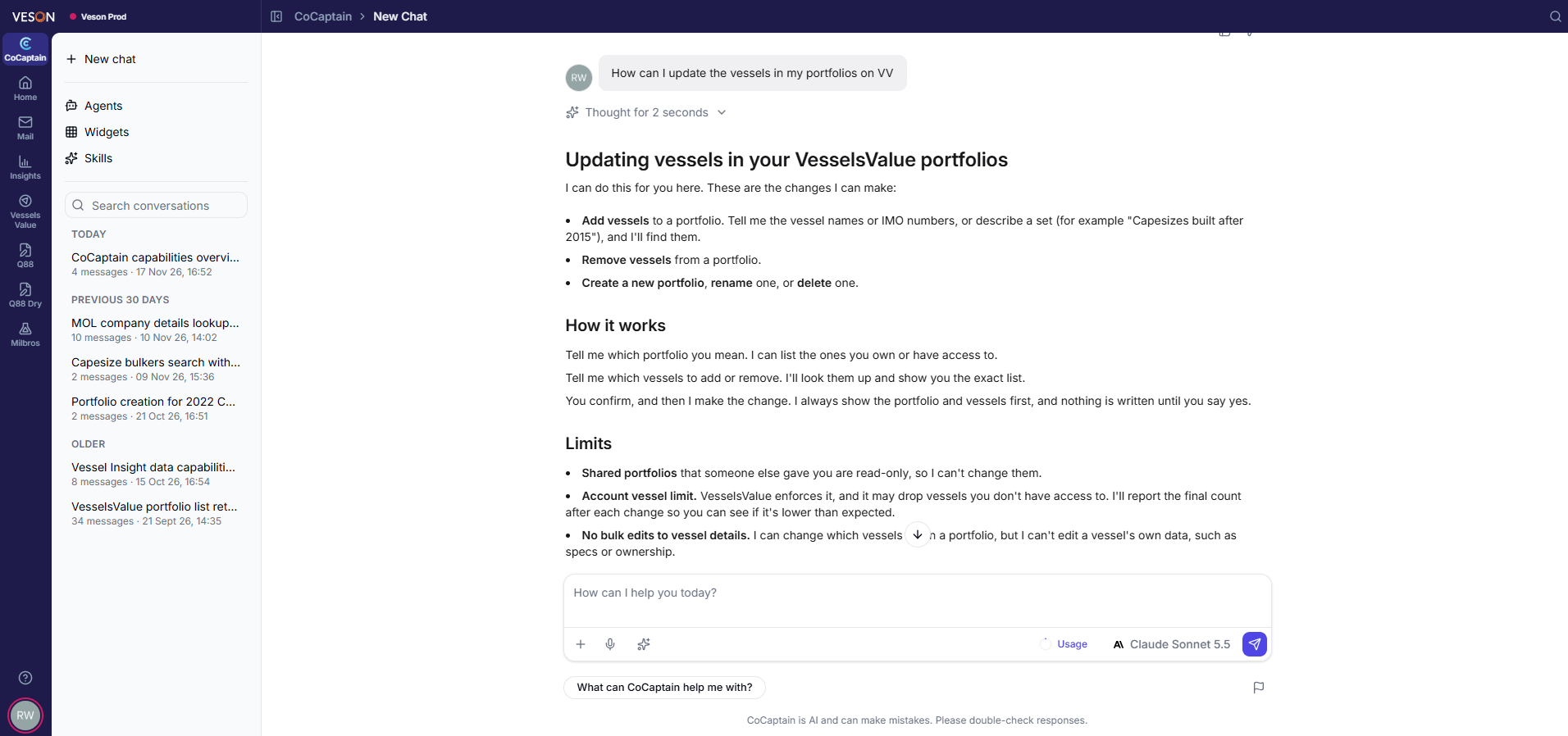
You can ask “How can I update the vessels in my portfolios on VV” and it will provide you instructions on what is possible via CoCaptain
These are the changes I can make:
Add vessels to a portfolio. Tell me the vessel names or IMO numbers, or describe a set (for example "Capesizes built after 2015"), and I'll find them.
Remove vessels from a portfolio.
Create a new portfolio, rename one, or delete one.
For more information on Portfolios, see Enhanced Portfolios