
Option one: reset it from login screen
-
Go to https://app.vesselsvalue.com/login and input your email address
-
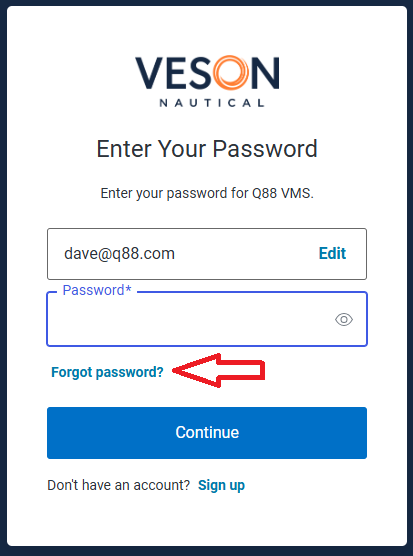
You will then be redirected to the new login page
-
Select Forgot password?
-
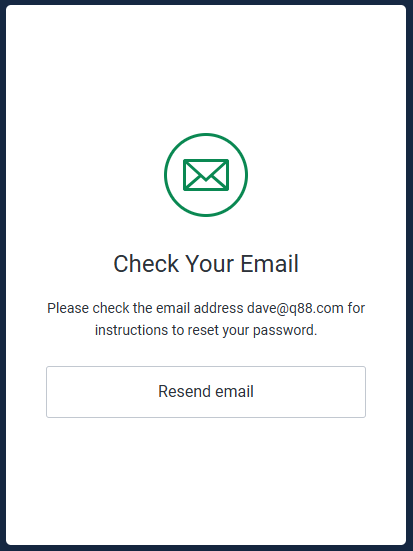
You will then see the confirmation screen like so:
-
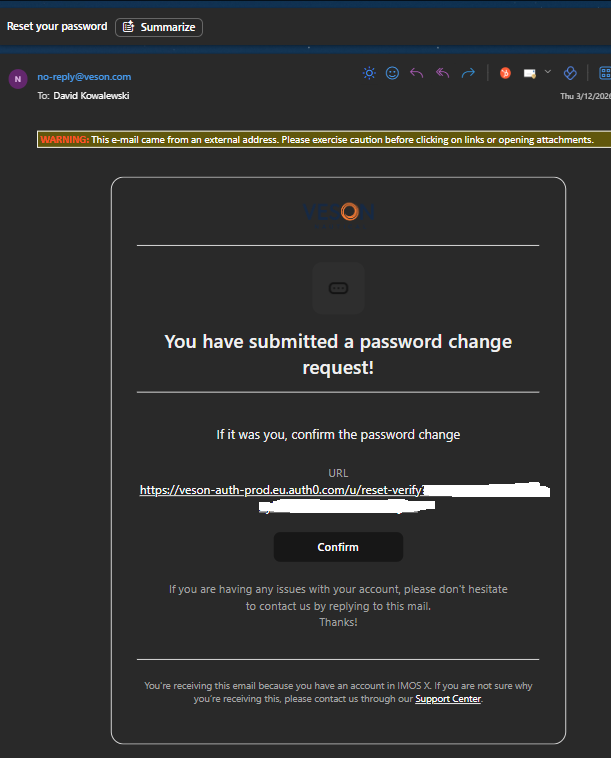
Please go to your email inbox and wait for the email to be delivered. If you don’t receive it after 5 minutes, trigger another by selecting Resend email
Email will be from: no-reply@veson.com and Subject: Reset your password
Option two: resets it from the Account settings page
This will only work for clients who are already logged into the platform.
-
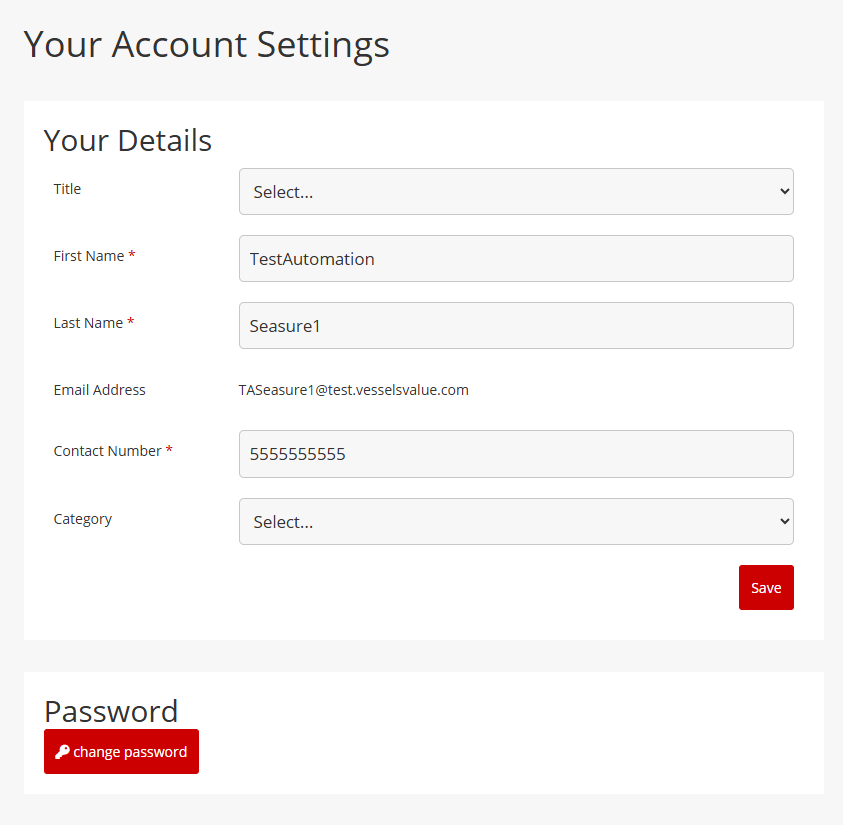
Go to the Account Settings page by navigating to the User icon in the main navigation and then selecting Account Settings
-
Select Change password
-
This will you to a page where you can change your password
Do not use the Forgot Password option on any old login screen you may have bookmarked. Multiple failed login attempts may lead to temporarily locking the account.
Using the VV mobile app?
Unfortunately resetting your password for the VV requires an additional step. Please find instructions below:
-
Follow the steps above to reset your password for the platform General | How do I reset my password, how do I do this?
-
After this, go to https://app.vesselsvalue.com/forgot-password
-
Trigger a reset password email
-
Input the same password as the one you set in the SSO reset password flow
-
If you are still experiencing issues, please contact your Account Manager or our Support Team for assistance and we’ll be happy to help.
Using your own company’s IDP?
Please speak with your internal IT team to reset your password.