
Position List gives you several ways to look at the same search results. Each view answers a different question, from where a vessel is right now to what it could earn on a voyage. This guide explains what each view shows and how to get the most from it.
Switching between views
Use the View dropdown in the top-left corner of Position List to move between views. Every view works from the vessels returned by your current search, so you can switch views without starting a new search.
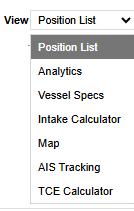
Views at a glance
|
View |
What it shows |
Use it to |
|---|---|---|
|
Position List |
Every vessel that meets your search criteria, with open dates, areas, and ports |
Review and update vessel positions |
|
Analytics |
Charts that summarize your results |
Understand the shape of the available tonnage |
|
Vessel Specs |
Key vessel particulars in a grid |
Compare vessel specifications side by side |
|
Intake Calculator |
Maximum cargo intake after reduction factors |
Quote maximum cargo before fixing a voyage |
|
Map |
Vessel locations on a world map |
See where vessels are and which are open nearby |
|
AIS Tracking |
Live AIS position, speed, status, and destination |
Monitor vessel positions and movements |
|
TCE Calculator |
Estimated daily earnings for each vessel |
Compare voyage economics and test scenario |
Every view has additional columns that can be added to the view. The view can be exported into Excel
Position List View
Position List is the main view. It displays the vessels that meet your search criteria and is where you update vessel positions.
How to use it
After a search is run:
-
Select a vessel to review or update its position.
-
Adjust the columns to show the information that matters most to you.
-
Sort the list by selecting a column header.