
You may now enable notifications for new incoming emails to be displayed on both your desktop and mobile app for selected tabs of your choice (access to this feature is currently restricted).
Enabling Notification
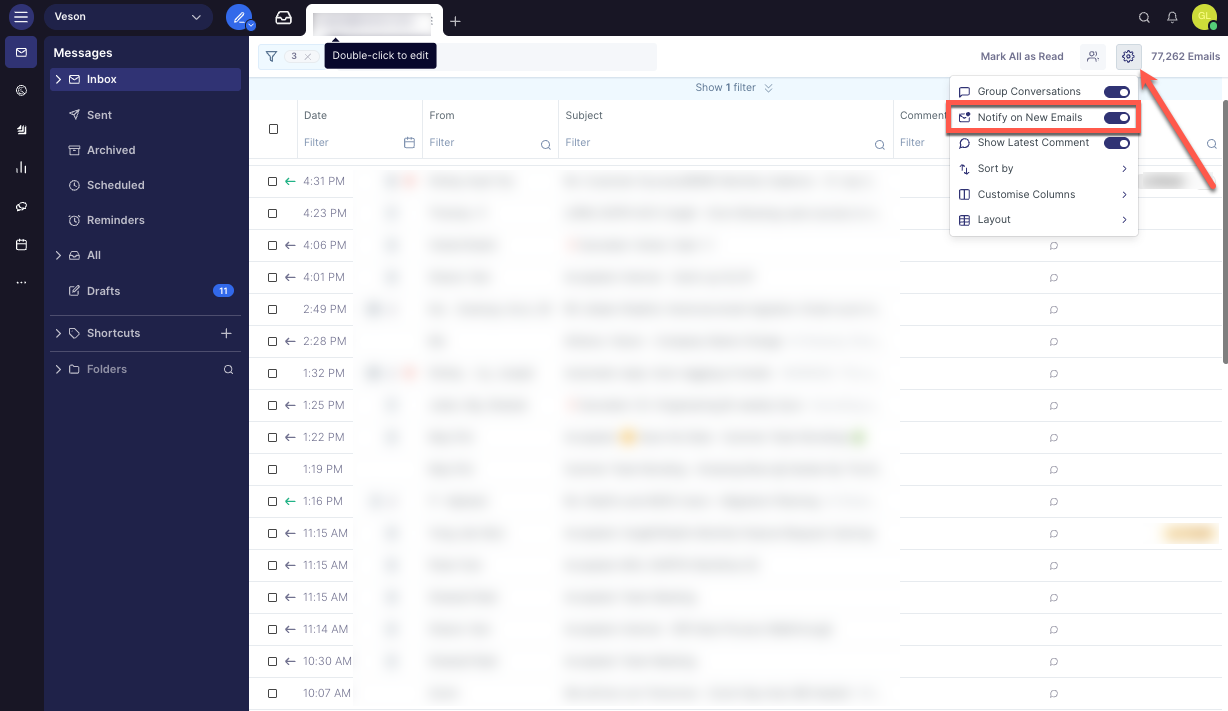
To enable notifications for a tab, go to your tab settings and enable Notify on New Emails.
Managing Notifications Settings
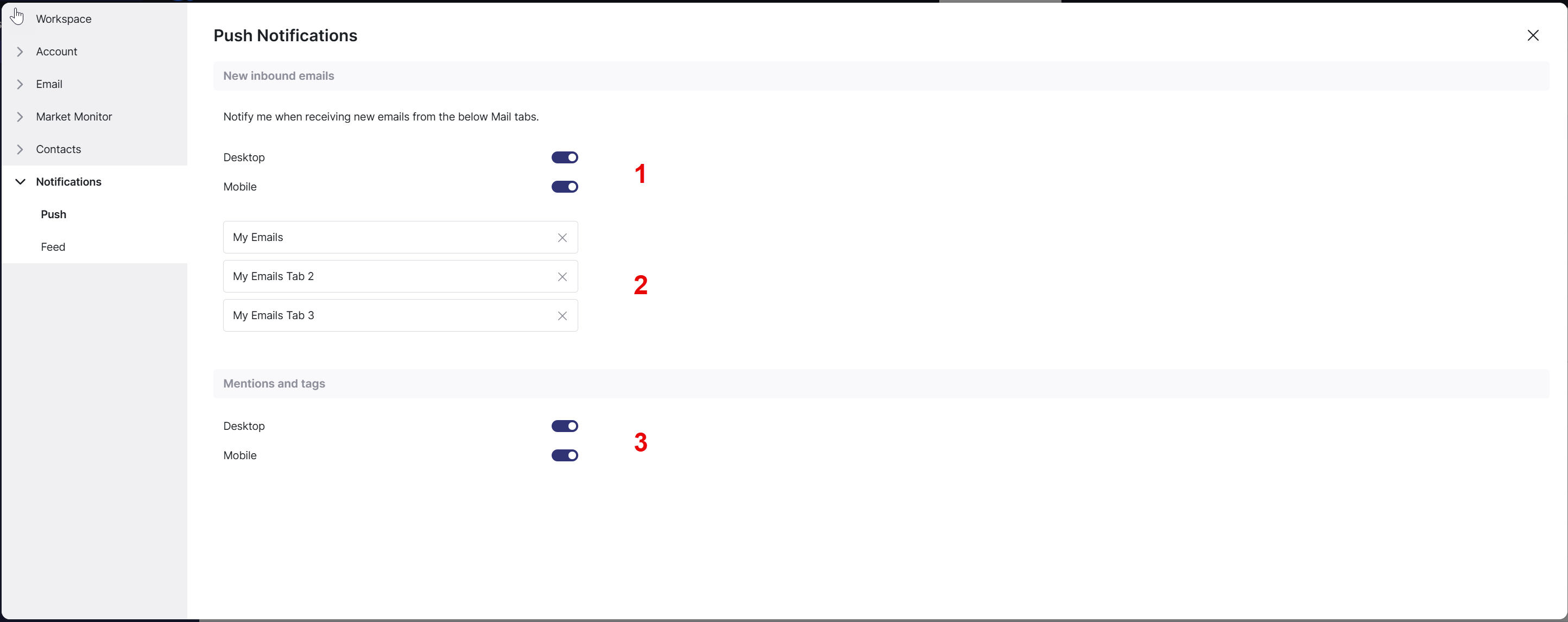
From the settings panel (Notifications - Push), you can:
-
Choose your notification devices: Receive notifications on Desktop, Mobile, or both
-
Manage active tabs: View all tabs currently sending notifications
-
Click the X to disable notifications for a specific tab
-
Click the tab name to quickly navigate to it
-
-
Configure notification triggers: Choose to receive notifications when:
-
You or your team(s) are tagged on an email
-
You or your team(s) are mentioned in a comment
-
Note: Please ensure that you have enabled notifications for Shipfix on your web browser and Operating system as well.
Allowing Notifications in your Browser
For Chrome:
-
Click the three dots (⋮) in the top-right corner
-
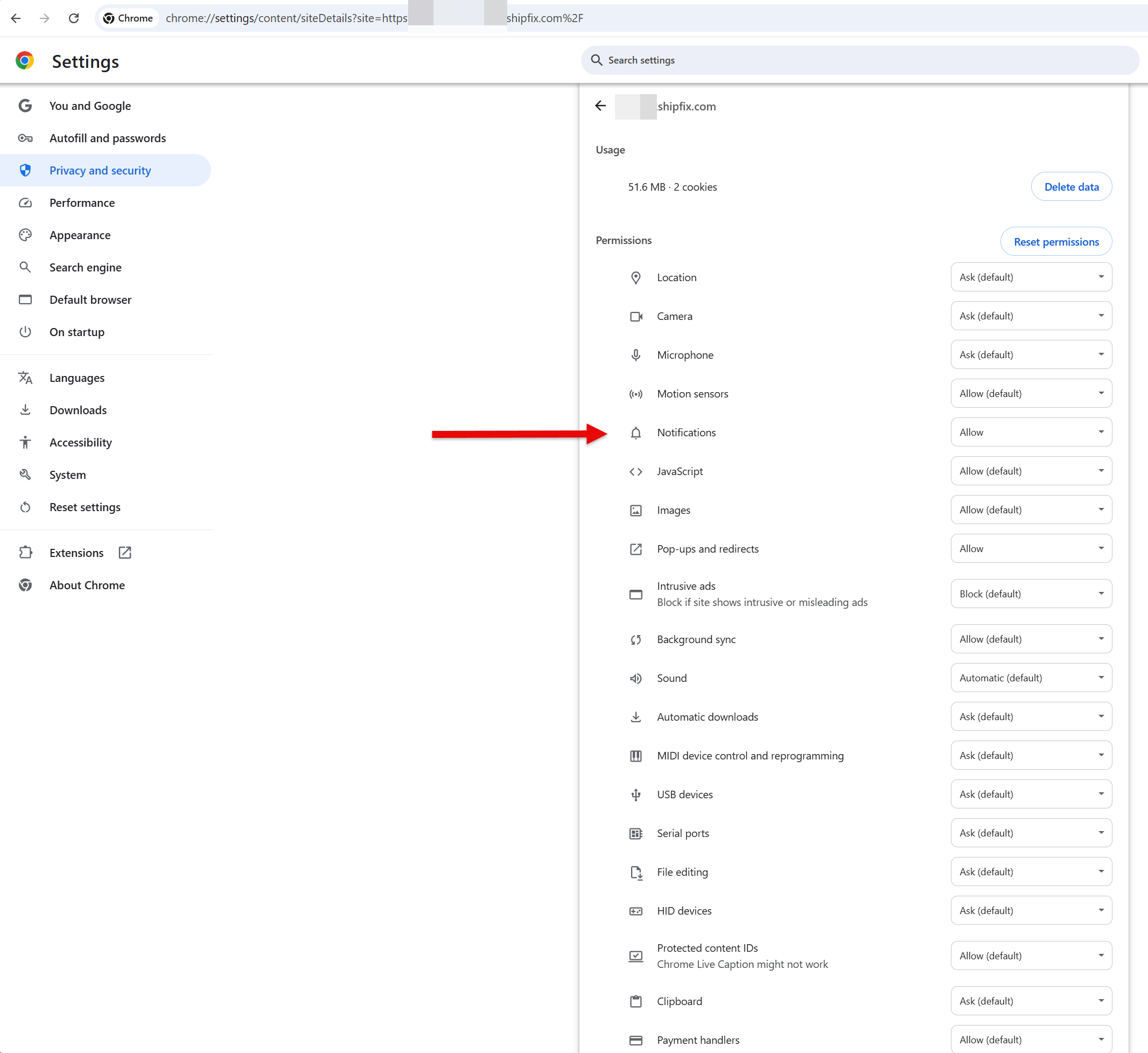
Go to Settings > Privacy and security > Site settings
-
Scroll down and click Notifications
-
Find Shipfix in the list and toggle permissions to "Allow"
For Edge:
-
Click the three dots (…) in the top-right corner
-
Go to Settings > Cookies and site permissions > Notifications
-
Find Shipfix under "Allow" or add it manually
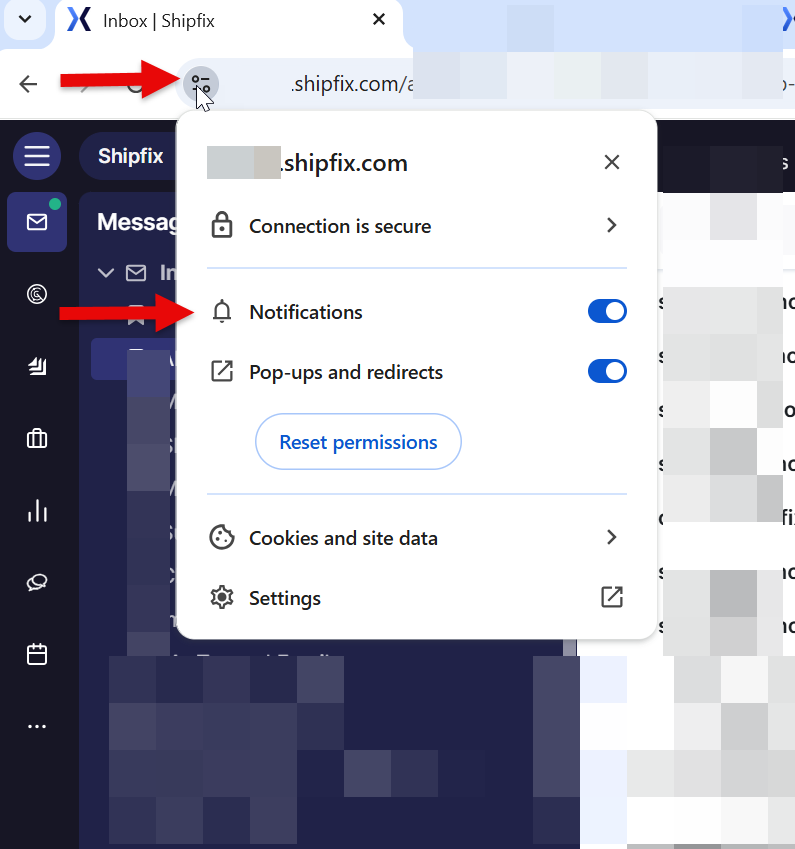
Alternatively (for Edge and Chrome):
-
Click the lock icon (🔒) or info icon at the start of the address bar
-
Find Notifications and ensure it's set to Allow
-
If it says "Blocked," change it to "Allow" and refresh the page
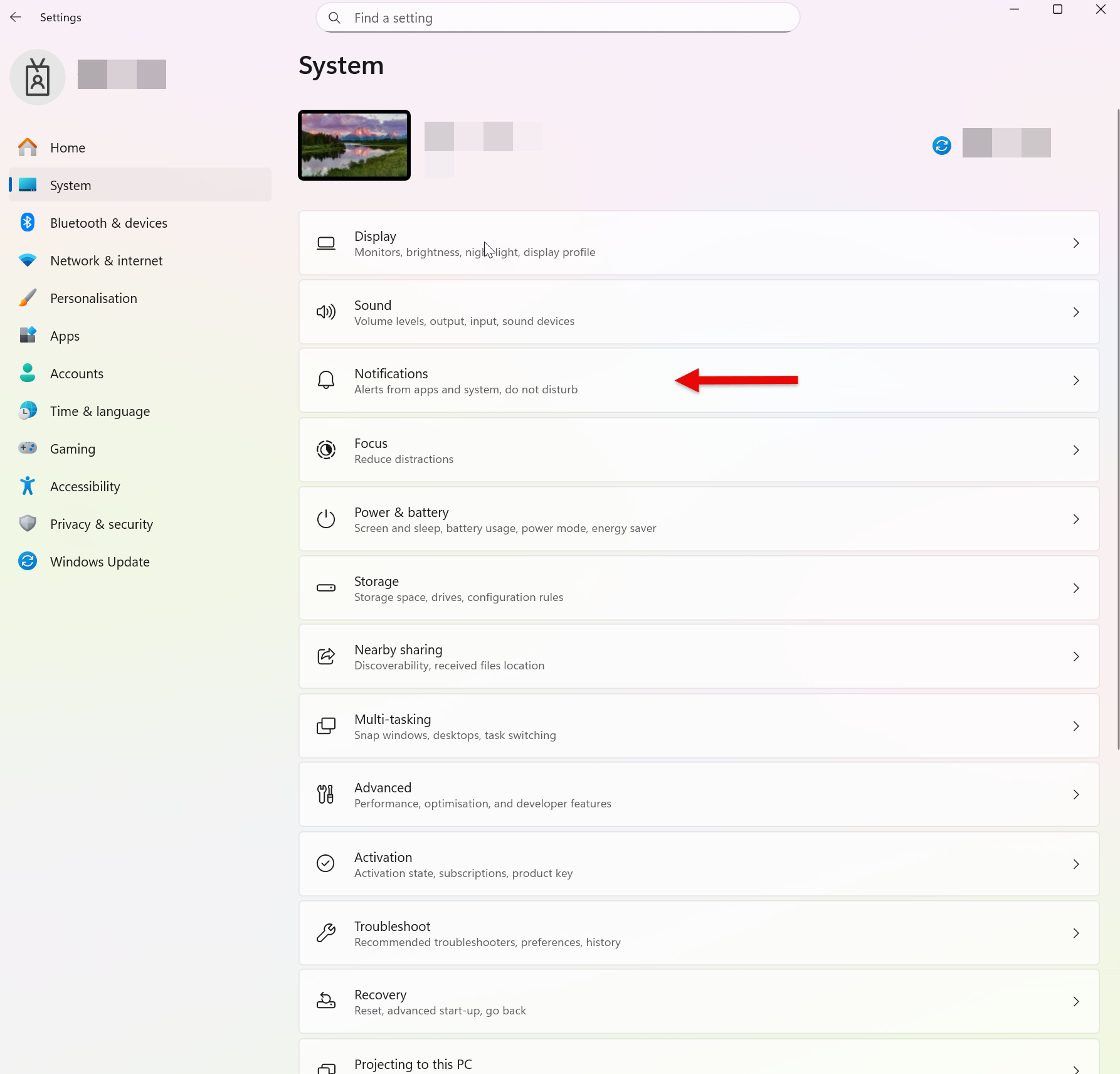
Allowing Notifications in Windows
Press Windows key + I to open Settings
-
Go to System > Notifications
-
Ensure Notifications are turned On
-
Ensure Do Not Disturb is Off (or configure it in Focus Assist settings)
-
Scroll down to find your browser (Chrome, Edge, etc.) in the app list
-
Toggle it to On
-
If Shipfix is also available in the list, toggle it to On too
Troubleshooting
-
Check antivirus/firewall: Some security software blocks browser notifications (check with your IT team too)
-
In Windows’ Settings, double check in Privacy & security > Notifications . Try to toggle to On the option ‘let apps access your notifications’.
-
For Microsoft Edge, try resetting its notifications state:
Run the following commands in powershell or in the Terminal (you may need Admin permissions)
Get-AppxPackage Microsoft.MicrosoftEdge.Stable | Remove-AppxPackage
Get-AppxPackage Microsoft.MicrosoftEdge.Stable | Add-AppxPackage -Register
-
Reset browser’s Settings (for Both Edge and Chrome, it may reset some settings you want to keep, so be careful before proceeding with it)
-
In Edge/Chrome: → Settings → Reset settings → Reset settings to their original defaults
-
or directly copy paste the following in your address bar:
edge://settings/reset(for Edge) orchrome://settings/reset(for Chrome), then press on Reset settings to their original defaults
-