
This article will explain how to reach the Email Side Panel and explain its features.
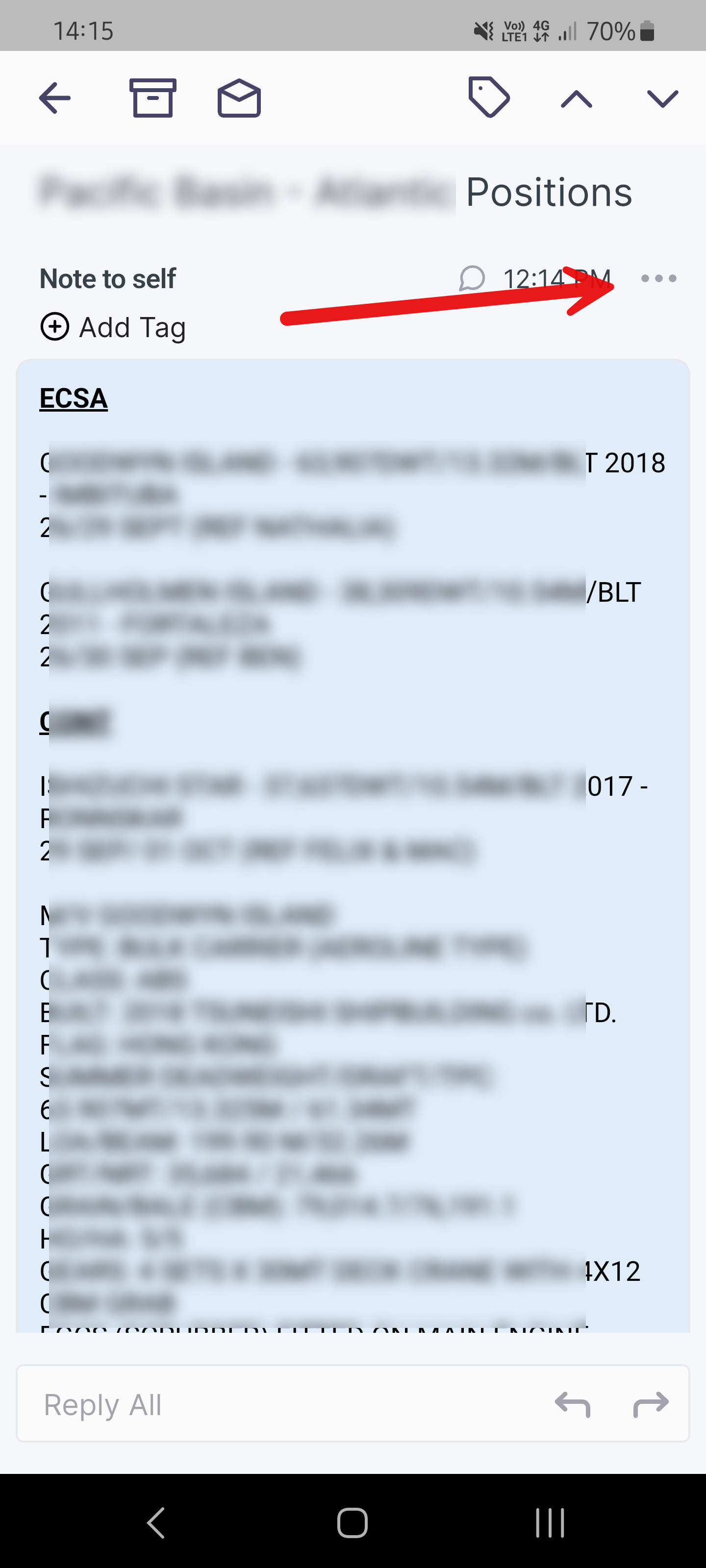
In the Shipfix Mobile App, you can find the Email side panel when you open an email and select the 3 dot menu.
The email side panel displays a list of options related to the mail you have selected.
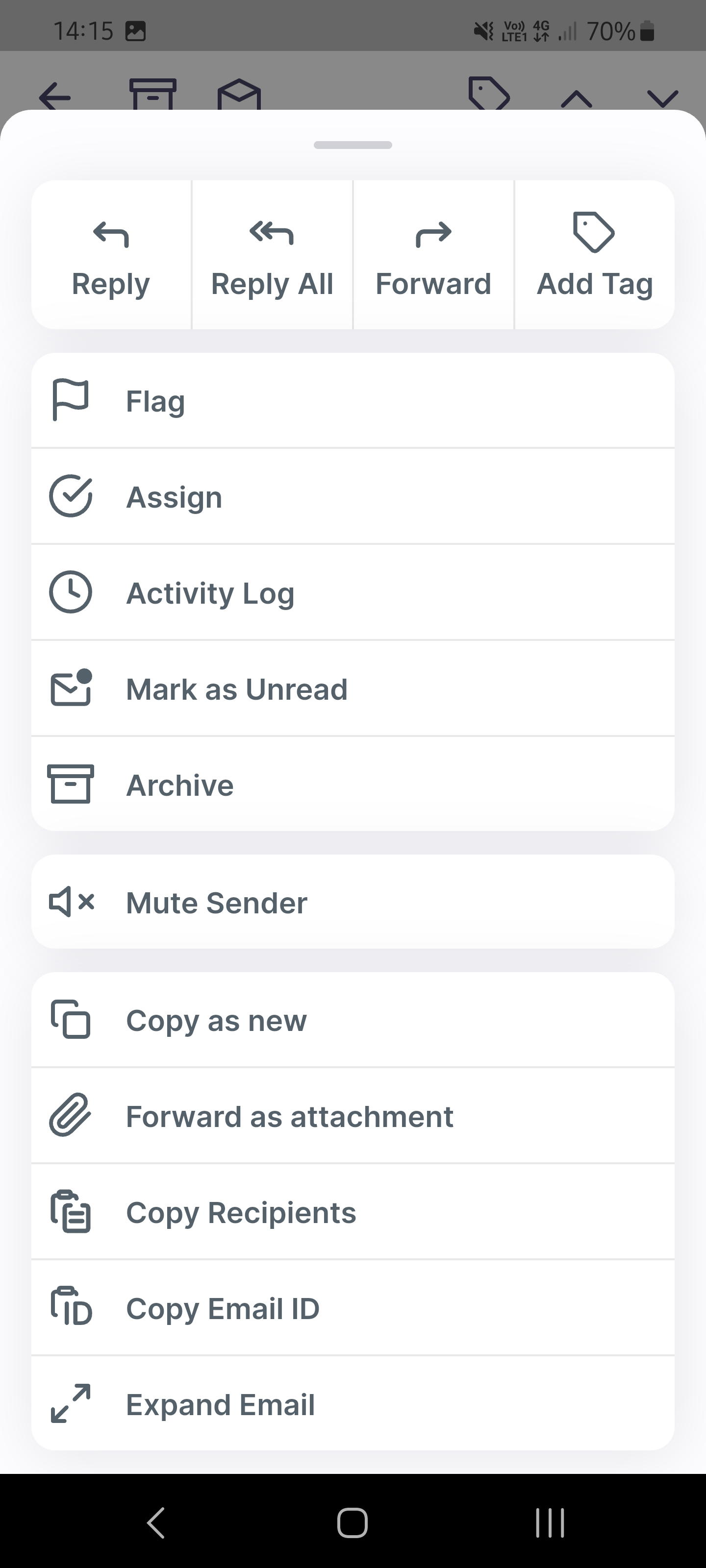
Below is the list of options available:
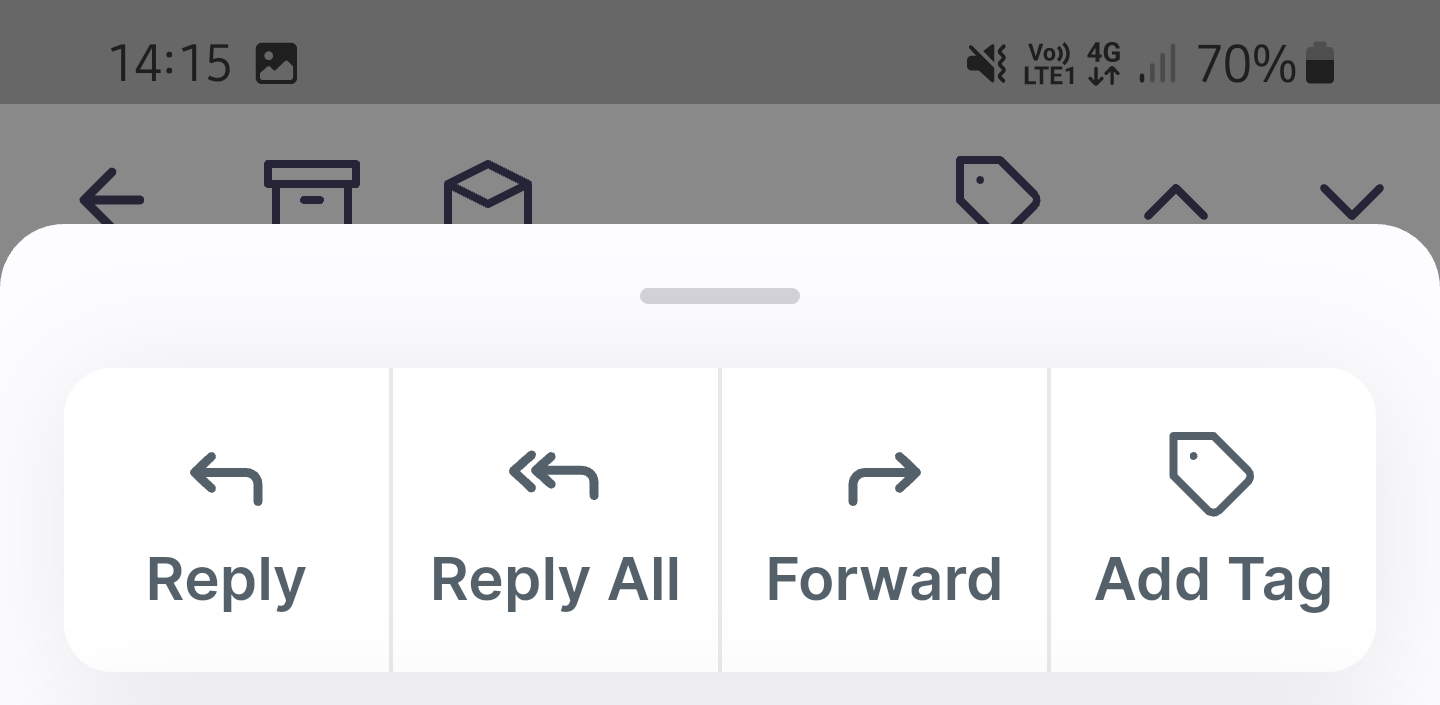
Reply options : Reply, Reply all, Forward
Add a tag - Select ‘Add a tag’ to apply a tag to the mail, or create a new tag to apply.
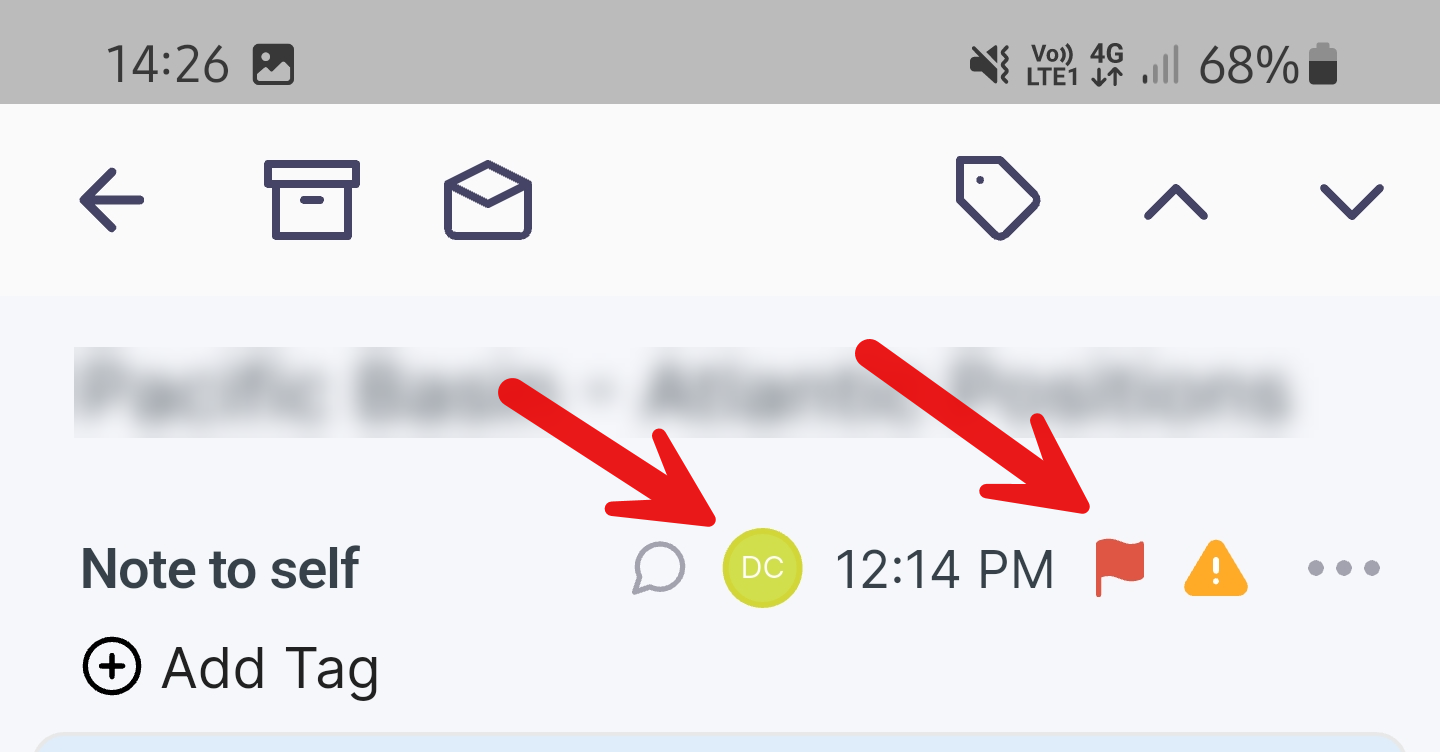
Flag - Adds a red flag to the email. This is shown next to the 3 dot menu, and also in the mailbox list. Click again to un-flag.
Assign - is the equivalent of ‘working on it' on desktop.
Assigns you to the selected mail.. Displaying your initials in the information bar to notify other users you are working on this. Click again to un-assign.
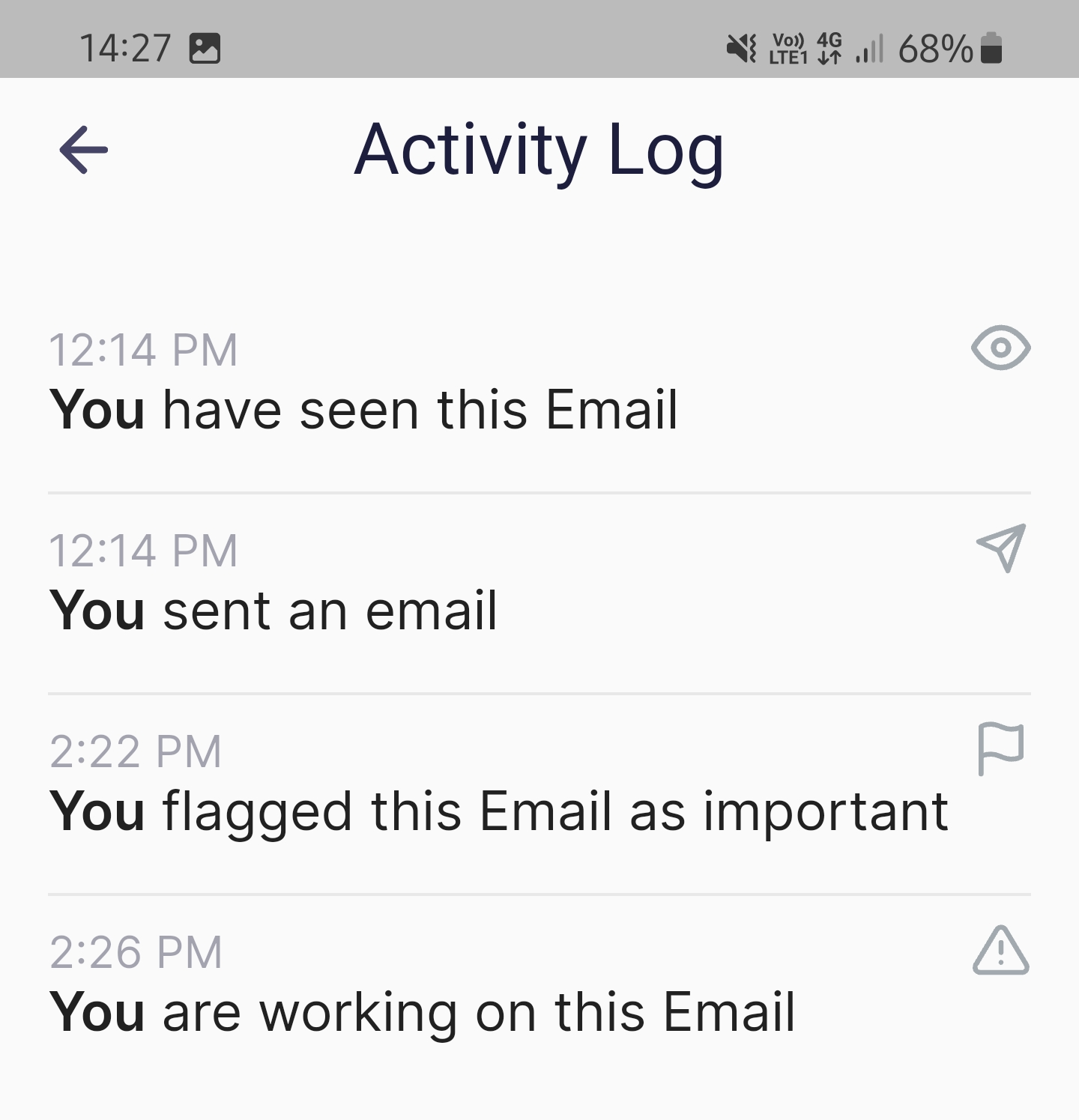
Activity Log - Displays the historical activity of this email.
Mark as Unread - Marks the email as unread.
Archive - Will archive the mail. The Archive can be accessed via the main burger menu in the top left corner. Archive is located below the Sent box.
Mute Sender - This will hide mail from the selected sender.
Copy as new - Will copy the email contents in to a new draft.
Forward as attachment - To send the mail as an attachment.
Copy recipients - Copies all the recipients of this mail.
Copy Email ID - Click to obtain the email’s ID (which we may ask for troubleshooting) The format will look like this: @c7cd67bb-d21b-6784-bc64-5xxxxxxxxxxx
Expand Email - This will expand the display to fit the full screen, only showing the email content and not any options or side panel.