
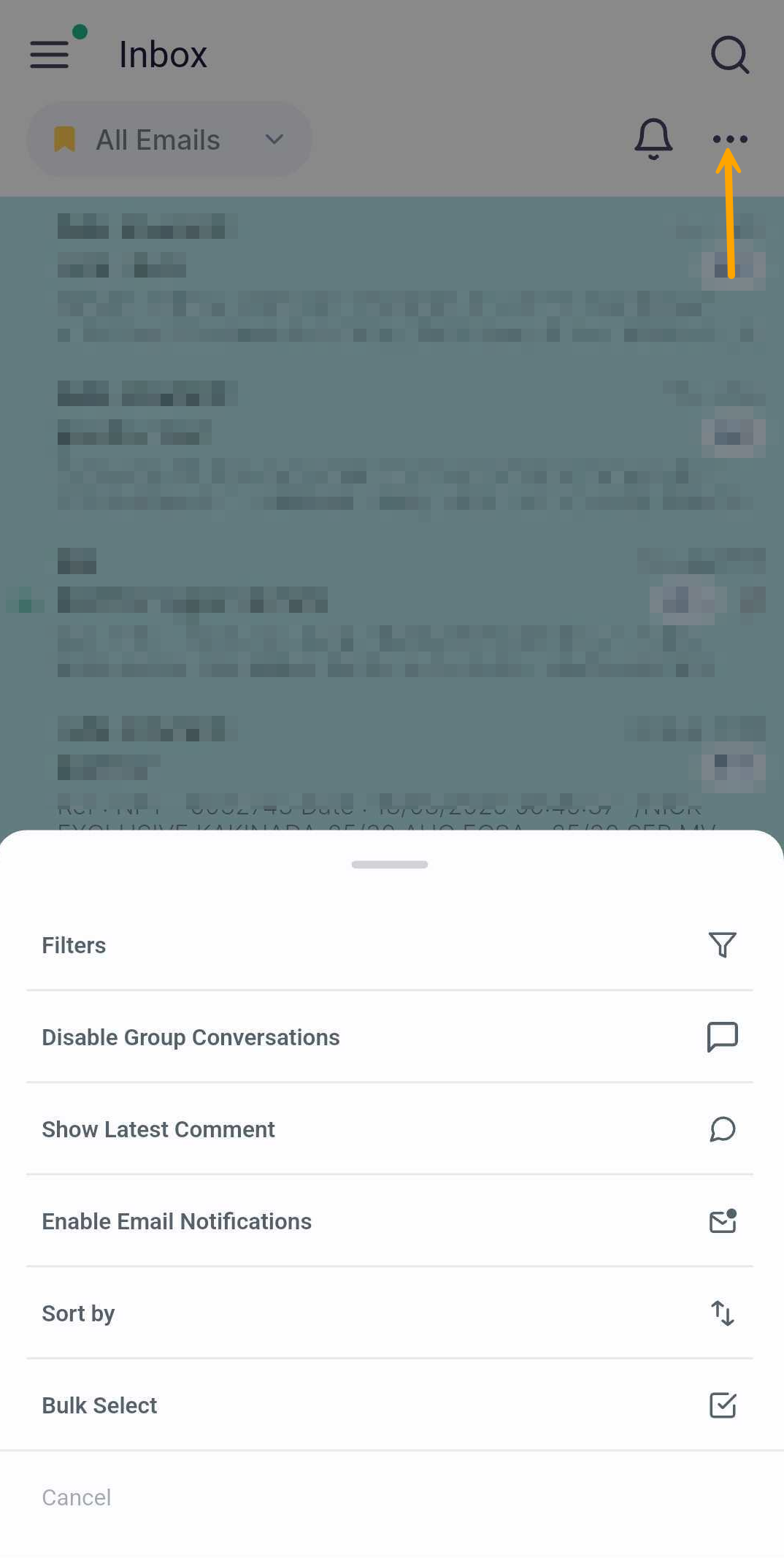
The Tab Settings can be accessed from the three-dot (⋯) menu on the Inbox page of the Shipfix mobile app. It contains the following functions to help you organise your mailbox.
-
Filters – Filters allow you to define specific criteria to automatically organize emails into focused tabs. They help you manage your inbox more efficiently by displaying only the messages that meet your chosen conditions.
-
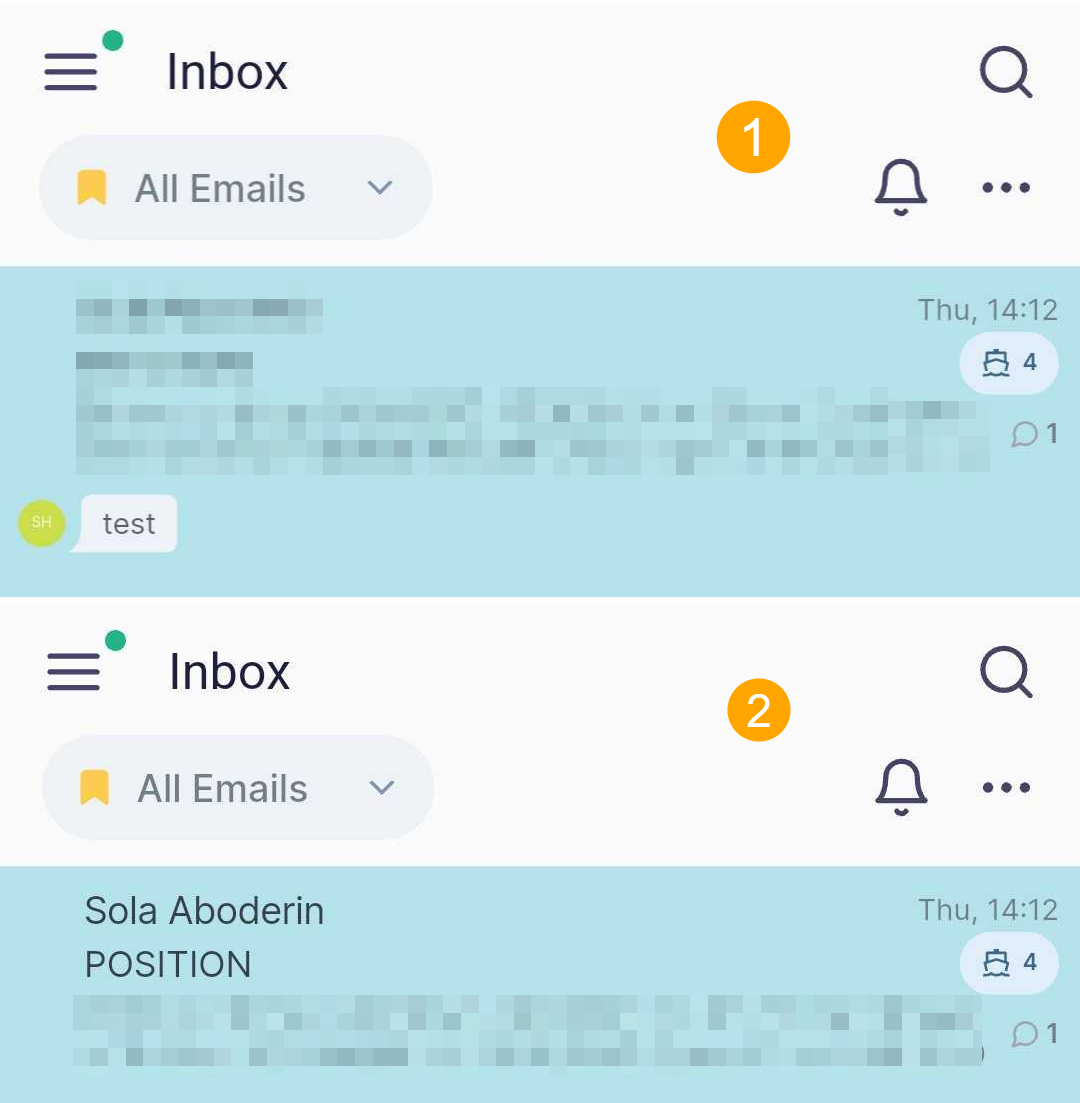
Group Conversations / Disable Group Conversations – Choose to group email threads into fewer rows for a cleaner view, or ungroup them to see individual emails separately.
-
Show Latest Comment / Hide Latest Comment – Show or hide the most recent comment on an email or thread directly on the Inbox screen.
-
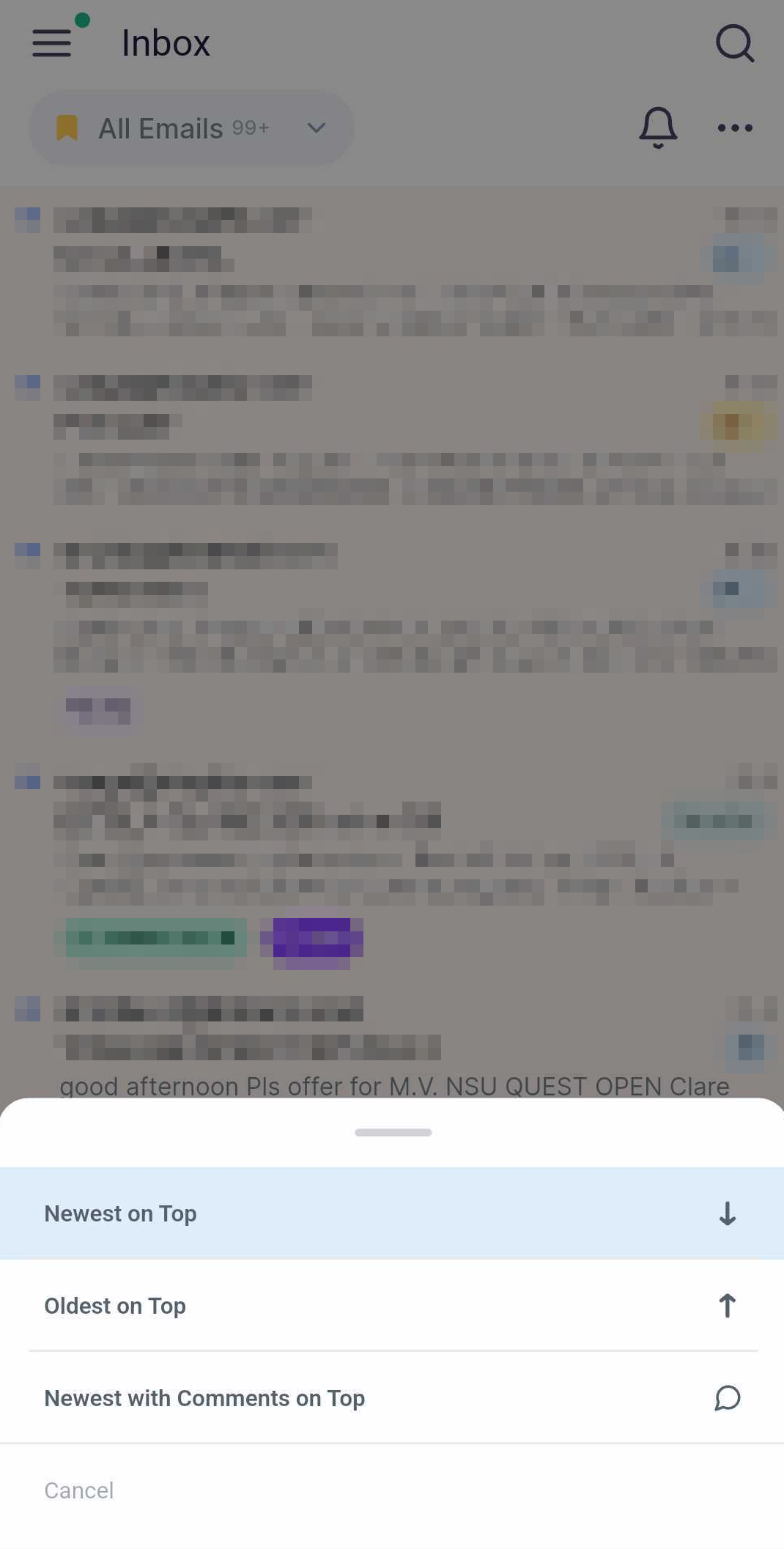
Sort By – Sort your emails by:
-
Oldest on Top (by received date),
-
Newest on Top (by received date), or
-
Newest with Comments on Top (most recently received emails and most recently commented emails will appear on top).
-
-
Bulk Select – Select multiple emails at once for batch actions. When activated, checkboxes appear on the left side of each email, allowing you to select one or more messages to apply an action to. You can also long-press on any email to quickly enable this selection mode without opening the menu
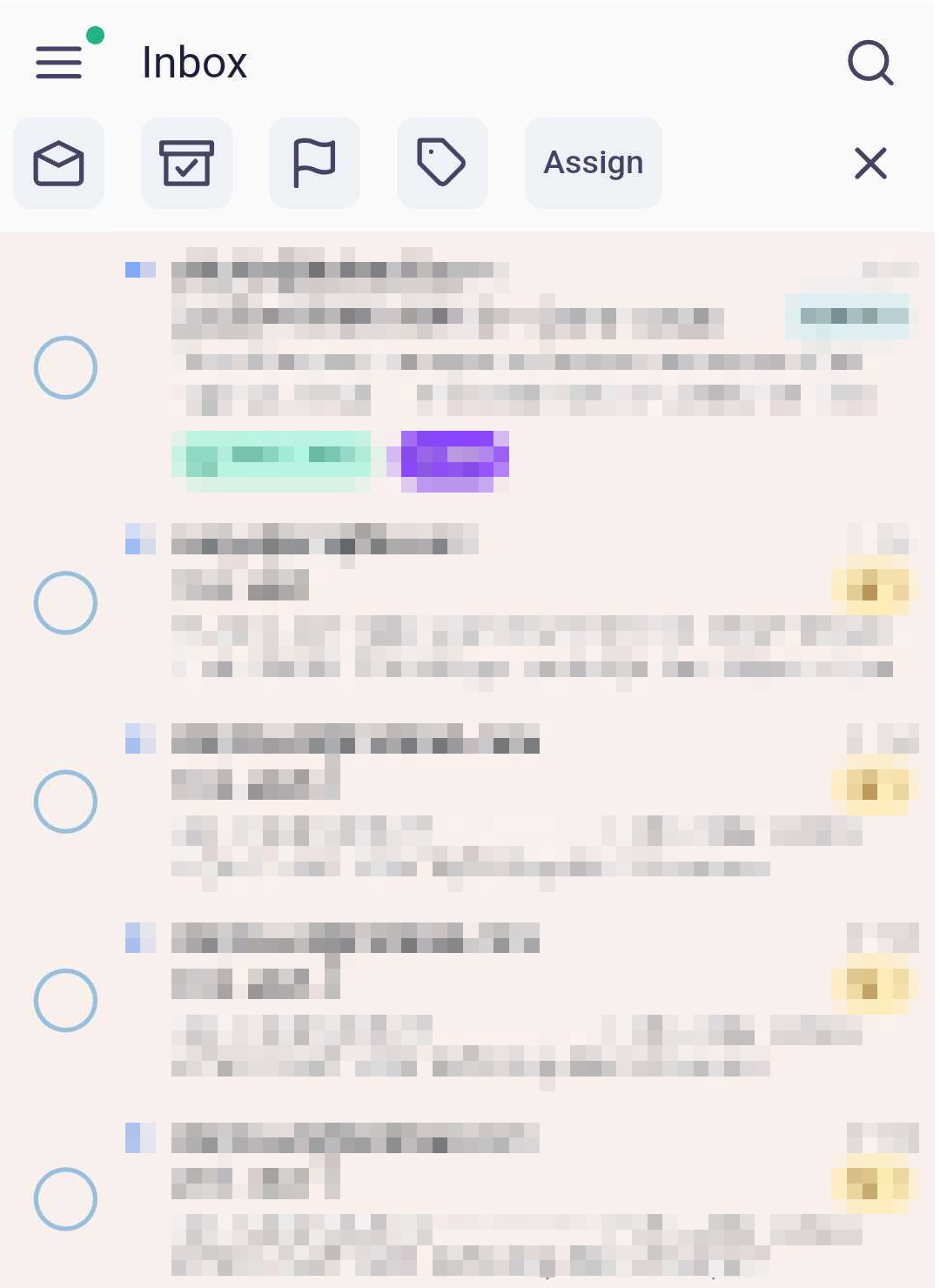
The following bulk actions can be taken on the selected emails:
-
Mark as Read/Unread:

-
Archive:

-
Flag:

-
Tag:

-
Assign:
