The Filter function can be accessed through the tab settings (the three horizontal dots ⋯) on the mobile app's Inbox page.
Just like on the Shipfix desktop app, the mobile app allows you to filter your inbox using the same four categories. To apply filters, follow these steps:
-
Filter Menu
Tap the three-dot menu on the mobile app homepage and select filter from the Tab settings menu options. This will take you to the basic filter screen.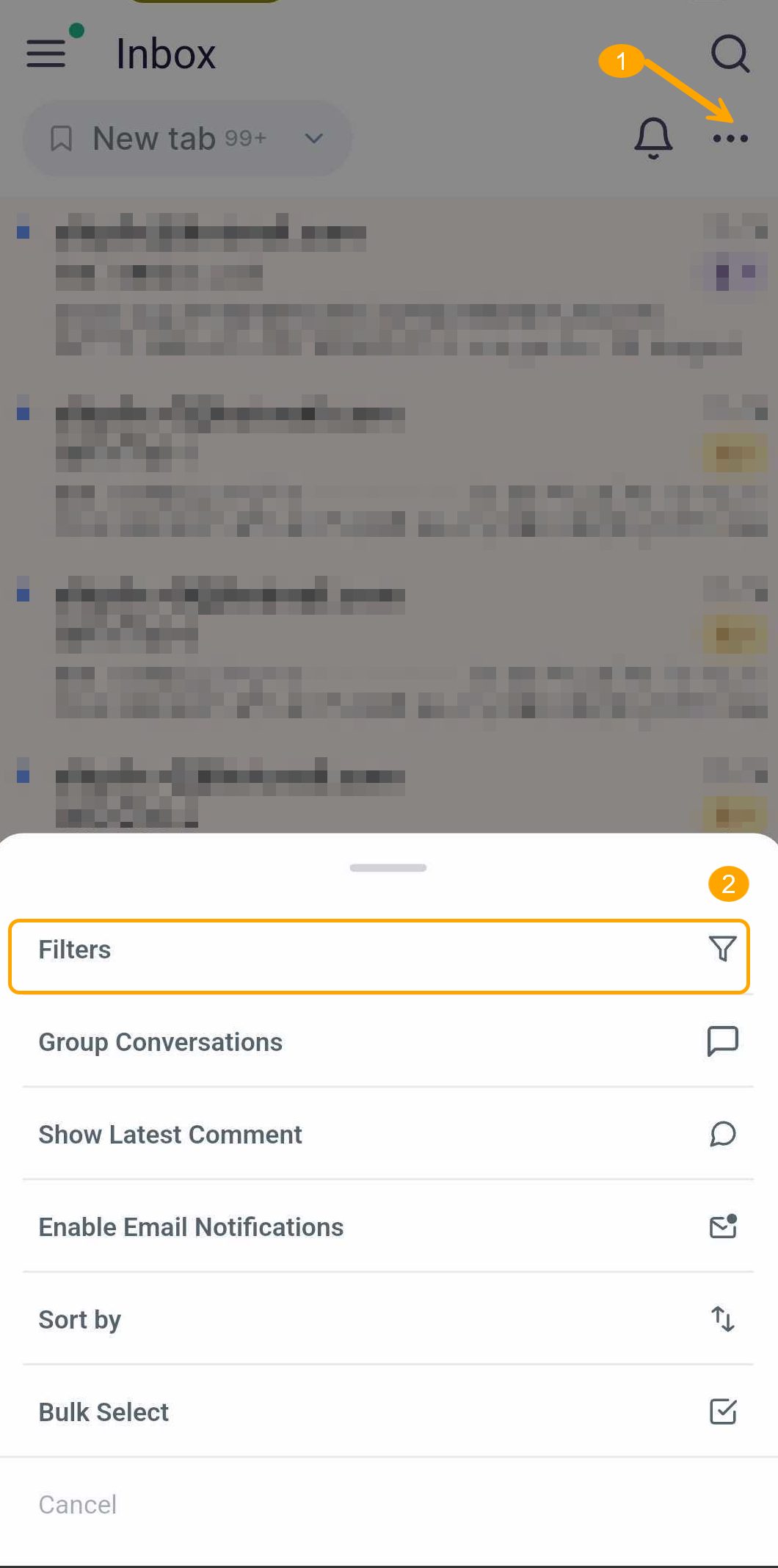
You can switch to the advanced filters by selecting the icon to switch filters located on the top left of the filter menu, and vice versa.
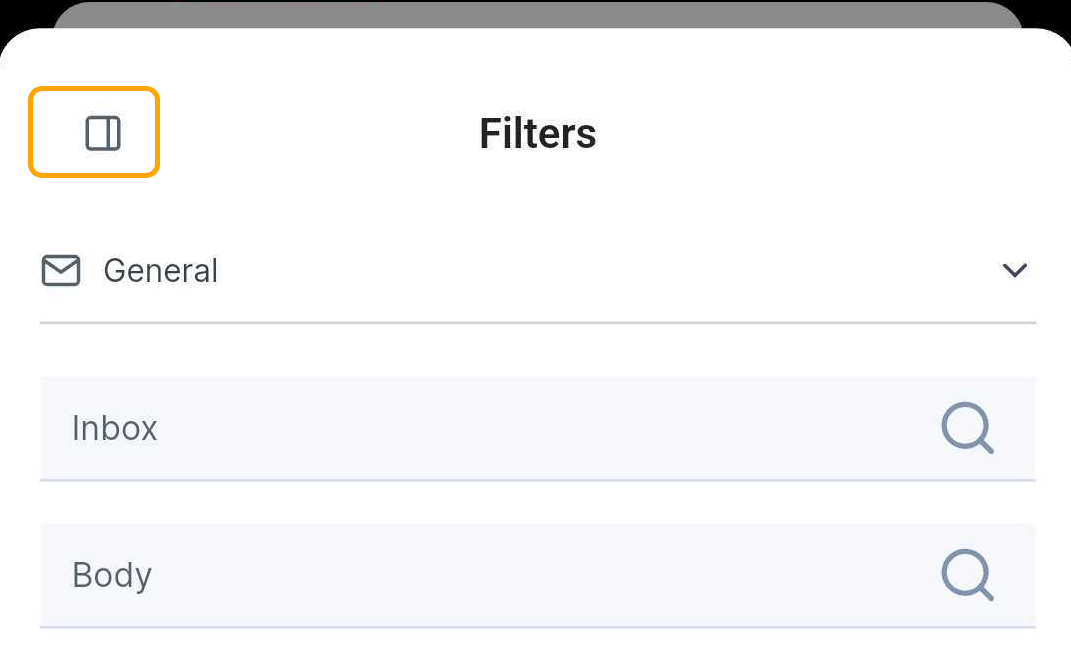
You can remove search terms from the basic filters by tapping on the term within the filter.
-
Advanced Filters:
You can add filters as needed to the advanced filters by selecting "Add a filter", which will provide you with a list of filters you can add to your advanced filters.
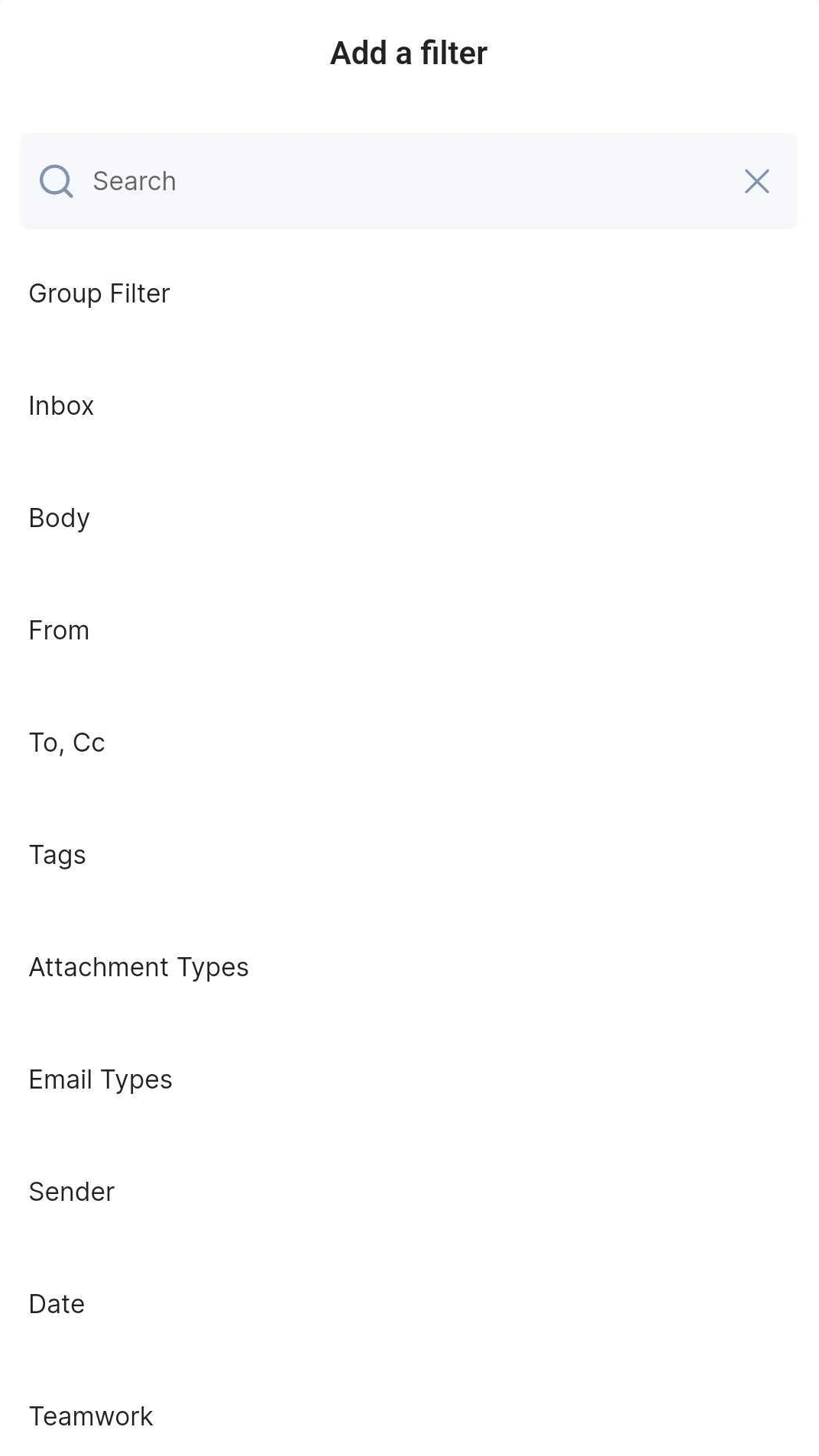
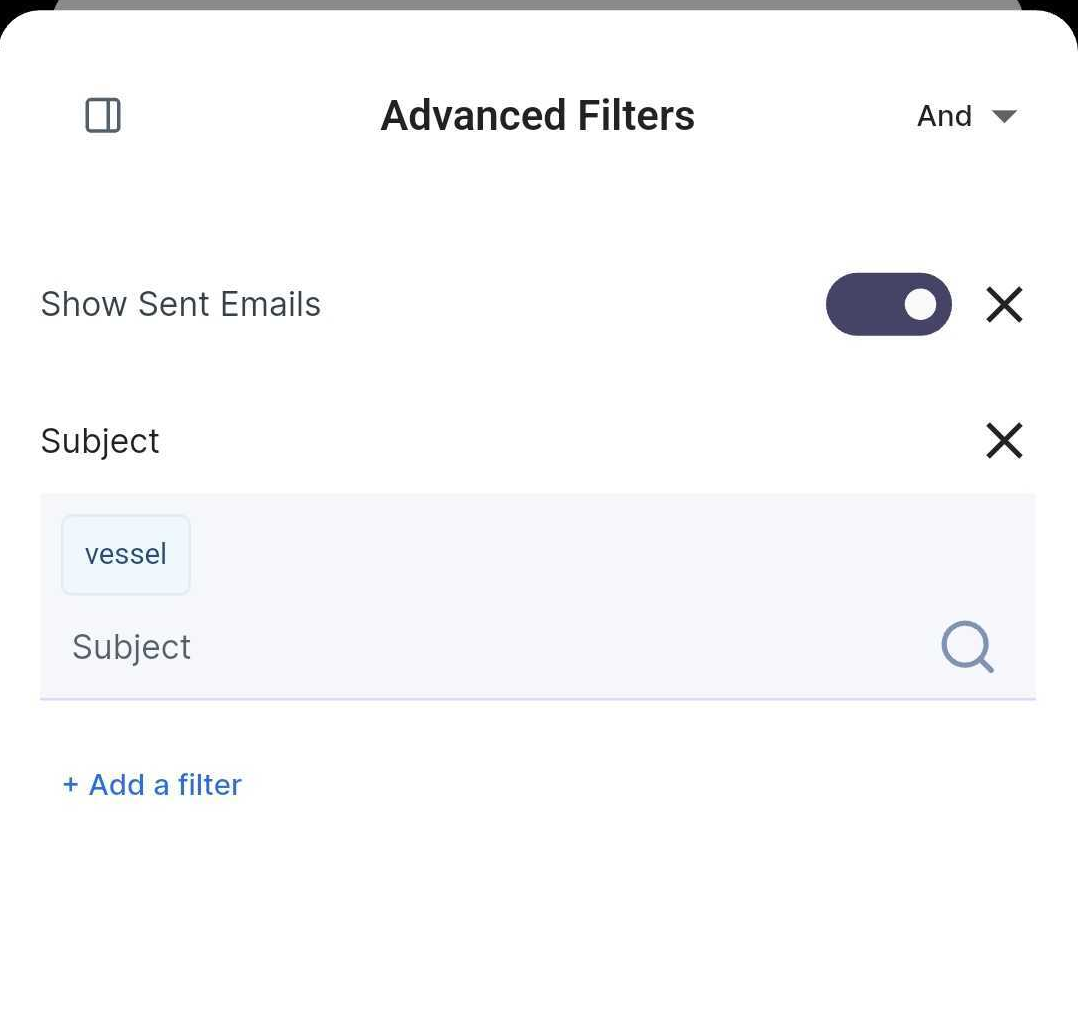
Selected filters can be removed by selecting the "X“ symbol at the end of the filter or tapping on the filtered term.
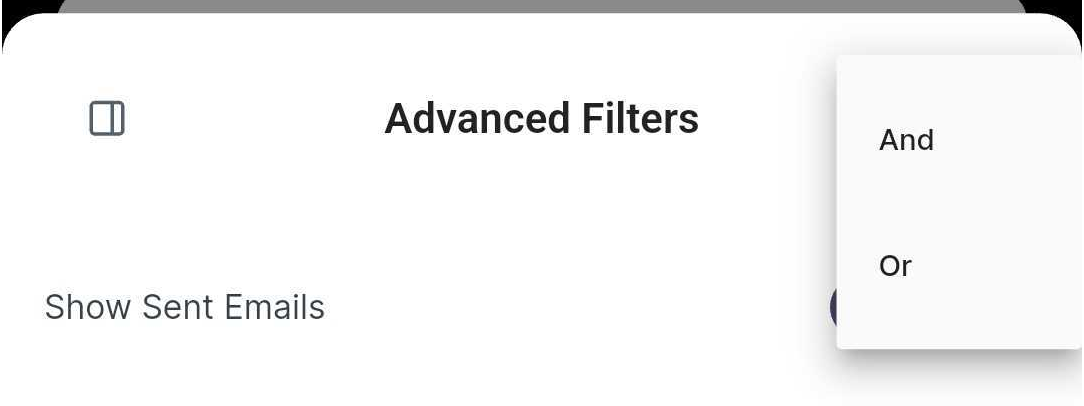
Advanced Filter Conditional Operators: You can select the conditional operators (AND or OR) to be used in the advanced filters, depending on your requirements. These options are available at the top-right corner of the Advanced Filter screen.