This article will explain how to configure the default mailbox settings.
This mailbox setting page will allow you to manage your mailboxes such as:
-
Choose which mailbox is primary.
-
Show / Hide mailboxes in the Email and Market screens.
-
Choose who you share the mailbox with.
-
Change colour of the mailbox.
-
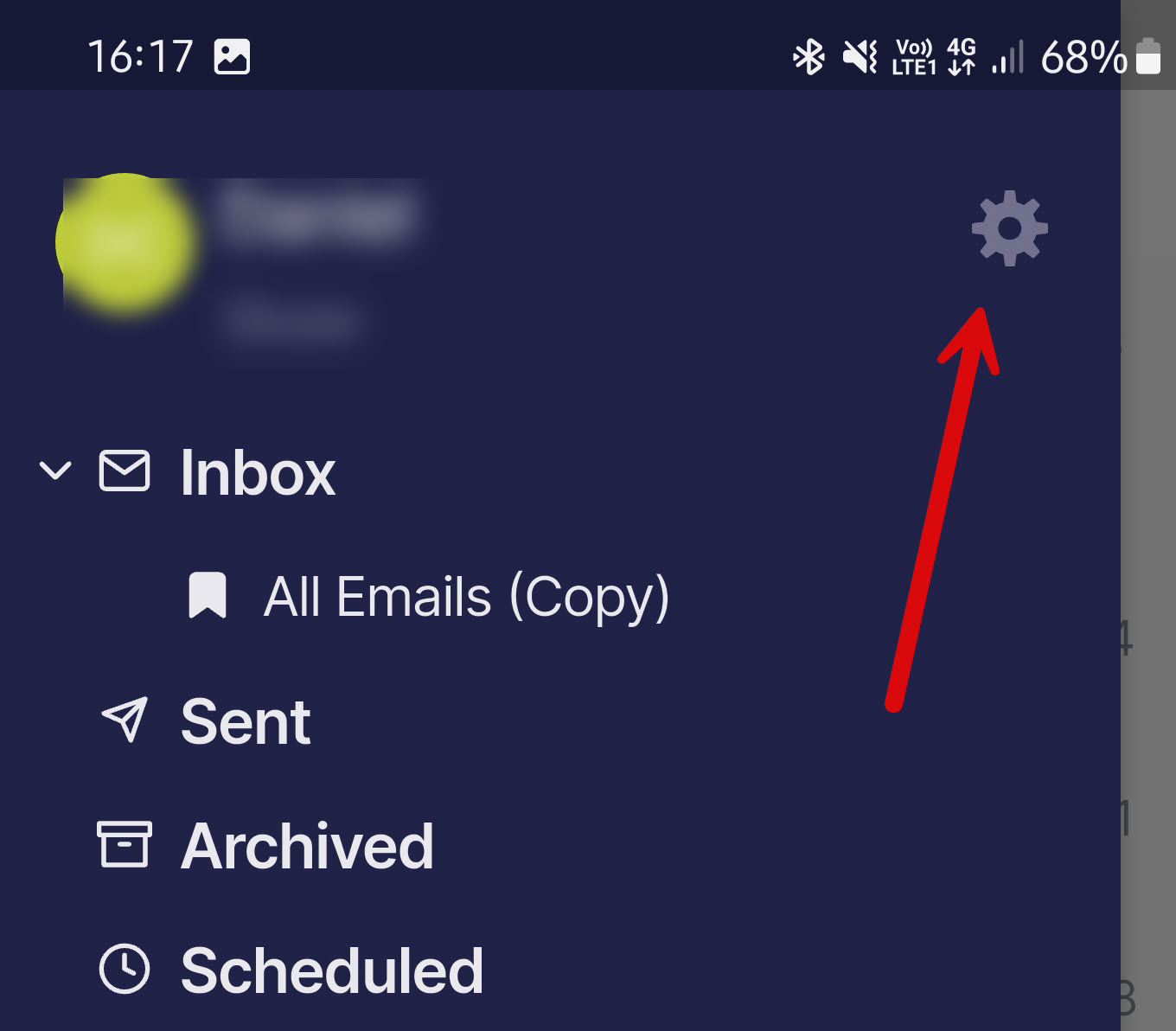
Please select the gear/cog icon in the side menu,,
-
Then select Mailboxes under the Email section.
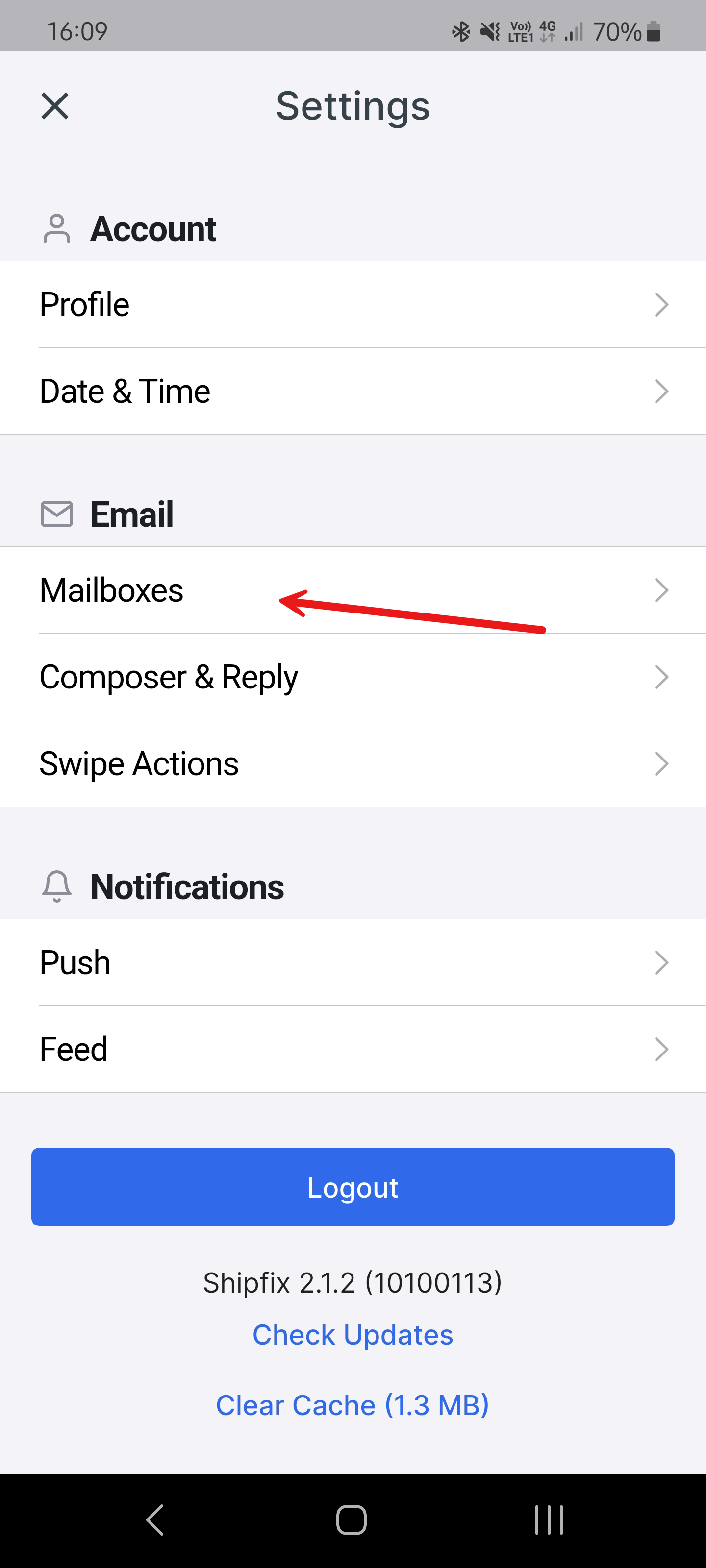
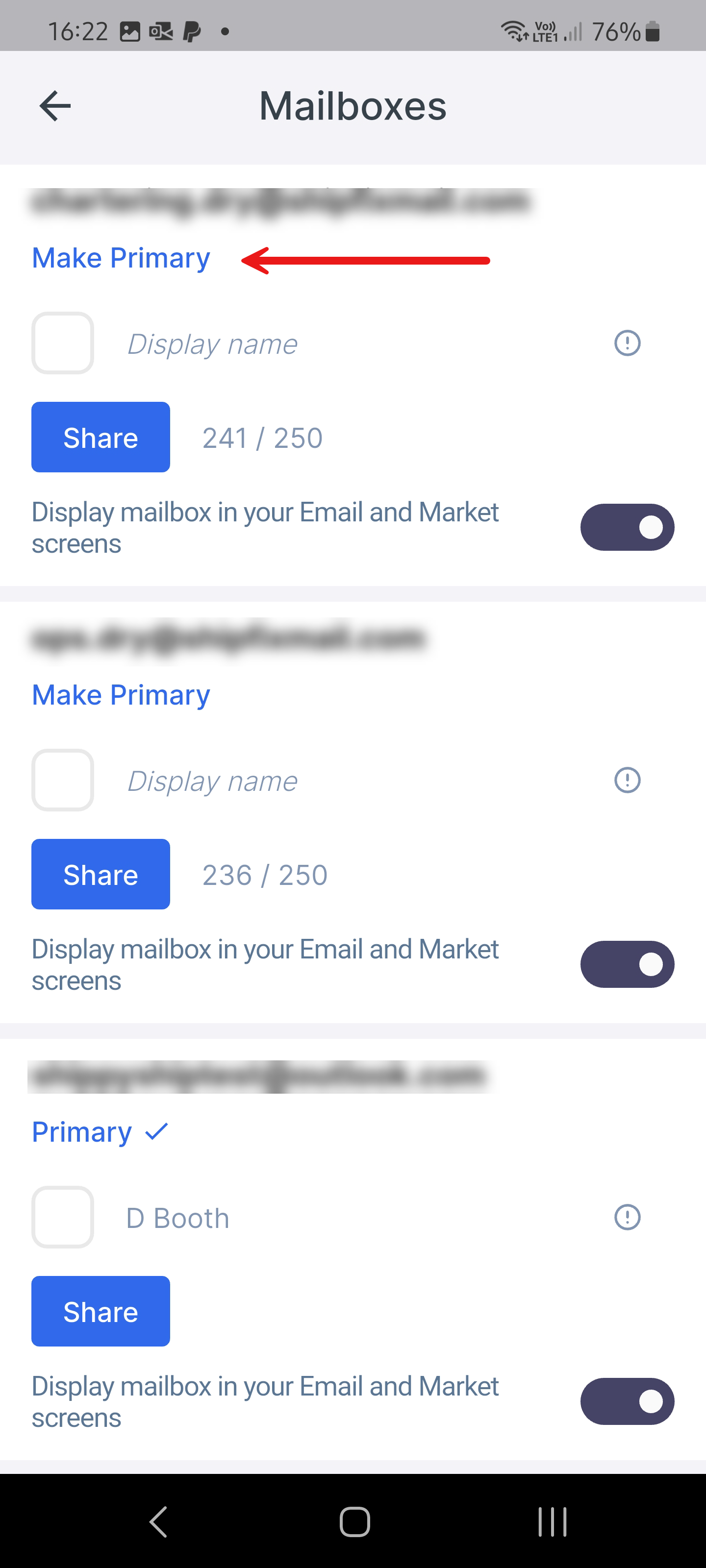
This will now display a list of mailboxes you have access to and which mailbox is primary.
Change Primary Mailbox
To change your primary mailbox, click on ‘Make Primary’
Mailbox Colour
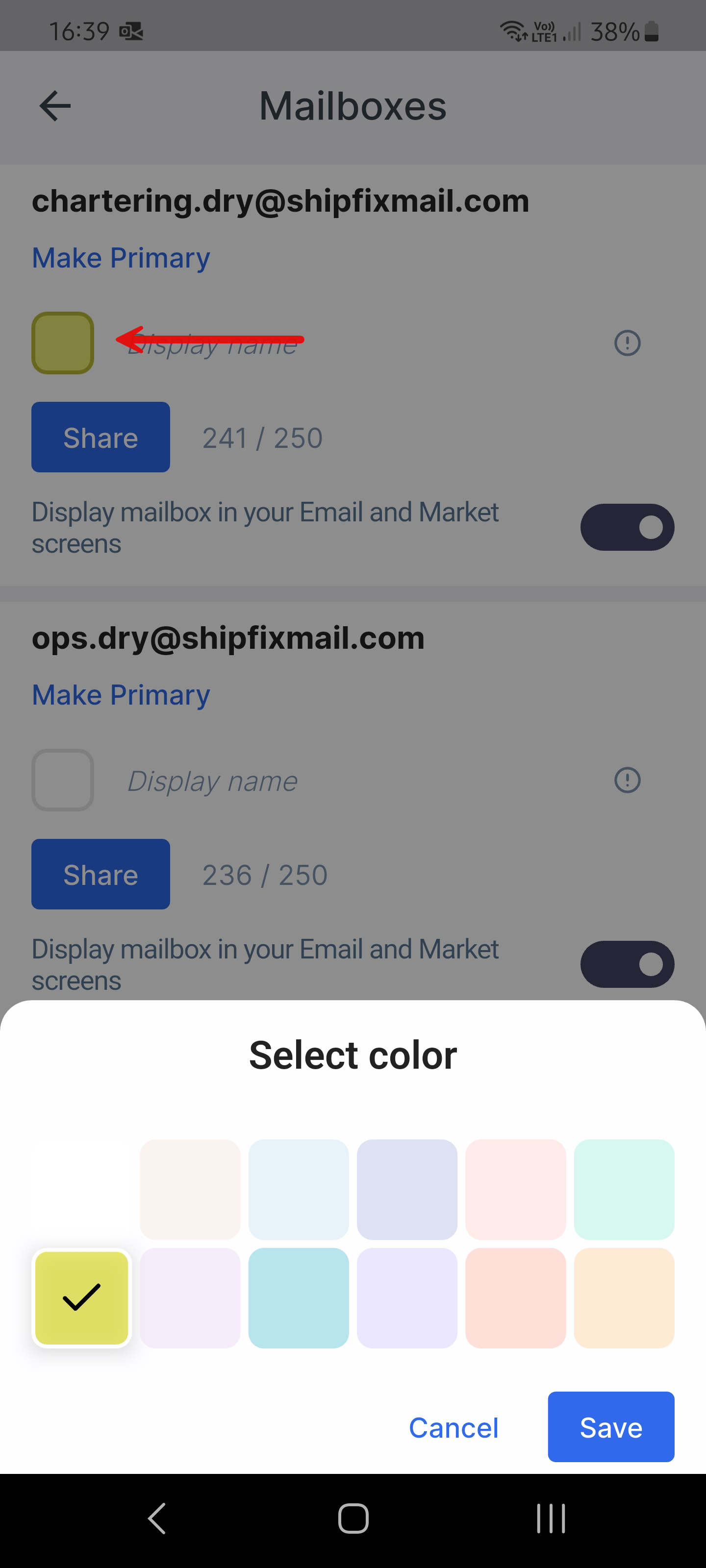
Click on the Box to choose the colour of the mailbox.
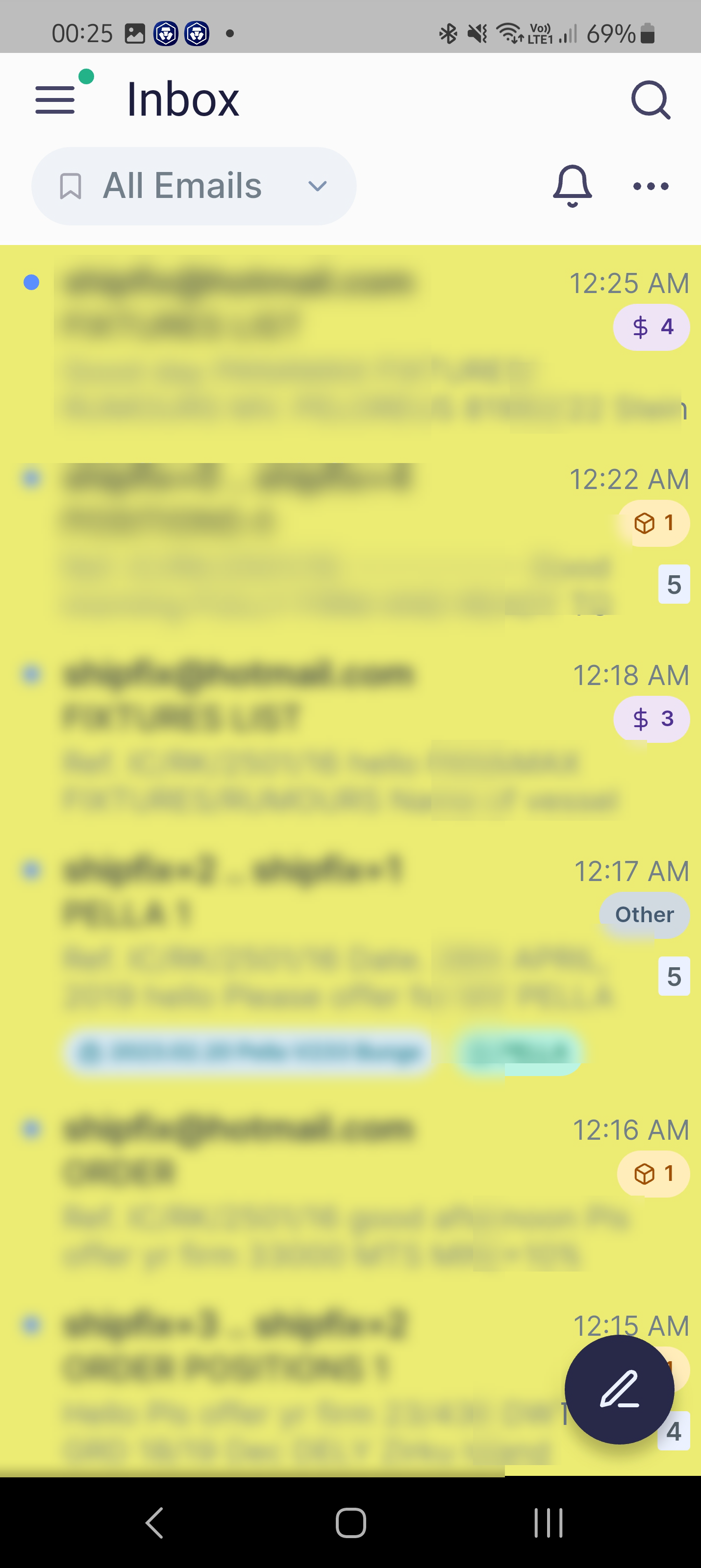
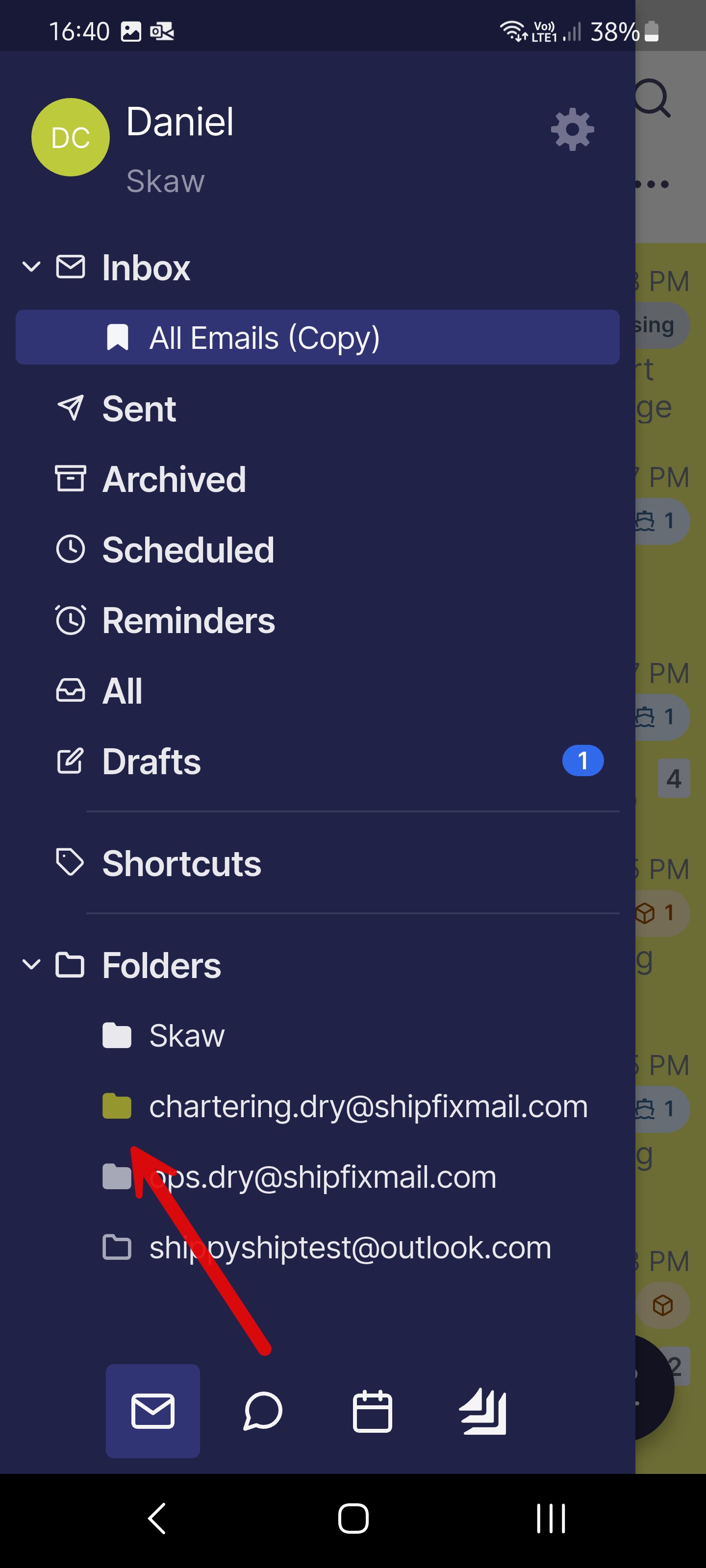
Choosing a colour will change the background colour of emails received in that mailbox. And also change the colour of the mailbox folder in the main menu.
This will now highlight the mailbox a certain colour in the inbox going forward.
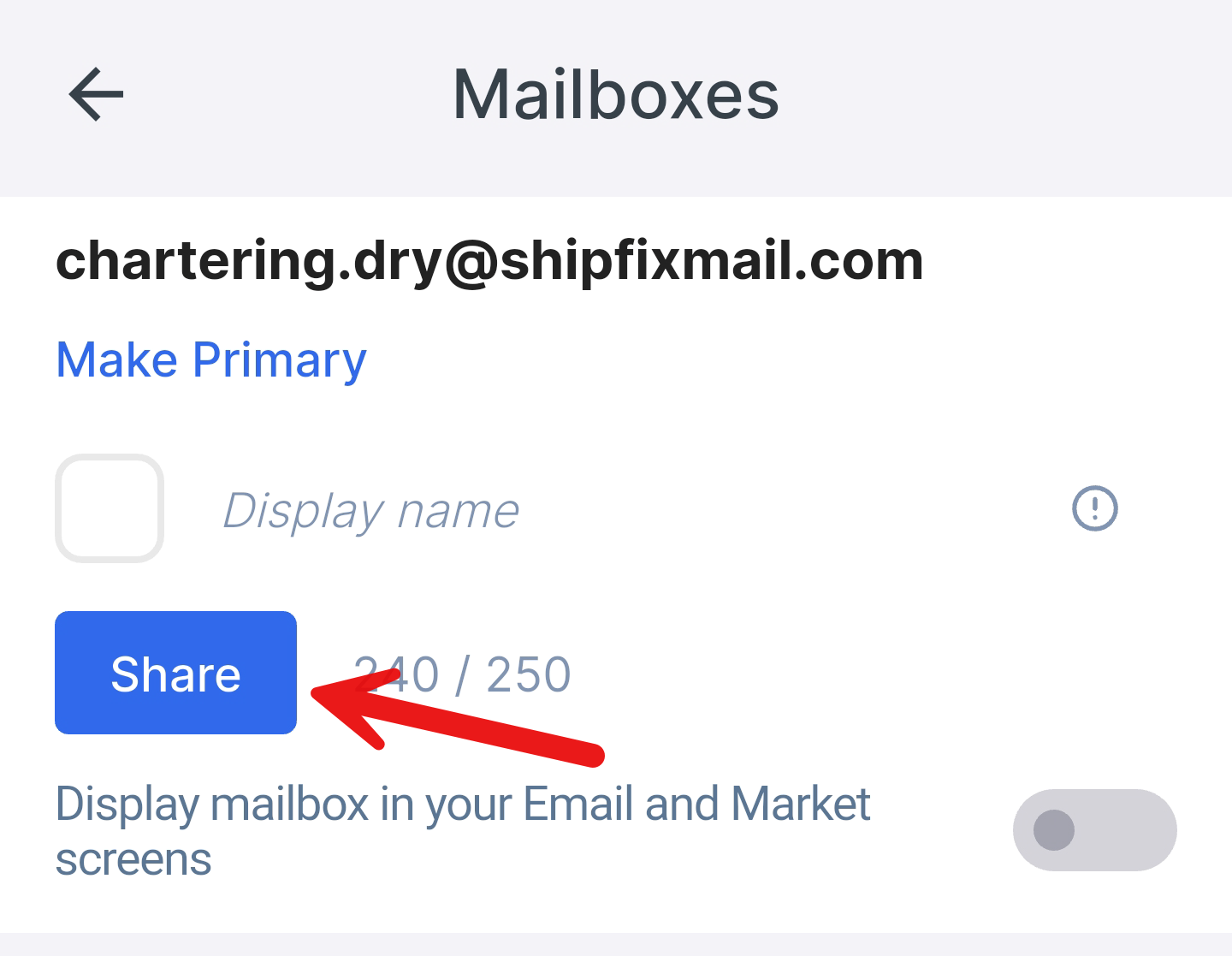
Share
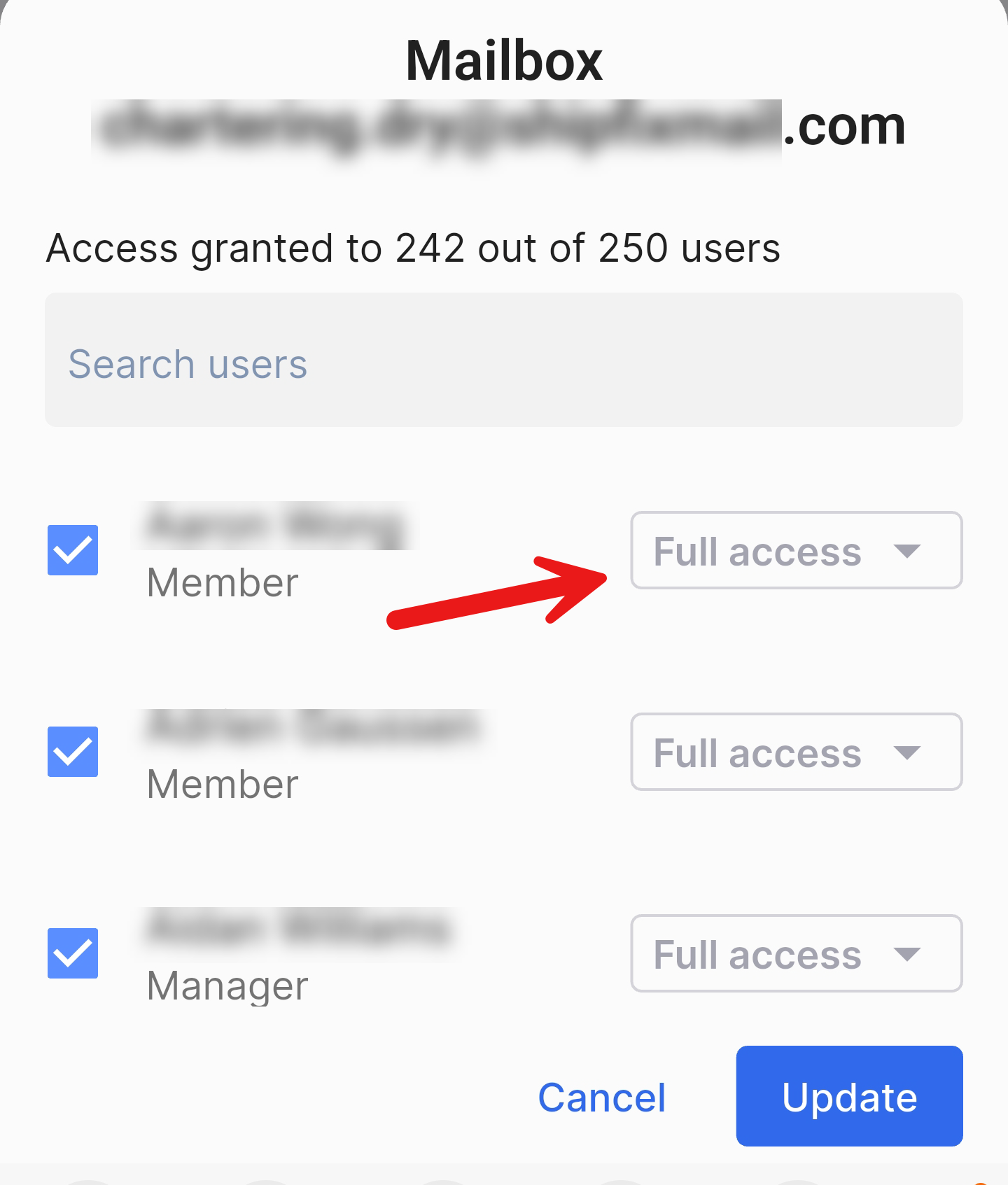
Clicking Share will bring up Share screen, with the options to manage who you share your mailbox with..
Please note, only a user with manager or owner role can perform this.
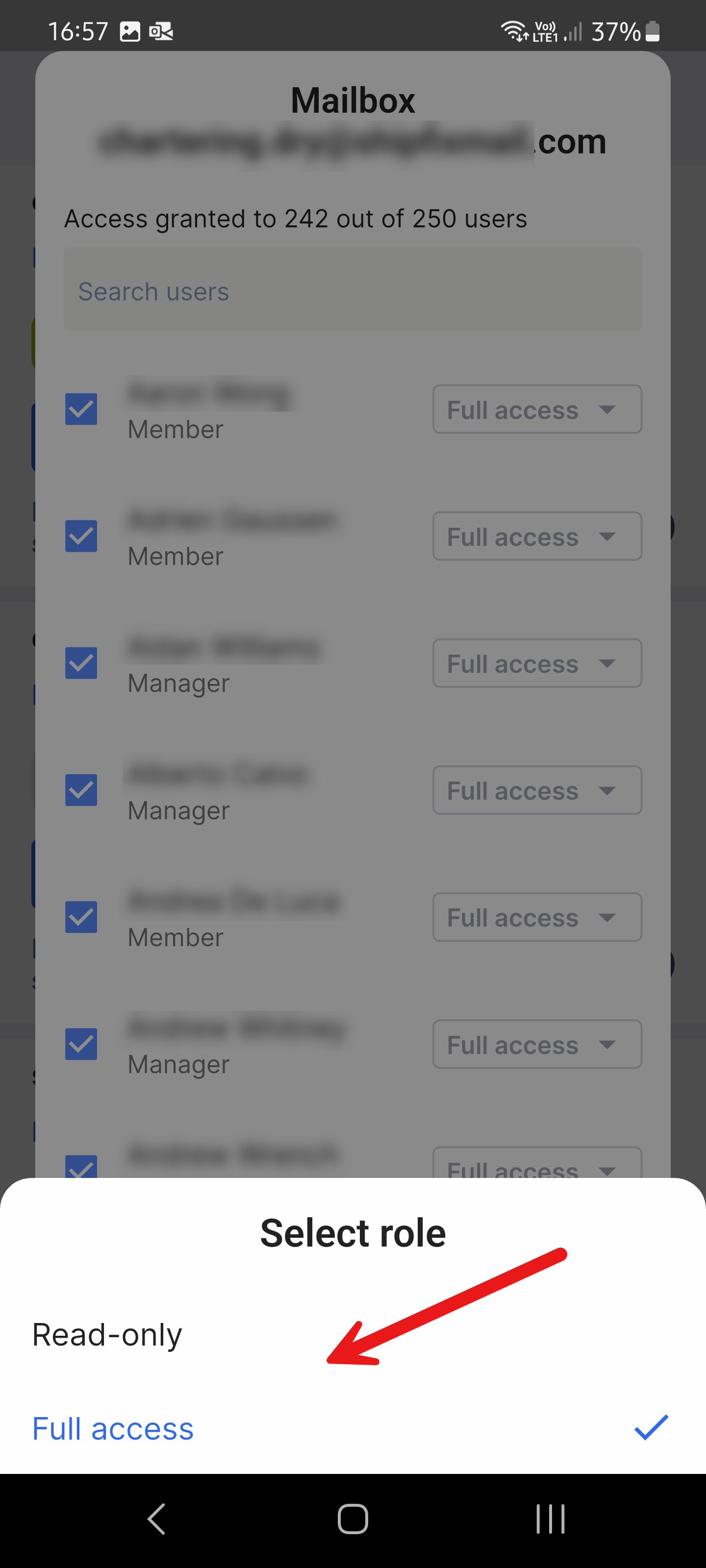
Access rights can be set per user, between Full Access and Read Only.
For example, if you wish to provide Read Only access to one of your mailboxes, this can be set here.
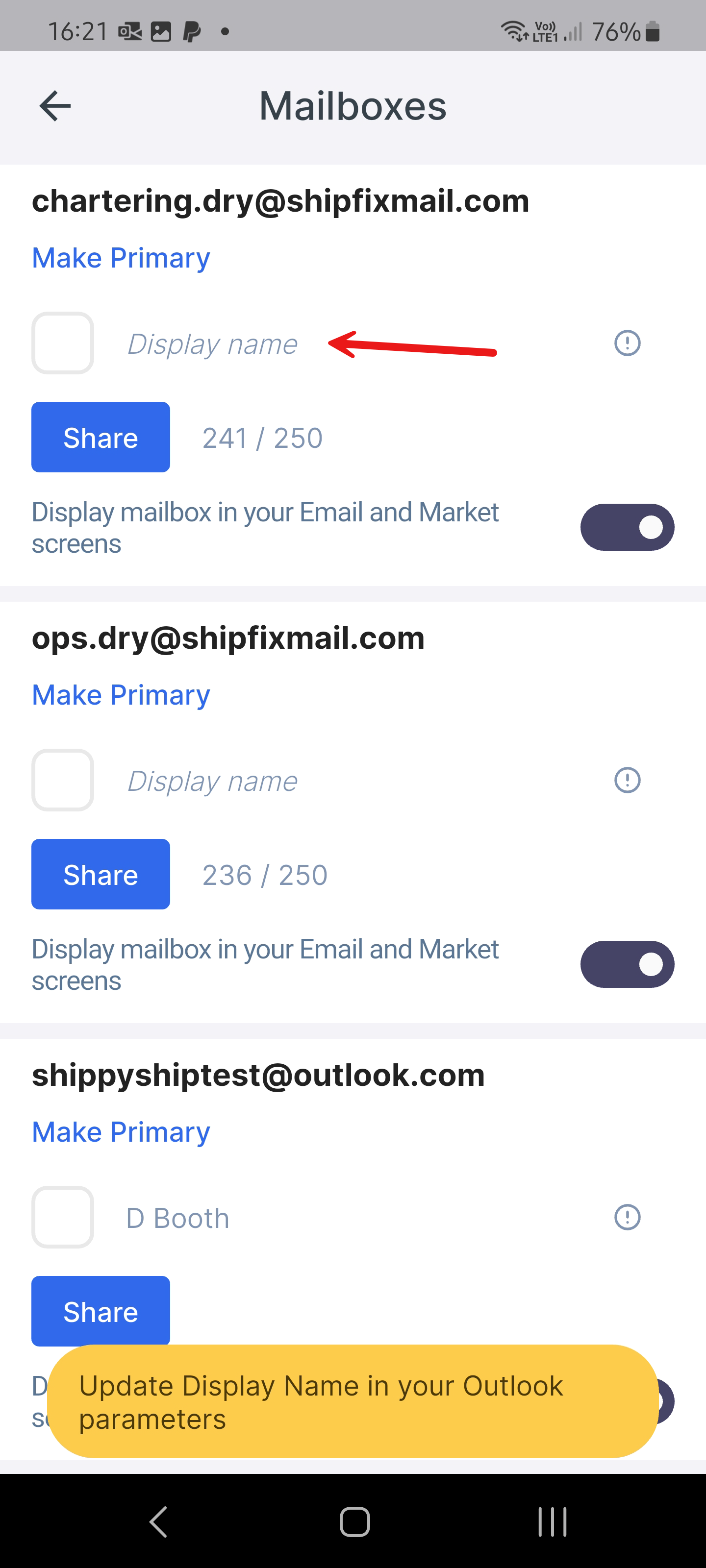
Display name must be changed in Outlook. For other mail providers, the name can be edited here.
On the main Mailbox settings screen. Clicking on the Display Name will display a yellow banner prompting you to change this in Outlook.