
Shipfix Mobile App provides regular In-App notifications and Push Notifications sent to the user's device.
There are 2 types of notifications:
-
In-App notifications.
-
Push notifications sent to your device outside of the app.
For Desktop In-App notification, please refer to the following article.
-
In-App Notifications
To reach the In-App Notifications screen, click on the “bell notification icon” which is displayed in any Inbox, Sent or Archived mailbox.
The bell icon will display a number for any In-App notification(s) that are pending, indicating the number of unread notifications.

Navigate to the In-App Notifications Screen by selecting the bell icon in the top right corner of a mailbox.
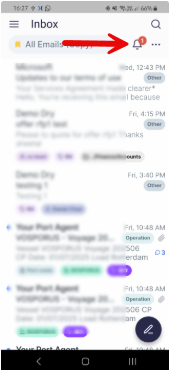
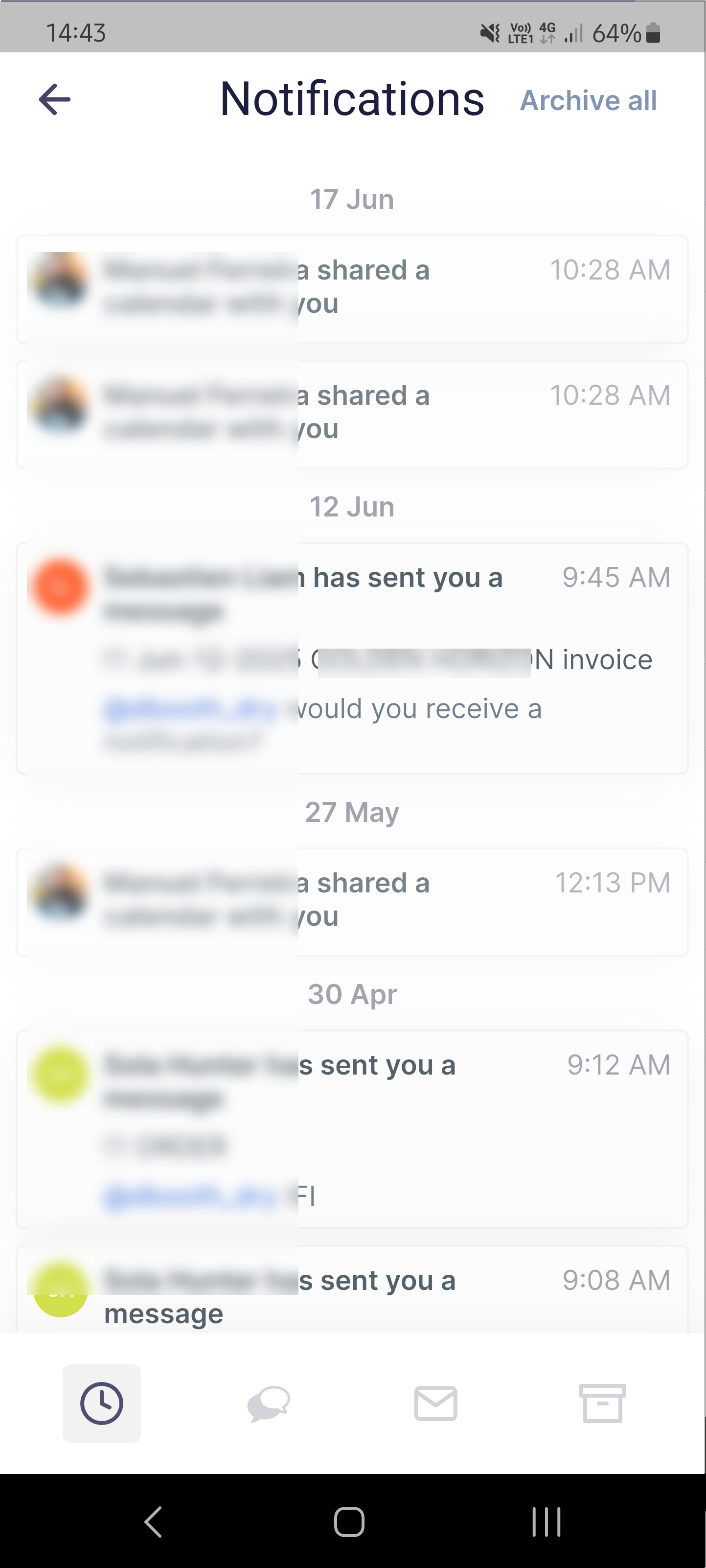
The In-App notifications screen will display your notifications in the following categories:
-
Most Recent
-
Comments
-
Emails
-
Archived
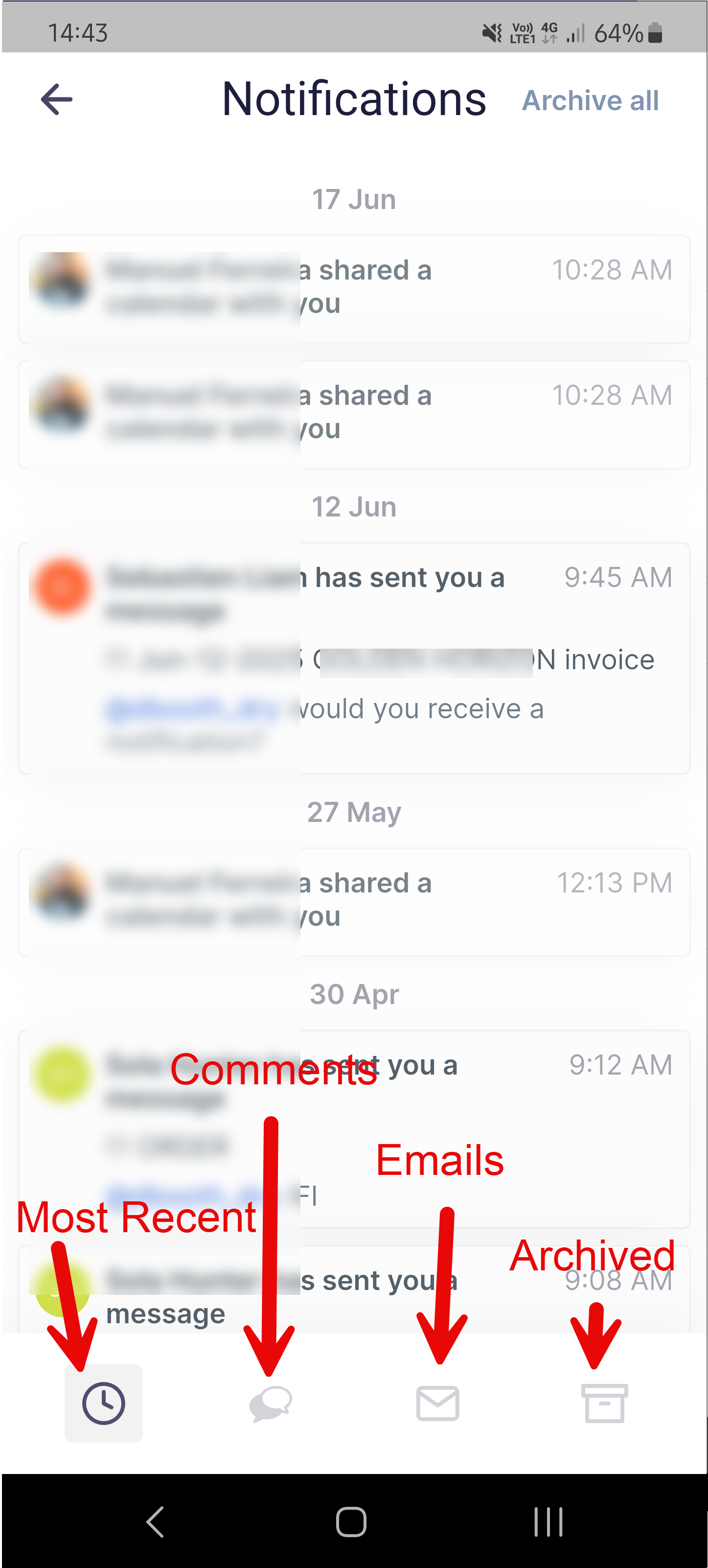
In-App notifications can come from multiple sources. You can receive notifications for:
-
Tag in a Comment notification
-
Tag in a Voyage notification
-
Shared Item notification
-
Push Notifications
Note: Please ensure to authorize the Shipfix app in your device settings to allow push notifications.
Push notifications are sent to your device outside of the app. These can come from events such as a new email, being tagged in a comment or a voyage, or an item that has been shared with you, such as a calendar event.
-
New Email notification
-
Tag in a Comment notification
-
Tag in a Voyage notification
-
Shared Item notification
-
Tab notification
Tab notifications:
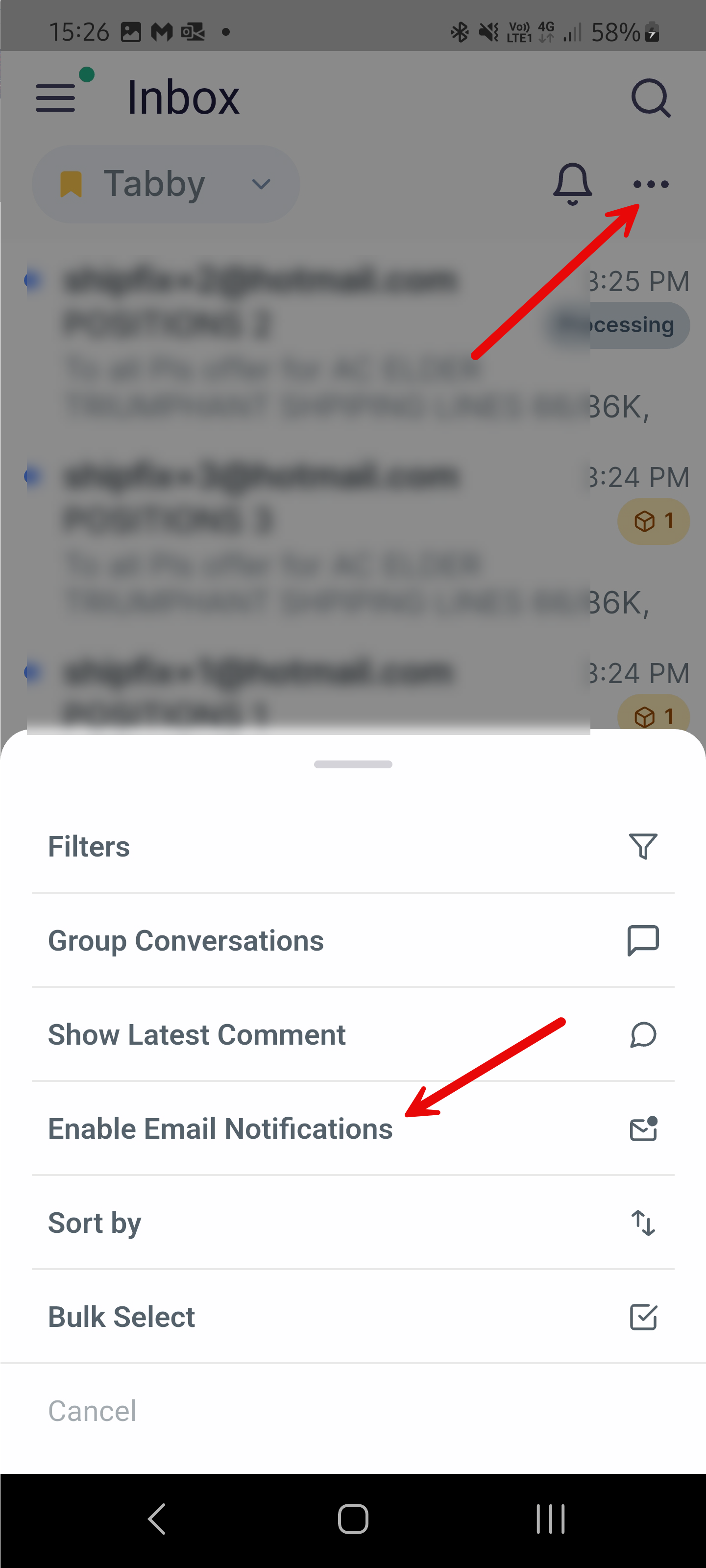
A notification will be sent for any new email received on that tab.
To enable tab notifications, click on the 3 dot menu of the tab and select Enable Email Notifications.
Here, you can then select Disable Email Notifications to disable the option.
Notification Settings
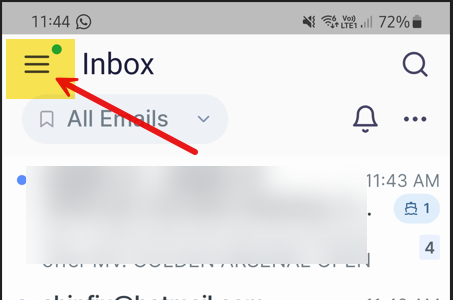
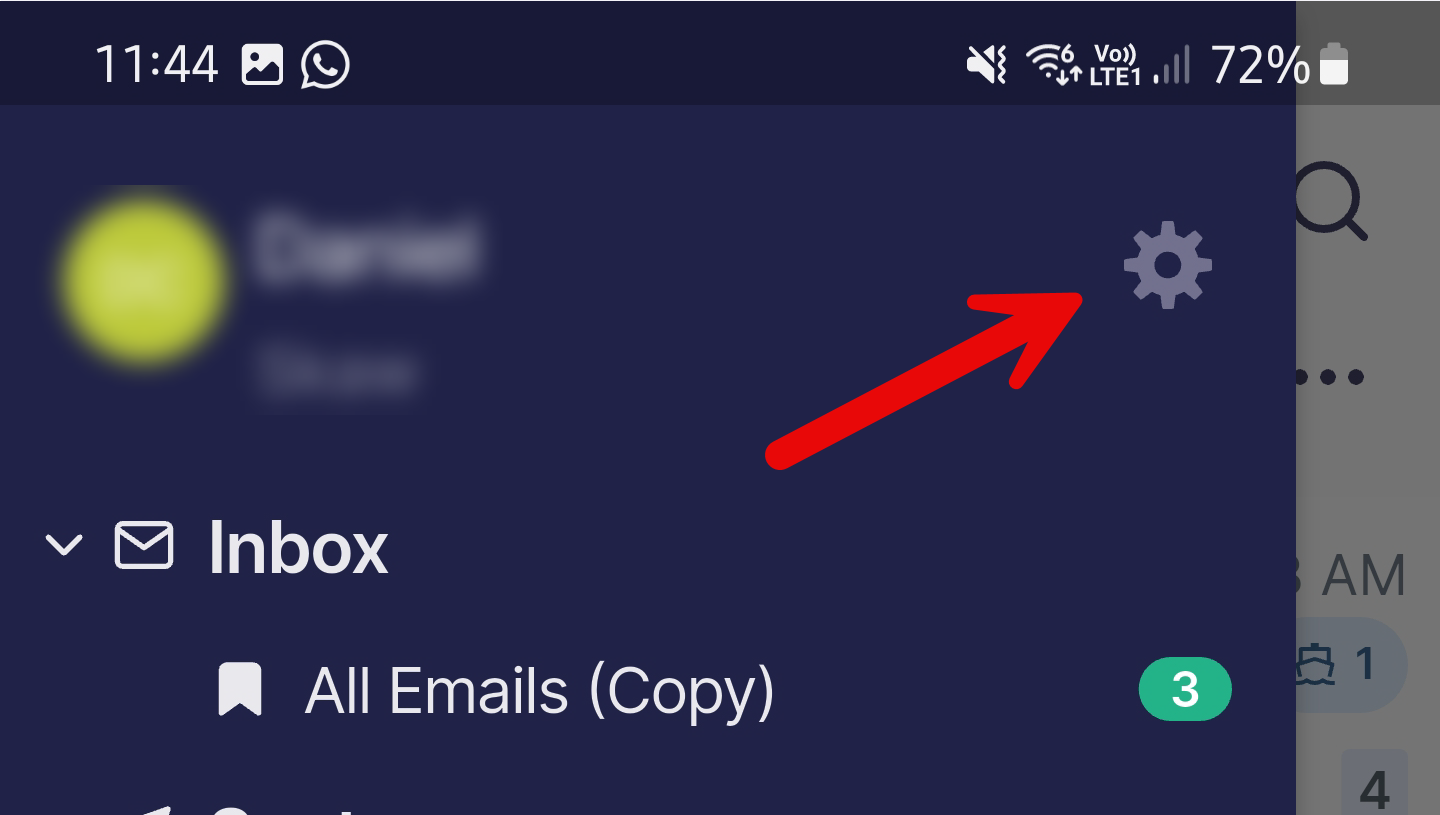
To manage Notification settings, select the 3-bar Menu Icon > click the Gear Settings Icon > Notifications.
1
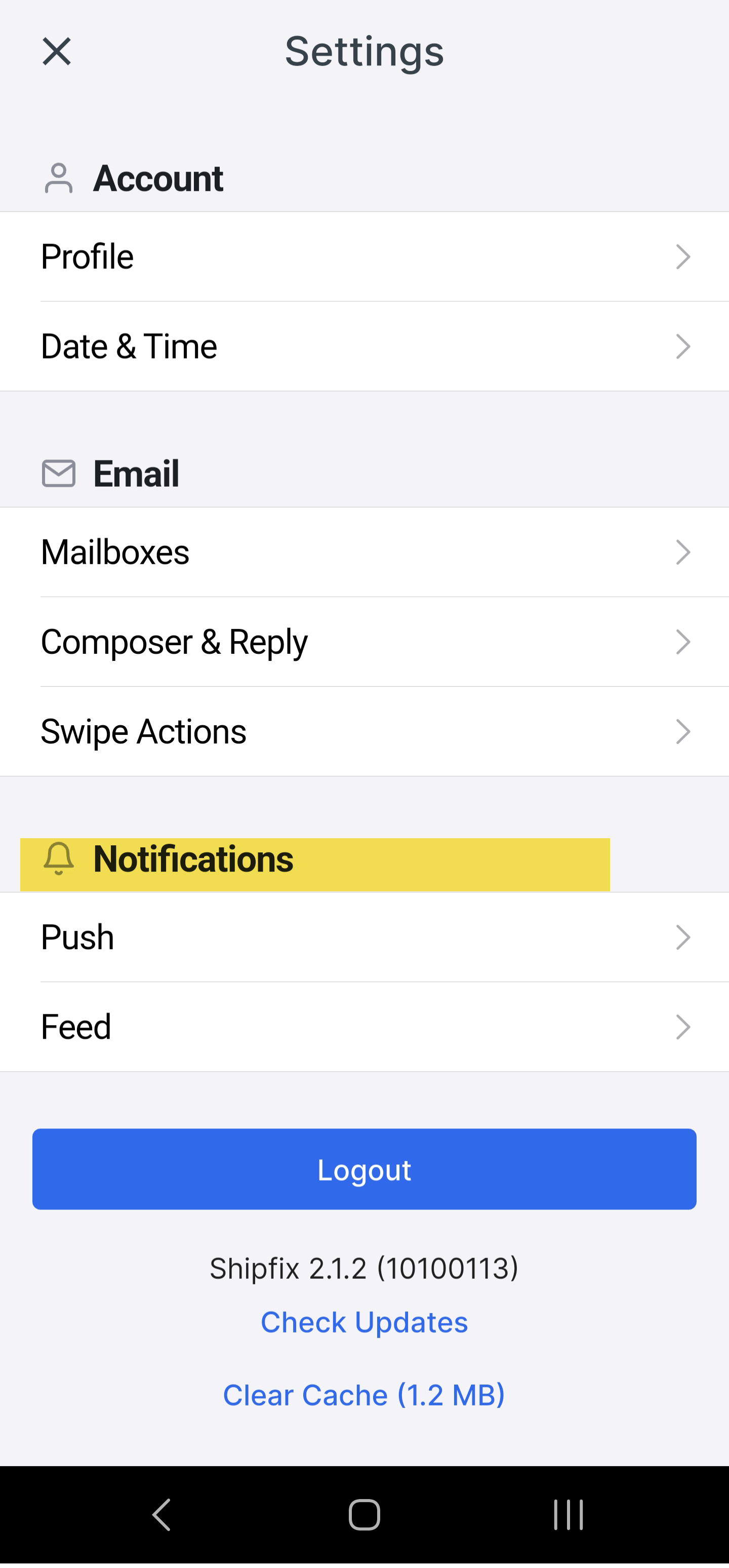
Here you will see options for Push and Feed.
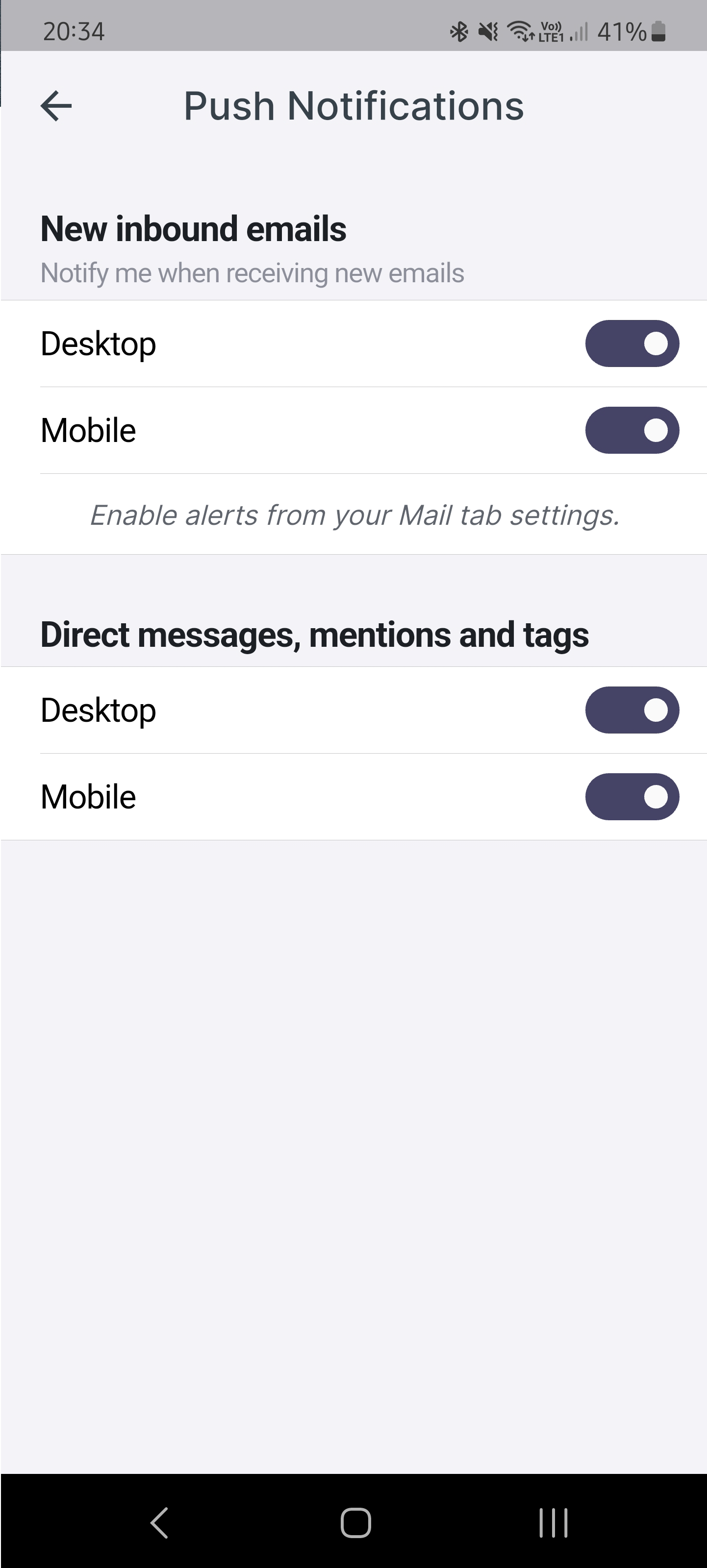
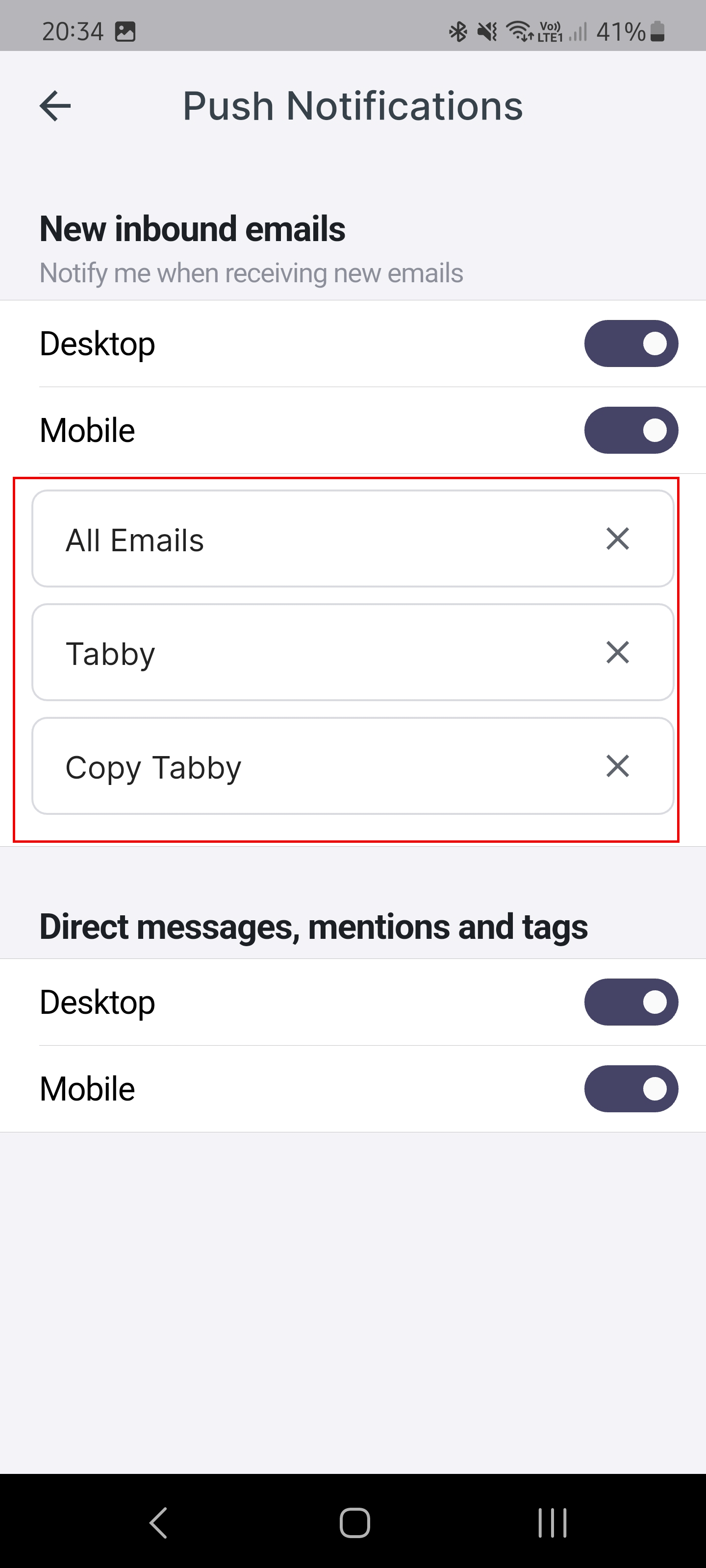
Push: Push Notifications can be enabled for both Desktop and Mobile. Here you can activate or deactivate Desktop or Mobile notifications separately.
All tabs you have enabled to receive notifications can be viewed and removed from the list here.
To remove tabs enabled for notifications, click on the 'x' to remove the row.
Feed: How to manage the In-App notifications read view.
To mark notifications as read, you have 2 options:
-
Opening each notification one by one.
-
Or mark the whole feed as read by opening the feed panel.