This article will explain how to view and amend the date and time format via the Shipfix Mobile App.
-
Please note that these settings will be applied to the desktop Shipfix too. Not only the Mobile App.
-
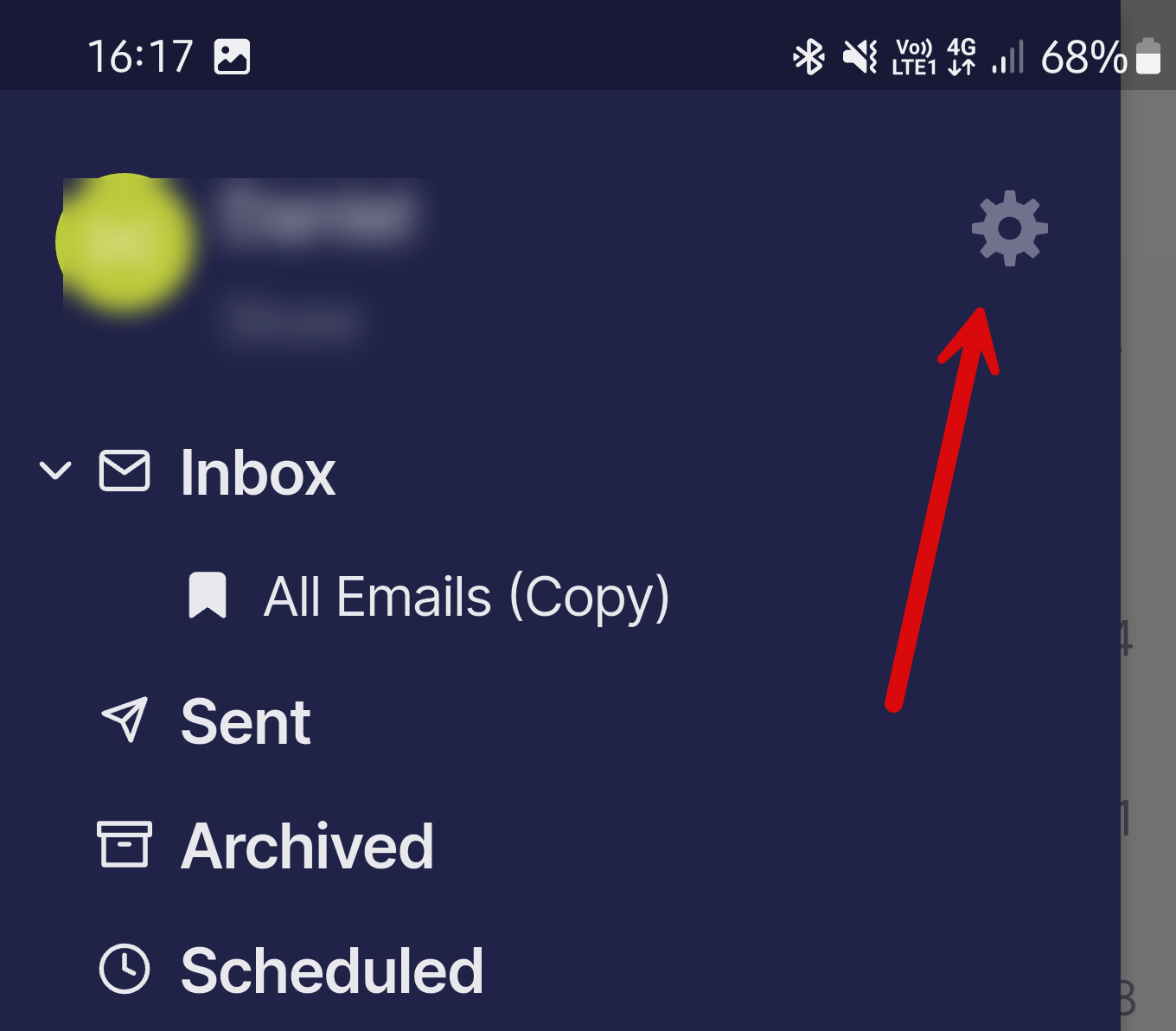
Click on the gear icon to take you to the Account Settings screen,
-
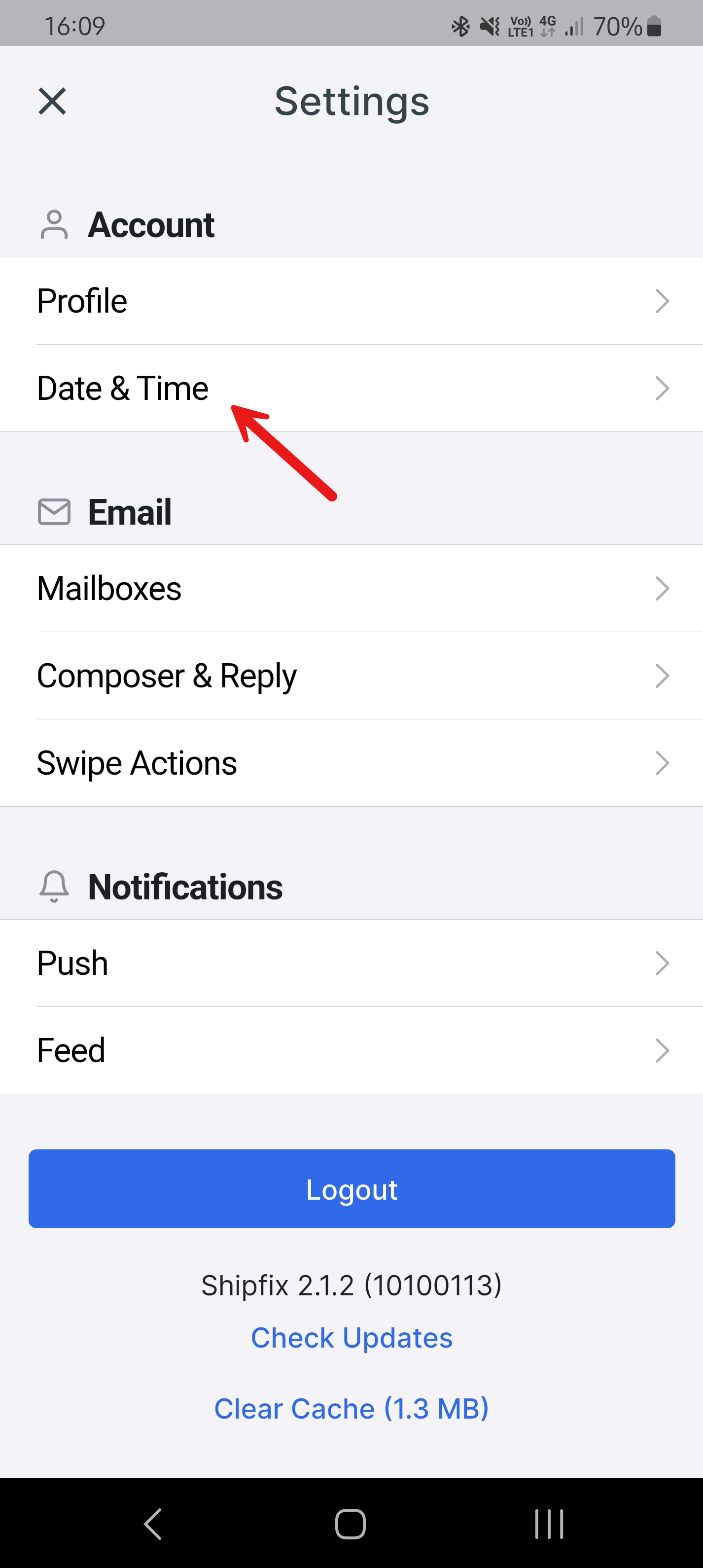
Click on Date & Time
-
This will take you to the Date & Time screen.
1.
2.
3.
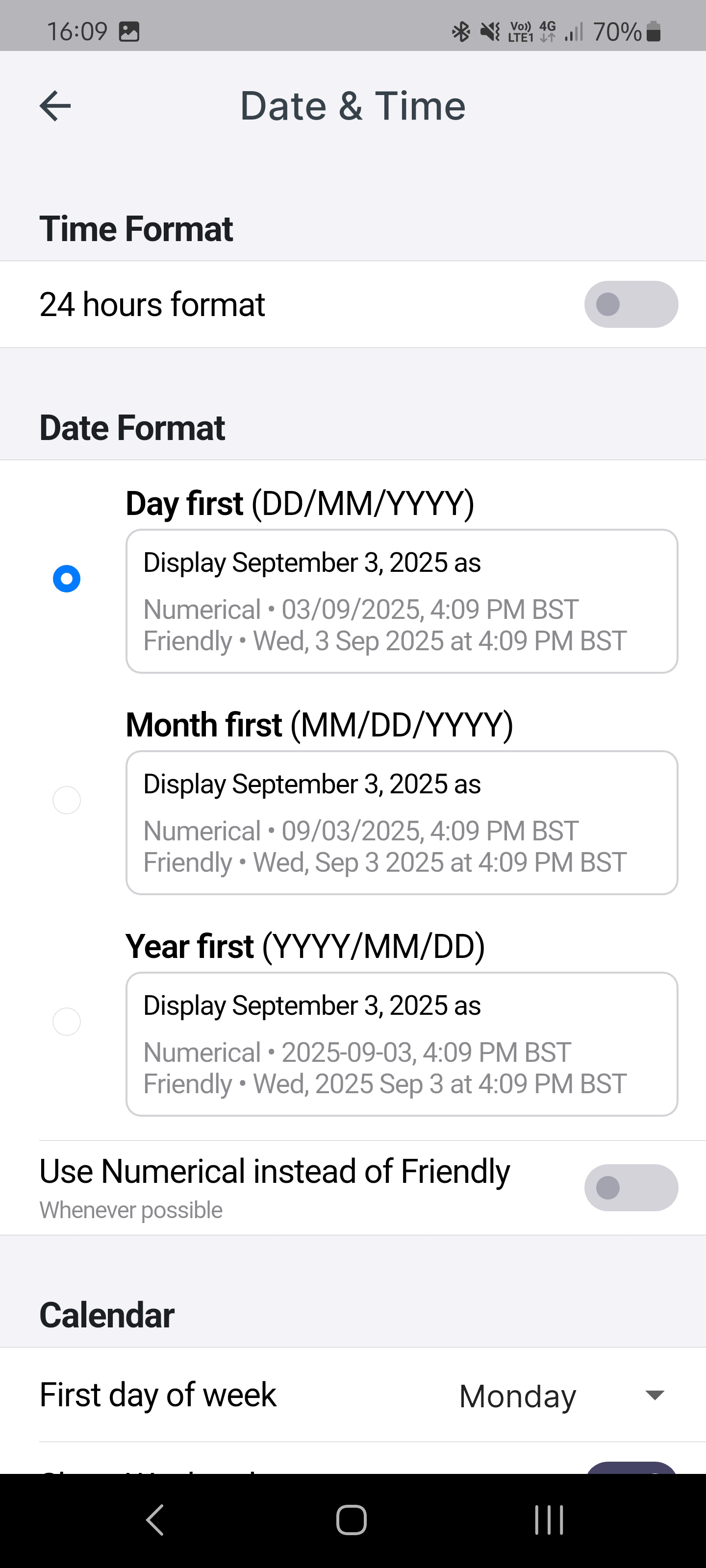
Time Format
Toggle the display between 12 or 24 hour format.
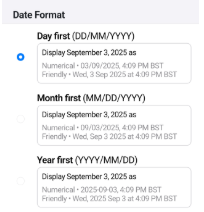
Date Format
Toggle date display between:
-
Day First (DD/MM/YYYY)
-
Month First (MM/DD/YYYY)
-
Year First (YYYY/MM/DD)
Numerical or Friendly display
To change the display of the date between Numerical only, or a Friendly display.
Numerical showing only the number date
Friendly Display shows the dates in a more readable way when possible.


Calendar
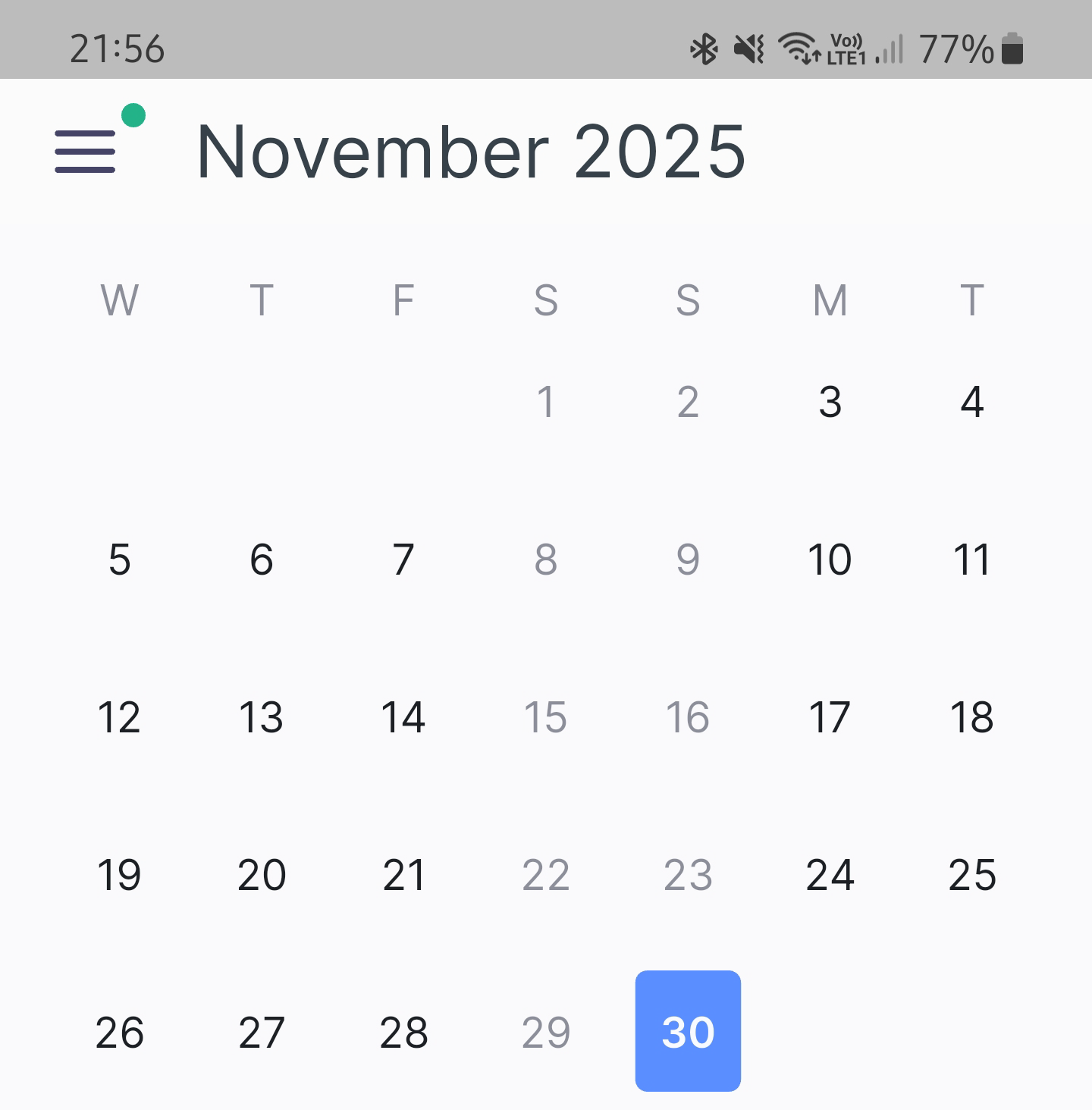
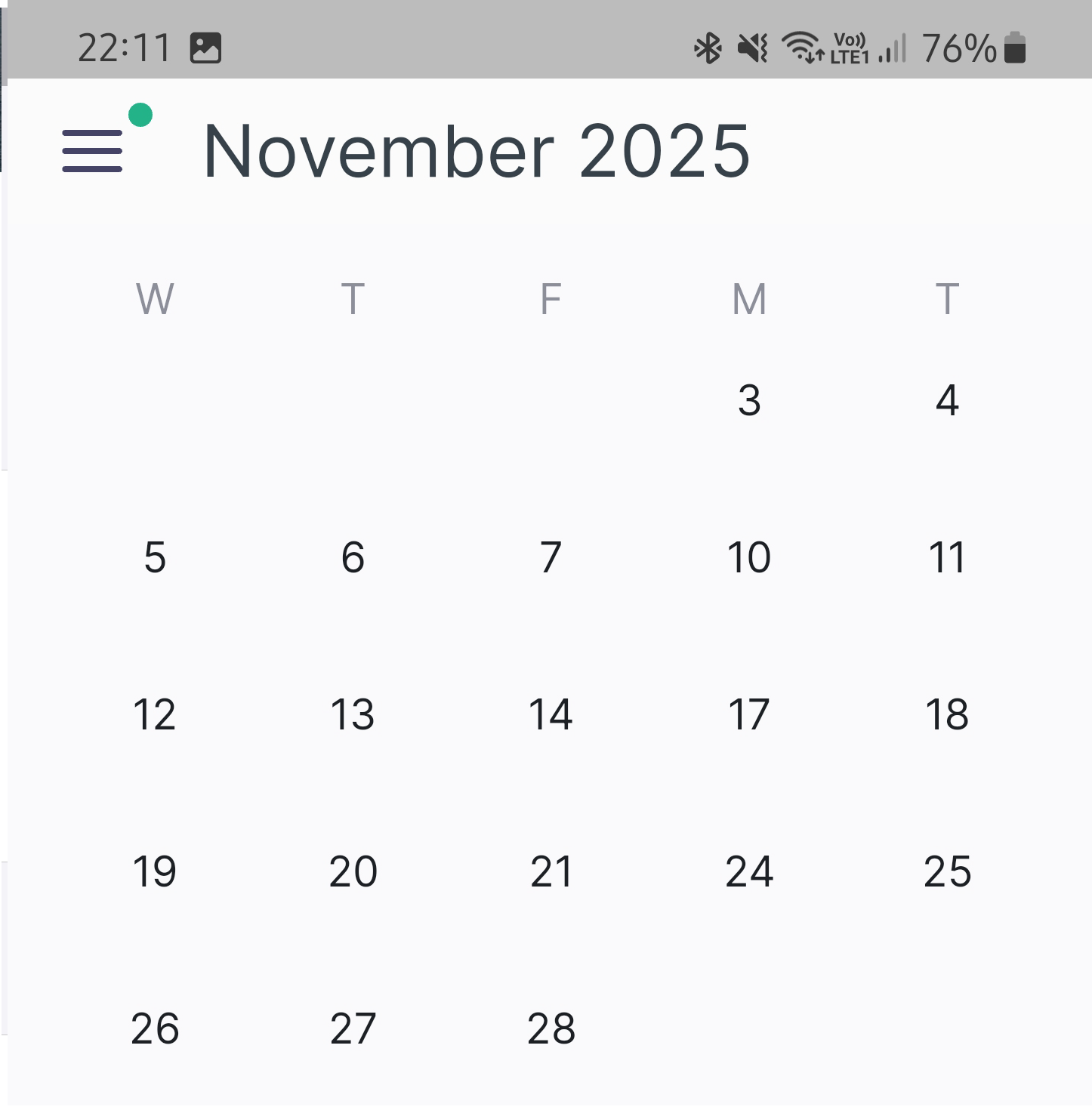
First day of the week, Changing this option will start the Calendar week on the day selected here.
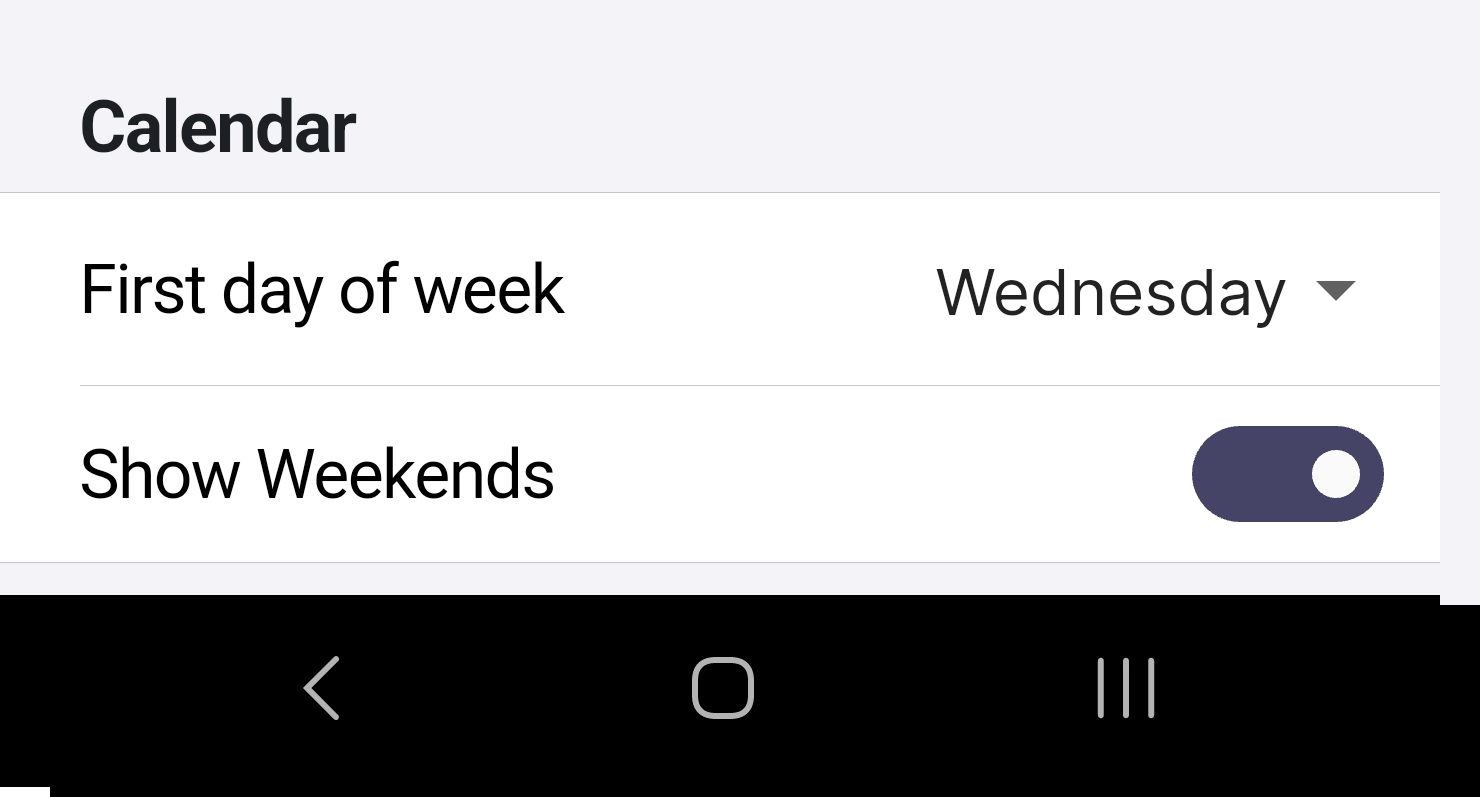
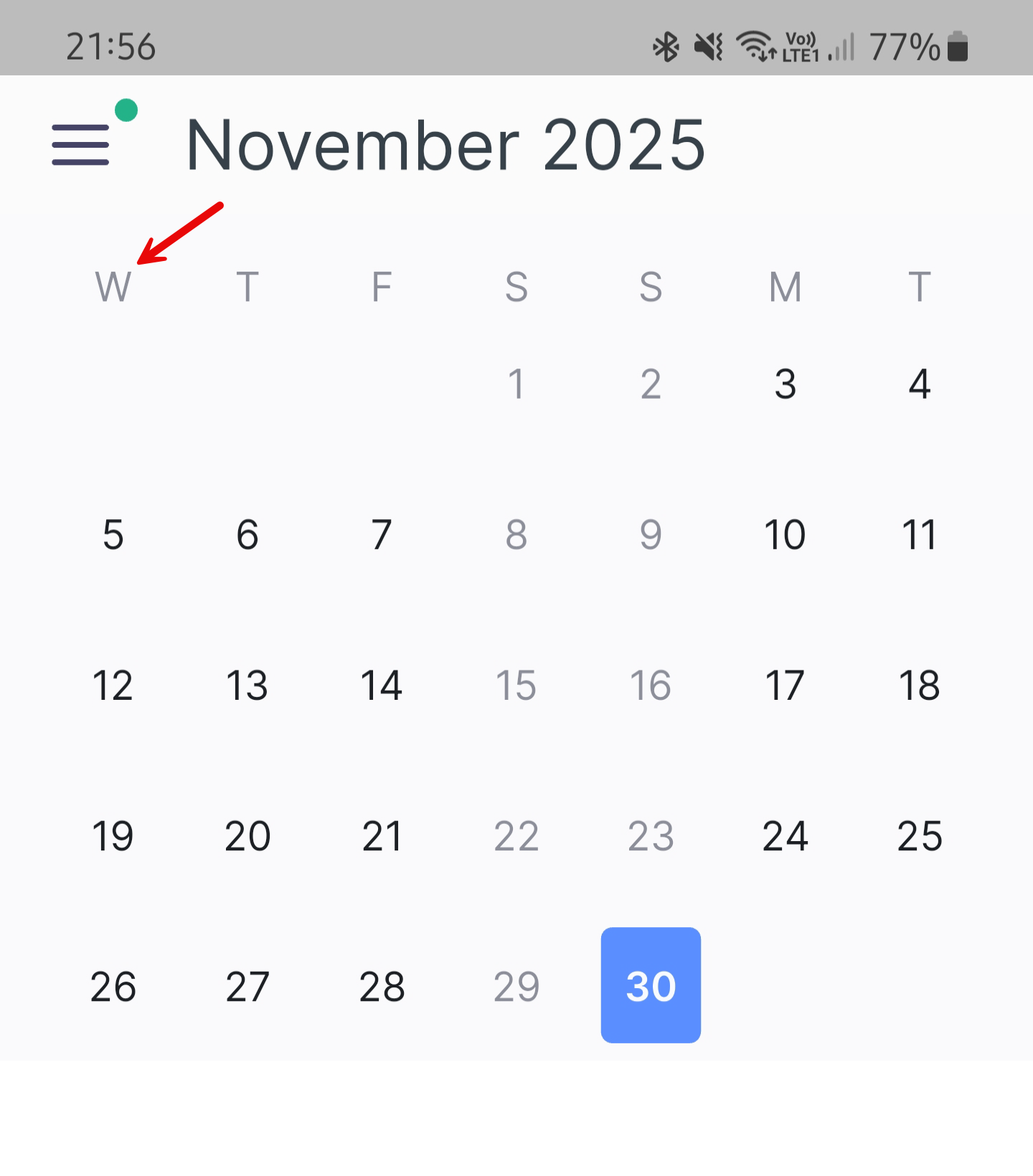
Show Weekends will show, or hide weekends in the Calendar.