
This article describes the EU ETS offhire emissions invoicing workflows available in IMOS, including how to invoice offhire costs through the Time Charter contract, rebill those costs to cargo charterers, and add offfhire emissions to freight invoices. For an overview of how offhire emissions are calculated and configured, see IMOS - Offhire Emissions.
Prerequisite: CFGEnableOffhireEmissionsPnl must be enabled.
To use EU ETS offhire emissions financial workflows (CFGEnableOffhireEmissionsPnl enabled), you must first create and enable the delay on the Delays form. Unlike FuelEU, EU ETS charges can be handled through both contract invoices and standalone carbon invoices, with per-delay emission quantities pulled from the Carbon Calculator and processed as either cash or allowance invoices.
Offhire emission costs are available for inclusion on carbon allowance invoices and cash invoices on the related Time Charter contract, with the Offhire Qty and Offhire Amt columns appearing in the Cash Invoices section under the EU ETS tab of the Time Charter In contract. After an invoice is created, the Offhire Emission Cost is connected to the Emission Cost and included as a rebillable for the Time Charter.
EU ETS Offhire Emissions Invoicing Workflow
EU ETS offhire emissions costs can be invoiced through two paths: as a standalone carbon invoice (cash or allowance) created directly from the Time Charter’s EU ETS tab, or as a line item added to an existing Time Charter payment. The steps below cover the standalone invoice path first, followed by the TC invoice path.
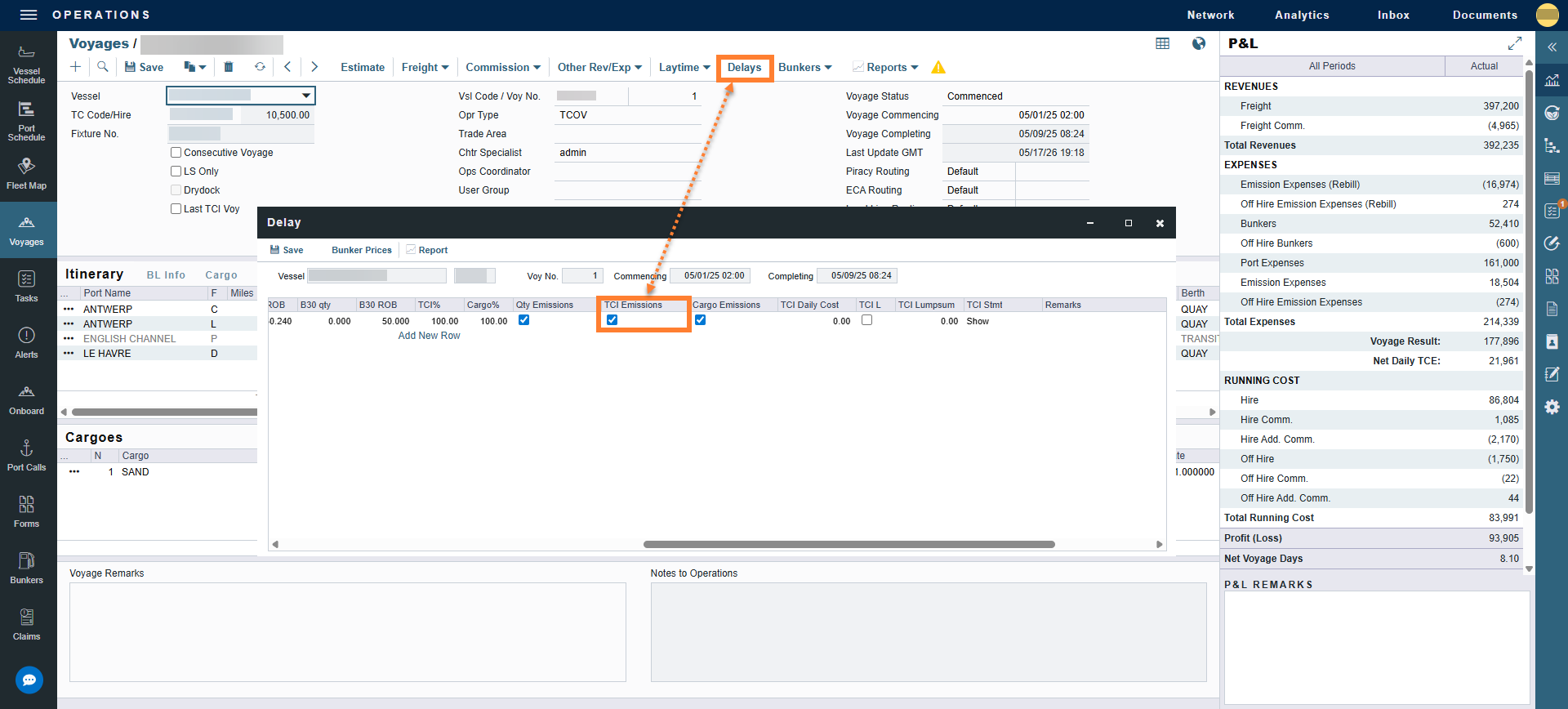
This workflow covers how to invoice EU ETS offhire emissions costs through the Time Charter contract. Before proceeding, confirm that the delay has been entered on the Delays form with the TCI or TCO Emissions check box selected, and that CFGEnableOffhireEmissionsPnl is enabled. EU ETS offhire costs can be invoiced as either a cash invoice or an allowance invoice depending on your organization’s workflow. Both are covered in the steps below.
Step 1: Navigate to the Operations module → Voyage Manager → Delays.
-
The delay should already be entered. For details on configuring the delay, see Entering Offhire on the Delays Form.
Step 2: Open the Time Charter contract and navigate to the EU ETS tab.
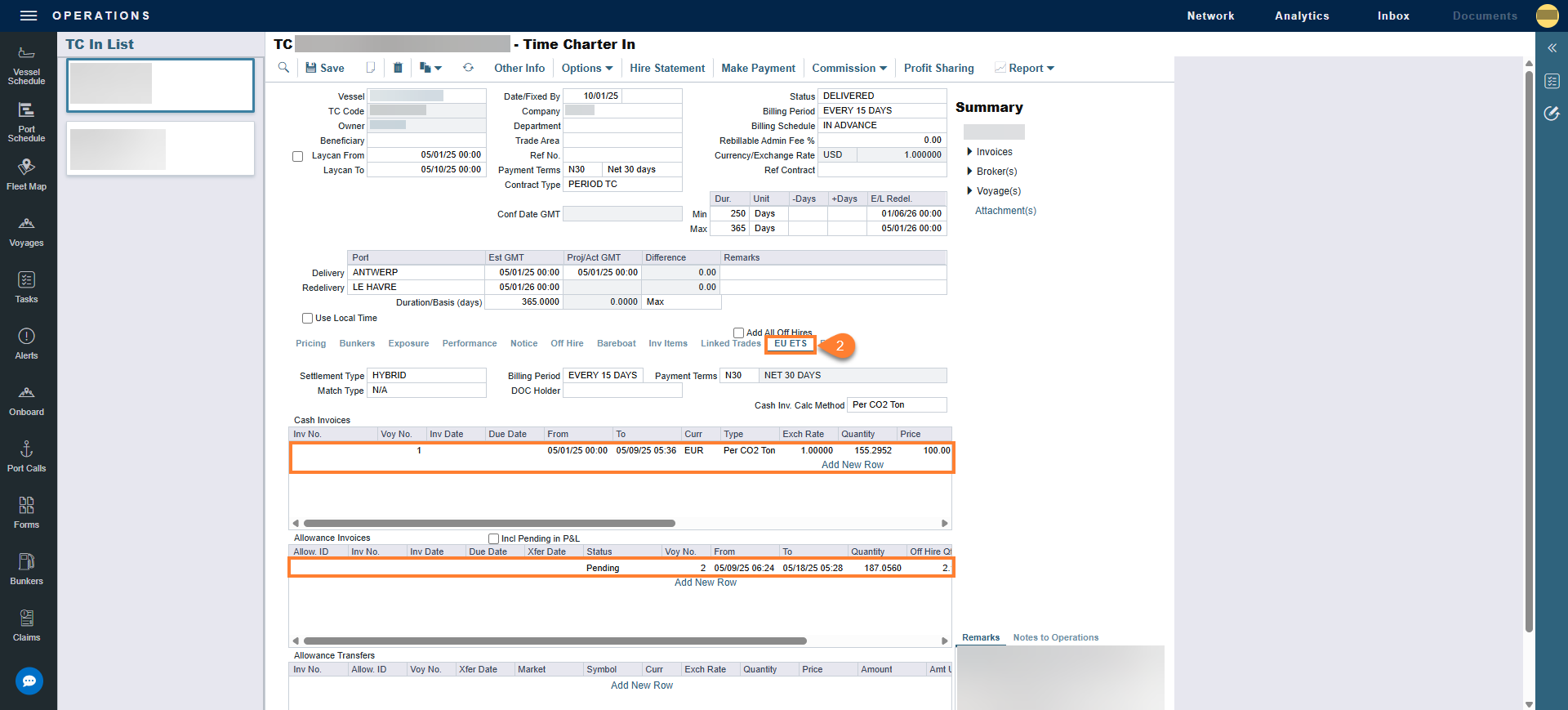
Step 3: Create the cash or allowance invoice.
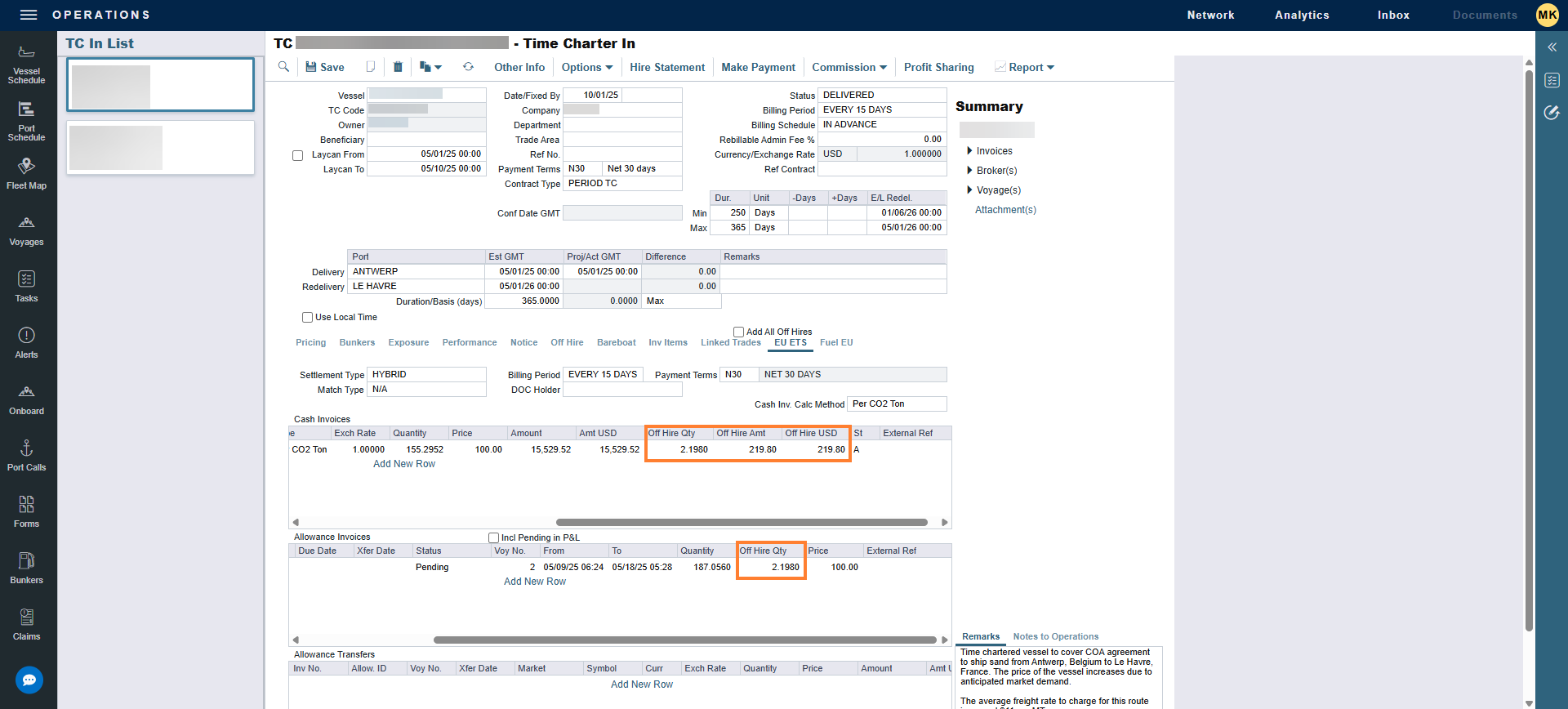
-
When creating either invoice type, offhire columns are available in each invoice grid and populate automatically when the EU ETS expense is per metric ton and there is an offhire even associated with the EU ETS cost.
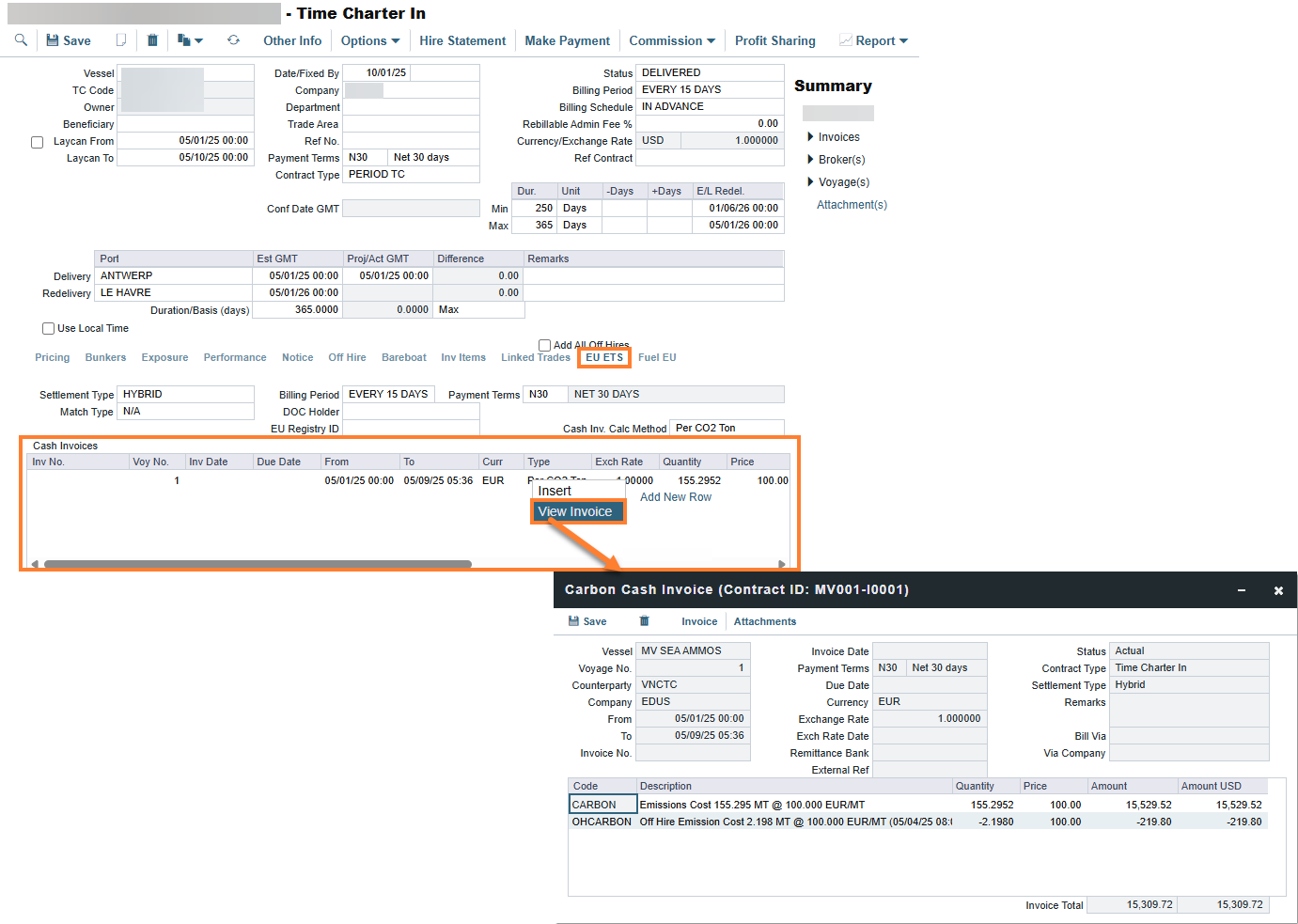
Step 4: After creating the invoice, right-click the cash or allowance line item to verify the EU ETS and offhire emissions cost.
Step 5: Click Save. This invoice is ready to be approved and posted.
Alternative Path: Adding EU ETS Offhire Emissions to TC Invoice
You can also add the EU ETS offhire emissions to the Time Charter invoice.
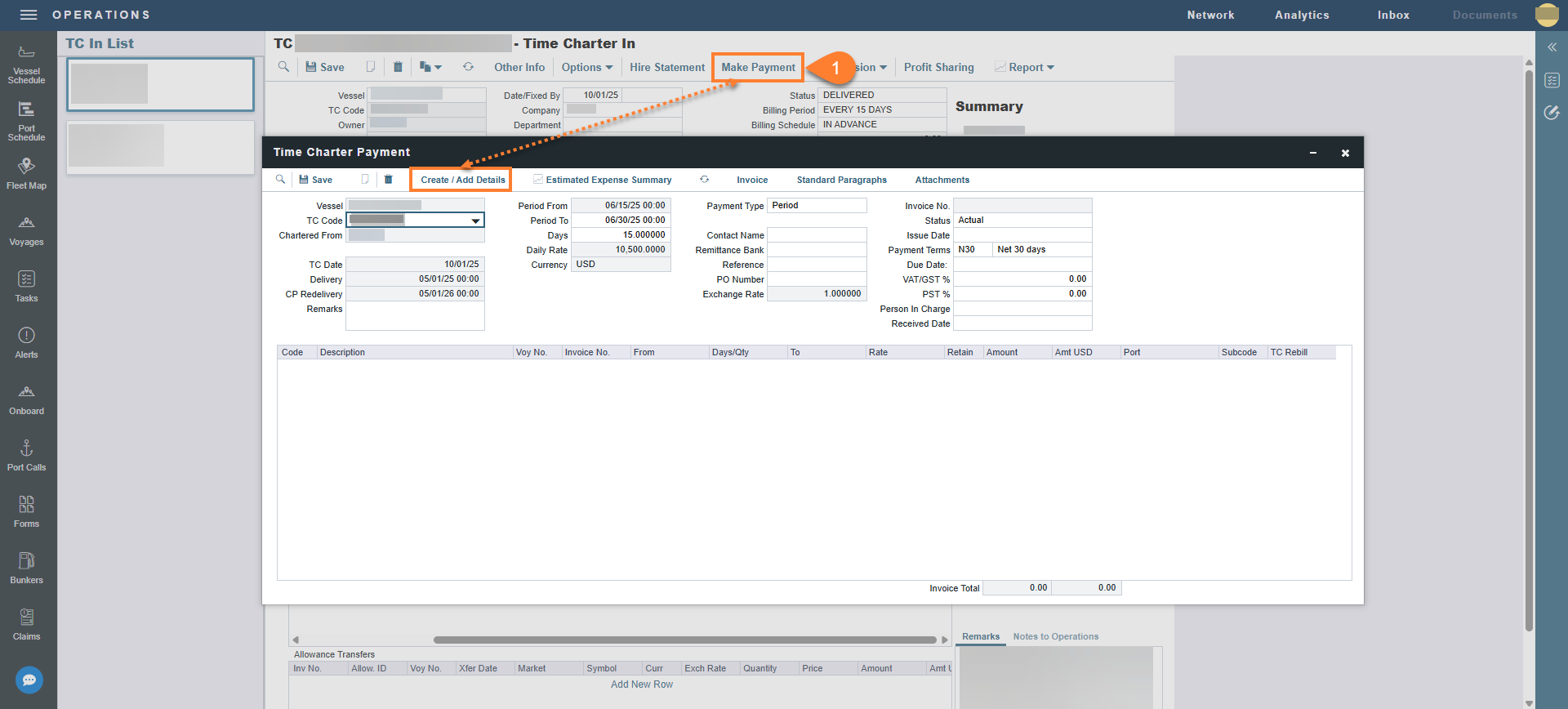
Step 1: Select Make Payment → select Create/Add Details.
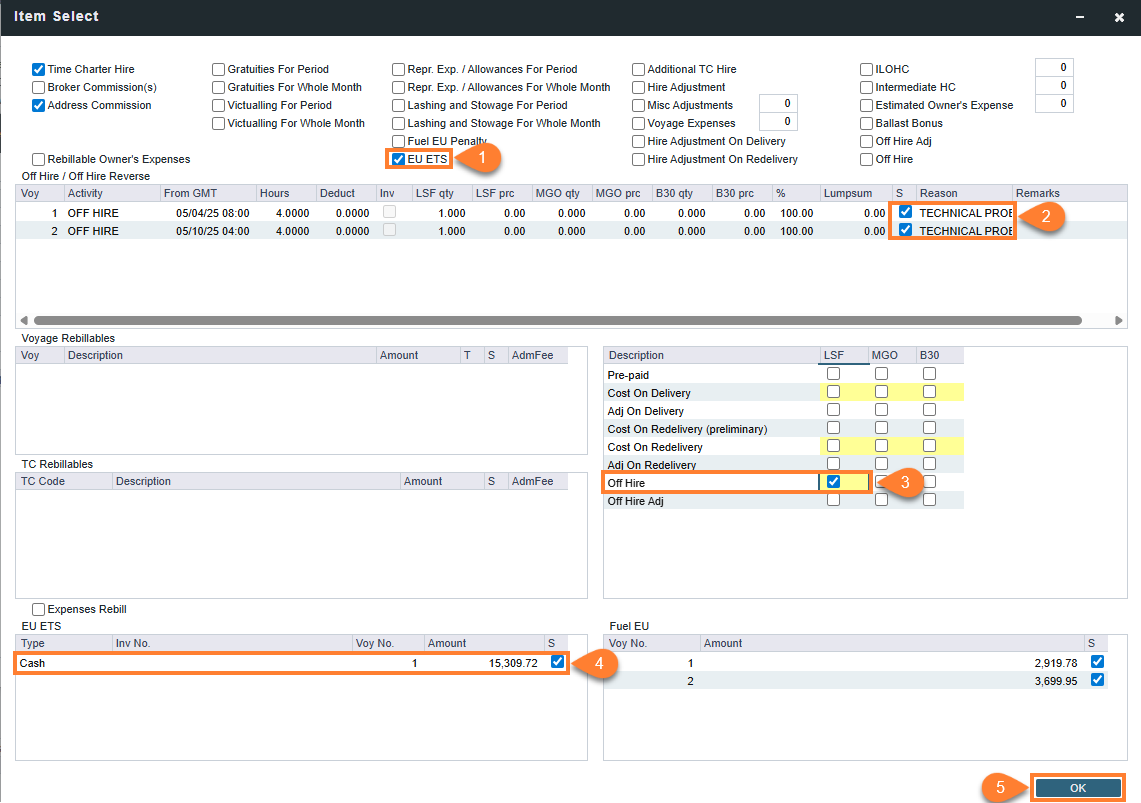
Step 2: Create the payment by selecting the EU ETS check box → selecting the offhire and offhire bunkers to include in the payment → select the EU ETS amount → select OK.
-
This adds the EU ETS offhire emissions cost to the Time Charter payment.
Step 3: Select Save.
EU ETS Offhire Emissions Rebill Workflow
This workflow applies to both Cargo and VC In contracts, covering the invoicing of costs directly from the contract or freight invoice. While the focus is on Cargo contracts, the same process applies to VC In contracts.
Step 1: Navigate to Operations → Voyage Manager → select Delays.
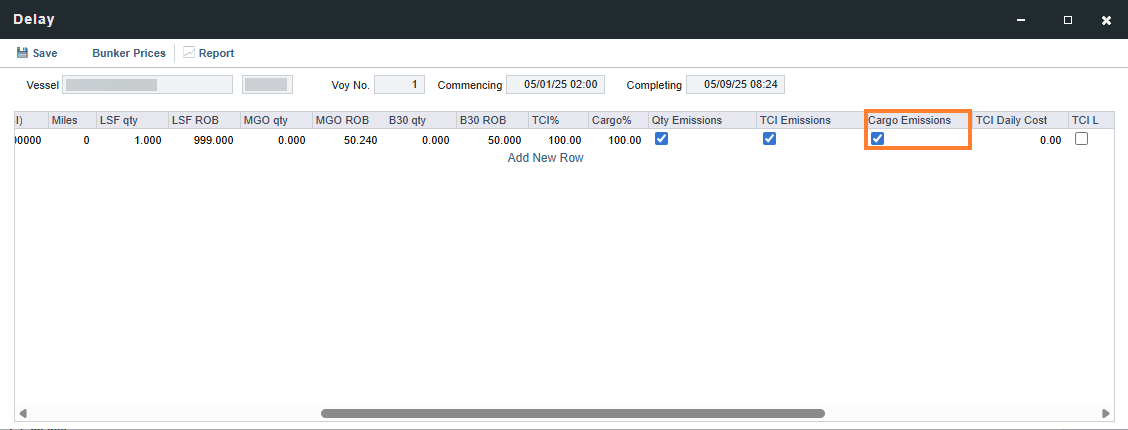
-
At the invoicing stage, the delays should already be entered. Verify that the Cargo Emissions check box is selected, as this tells IMOS to deduct the cost from the cargo charterer as a rebill.
Step 2: Open the voyage's Cargo contract → select the Emissions tab.
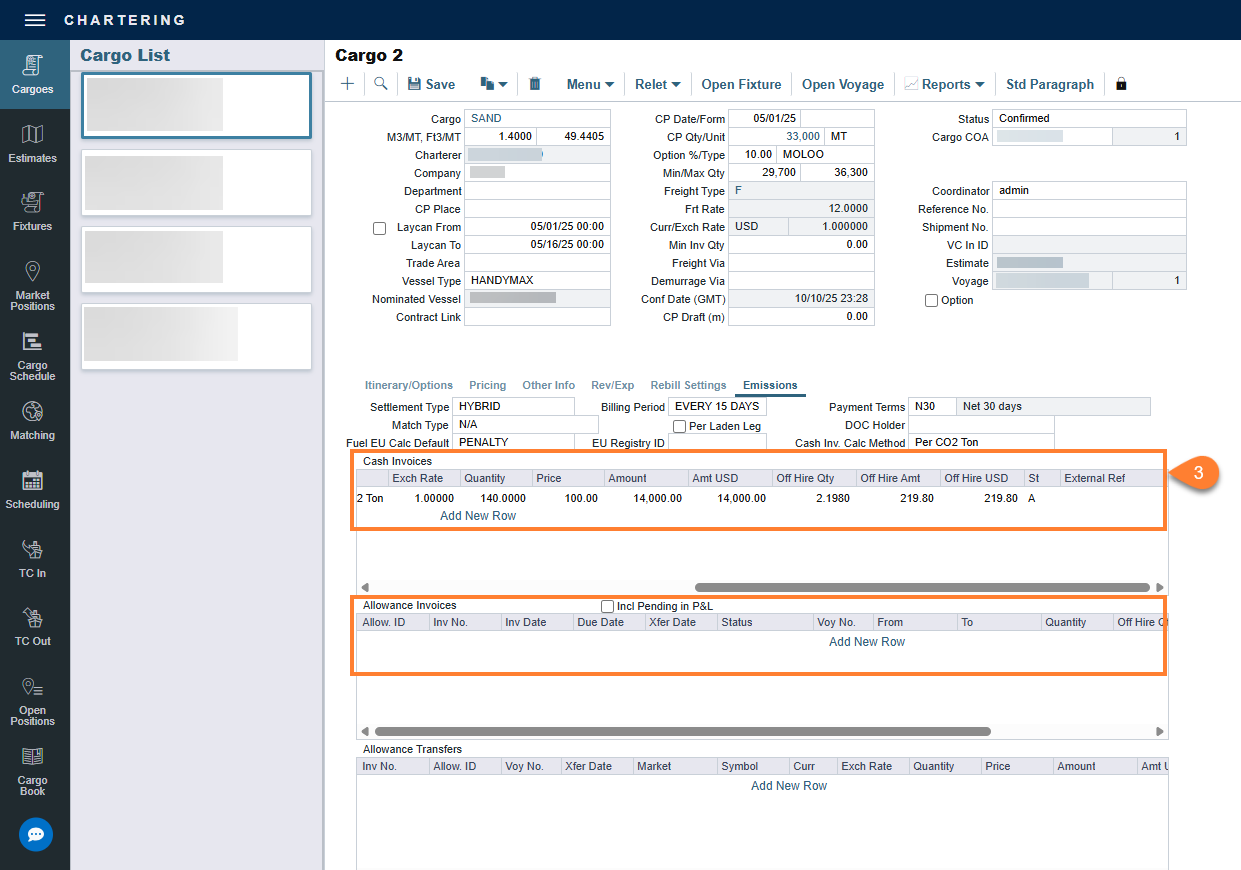
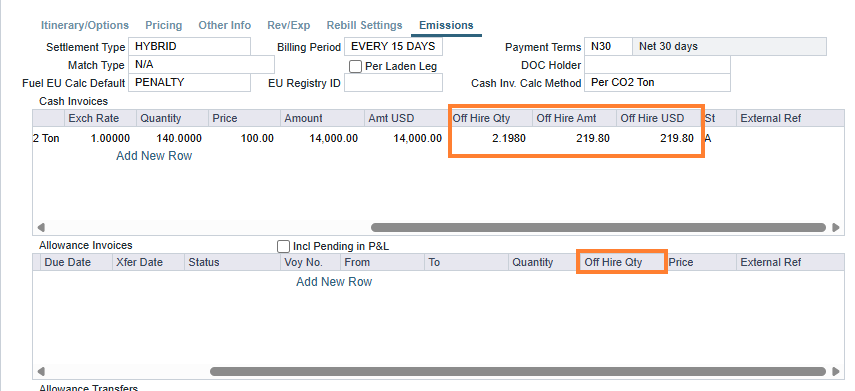
Step 3: Create either the cash or allowance invoice based on your company's workflows.
-
When creating either invoice types, there are now offhire columns available for each invoice grid. These columns populate automatically when the EU ETS expense is per metric ton and there is an offhire event associated with the cost.
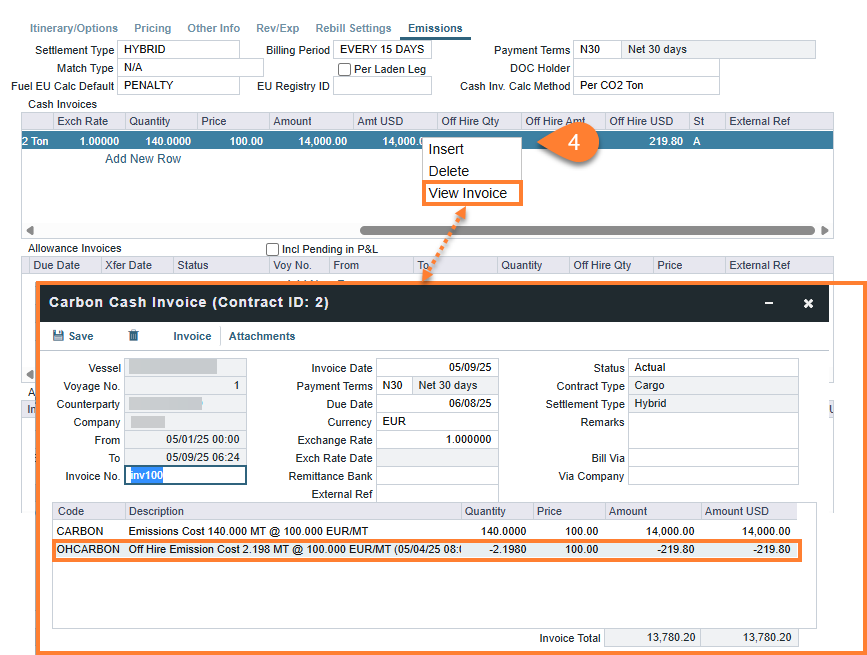
Step 4: After creating the invoice, you can right-click the Cash or Allowance Invoices line item to review the EU ETS and offhire emissions cost.
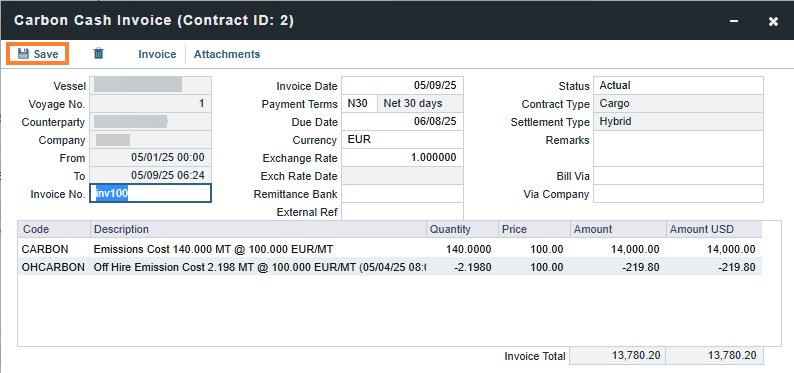
Step 5: Click Save.
Adding EU ETS Offhire Emissions to the Freight Invoice
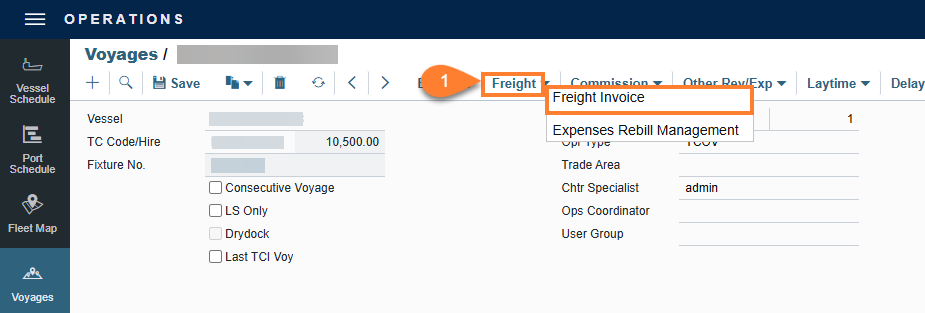
Step 1: Navigate to the Voyage → select Freight → select Freight Invoice.
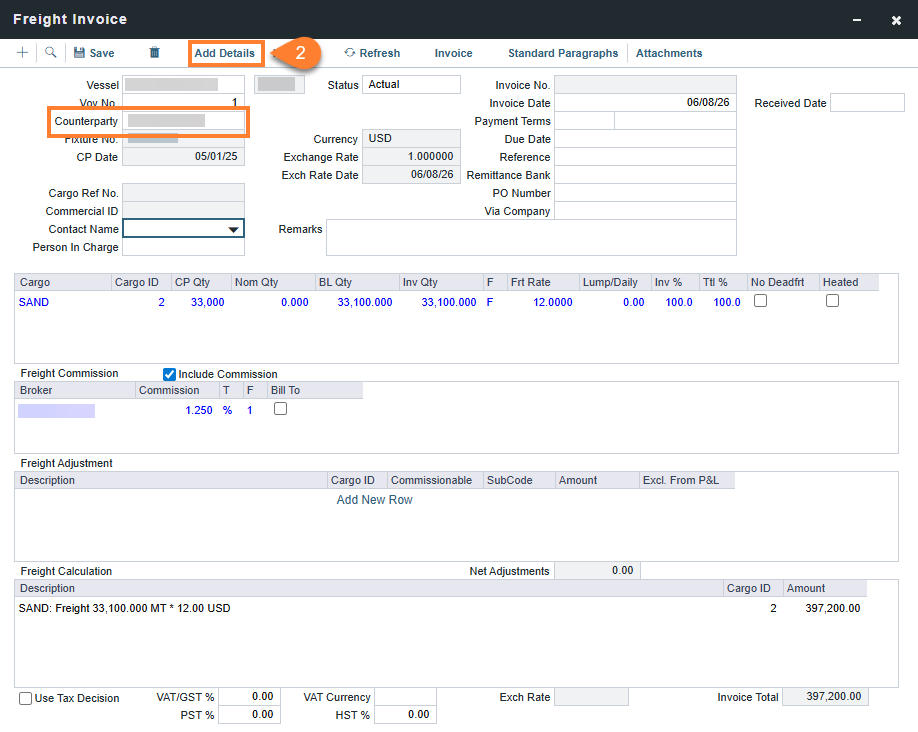
Step 2: Add the charterer you are billing freight to, then select Add Details.
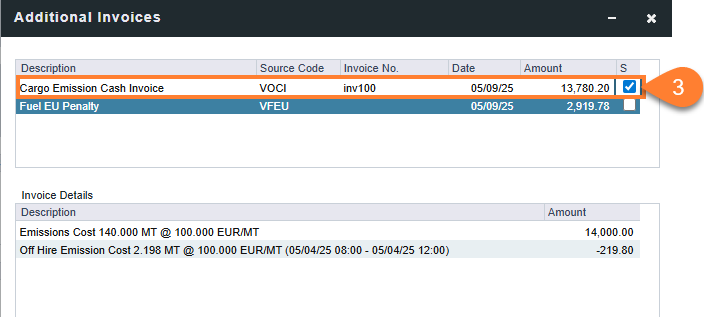
Step 3: Select the EU ETS check box to add the offhire and penalty. After making this selection, the Invoice Details grid displays the EU ETS penalty rebill and the offhire amount being deducted from this cost.
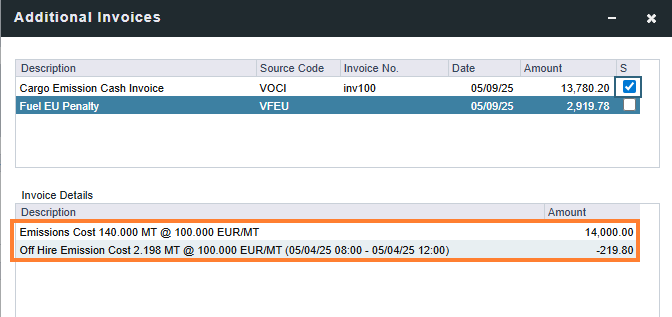
For example, $14,000.00 - $219.80 = $13,780.20
Step 4: Close the window.
After completing these steps, the EU ETS amount on the invoice is reduced by the offhire amount.
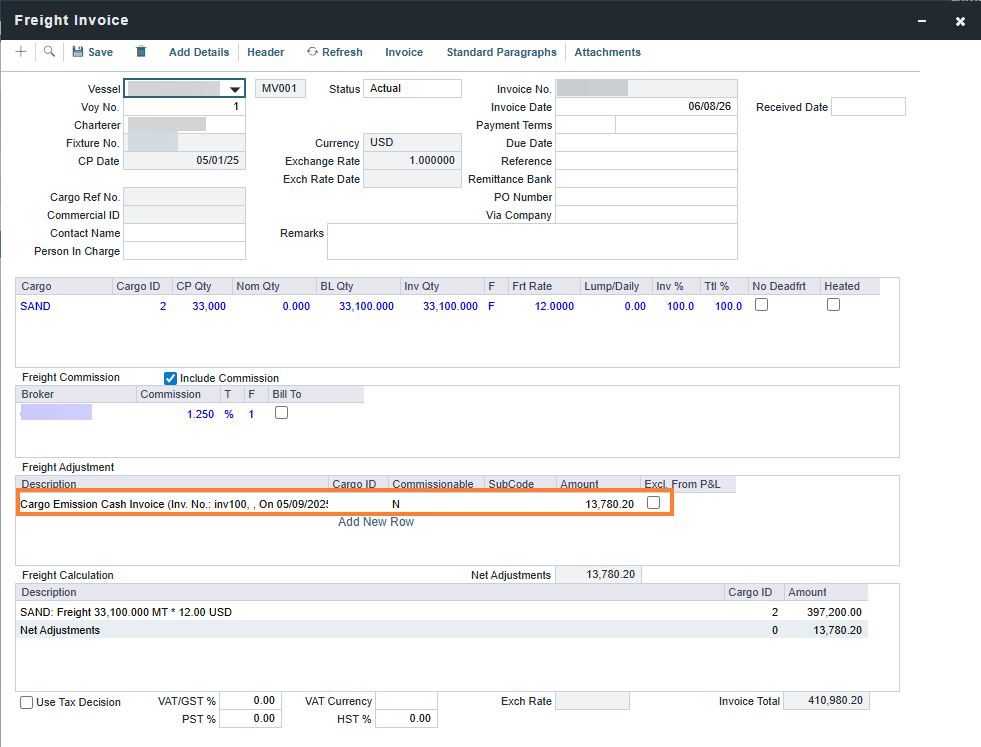
Note: The offhire deduction is not displayed to the cargo charterer in the invoice.
Step 5: Click Save.
Additional Considerations
Before creating an EU ETS offhire invoice, review the following considerations.
-
Independent Processing: Cash and Allowance invoices are handled as separate workflows and cannot be combined into a single document.
-
One-Time Invoicing: Because offhire invoices are period-based, IMOS prevents re-invoicing for a period that has already been processed.
-
Company Attribution: The Via Company field is available on both invoice types to ensure the correct entity is credited or debited for the offhire emissions.
-
Allowance Netting: For allowance invoices, the quantity reflects the specific allowances for the offhire period, net of any surplus from the overall voyage balance.