
This quick user guide explains how to connect and use the Shipfix and WhatsApp integration to create and share circulars (orders, tonnage, fixtures) directly from your mobile via the Shipfix WhatsApp Bot.
What you can do with the WhatsApp integration
-
Forward or type market updates (orders, tonnage, fixtures) to the Shipfix WhatsApp Bot to auto-create circulars in Shipfix.
-
Have Shipfix tag the circular source as “WhatsApp” for auditability and filtering.
-
Capture intelligence on the go without logging into the desktop app.
Prerequisites
-
An active Shipfix user account with access to market screens.
-
Mobile phone with WhatsApp installed and network connectivity.
Setup: Connect your phone to the Shipfix WhatsApp Bot
-
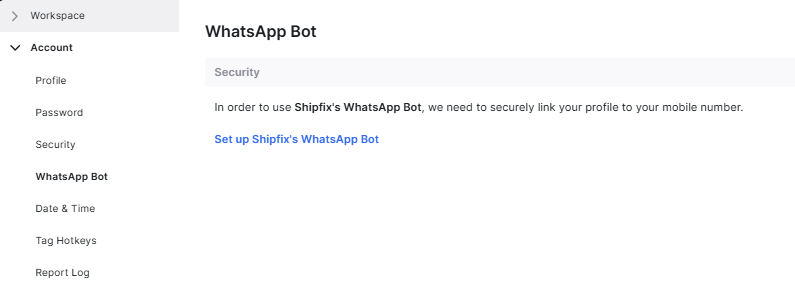
Open Shipfix on web, click your avatar (top-right), then select Profile → Account → WhatsApp Bot.
-
Add the Shipfix Bot to your contacts using the on-screen QR code or the displayed phone number.
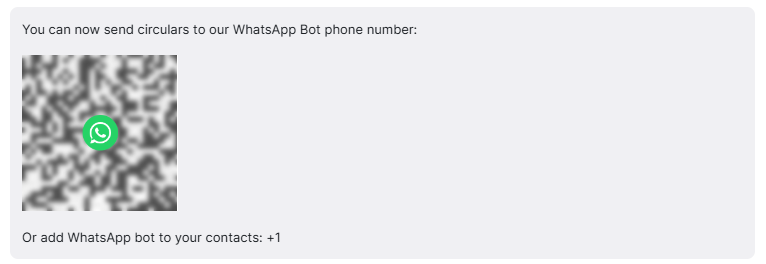
Tip: Save the contact as “Shipfix Bot” and pin it in WhatsApp for quick access.
Send circulars via WhatsApp (on the go)
-
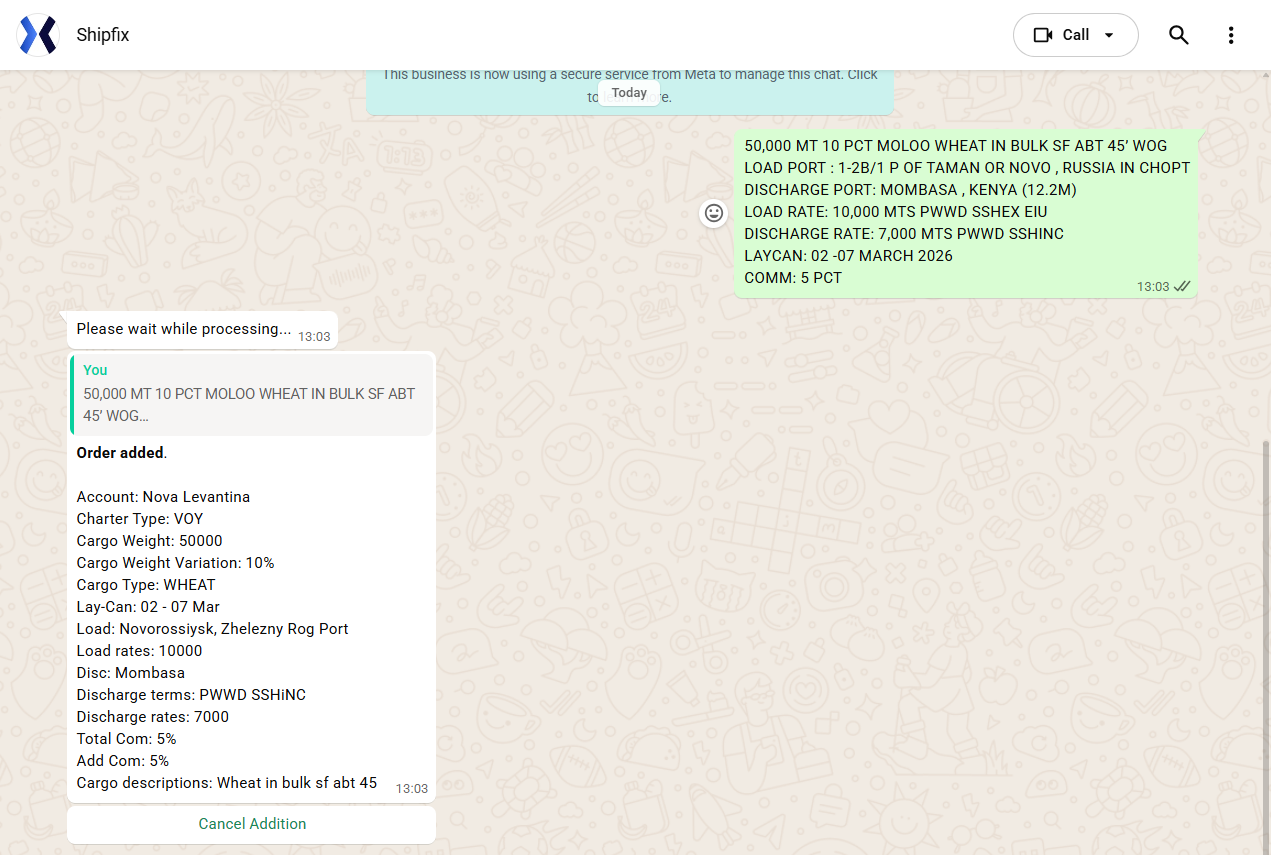
Forward a received market message OR type details directly to the Shipfix Bot.
-
Include structured details where possible. Examples:
-
For Orders: “Order | CPP | 37k | AG/West Coast India | laycan 25–27 | load Jubail | discharge Kandla | broker ABC | comments …”
-
For Tonnage: “Tonnage | MR | 45k dwt | Repositioning Singapore | ETA 20–21 | last cargo CPP | Owners XYZ …”
-
For Fixtures: “FXD | LR1 | 60k | Jubail–Rotterdam | ws XXX | laycan 18–19 | CP terms as per …”
The Bot parses the message, creates the corresponding circular in Shipfix, and sets the source to “WhatsApp.”
Verify and collaborate in Shipfix
-
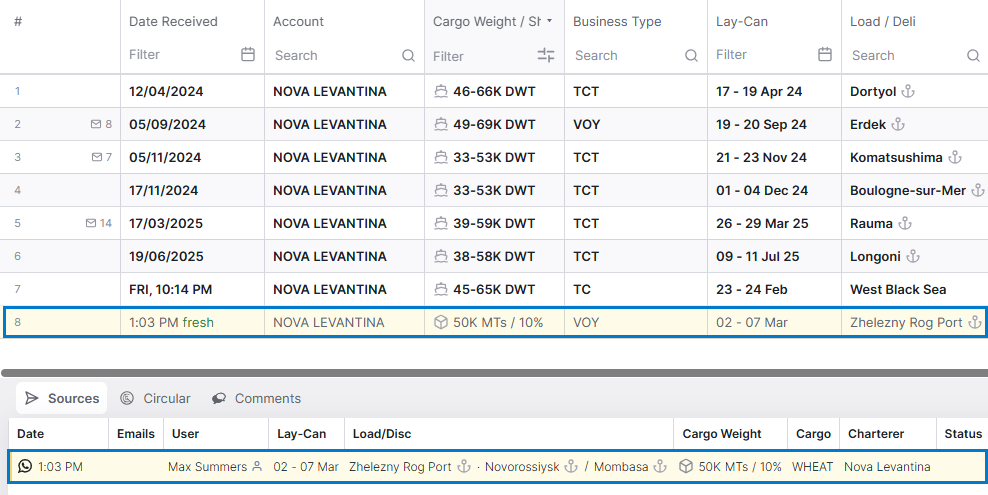
Open the relevant market screen (Orders, Tonnage, Fixtures) to see the newly created circular.
-
Filter by Source = WhatsApp to quickly find mobile-submitted entries.
-
Edit fields if needed (ports, laycan, vessel class, brokers) and @-reference teammates like [Add Chartering Lead] or [Add Operations Manager] in comments for follow-up.
Best practices
-
Keep a consistent message format (commodity, size, route, laycan/ETA, constraints) to improve parsing accuracy.
-
Forward the original broker text when possible to preserve context.
-
Review Bot confirmations; if the Bot asks for a missing field, reply with only the requested value.
Privacy & Security: The Bot ingests only the messages you send to it. Internal governance and data retention policies still apply. Avoid sending non-market personal information.