
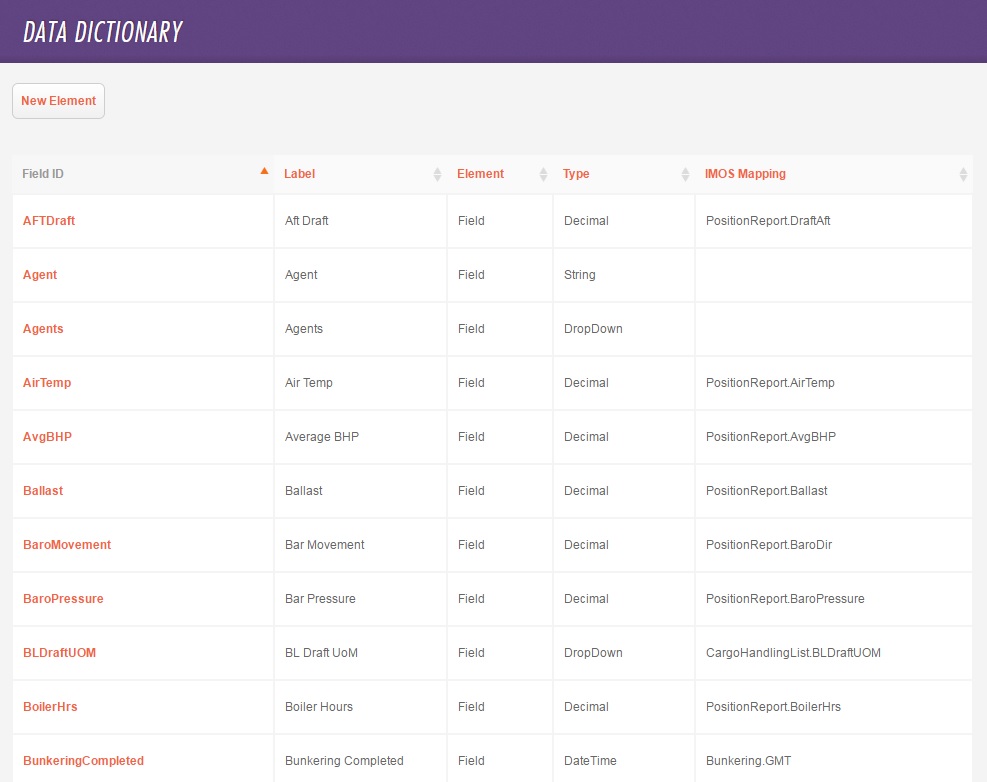
The Data Dictionary, from the Forms and Vessels tab, includes all the elements you can use for designing forms. It is available with Veslink Optimum.
-
Field ID: Internal identifier created by Veslink.
-
Label: Name that appears on the form.
-
Element: Element category.
-
Type: Data type.
-
IMOS Mapping: For fields that map to IMOS, the IMOS field ID.
Adding a Custom Element
To add a new element:
-
Click

-
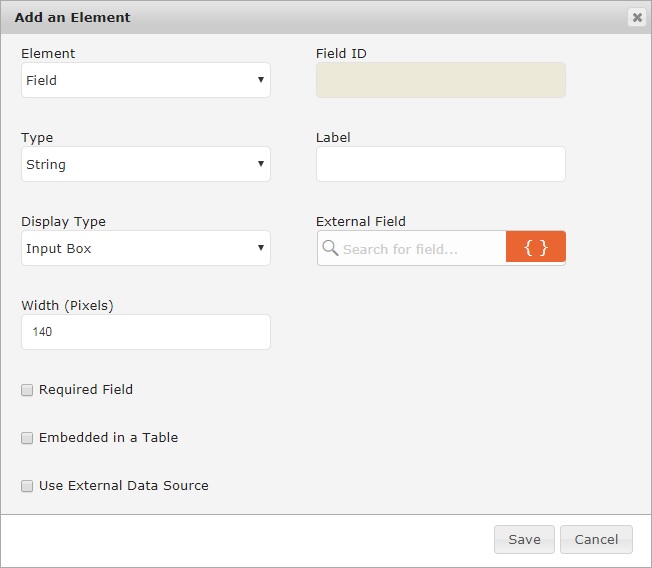
Complete the fields:
-
Element: Element category; remaining fields depend on the category:
-
Field:
-
Type:
-
String: Select Display Type Input Box, Autocomplete, Text Area, or Drop Down.
-
Data Source (for Autocomplete and Drop Down only): Select a data source, or select Custom to create a comma-separated list of allowed values.
-
-
Integer
-
Decimal: Rounds to two decimal places, unless Decimal Places is specified.
-
Date
-
Date Time: Includes a GMT selection list.
-
Boolean
-
Complex Control: Select Complex Type Bunkers ROB, Upcoming Ports, Cargo Handling, or Port Activities.
-
Table: For the fields in the table, select the Embedded in a Table check box and then select the table.
-
Static Table: When selected, a drop-down menu appears of all fields in the table. To determine the number of rows that automatically appear, click a Field ID.
Example: In the drop-down menu, if you click Engine_Type and there are four possible values for that field, four table rows automatically appear with the Engine Type column completed.
-
-
Time Span
-
Port Activity: On the Activity Mapping drop-down menu, select an IMOS Port Activity to map to the element. Adding this element type to a form enables you to update Date From, Time, and Remarks for an individual Port Activity (instead of for all activities using the Port Activity control).

-
-
Required Field
-
Enable Number Formatting (for Integer and Decimal fields only): When this check box is selected and Use Browser's Locale Setting for Number Formatting is selected in System Configuration, number formatting respects browser locale settings.
-
Use External Data Source (for Voyage Instructions only): Select to link this element to an IMOS field or table:
-
Set the Root Form to Voyage.
-
Search for a field or table name, and then select it.
-
-
-
Paragraph: Enter static Text to be displayed on the form. To help you format text, the rich text editor appears.

-
Image: Specify a local or online Image Reference URL.
-
-
Field ID: Automatically generated internal identifier: the Label with spaces replaced by underscores. If that ID already exists, a number is appended.
-
Label: Element label to appear on the form.
-
External Field (for Voyage Instructions only): To embed other Data Dictionary elements in a Boolean field Label or paragraph Text box, do either of the following:
-
In External Field, search for a field and then click

-
Type a Field ID inside curly brackets. For example, to embed Aft Draft, type {AFTDraft}.
When you send Voyage Instructions from IMOS, the latest field values populate.
-
-
Width (Pixels) (for String, Integer, Decimal, and Time Span fields and paragraphs only)
-
Related Article: Veslink Voyage Reporting