Introduction
The Distances Editor is used to override all Distances with the desired distance between ports. This override applies to all users.
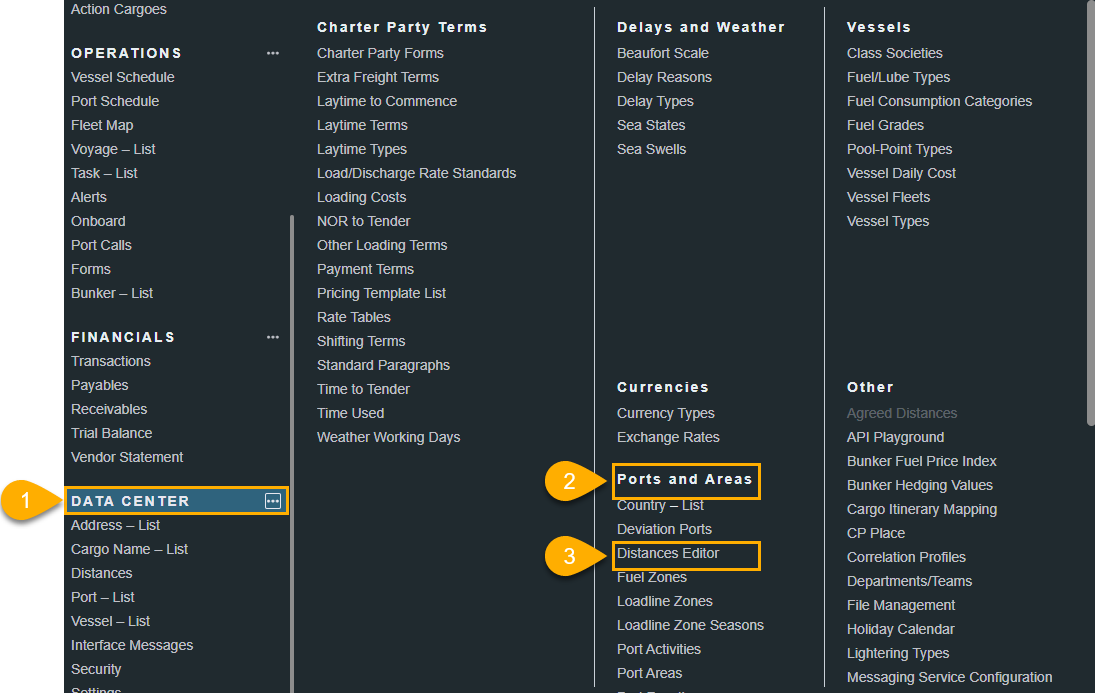
You can find the Distances Editor under Data Center > Ports and Areas > Distances Editor.
Setting up the Distances Editor
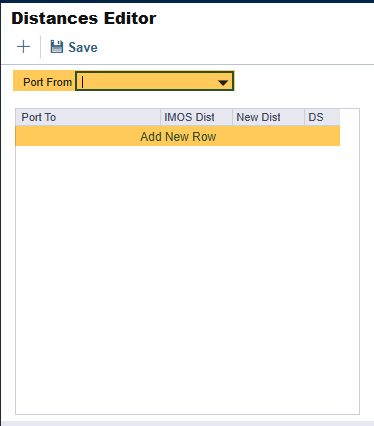
In the Distances Editor, select the Port that you want to create the Distance for, then add a New Row to add the other Port for the Distances calculator:
Using the Distances Editor
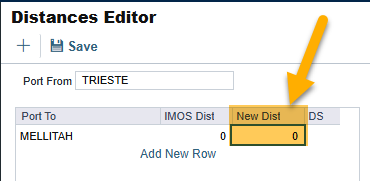
For this exercise, let’s use ports Trieste and Mellitah for illustration.
In this example, the Distance as 0.
When we create/edit any Estimate or Voyage, you will see that travelling to and from Trieste and Mellitah will now have 0 Miles populated automatically in the itinerary.
This means that as long as you are travelling from Trieste to Mellitah, or from Mellitah to Trieste, the number of miles will always default to 0.
Please see the following example images.
-
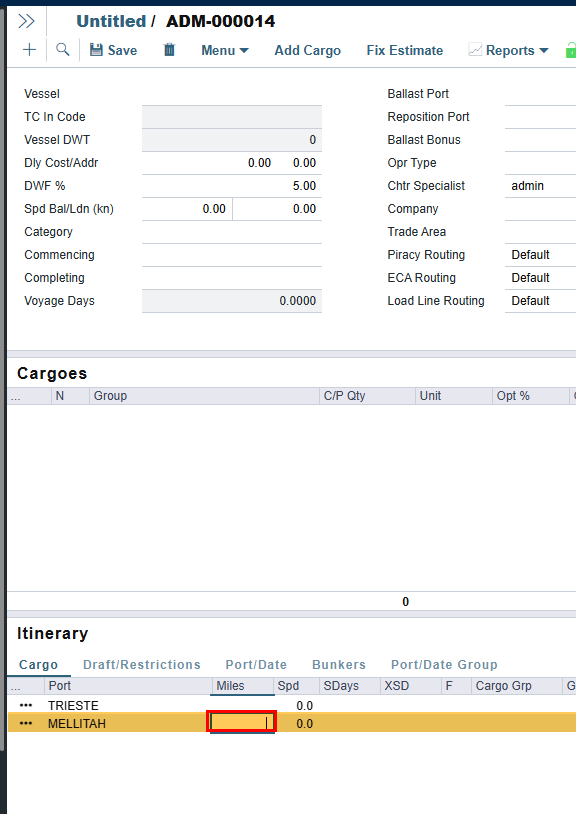
Create a new Estimate and go from Trieste to Mellitah. We can observe that the number of miles is 0.
-
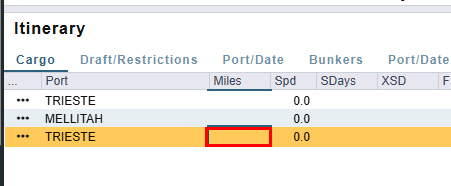
In the estimate, go from Mellitah to Trieste - we can also observe that there are no Miles populated:
-
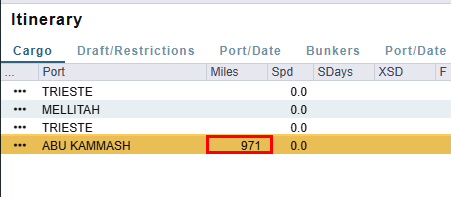
For illustration, we will add a new port in the itinerary to prove that the number of miles should automatically populate for any other port (that has not had its distances overridden):
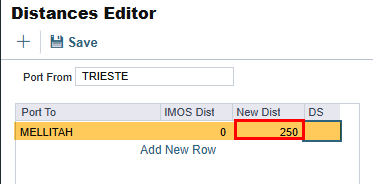
When we edit the Distance in the Distances Editor, we will be able to see that the Distances will be overridden:
-
Let us assume that we want to change the distance between Trieste and Mellitah to 250 miles:
-
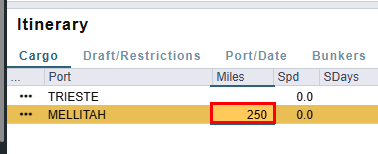
In the estimate, we can now see that the number of miles populated defaults to 250:
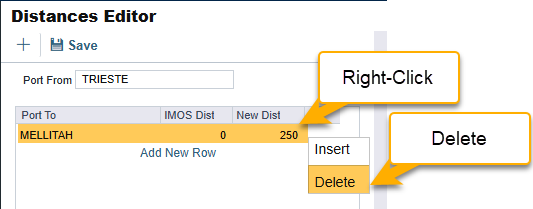
To remove the override, delete the line from the Distances Editor:
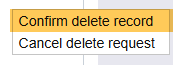
Then, click Confirm delete record.
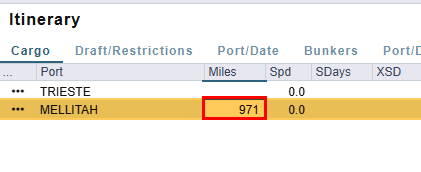
We can now observe that the Distances will be automatically calculated to the correct number: