
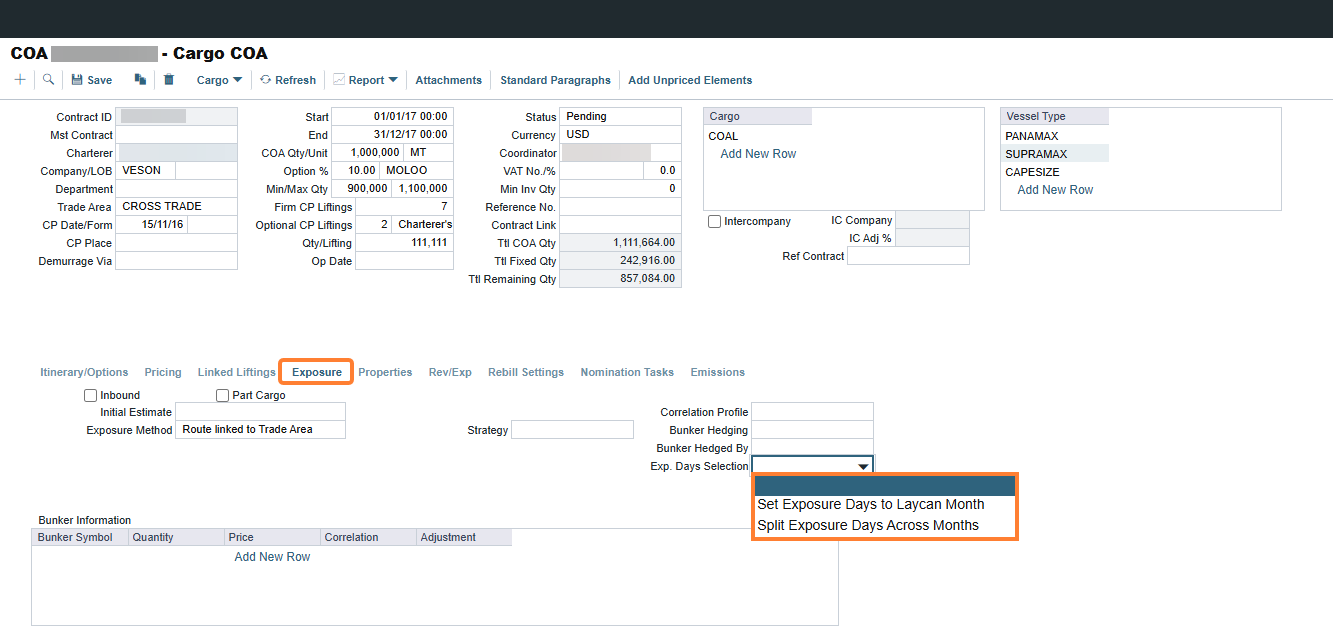
When you enable configuration flag CFGCargoExposureContractDays, a dropdown menu appears on the Exposure tab of Cargo, VC In, and COA contracts. Use it to choose how exposure days are allocated for each contract, instead of applying one method to every contract through the Trading Profile.
-
This feature requires schema version 54.2 or higher. To upgrade your schema, open a support ticket.
-
This flag overrides the Split Cargo/VC In Exposure Days Across Months profile flag in the Trading Profile when the value is set to Laycan or Split.
Flag details
|
Field |
Value |
|---|---|
|
Name |
Cargo Exposure Contract Days |
|
Flag |
CFGCargoExposureContractDays |
|
Description |
When enabled, a dropdown menu appears on the Exposure tab of COA, Cargo, and VC In contracts. Use it to set the cargo day exposure method on the contract. The selection overrides the Split Cargo/VC In Exposure Days Across Months flag in the Trading Profile. |
|
Data Type |
String |
|
Default Value |
Disabled |
|
Possible Values |
Disabled, Laycan, Split, Blank |
Flag values
-
Disabled: The dropdown menu does not appear. Exposure follows the Split Cargo/VC In Exposure Days Across Months flag in the Trading Profile.
-
Blank: When the dropdown is left blank, exposure follows the Split Cargo/VC In Exposure Days Across Months flag in the Trading Profile.
-
Laycan: The dropdown menu appears, and new contracts default to Set Exposure Days to Laycan Month.
-
Split: The dropdown menu appears, and new contracts default to Split Exposure Days Across Months.
How the contract selection affects exposure
The selection on a contract determines how IMOS calculates its exposure in the Trading P&L Summary and the Trade Details List, regardless of the Trading Profile setting.
|
Contract selection |
Trading Profile flag selected |
Trading Profile flag cleared |
|---|---|---|
|
Blank |
Exposure days split across months |
Exposure days in laycan month |
|
Set Exposure Days to Laycan Month |
Exposure days in laycan month |
Exposure days in laycan month |
|
Split Exposure Days Across Months |
Exposure days split across months |
Exposure days split across months |
The Trading Profile flag has no effect on a contract with a selection. This lets you show cargoes that use different methods in the same view.
Use the dropdown menu
-
Open a Cargo, VC In, or COA contract.
-
Click the Exposure tab.
-
In the Exposure Days dropdown menu, select a value.
-
Save the contract.
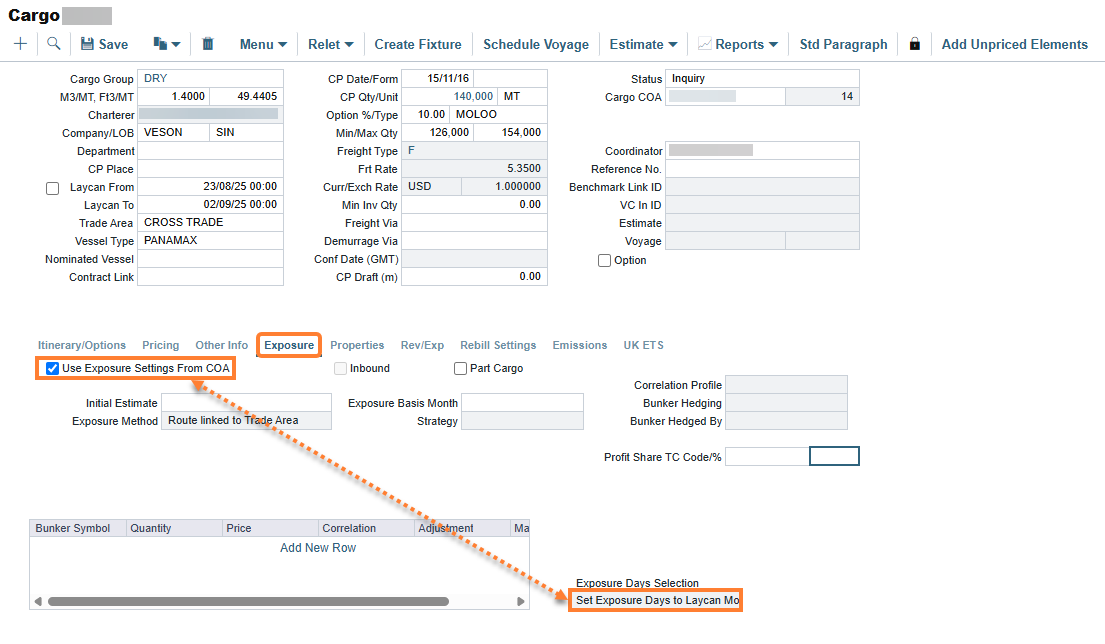
If a cargo uses the exposure settings from its COA, the cargo inherits the selection from the COA after you save the COA.