
When our team sends you a sensitive email, it is protected using Microsoft Purview Message Encryption. This guide explains how to open and read those emails.
What Does an Encrypted Email Look Like?
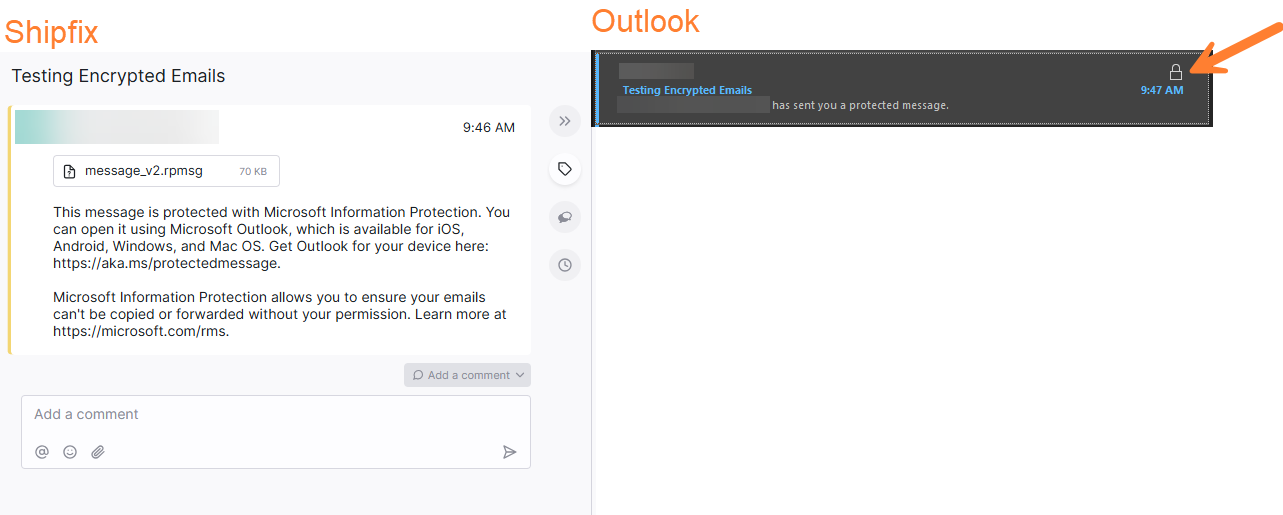
You receive an email with:
-
A subject line that may include a tag such as [Encrypted] or [Secure].
-
A short message body instructing you to read the secure message.
-
An attachment named message.html or a Read the message button.
-
A lock icon at the side of the email preview.
-
A message body mentioning message is protected and an attachment with .rpmsg extension. It can sometimes have a .html extension, depending on the email provider.
How to Open the Encrypted Email
Outlook 365 Users
If you use Outlook 365 with a work or school account, you may be able to double-click the email to open and read it directly — no extra steps are needed. If that works for you, you are all set!
If the email does not open normally, follow the steps below.
Option 1 – You Have a Microsoft Account (Outlook, Office 365, Hotmail, Live)
-
Open the email in your inbox.
-
Click Read the message or open the message.html attachment.
-
The Microsoft encrypted message portal opens.
-
Click Sign in with a Microsoft account.
-
Sign in using your Microsoft account credentials.
-
The secure message opens in your browser.
Option 2 – You Have a Google Account (Gmail)
-
Open the email in your inbox.
-
Click Read the message or open the message.html attachment.
-
The Microsoft encrypted message portal opens.
-
Click Sign in with Google.
-
Sign in using your Google account credentials.
-
The secure message opens in your browser.
Option 3 – You Have a Different Email Address (Yahoo, corporate, etc.)
-
Open the email in your inbox.
-
Click Read the message or open the message.html attachment.
-
You are redirected to the Microsoft encrypted message portal.
-
Click Sign in with a one-time passcode.
-
Look in your inbox for an email from msgsecure@microsoft.com containing a one-time passcode.
-
Enter the passcode on the portal page.
-
The secure message opens in your browser.
The one-time passcode expires after 15 minutes. If it expires, return to the original email and click Read the message again to request a new code.
Replying to an Encrypted Email
You can reply securely directly from the encrypted message portal. Your reply is also encrypted and delivered securely to our team.
Frequently Asked Questions
-
Why did I receive an encrypted email?
Our team encrypts emails that contain sensitive or confidential information to protect your data in transit.
Do not share sensitive information – such as bearer tokens, sign-in credentials, API tokens, or screenshots containing sensitive information – in the Jira ticket portal.
-
Do I need to install any software?
No. Encrypted messages open in your web browser — no plugins or software installation required.
-
Is it safe to click the link or open the attachment?
Yes. The message.html attachment and the Read the message button redirects you to office365.com or outlook.office365.com, which are legitimate Microsoft domains.
-
I did not receive the one-time passcode. What should I do?
-
Check your spam or junk folder for an email from msgsecure@microsoft.com.
-
Wait a few minutes and check again.
-
If the issue persists, contact us for a new encrypted email encrypted email.
-
I am not able to open [FILE] with the following extension (for example, XML).
Contact the assigned support team member, who can share the file in another format.
-
Who can I contact for help?
If you are unable to open the encrypted email, contact the assigned support member in your ticket. We may send you a zip file containing the files and a password for the zip file separately.