
-
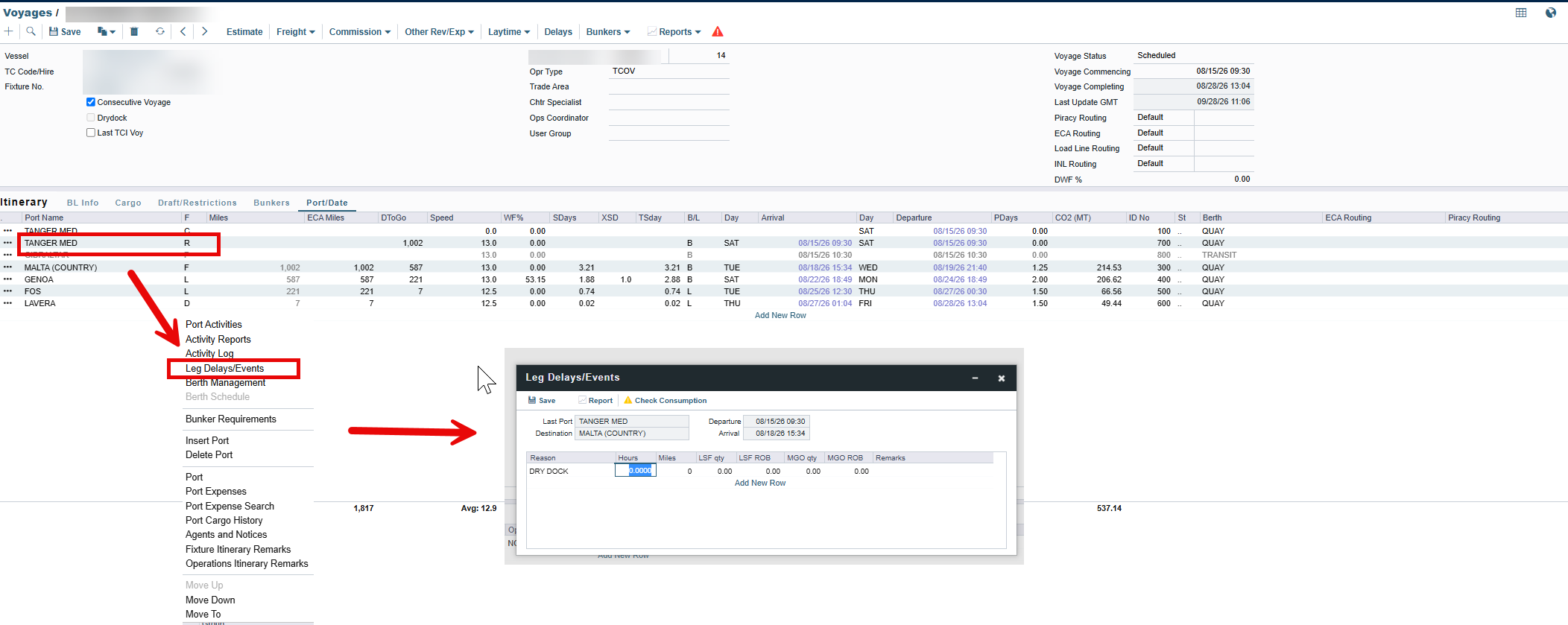
Open the voyage and go to the itinerary.
-
Add a line for the dry-dock port and mark its port function as R. Use the arrival and departure times that reflect when the vessel went off hire and when offhire ended
-
Open the delay information for that port call and record the dry-dock period there.
-
Also record the same period in the Delays section of the main menu. The dry dock needs to be entered in both places.
The screen below shows a completed entry, with the key fields numbered.

|
No. |
Field |
What to enter |
|
1 |
Activity / Reason |
Activity OFF HIRE, Reason DRY DOCK. |
|
2 |
From / To |
The dry-dock period: the date and time the vessel went off hire and the date and time it came back. |
|
3 |
LSF qty / MGO qty |
The bunkers used by the owners during the dry-dock period. |
|
4 |
LSF ROB / MGO ROB |
The bunker ROBs when the vessel was redelivered. |
|
5 |
Bunker Prices button |
Opens the bunker prices for the entry, where you add the prices for the bunkers (see question 5). |
Deducting the dry-dock period from hire. The Delays entry also has a TCI Daily Cost field. This is the daily cost that is deducted from the hire payment for the dry-dock period.

1 TCI Daily Cost: the daily cost to be deducted from the hire payment for the dry-dock period.
How do I add the bunkers the owner supplied during dry dock?
Owner-supplied bunkers are entered like any other bunkers, but against their own bunker requirement and marked so that they are not treated as charterer-paid.
-
On the voyage, add a new bunker requirement for the dry-dock port.
-
Add the bunker lifting against that requirement: quantity, grade, and the price the owner paid (or the agreed price for the off-hire bunkers).
-
If the owner paid for the bunkers on their own account, mark the lifting accordingly .
-
Save, then check the ROB after the lifting against the activity report for the same date.