
When a TC-Out (TCO) estimate is fixed and linked to a voyage, users may notice that the net voyage days in the fixture/voyage are different from the days shown in the estimate. This article explains why this discrepancy occurs and how to resolve it.
Why do net voyage days in the fixture differ from the estimate?
The discrepancy is caused by a combination of two factors:
-
The TCO duration in the estimate has been manually amended (e.g. a trader extended the duration from the original itinerary-based calculation to reflect a longer contracted period).
-
The estimate is then fixed as a Trip TC contract rather than a Period TC contract.
When the TCO duration is manually amended in the estimate and the fixture is created as a Trip TC, IMOS calculates net voyage days in the voyage based on the original itinerary alone, ignoring the manually adjusted duration. This results in fewer days being reflected in the fixture.
|
Example Original itinerary-based TCO duration: 40.77 days Trader manually amends TCO duration in estimate to: 75 days Estimate fixed as Trip TC → Net voyage days in fixture: 40.77 days Estimate fixed as Period TC → Net voyage days in fixture: 75 days |
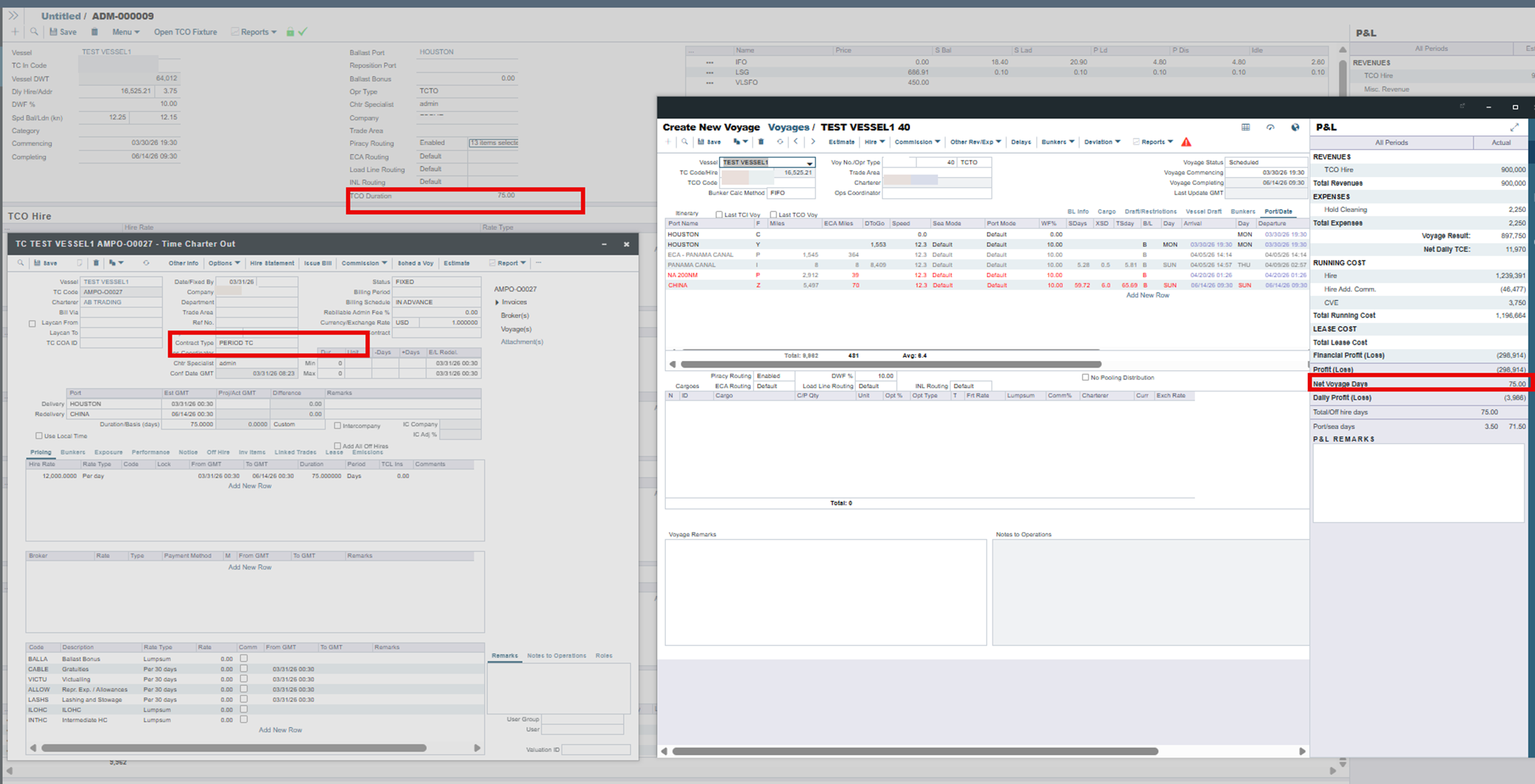
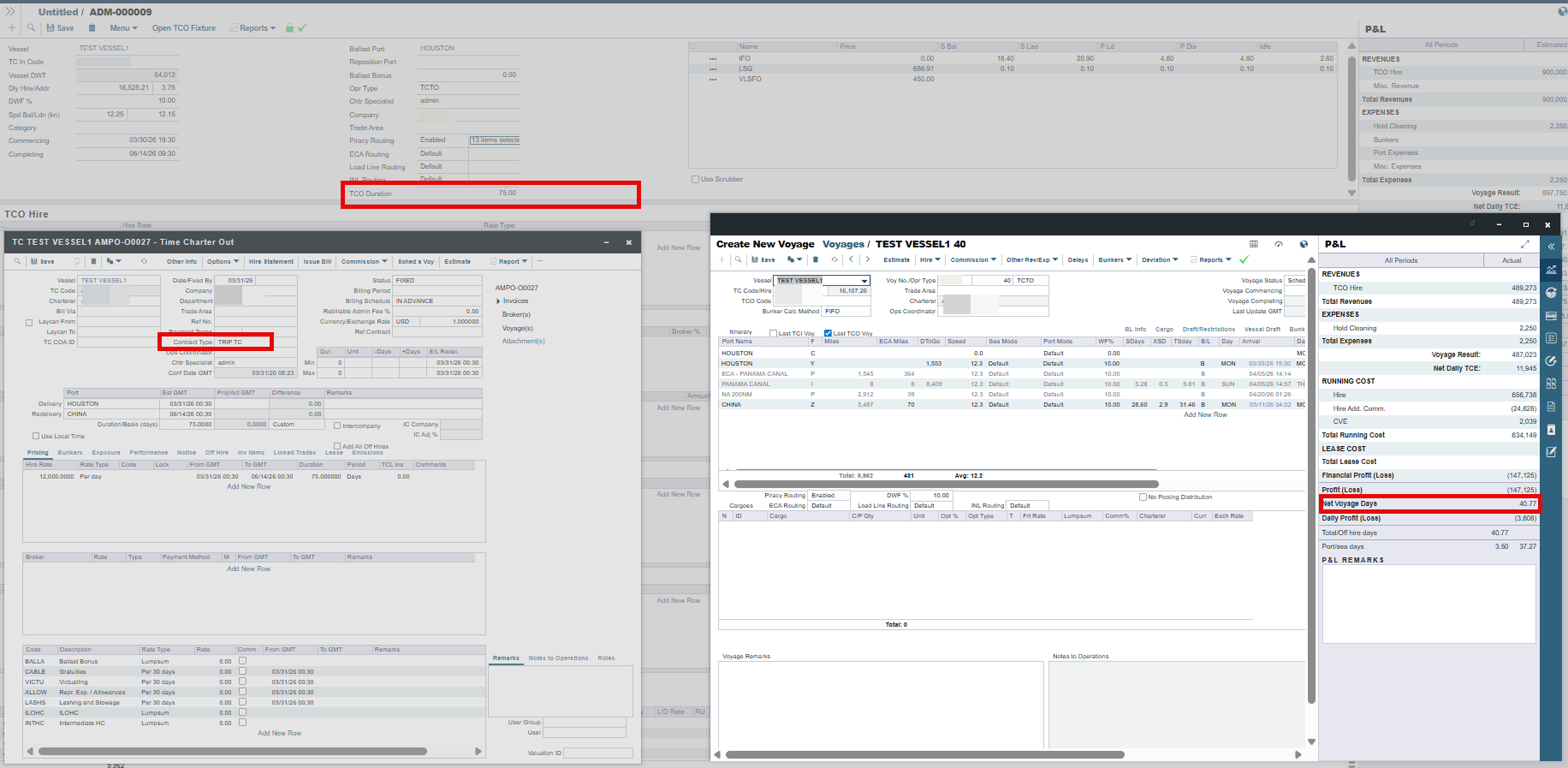
What happens if the TCO duration is NOT manually amended?
If the TCO duration in the estimate is not manually amended, the net voyage days will transfer correctly to the fixture regardless of whether the estimate is fixed as a Trip TC or Period TC contract. No discrepancy will occur in this scenario.
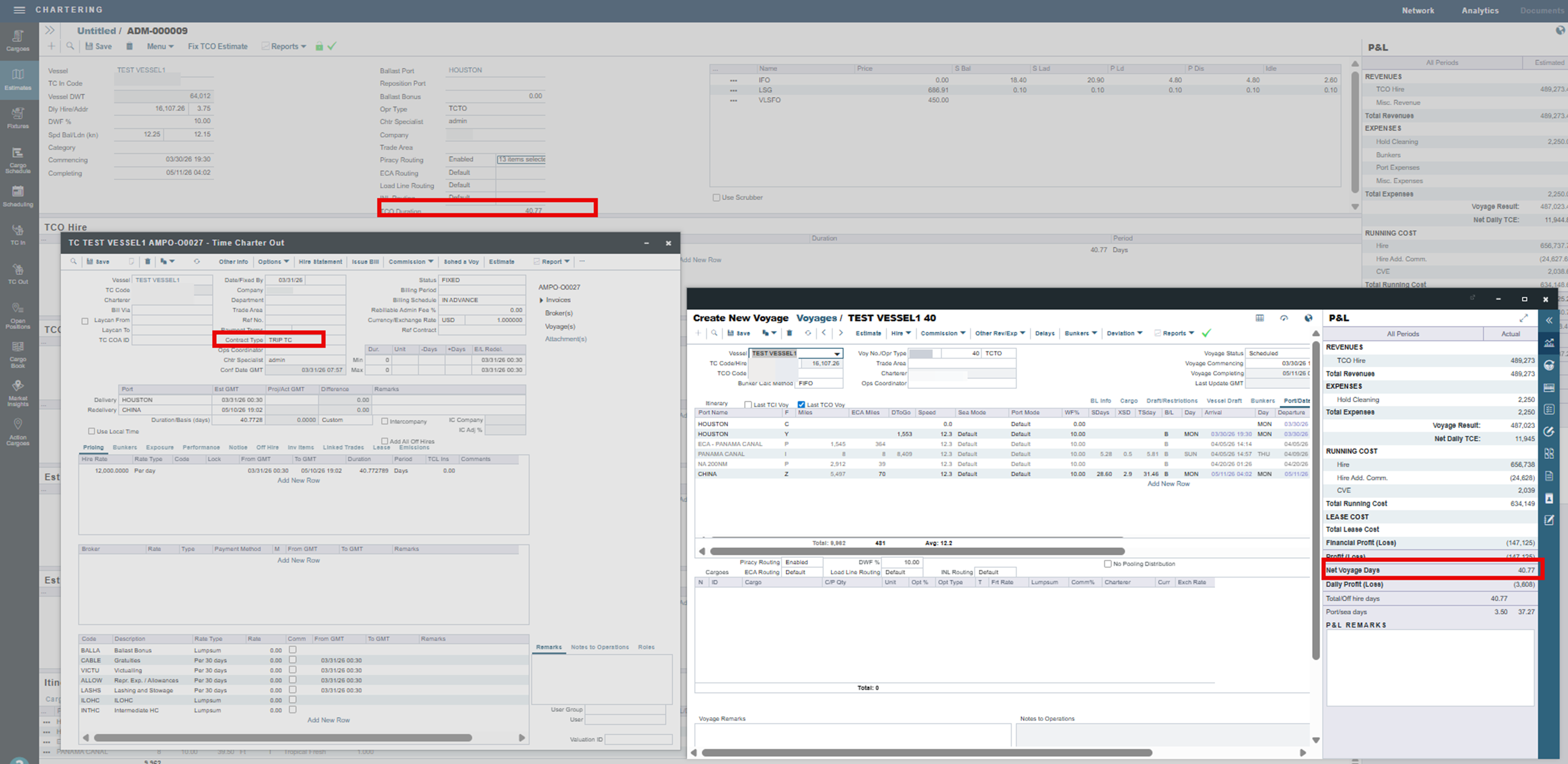
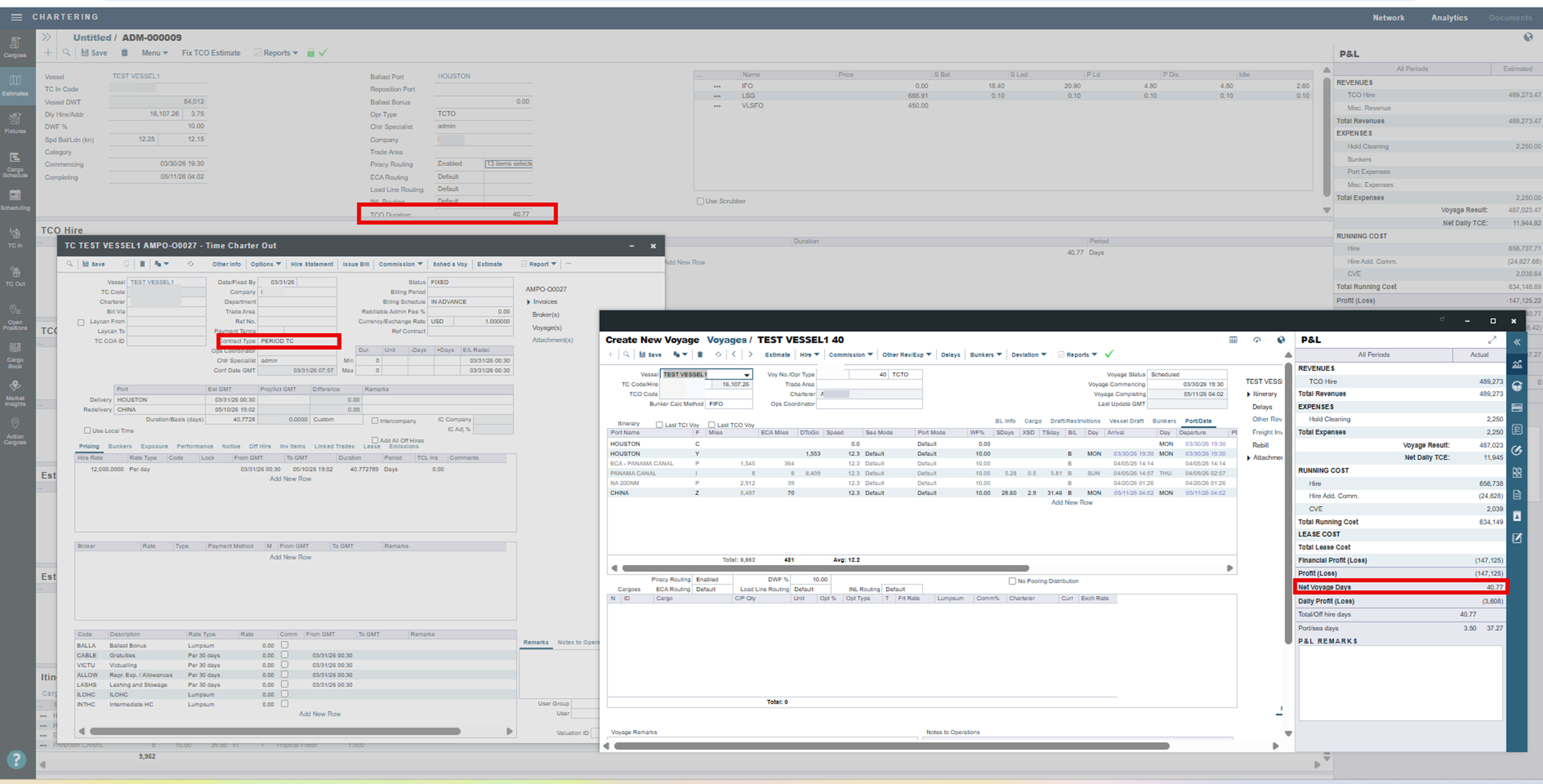
How do I fix the discrepancy?
Option A — Fix the estimate as a Period TC contract
If the trader has manually amended the TCO duration in the estimate, fix the estimate as Period TC instead of Trip TC. This ensures the full amended TCO duration carries over to the voyage.
-
Open the estimate in IMOS.
-
Locate the contract type field in the fixture properties.
-
Select Period TC as the contract type.
-
Fix the estimate. The net voyage days in the voyage will now reflect the manually amended TCO duration.
Option B — Amend the voyage itinerary to add idle days
If you prefer to keep the contract type as Trip TC, you can instead amend the voyage itinerary directly to include idle/waiting days so that the total itinerary duration matches the intended TCO duration.
-
Open the voyage in IMOS.
-
Navigate to the voyage itinerary/schedule.
-
Add idle or waiting port days to account for the additional duration.
-
Save — the net voyage days will update to reflect the adjusted itinerary.